
Optimove has a range of AI-led tools, built to enable you to focus on what matters, with AI doing some of the heavy lifting for you. From our predictive models that calculate the likelihood of a customer to convert, churn or become a high-value customer, to deciding which campaign or journey will yield the highest incremental lift.
In OptiMail, you can use our Gen AI Assistant to create copy for email marketing campaigns directly from the OptiMail template editor, as well as translate, proofread, and spell-check content.
Powered by OpenAI integration, the Gen AI assistant will draft content based on your prompts so you can quickly generate copy for your email marketing campaigns.
Incorporating AI into your workflow will not only save you time and effort but will also make you even more creative with new content ideas.
How to Use
- You can write prompts, to generate new content.
- You can input existing content, and have the AI Assistant suggest changes.
Generating New Content
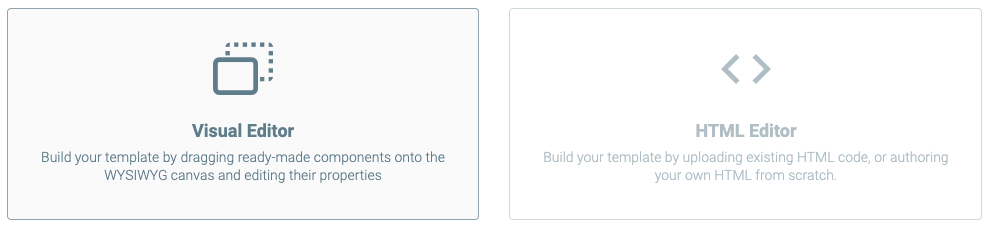
- Open a new or existing template, and choose Visual Editor.
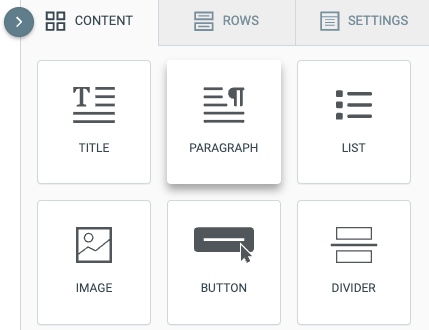
- When you have your template open, drag and drop a Content Block into your template. Note: The Gen AI assistant is only available with Title, Paragraph, List, and Button.
- Click on your Content Block to edit.

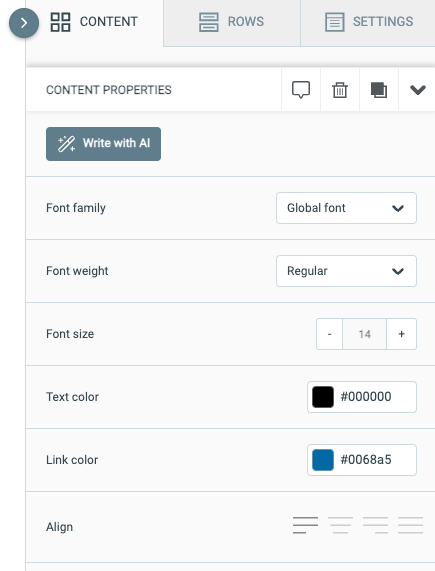
- When the editor appears on the right-hand side, you’ll notice a button that says “Write with AI”. Click on this to open the Gen AI assistant.
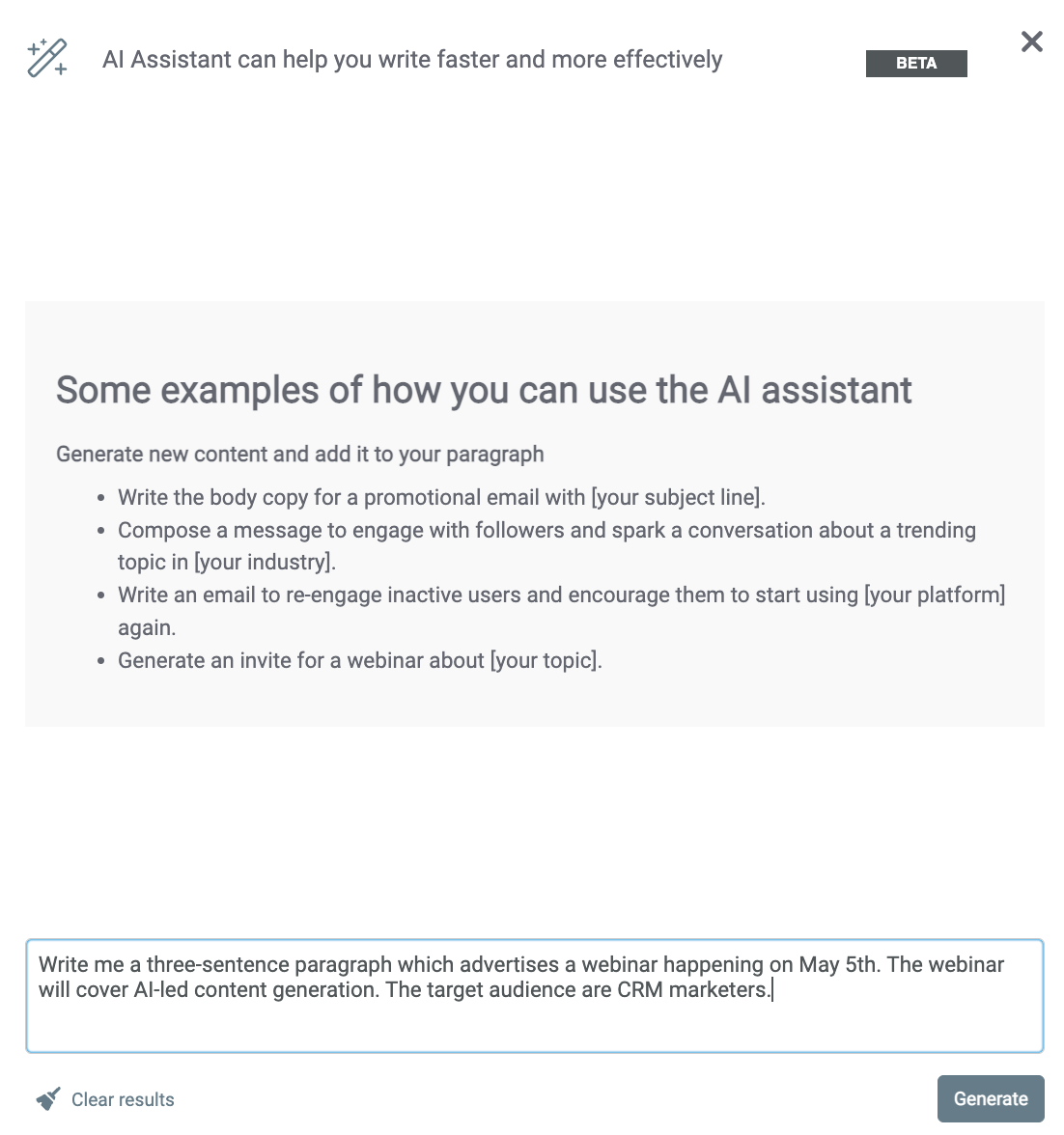
- If you are experienced in using ChatGPT, the Gen AI assistant works in much the same way. The first step is to write a prompt, based on the intended goal of your email templates. For example: “Write me a three-sentence paragraph which advertises a webinar happening on May 5th. The webinar will cover AI-led content generation. The target audience are CRM marketers.”
- The Gen AI assistant will then generate copy for you, based on the prompt.
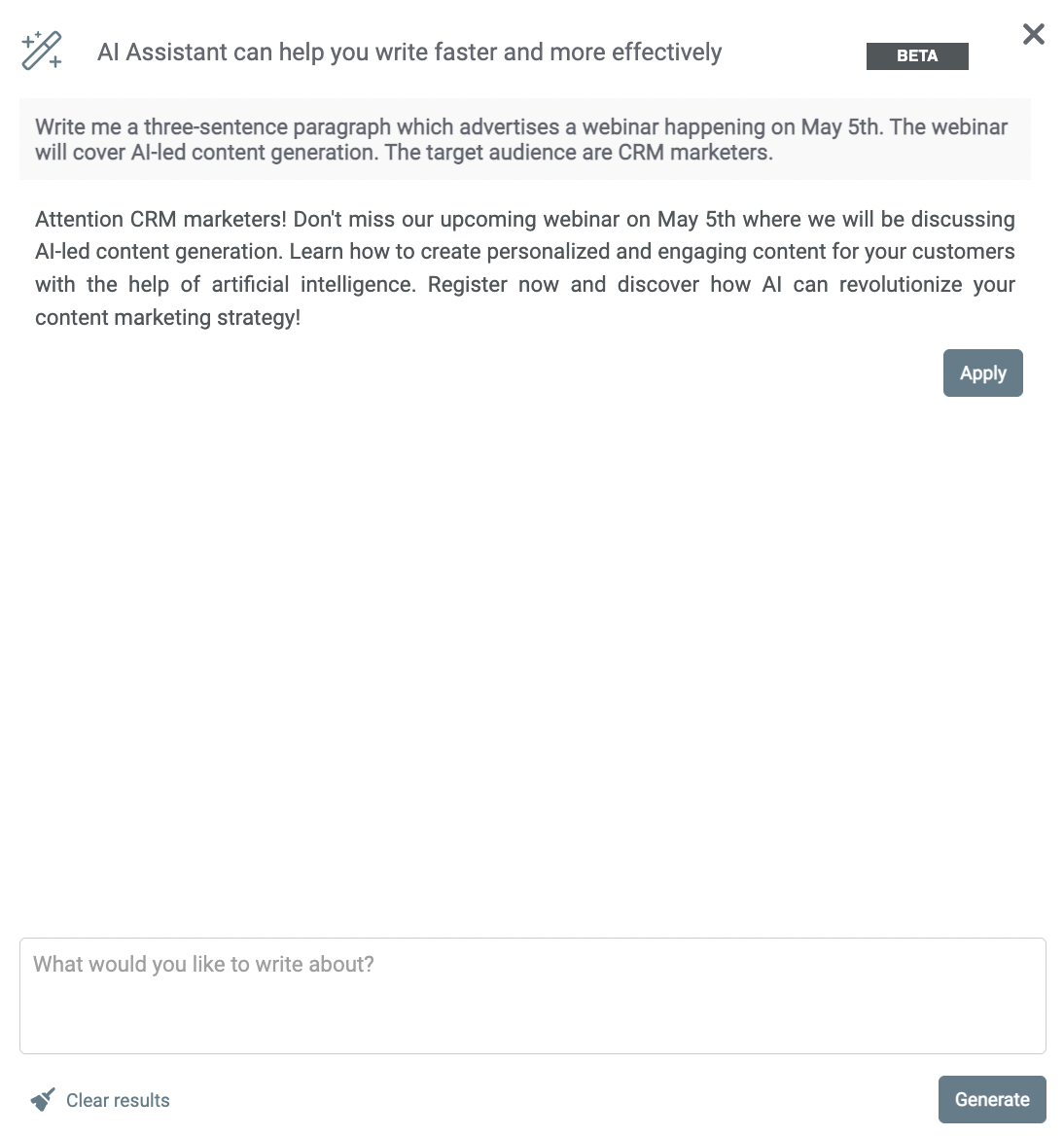
- From here, you can refine the copy, with further prompts like “condense this” or “make it funny”.
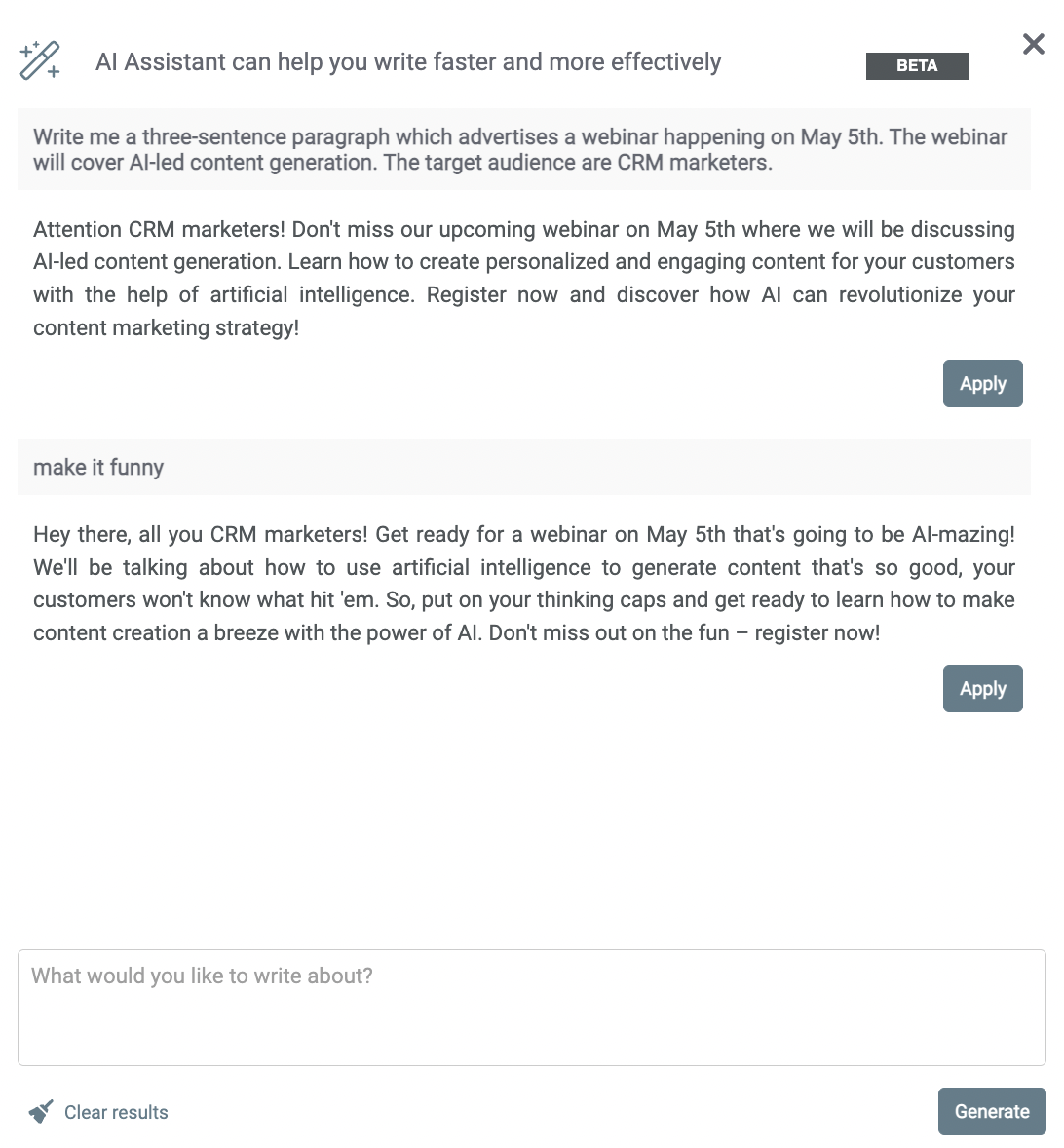
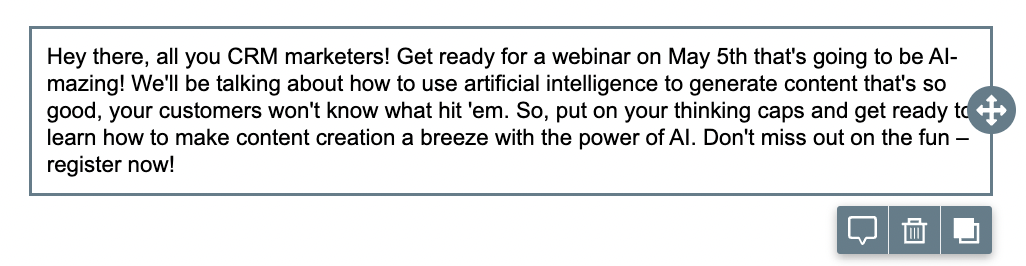
- When you’re happy with the generated content, hit Apply and the text will be applied to the Content Block within the email template. From here, you can add personalization tags, formatting, or any other elements.
Update Existing Content
- Open an existing template in the Visual editor, or input the content you have created offline.
- Select the content you would like the Gen AI Assistant to review, and hit "Write with AI"
- When the modal opens, click on the text field, and some prompts will appear, with suggestions on how to review or update your content.
- Select the option you'd like to go with, for example "Translate it to [language]"
- This option will now populate the text field, so that you can input your directions.
- Update the text in the square brackets to give the Gen AI Assistant your direction.
- Hit Generate!
- The AI will then apply your chosen updates, in this instance, translating the Title into Spanish.
- If you're happy with the results, hit Apply to update the content within your template!
- Otherwise, simply either provide your AI assistant with prompts, or make use of the other suggestions, until you have the result you're after!
Use Cases
There are so many ways that you can use the Gen AI assistant with each type of Content Block to not only help when writer’s block strikes, but also ensure that your emails are polished as well as engaging. Here are the main use cases for each of the available Content Blocks:
Paragraph
- Spell-check the content
- Correct grammar mistakes in the content
- Translate content to [language]
- Make it [tone] without changing the format
- Use Active Voice
- Summarize the content
- Convert the content to the third person without changing the format
Button
- Translate content to [language]
- Make it [tone]
- Use Active Voice
List
- Spell-check the content
- Correct grammar mistakes and return the content
- Translate content to [language]
- Make it [tone] without changing the format
- Use Active Voice
Title
- Capitalize all letters
- Capitalize the first letter of each word
- Make it [number] words long
- Make it [tone] without changing the format
- Translate it to [language]
Best Practices
- Be concise: Keep your prompt short, and simple. Use short sentences, and don’t overcomplicate things. You can always follow-up to refine your results.
- Provide your target audience: By giving your target audience, e.g. “this email is targeting VIP customers who already love the product”, it will take this into account and generate content accordingly.
- Rephrase your prompts: If at first, you don’t succeed, just try again. If your first prompt doesn’t get quite the right response, try rephrasing it. For example, instead of “make it shorter”, try “condense this”. You may get different, better, responses!
- Specify your content length: Depending on what you’re using the Gen AI assistant for, you may want to specify how long you would like your content to be. For example, “under 20 words”, “under 280 characters”, or “in 2 sentences”.