
Send Test and Preview functions are available, enabling you to view how the template will appear in customers’ inboxes. When previewing the template or sending a test email, you have options for how to review the templates quickly and easily:
- Previewing with Customer Data
- Previewing by Target Group
- Previewing by Device/Operating System/ISP
Previewing with Customer Data
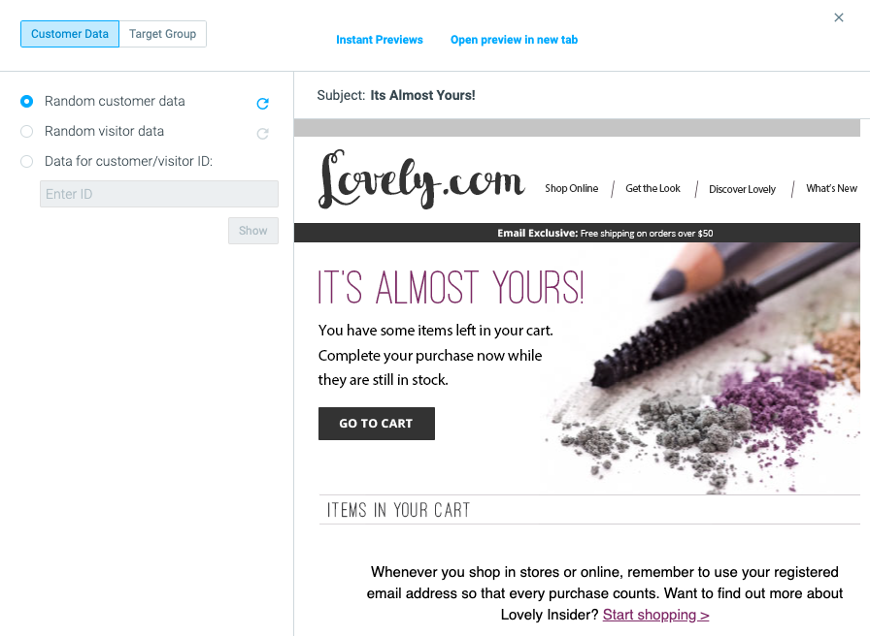
One of the easiest ways to preview your Email templates and verify that your personalization tags and conditional language are working as expected is to use your customer data. You have three options for previewing your Email templates in this way:
- Random Customer Data - Optimove will randomly select a customer from the database and use that customer’s data to populate any personalization tags in the template.
- Random Visitor Data - Optimove will randomly select a visitor from the database and use that visitor’s data to replace any personalization tags in the template.
- Specific Customer ID - This option enables you to preview the exact content that a specific customer would receive.
Previewing by Target Group
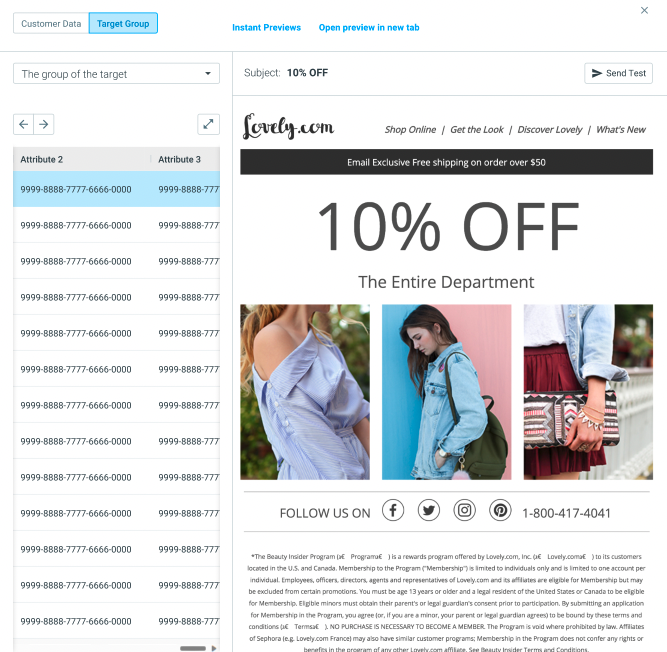
In order to preview your Email templates at scale, you have the option to preview your templates using any of your existing Target Groups. To do this, simply click Preview from your open template, then click on the Target Group tab. From here, select your Target Group from the dropdown. You will be able to see the list of customers in that Target Group, and for each one of them, the values for all personalization tags in the template. You will also be able to navigate between the customers within the selected Target Group and get an accurate preview of how your template will look for each customer.
This will let you identify any customer data issues before sending them a campaign with these personalization tags.
Previewing by Device/Operating System/ISP
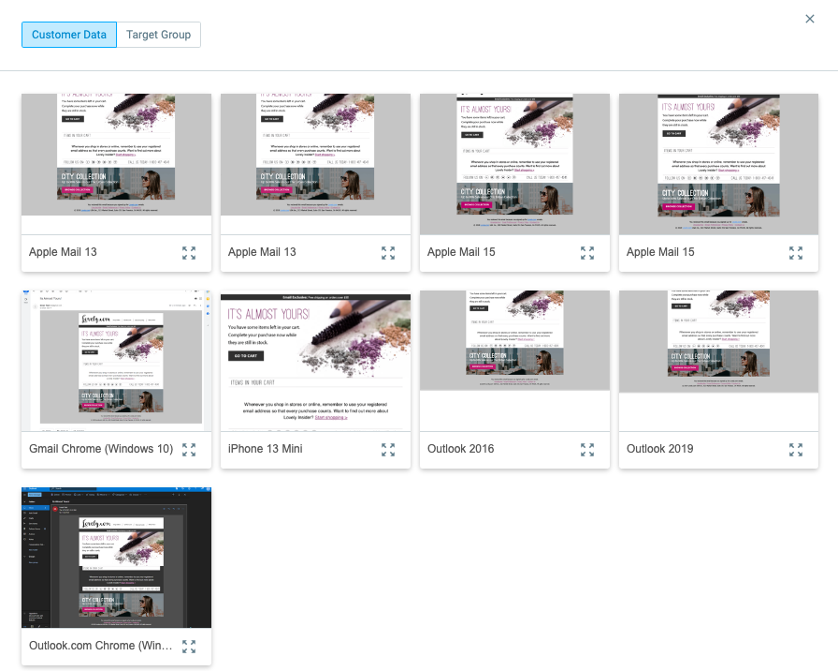
Instant Previews allows you to preview your Email templates, as they would look on multiple devices and inbox providers, for example, on Apple Devices or in Gmail. To access Instant Previews, click Preview and then click Instant Previews.
Please note:
Contact your CSM to modify the list of inbox simulators available in the preview.
Open Preview in New Tab
You can also open your Email template in a new tab in order to take a closer look at your template in a full-screen view. Simply click Preview from your template and then click Open preview in new tab.

Before You Schedule Your Campaign
Send a Test
Send internal test emails to multiple email clients to ensure that your emails appear as expected. Make sure that all images appear properly. Manually check all links in the email (by clicking each one), and ensure that any UTM tags are appended appropriately.
Check Unsubscribe Link
Check that the Unsubscribe link works. Note that once you have clicked this link for a specific email address, no further test emails will be sent to that address, unless you remove the address from your suppression list.