
Timing is one of the most important factors in influencing the success of your marketing campaigns. Using the “Send by Customer Local Time Zone” functionality, you can assure your email arrives to your customers according to their time zone, at the perfect time.
How to Schedule a Campaign According to a Customer’s Local Time Zone
The “Send by customer local time” is located below “Use multiple templates” within the campaign building flow.
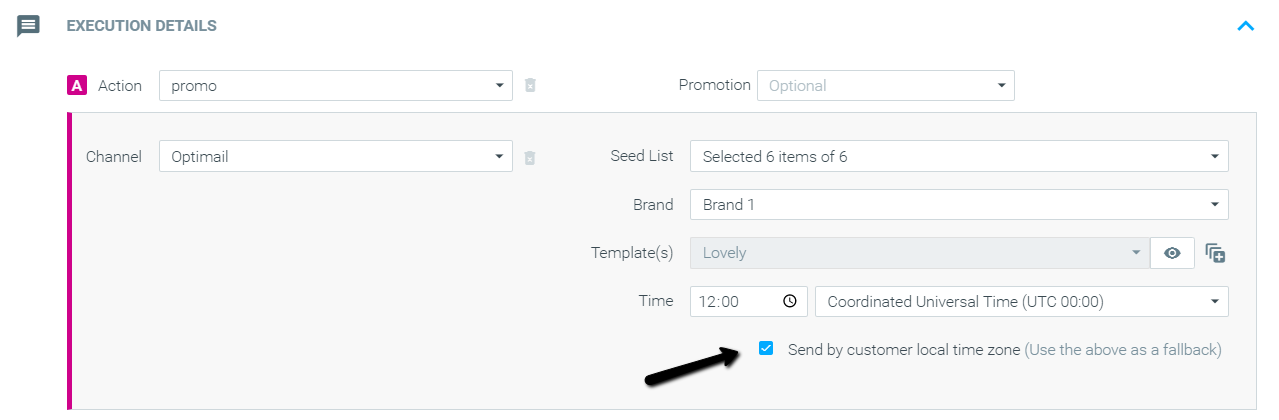
Once the option is selected, a new field of “Fallback time zone” will appear. The fallback time zone will be used in case a customer’s time zone could not be retrieved.
Schedule a Campaign According to Customers’ Local Time Zone using Multiple Templates
As our customers live in different time zones, personalizing a template to a customer’s time zone can improve campaign results.
To send different email templates to customers in different time zones, use the multiple templates option.
When building your campaign, under OptiMail Options mark the “Use multiple templates” checkbox.
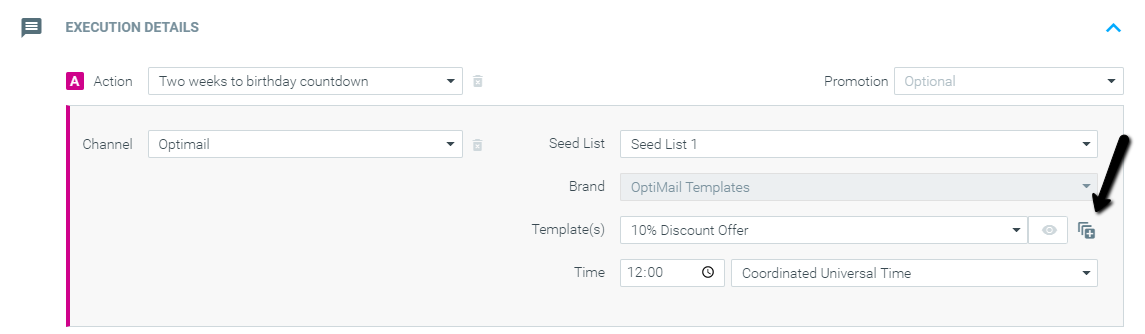
Once chosen, a new window will appear, allowing you to choose multiple templates, conditions, and times.

After setting up your multiple templates, click Done and schedule your campaign.
How to Add Your Customers’ Local Time Zone to Your Site
To set the time zone according to your customers, you should share the time zone for each customer as part of the batch data update.
When adding this data to your files, please make sure to share the time zones according to one of two formats (Index values):
Once added to your files, please reach out to your CSM to leverage this data in Optimove.
The send time will then be calculated according to the time zone code related to each customer in your Target Group.