Please note:
To unlock this capability, you will need to have added In-App Messaging to your Optimove package. Contact your CSM to learn more if you can’t see this feature in your Optimove instance.
When analyzing metrics such as delivery rates for In-App Messaging, it's essential to understand that these metrics differ from those of Push Notifications.
In-app messages are pulled by the app rather than pushed to the user. The app retrieves new messages when first opened after a period of inactivity. Additionally, the app requests updates in the background roughly once per hour, though the latest versions of iOS and Android impose background processing limits, which slow or stop this activity if the app is left unopened for extended periods.
- Sent Metric: This represents the number of customers in the Target Group who can be reached via the In-App Messaging channel. It is recorded when Optimove stores the new message for each customer.
- Delivered Metric: This represents the number of customers who have downloaded the new message. Since the message is only delivered the next time a customer opens the app, it's normal to see initially lower delivery rates that increase over time, especially if the Target Group audience includes less active users.
To accelerate the delivery of In-App Messages, a silent background push notification is sent to app installations subscribed to push notifications, prompting the app to check for new In-App Messages. Additionally, you can send a "tickle" Push Notification alongside the In-App Message to engage inactive customers. This approach doesn't prevent customers who aren't subscribed to Push Notifications from receiving the In-App Message.
When using Mobile In-App as a channel, metrics will be available at the bottom of the Campaign Analysis page.
Explore Metrics in Mission Control
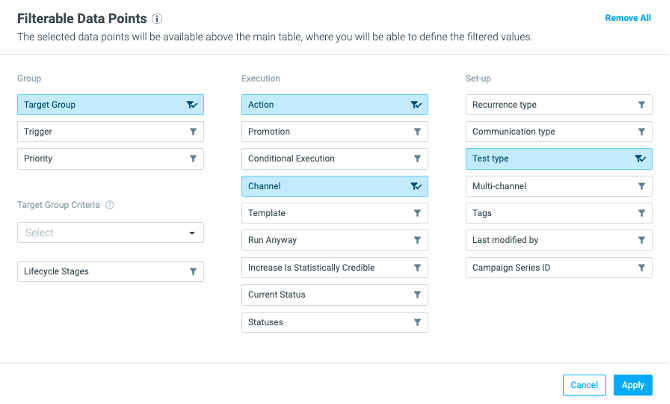
- Go to Mission Control, and click on the filter icon:

- Under the Execution section, click on Channel. Then click Apply.
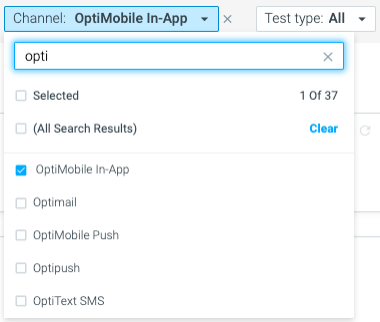
- In the dashboard, you can then select a channel to filter your campaign view. Select Mobile In-App.
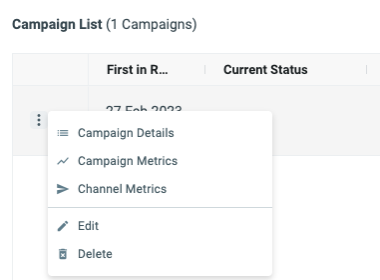
- Next, click on the three dots next to the campaign you want to analyze, and click on Channel Metrics