
Please note:
To unlock this capability, you will need to have added In-App Messaging to your Optimove package. If you can’t see this feature in your Optimove instance, contact your CSM to find out more.
By creating personalized in-app messaging campaigns based on Optimove’s powerful Target Groups, you can customize the content of your in-app messages sent via Mobile using customer attributes. Customer attributes allow you to create templates that change dynamically for each individual recipient.
For example, you can customize the message with the recipient’s first name, which can lead to increased opens and engagement.
Preparing to Use Mobile Customer Attributes
Once your CSM has set up your Customer Attributes, you will be able to use them to personalize your mobile marketing campaigns.
To set up Customer Attributes as tags:
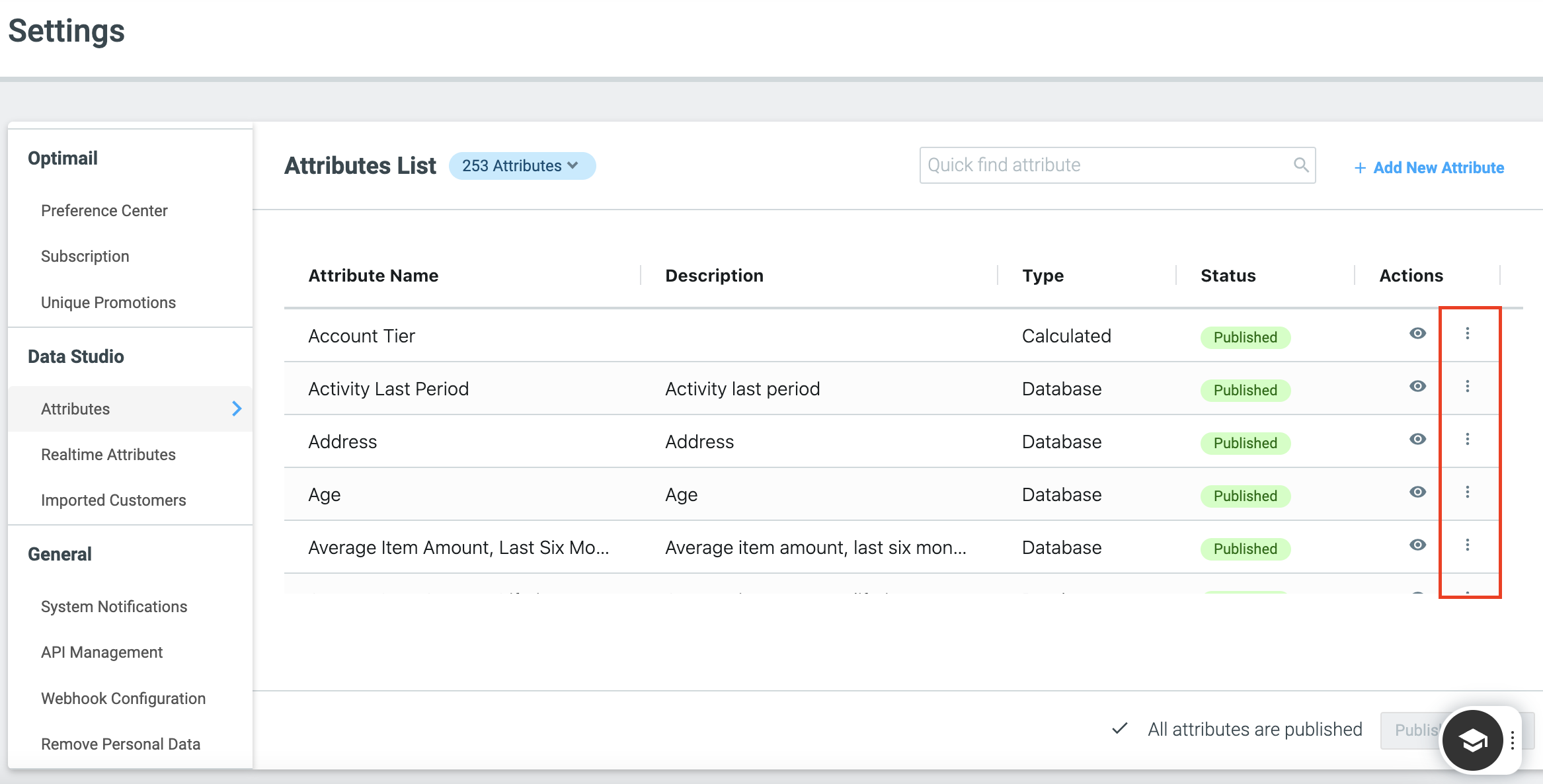
1. Navigate to 'Attributes' under the Data Studio section in the left navigation bar
2. Click the three dots on the Attribute you would like to use as a Personalization Tag. Please note that only published attributes can be set as personalization tags.
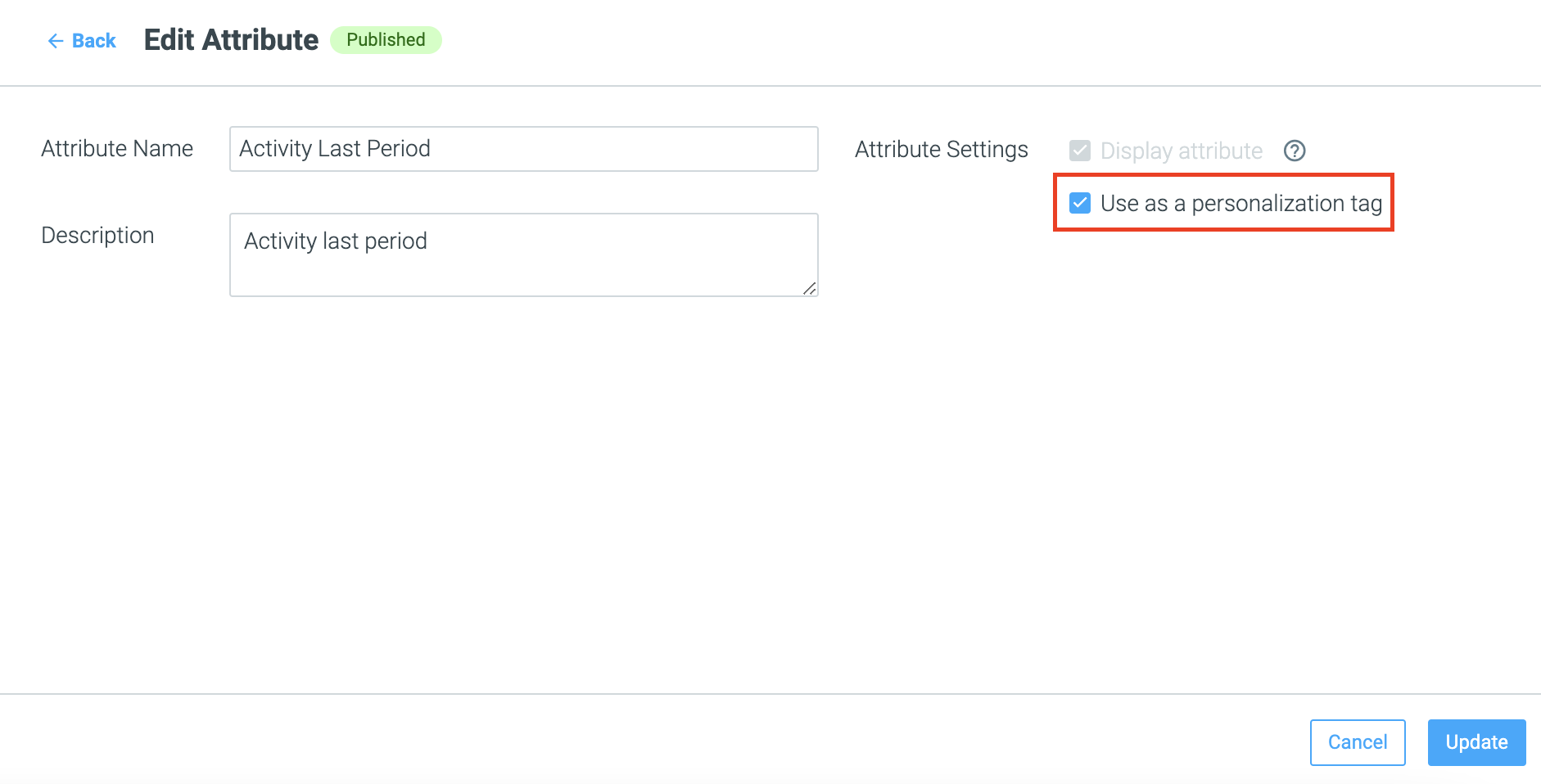
3. Check the “use as personalization tag” checkbox and click the Update button to save your work.
Did you know?
You can also use real-time customer attributes to personalize your mobile push notification templates, to show the most up-to-date live data you have on your customers. Learn more about using real-time customer attributes here.
Please note:
Currently, personalization tags can only be used in Web Push Notifications and Mobile Push Notifications. Personalization tags for In-App Messages are coming soon.
Personalizing Your Template
Once you’ve set up your Customer Attributes, you can use them in any of your in-app marketing campaigns.
In other channels, for example, Mobile Push Notifications, Personalization tags may be accessed via a dropdown modal, and added into the template in this way. With in-app messaging, the process is slightly different.
While editing an in-app message template, Customer attributes are typed as part of the message body to personalize the message when it is sent via Optimove. Customer Attributes are enclosed in double braces and include a default value as follows {{user.attributeName|defaultValue}}. The defaultValue will be used if the attribute attributeName is not set for a given user.
For example, where your Customer Attribute is "FIRST_NAME" and your defaultValue is "there", you should enter the following into your message body:
{{user.FIRST_NAME|default('there')}}Please note:
You cannot check the data behind the Customer Attribute when previewing your in-app message. You can view the data behind your Customer Attributes in the Customer Explorer.