Please note:
To unlock this capability, you will need to have added Webpage Pop-Ups to your Optimove package. If you can’t see this feature in your Optimove instance, contact your CSM to find out more.
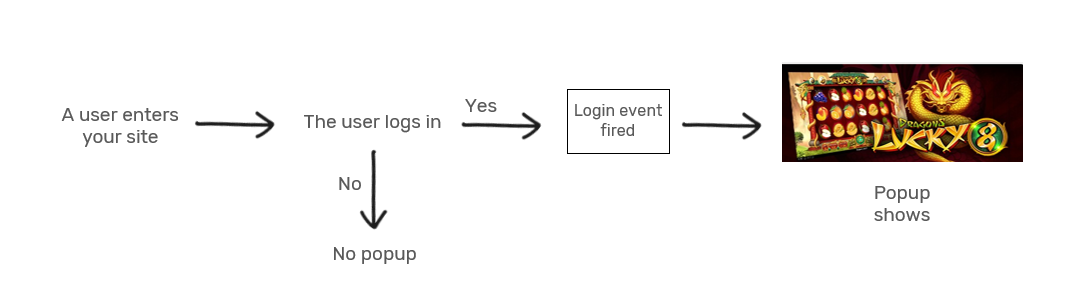
Step 1: Event Configuration and Implementation
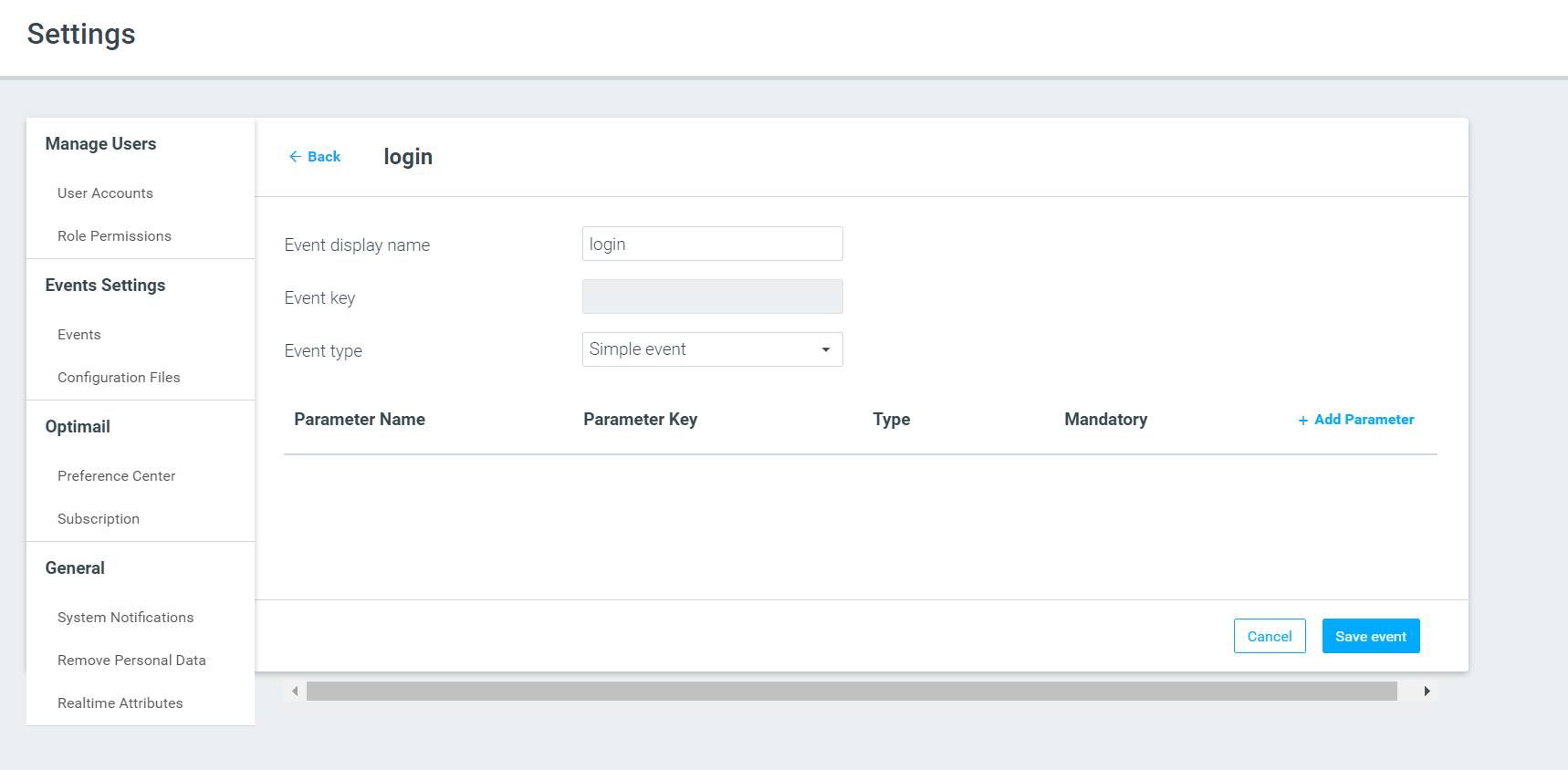
For this use case, you'll need to use a custom "login" event. Define the parameters you would need to send with the "login" event, considering the content of your pop-up.
Implementation
Implement the "login" event and the parameters on your site by adding a separate setUserId function and using a callback function.
|| Note: If you have already implemented a custom ‘login’ event in the past along with the relevant parameters you can skip the above.
Step 2: Confirm Event Implementation
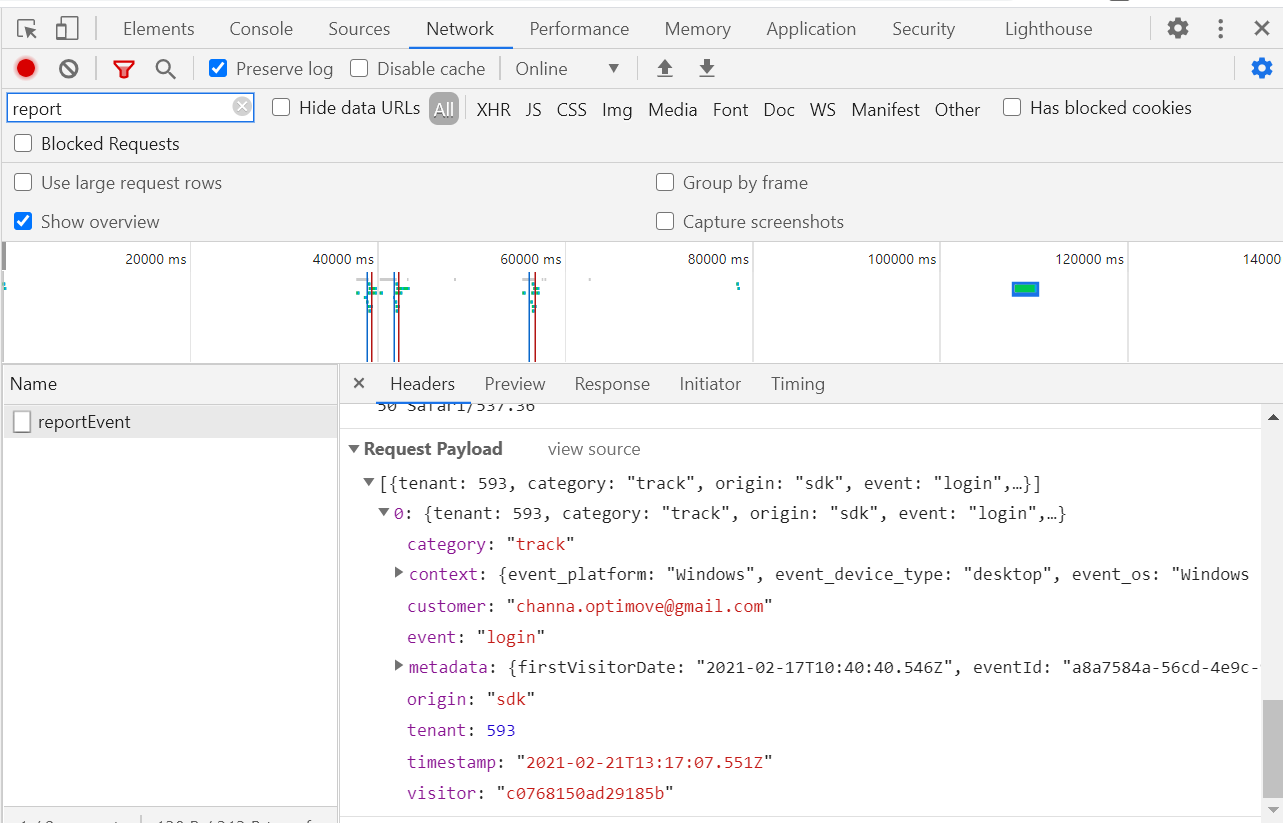
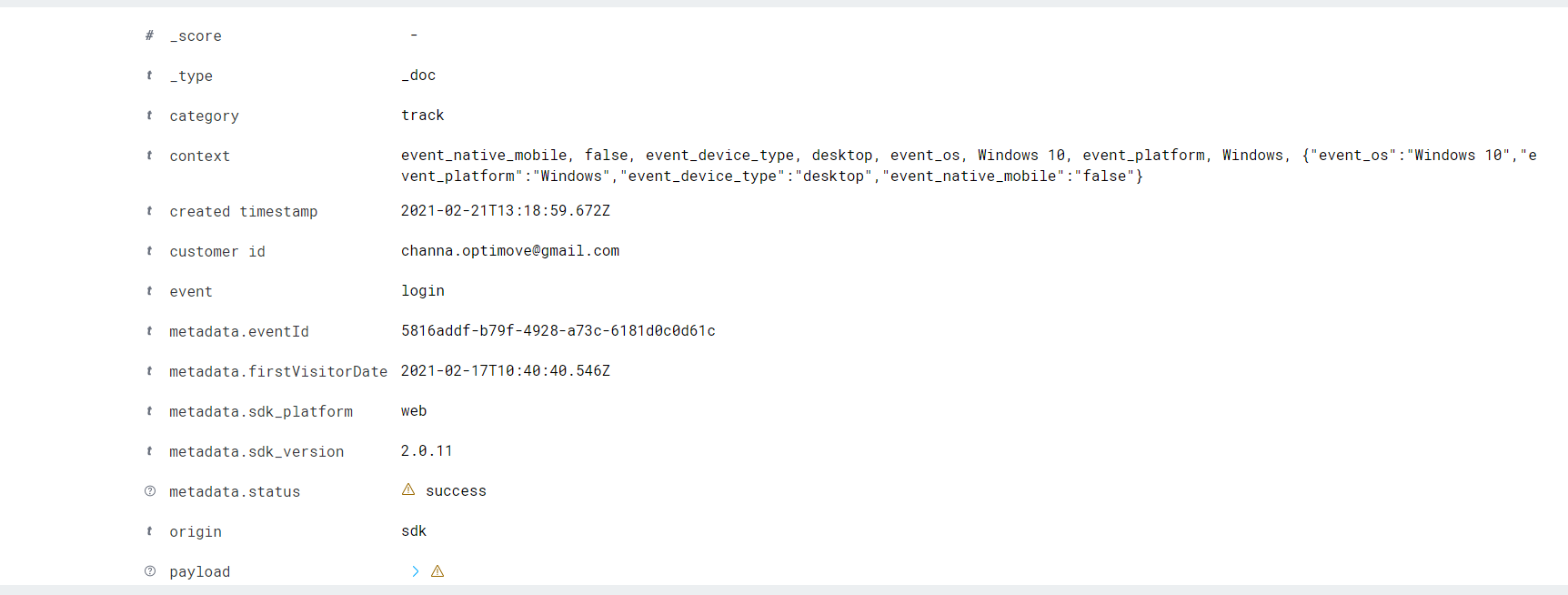
1. Go to the events log page in your Optimove site and record all events.
2. Login on your site
a. The "login" event is reported in real-time.
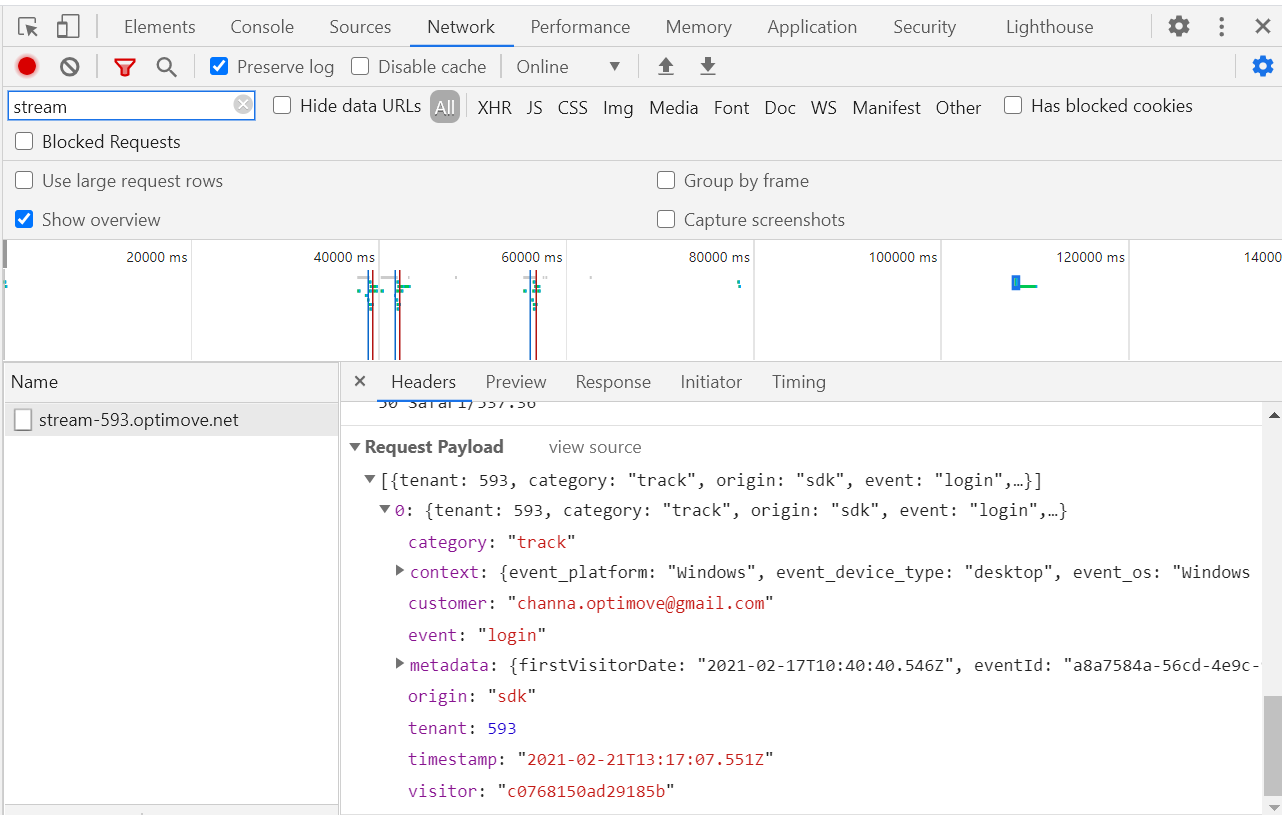
b. The "login" event is reported to stream.
c. CID: "SDK_ID" is populated.
d. The parameters configured for this event are all populated.
Step 3: Create a Triggered Campaign
- In your Optimove site, create a new trigger under the "Manage Triggers" page using the "login" event.
- In the "Manage Templates" page, under "webpage pop-up", create a new HTML template. Remember to include any of the relevant real-time personalization tags sent as part of the "login" event.
- Create a triggered campaign using your test target group and choose the trigger and the template you just created. Make sure you place your target group at the top of your prioritization to prevent users from being assigned to other active real-time campaigns.
Step 4: Test Your Campaign
1. Go to the events log page in your Optimove site and record all events.
2. Log in to your site using the same user you have created the test campaign for.
a. Expected result: Pop-up displayed.
|| In case your pop-up wasn’t displayed:
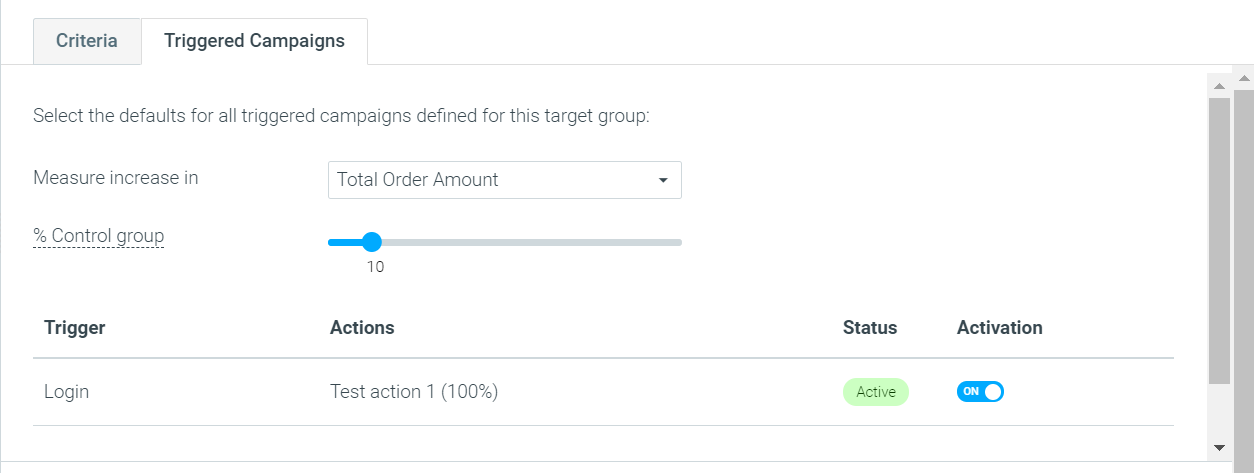
- Check if the campaign is active via the target group's Triggered Campaigns tab:
- Check if your user might be assigned to another TG. If you're not sure, contact your CSM.
- Has the trigger been set up correctly? Please check the trigger and whether you chose to filter by any additional parameters.
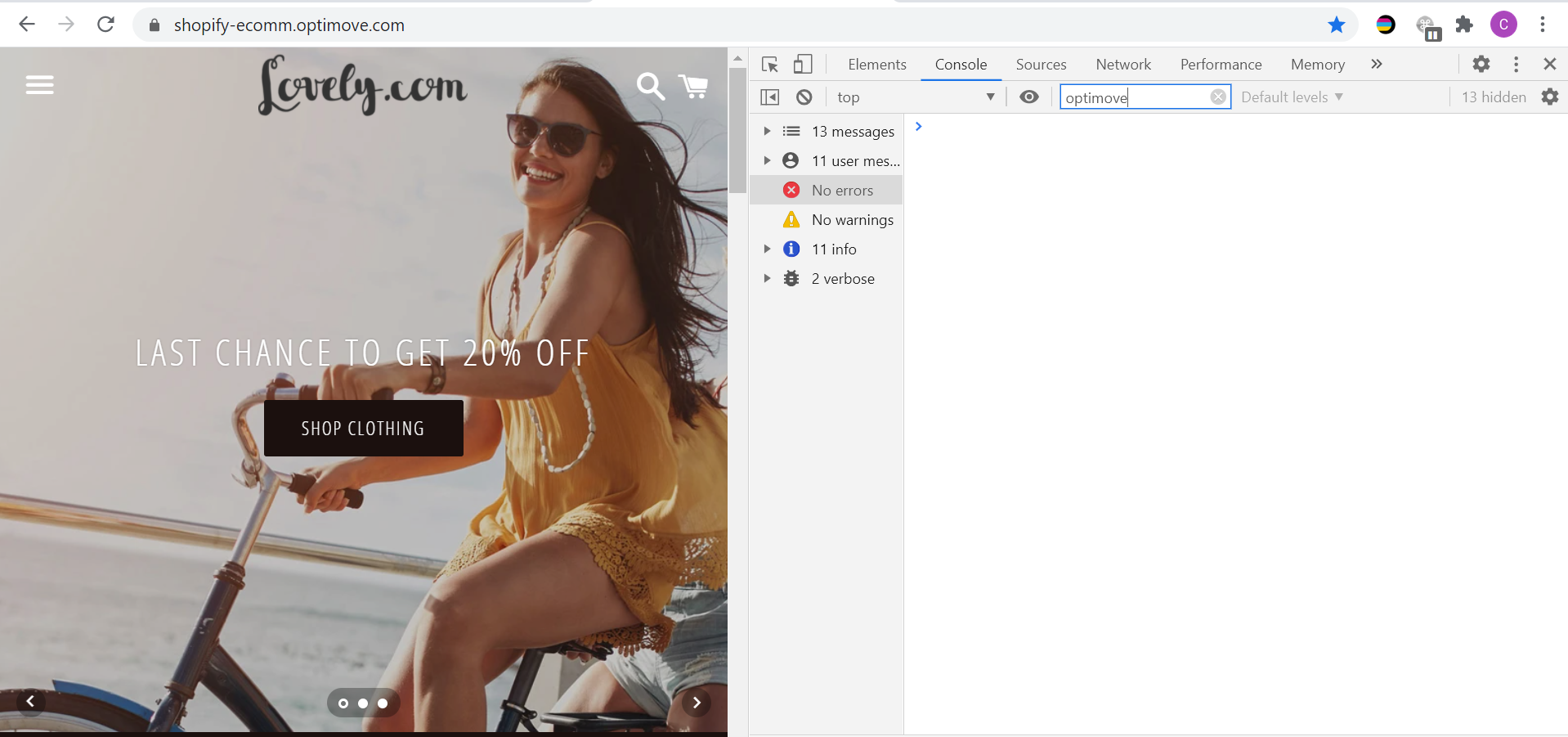
- Was the event sent to Optimove’s endpoint when testing the campaign execution? Please check if there were any errors in the console.
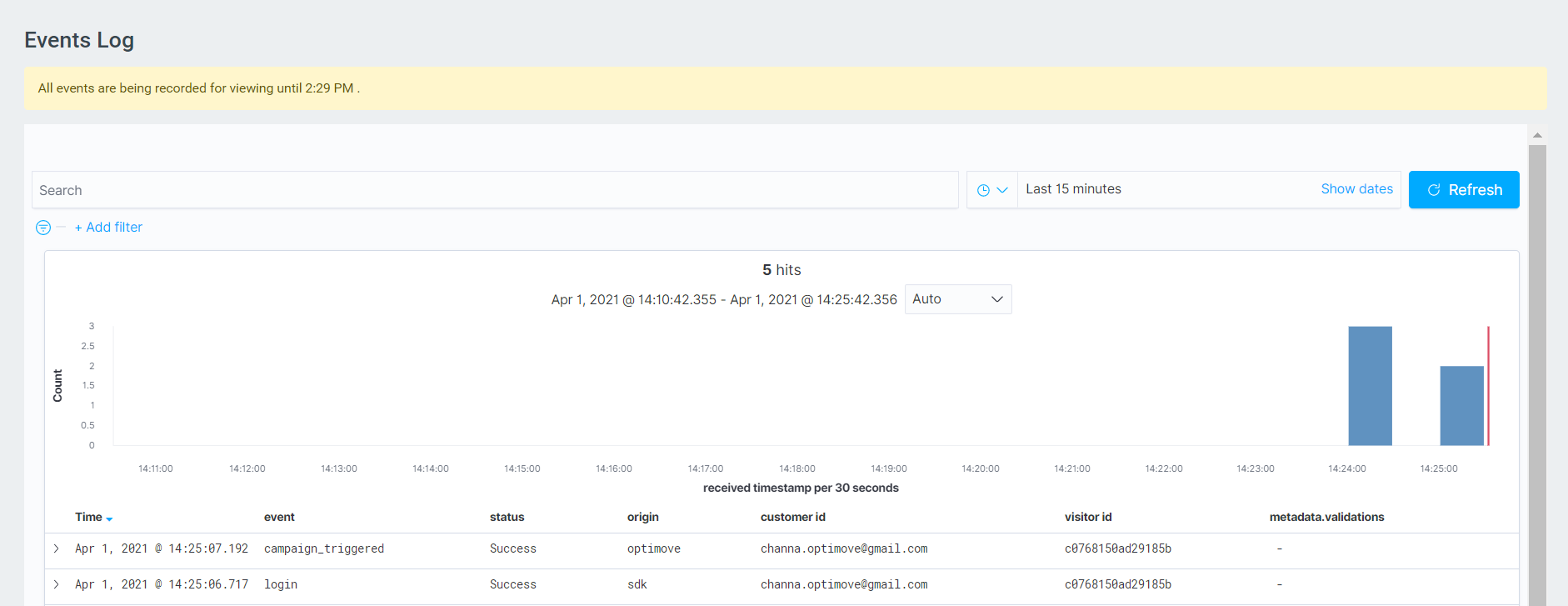
- If the campaign triggered but there was an issue with the pop-up's execution, go to the events log page in your Optimove site and search for the ‘campaign triggered' event. If this event appears but the pop-up isn’t displayed please contact your CSM.