
Please note:
You can only use unique promo codes in scheduled Email campaigns.
How to use unique promo codes
- Go to Settings
- Under Email, go to Unique Promotions
- Click New Promotion
- Name your promotion
-
Set your Default Promo Code. This is a code that will be distributed to your customers once all unique codes from your CSV file have been used up.
Please Note:
To keep up with how many unique promo codes are left, we recommend keeping up with how many remaining codes are left in the promotion lobby. If you see that your unique codes are running out, you can add another CSV file. To do this, click on the pencil to edit.
Currently, it is not possible to delete unique promo codes.
- Upload a no-header, single-column CSV file up to 50 MB containing the unique codes. You can upload more than one file.
- Import the file
- Click Create Promotion
- You will then see the promotion on the Settings page
- Under "Plan" in the navigation bar, go to the "Templates" page
- Create a template in which you wish to include the promotion
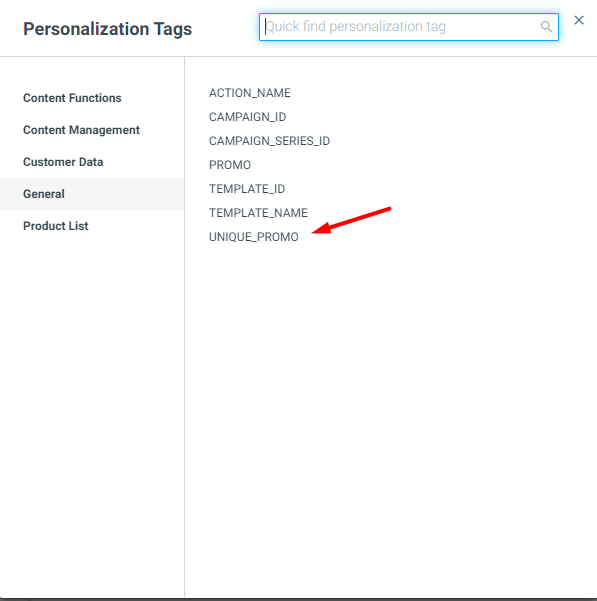
- Add the "UNIQUE_PROMO" personalization tag in the general section
- Under Execute, go to Campaign Builder
-
Under Execution Details, choose your campaign action and select the promotion name of the unique promotion you created.
Please note:
Every time this promotion is used in a campaign, the same unique code will be allocated to each customer who received a campaign using this promotion. - Select Email as your channel and select the template containing the Unique Promo personalization tag
- Execute your campaign. Each customer will be allocated one of the codes from this specific promotion.