Using Calculated Customer Attributes, you can create customer attributes based on existing Activity History data.
This is an easy and simple solution that allows you to independently add more attributes to your site so you can improve the granularity of your target groups, add personalization tags, or deepen your analysis.
How To Set Up a Calculated Attribute
To add a new calculated attribute:
- Go to the Data Studio in the navigation bar
- Click the Attributes section
- Choose "Add a New Attribute"
|| At this stage, up to 150 Calculated Attributes can be added.
- Choose Activity History as the data that you'd like to use
- Choose a name and a description for your new attribute.
- Set up the attribute calculation.
The available functions are:
- Average
- Max
- Min
- Sum
In the example below, we’re calculating the total number of activity days, over the last 7 days:
- Under “Function”, choose Sum
- Under “Activity” - Number of Activity Days
- Under “Timeframe” - last 7 days.
Function Examples:
- Max Order Amount, Last 7 days – the attribute will show each customer’s highest order amount (out of all of their orders) over the last 7 days.
- Min Order Amount, Last 7 days- the attribute will show each customer’s minimum order amount (out of all of their orders) over the last 7 days.
- Sum Order Amount, Last 7 days, the attribute will show each customer’s total order amount over the last 7 days, summing up the amounts of each order.
- Sum Number of orders, Last 7 days- the attribute will sum up each customer’s total number of orders over the last 7 days.
- Average Order amount, Last 7 days- the attribute will show each customer’s average order amount over the last 7 days, dividing the total order amount by the number of orders over the last 7 days.
7. Click Save
8. Publish the attribute
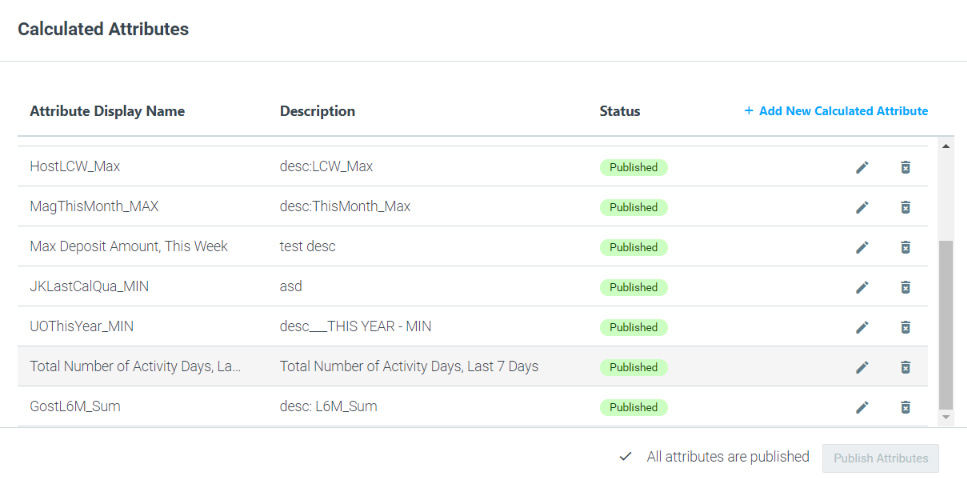
Your new attributes will be added to the list of calculated attributes under the "Not Published" status.

|| Please note: Calculated Attributes take snapshot dates into account from the creation date only.
If you wish, you can add additional attributes. Once done, go to the list of calculated attributes and click "Publish Attributes".

The new attributes will be available for segmentation and analysis in a matter of minutes, under the Customer Attributes selection criterion.
Attribute Calculation Timeframes
Available Timeframes
- Last 7 days (until today) - counts customers that were targeted during the last 7 days, not including today.
- Last Calendar Month - counts customers that were targeted during the last full month. For example, if today is June, it will count all May's customers.
- Last Calendar Quarter - counts customers that were targeted during the last full quarter. For example, if today’s is June (2nd quarter), it will count Jan-Feb-March's customers (1st quarter).
- Last Calendar Week - counts customers that were targeted during the last full week. For example, if today’s Wednesday, it would count the previous week’s customers, Mon-Sun.
- Last Calendar Year - counts customers that were targeted during the last full year. For example, if today is 2021, it would count all customers from 2020.
- Last Six Months (last 180 days until today) - counts the customers that were targeted during the last 6 months, not including today.
- This Month - counts the customers that were targeted during this month (e.g. June).
- This Quarter - counts the customers that were targeted during the current quarter.
- This Week - counts the customers that were targeted during the week (Mon-Sunday). For example, if today is Wednesday, it will count Monday’s and Tuesday’s customers.
- This Year - counts the customers that were targeted during this month (e.g. 2021).
- Yesterday - counts yesterday's customers.
Use Cases
Special Offer Campaign for a Major Sporting Event
In the past month, you sent a new campaign with a "Deposit $10, get $10 extra" offer.
The goal of this campaign was to maximize the Major Sporting Event bets.
However, over the past week, it seems like your players were preoccupied with the games and missed your offer. At the very least, the offer didn't generate the results you expected.
Since this is the final week of the tournament, you can make sure you're not missing out on opportunities by:
- Creating a calculated attribute that looks at the average number of deposits in the last 7 days.
- Re-targeting customers who are below the average with a campaign that adds some FOMO into the mix -"Only 7 days left to claim our $10 for $10 offer."
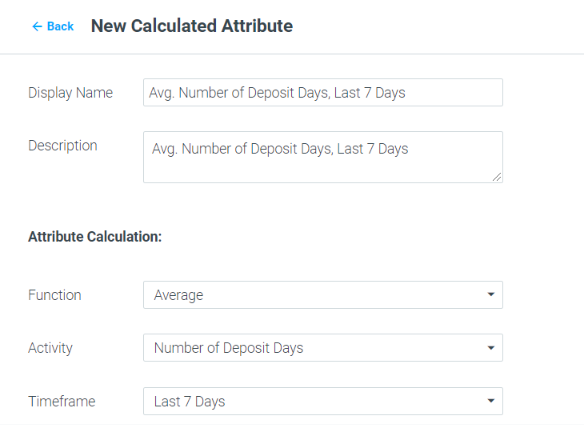
This calculated attribute consists of the "Number of Deposit Days" attribute, an "Average" function, and a "Last 7 Days" Timeframe. Here's how you'd set it up:
Learn Whether You Suffer from Coupon Abusers
Customers will always prefer to buy at a discount, we know that 😉.
When providing a discount per Newsletter registration, or per sign-up, you might encounter a recurring behavior where customers try to maximize the number of times they can use a coupon.
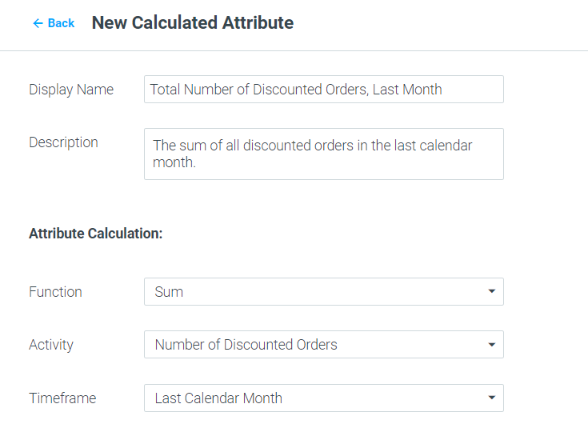
To track the amount of discounted orders, you could create a custom attribute that consists of the "Number of Discounted Orders" attribute, a "Sum" function, and a "Last Calendar Month" Timeframe. Here's how the setup would look like: