
There are two ways to create custom attributes:
1. Formula: using a mathematical relationship between different attributes. For example, the formula: “Total Order Amount/Number of Orders” will create a new attribute: ”Avg. order amount”. This is mainly used for numeric attributes.
2. If/Else: using statements to specify conditions for the new attributes. For example: if the Average Value Order is between 100-500 USD, and it's been over 1 month since the last purchase, then create an attribute of "Promotion Allowed".
- Formula attributes will be updated according to the real-time attribute
- If/Else attributes will not be updated according to the real-time attribute
How To Set Up a Calculated Attribute Based on Existing Customer Attributes
Add a new calculated attribute:
- In the navigation bar, go to the Data Studio.
- Click on the Attributes section
- Click on "Add a New Attribute"
- Choose Customer Attributes as the data that you'd like to use
Please note: At this stage, up to 100 Calculated Attributes can be added.
Set up your attribute using Formula
- Choose a name and a description for your new attribute
- Set up the attribute calculation – You can either create a mathematical relationship between different attributes or base your calculation on a day-based relationship like days since, between, or until.
- Enter the necessary components from the panel on the right
Without selecting ‘ignore year’, the attribute will not work as 23 April 1990 has passed. When selecting ‘ignore year’, the attribute will be relevant for the date 23 April each year.
Testing the formula will either present the relevant information based on random customer data, or a selected ID, of your choice.
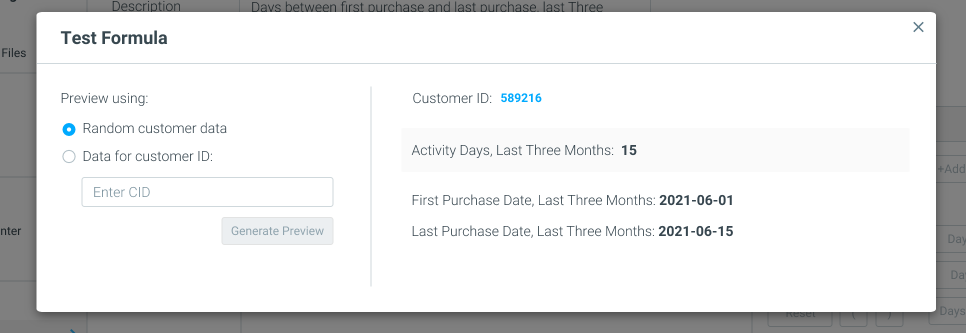
The new attributes will be available for segmentation and analysis in a matter of minutes, under the Customer Attributes selection criterion.
Set up your attribute using If/Else
- Choose a name and a description for your new attribute.
- Click on “If/Else” as your calculation type.
- Choose your attributes and outline their conditions.
- Please Note: There is a 3000 character limit per condition.
- Click on the “Attribute” drop-down list in the Calculation section and choose an attribute. Click "Add Condition" to choose more attributes.
- Set the conditions to be met for each attribute. In the example below, we used Total Deposit Amount, Total Net Revenue, Days Since Registration, and Days Since the Last Activity.
- Name your attribute value. In the example below, customers meeting these conditions will fit the Platinum attribute.
- You can set up to 13 of these calculations, resulting in 13 attribute values. For example, each attribute value can be a VIP tier, therefore creating a hierarchy of customers based on their behavior.
Please Note: If the values have overlapping conditions, a customer can meet the criteria for more than one value. In this case, values will be attributed by order of priority based on chronological order. In the example below, if a customer falls into both Platinum and Gold due to overlapping conditions, the customer will only be placed in the Platinum category.
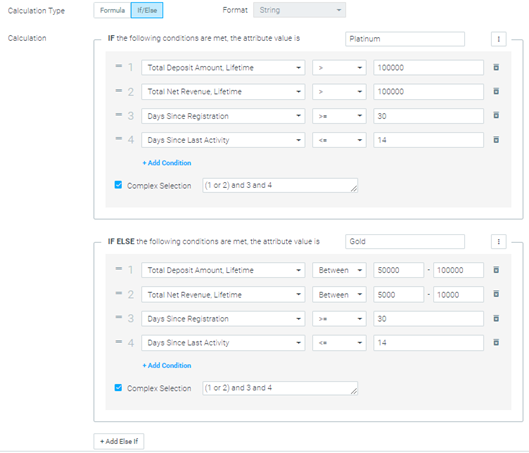
Please Note: You can also choose to use a complex selection when combining 3 or more calculations. This allows you to choose definitive attributes to be met along with either-or options. For example, the customer attribute can meet attributes (1 or 2) but has to meet attributes 3 and 4.
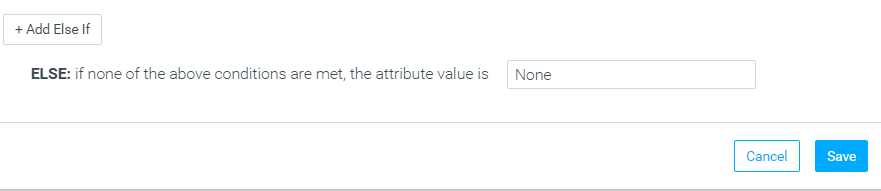
Please Note: If an attribute value does not show when setting up your target groups, this means no customers fit the criteria that have been set up for your attribute calculation.
Nested Calculated Attributes Limitations
- You CANNOT create an If/Else attribute based on another formula-based calculated attribute.
- You CAN create an If/Else attribute based on another If/Else attribute.
- You CANNOT create a formula-based attribute based on another formula-based calculated attribute.
- You CANNOT create a formula-based attribute based on an If/Else attribute. This is the only scenario where nested calculated attributes are allowed.
- You CAN create Formula-Based Calculated Attributes using Activity History Calculated Attributes. For example, you can define attributes like "Total WIN amount last 7 days" and "Total BET amount last 7 days," then build a formula such as Ratio (Last 7 days) = Total WIN amount / Total BET amount to derive custom metrics.
- When an If/Else attribute uses another calculated attribute or Optimove system attribute (e.g., Optimail Unsubscribe) in its calculation, the nested attribute’s value will reflect yesterday’s data. This occurs because all calculated attributes are processed in parallel, and the latest value for the nested attribute is not yet available during the calculation.
- Impact on New Users: For newly registered users who had no data in these attributes yesterday, the nested attribute may return empty or null values, leading to unexpected segmentation results.
- Recommendation: Verify the nested attribute’s behavior using the “Test Formula” feature before publishing to avoid issues. For critical attributes like Optimail Unsubscribe, consider adding a delay (e.g., one day) to ensure accurate data.
Example Use Cases
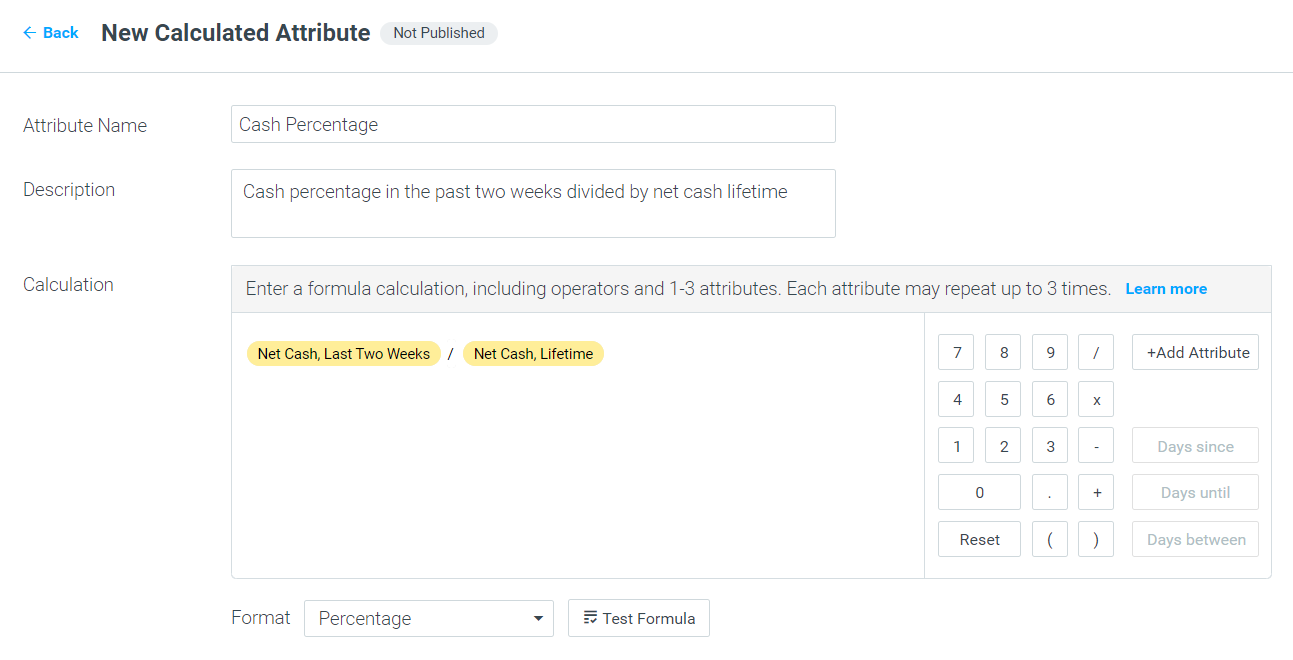
Calculating net cash in the past two weeks out of net cash lifetime - Result Format: Percentage
It might be that for a new target group, you’d like to understand the percentage of net cash in a certain time frame, out of the net cash in the customer's lifetime, to offer a special discount to your customers based on the recent spend in the given time frame.
- Create a new formula
- Enter the necessary components from the panel on the right. For example, Net Cash, Last Two Weeks / Net Cash, Lifetime
- Under “Format” choose whether you’d like the calculation result. In this case as a Percentage.
- Test your formula by clicking “Test Formula”
- Continue to calculate the other categories
- Publish your new attributes
Calculating Discount Ratio / Mobile Deposit Ratio -– Result Format: Decimal
Let’s imagine that for an end-of-the-year analysis, you need to prepare a report that includes information about the past year, including the Discount Ratio. The calculation will be used to learn if you’ve increased or reduced the ratio, year over year.
- Create a new Formula
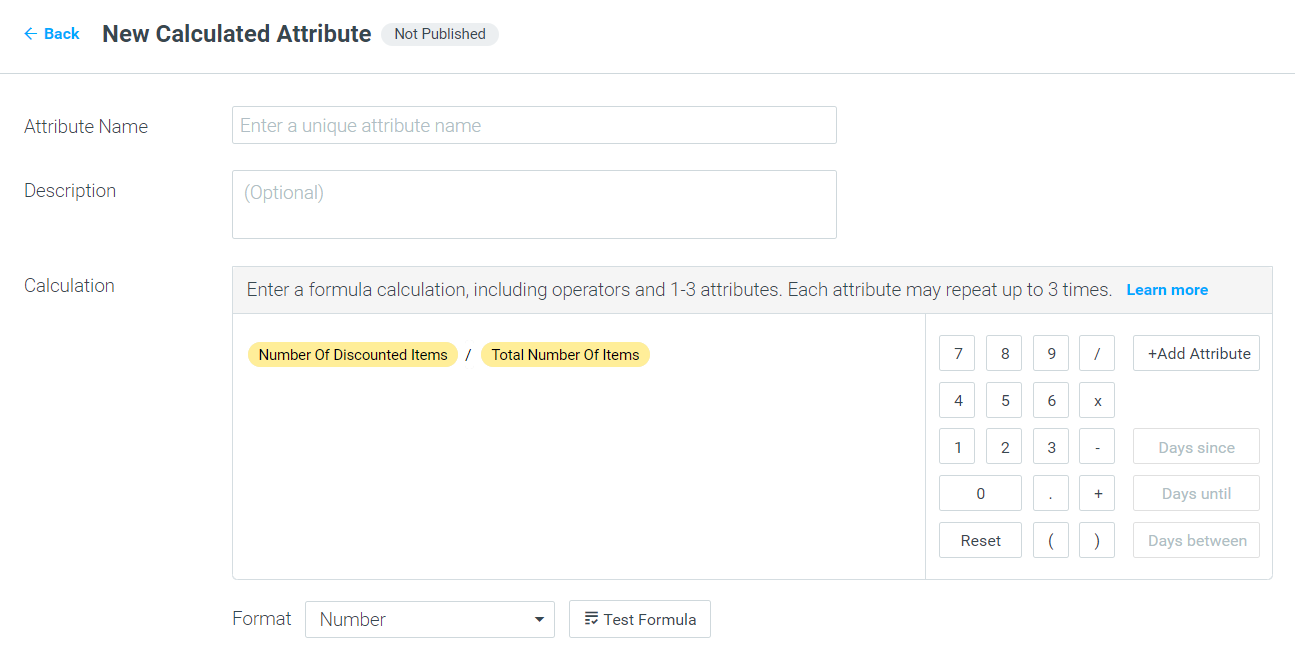
- Enter the necessary components from the panel on the right. For example, the Number of Discounted Items / Total Number of Items.
- Under “Format” choose the calculation result’s format. In this case as a Decimal.
- Test your formula by clicking “Test Formula.”
- Publish your new attribute.
- Create a new Formula
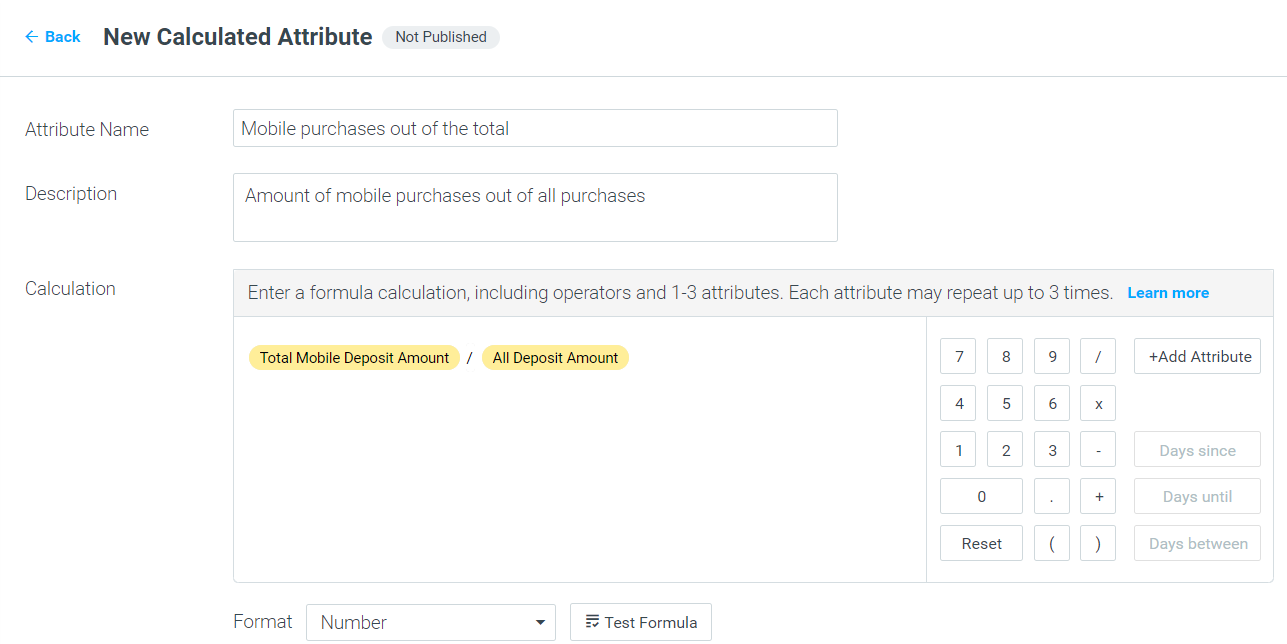
- Enter the necessary components from the panel on the right. For example, Total Mobile Deposit Amount/ All Deposit Amount.
- Under “Format” choose the calculation result’s format. In this case as a Decimal.
- Test your formula by clicking “Test Formula.”
- Continue to calculate the Web Deposit Ratio.
- Publish your new attribute.
Creating Anniversary or Birthday Attributes
- Create a new Formula attribute
- Select 'Days until' from the panel on the right
- Select 'Treat dates as annual recurrence
|| Quick Tip: Annual Recurrence Attributes
The 'Treat dates as annual recurrence' allows you to create attributes for annually recurring events such as a birthday or anniversary
For example, using the attribute Days Until Birthday Attribute, you have set up a campaign that offers customers a gift when there is a week until their birthday.
Let's say a customer falls into the Target Group, and their birthday is 23 April 1990.
Without selecting ‘ignore year’, the attribute will not work as 23 April 1990 has passed. When selecting ‘ignore year’, the attribute will be relevant for the date 23 April each year.
- Test your formula by clicking “Test Formula.”
- Save and publish the attribute
- Go to Customer Explorer and find the attibute until 'Customer Attributes
- Set up the conditions to be 'Days until birthday equals 7'