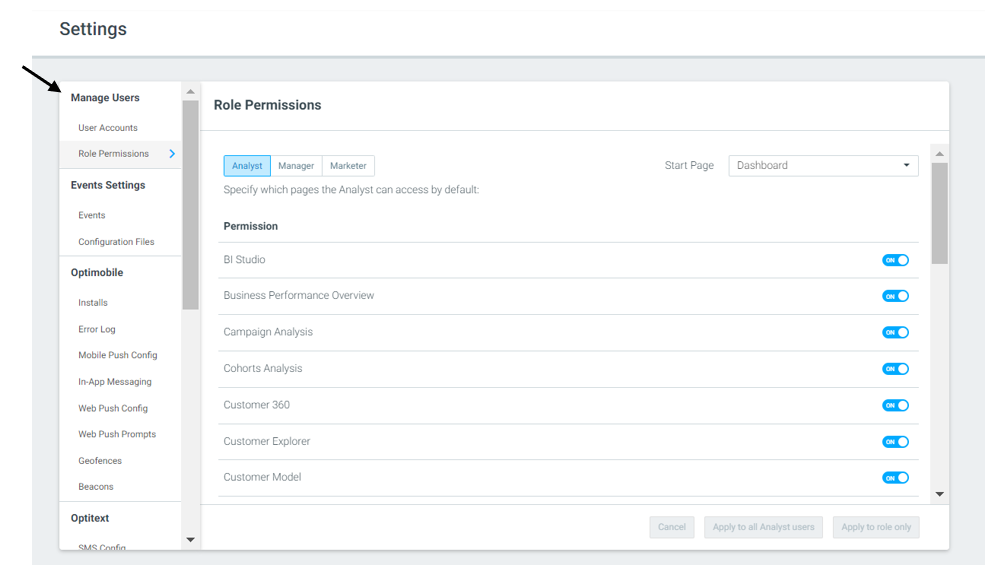
This article outlines how to manage User Accounts and Role Permissions in the Settings page.
User Accounts
There are four types of Optimove users:
1. Admin
2. Analyst
3. Manager
4. Marketer
The first Admin is set by your Customer Success Manager. This admin then has the ability to set roles for other users, including creating new users.
Admin users have complete access to all features and sections of the tool. While an Admin can elevate another user's access to Admin level, reducing an Admin's access level requires submitting a request to support@optimove.com, including your CSM in the CC of the email.
Permissions for Analyst, Manager, and Marketer roles are fully customizable and can be configured or adjusted by an Admin user.
How To Add New Users
As an admin, you may add and delete users to your Optimove site by carrying out the following steps:
- Go to Settings, and in the User Accounts page click '+ New User'
- Fill out the details of the new user, and select their role. Each role provides the user with different permissions within the Optimove site.
- An email will then be sent to the user to set up their password
- Once the password is set up, the new user will show in the User Accounts page
- You can then edit this user account, and opt to resend the set password email or delete the user.
- You can also manage the what pages the user has permissions to by clicking on the 'Permissions' tab
Role Permissions
Admins have permissions to every page in the Optimove site, and can use the Role Permissions page to decide which pages each user type has access to using the one/off toggle.
To change roles or permissions for a specific user, go to 'User Accounts', click on Edit User.