How Optimove Supports Two-Factor Authentication
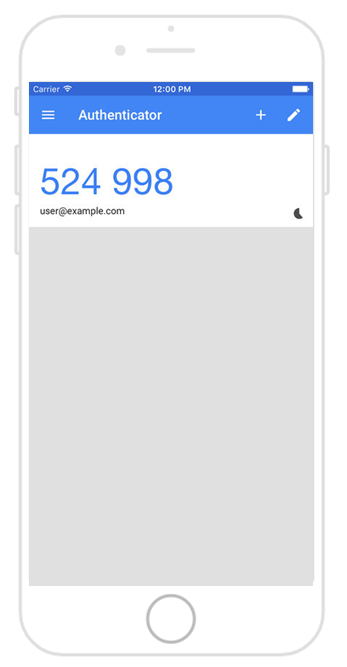
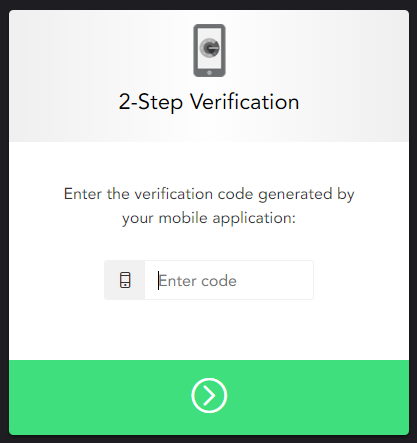
Optimove supports two-factor authentication using the Google Authenticator mobile app. Once it is activated for an Optimove site, each time a user tries to log in to the site, he or she will need to type into Optimove a code that appears in the Google Authenticator app.
Setting Up Two-Factor Authentication
After two-factor authentication is activated for your Optimove site, you (each user) will have to set it up the next time you log in. After entering your email address and password on the login page, you will be asked to:
1. Download and install the Google Authenticator app on your mobile device (from Google Play for Android or from the App Store for iOS).
2. Open the app and use it to scan the code shown, like this:
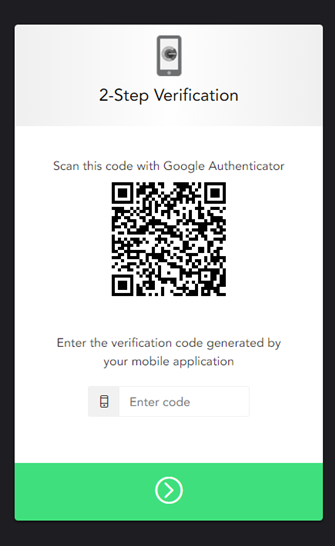
3. Type into Optimove the code shown by the app, like this: