
Please note:
To unlock this capability, you will need to have added Webpage Pop-Ups to your Optimove package. If you can’t see this feature in your Optimove instance, contact your CSM to find out more.
Trigger a personalized pop-up for visitors during their first visit day, as they click on a CTA button or link in your website. For example, trigger a popup upon login.
|
Capability
|
Example Options
|
|---|---|
|
Target Audience
|
Visitors
|
|
Platform Support
|
Web
|
|
Execution Type
|
Triggered campaign
|
|
Trigger
|
Website visit
|
|
Execution Channel
|
Webpage pop-up
|
Here is the triggered campaign flow for this type of scenario:
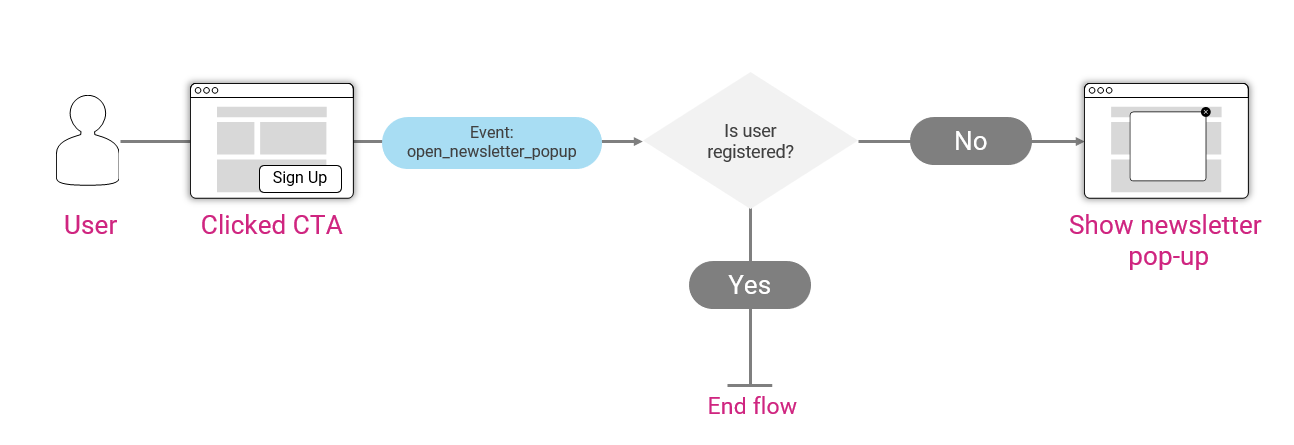
Trigger and Campaign Setup
To execute the pop-up campaign, the following steps are required:
1. Add code in your website to report an event such as "open_newsletter_popup", in response to a user clicking on the relevant links/buttons, using the reportEvent()function of the Optimove Web SDK. The structure of this call is reportEvent("open_newsletter_popup", params); where params is an optional object containing any named parameters and their values that are passed to Optimove.
2. In Optimove’s Manage Triggers page, define a trigger based on this custom event. For example:
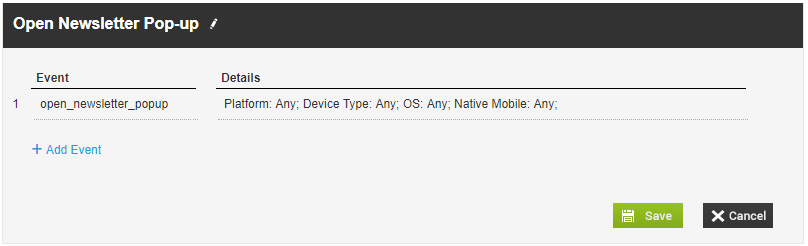
You can use the event parameters to define a more specific trigger. For example, open_newsletter_popup.
3. Define two target groups for this campaign. For more information on these target groups, see Creating Behavior-Based Target Groups.
- First-Time Visitors
- Returning Visitors
4. Configure the campaign. You can define identical campaigns for first-time and returning visitors, or address the two groups differently, by assigning a different marketing action, creative, or promotion.
To create the campaign for each target group:
- Create the webpage pop-up template for the campaign. For information on adding personalization tags to a webpage pop-up template, click here.
- Define triggered campaigns for both target groups mentioned above. For example, using the Open Newsletter Pop-up trigger created above.
- Select Webpage Pop-up as the execution channel.
- Specify the date range during which this campaign will run.
- (Optional) Specify the maximum number of times the campaign may be triggered for eligible visitors.
- (Optional) Specify the delay (in seconds) for triggering the pop-up (i.e., if a delay of x seconds is specified, the pop-up will appear x seconds after the campaign was triggered).
- Select a marketing action.
- (Optional) Select a promotion.
- Select the pop-up template to use when executing the campaign.