
- Customer Target Groups– by using Web & App Activity or other criteria available on your site.
-
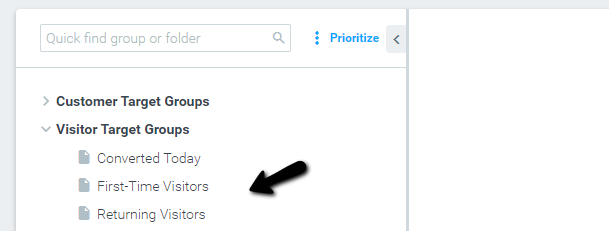
Visitor Target Groups- Optimove provides the following pre-configured, ready-to-use visitor target groups:
- First-Time Visitors – All unidentified visitors on the day of their first visit (even if they had multiple sessions on this day). There is no option to modify this group.
- Returning Visitors – All unidentified visitors during any visit that occurs on any day after their first visit day. This group can be modified. For more information, see the Custom Target Groups section.
- Converted Today – All visitors who converted today. Visitors in this Target Group will automatically be removed the following day. There is no option to modify this group.
|| Please note: any change to triggered campaigns that make use of First Time Visitors or Converted Today target groups will be calculated immediately, regardless of the Batch Data Update timing.
Building Customer Target Groups
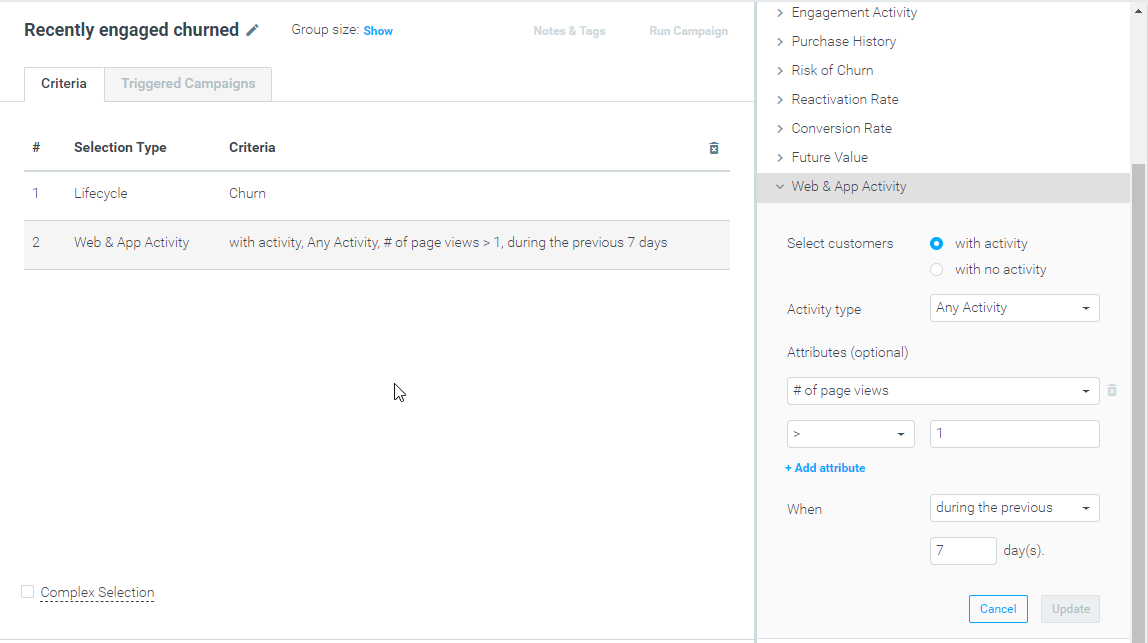
You can use Optimove to target customers based on individual website/app activities or combinations of activities. To do so, navigate to Manage Target Groups or Customer Explorer and define your desired criteria within Web & App Activity.
Building Custom Returning Visitor Target Group
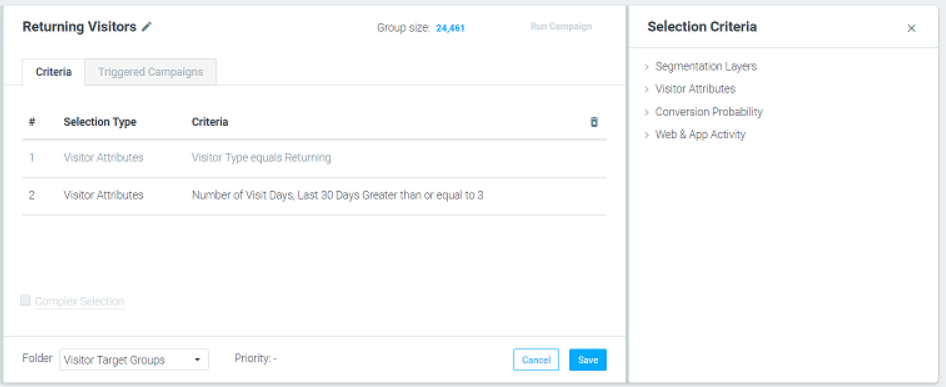
You can create custom target groups by extending the built-in Returning Visitor target group. To do so, navigate to Optimove’s Manage Target Groups or Customer Explorer, select the Visitors category and create new groups under it. The attribute and activity criteria available for customer selection under Web & App Activity depend on the events that you send to Optimove via the Optimove SDK.
The Target Group “Triggered Campaigns” Tab
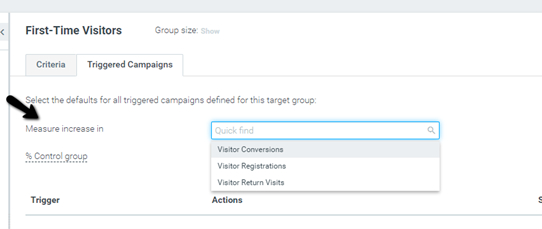
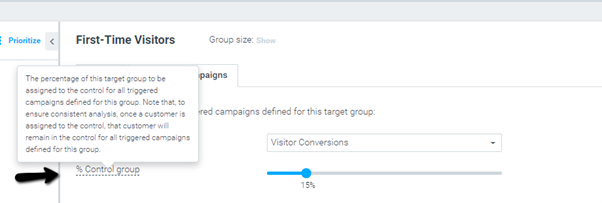
Under the “Triggered Campaigns” tab, you can define two default settings that will be used while using this target group in a triggered campaign:
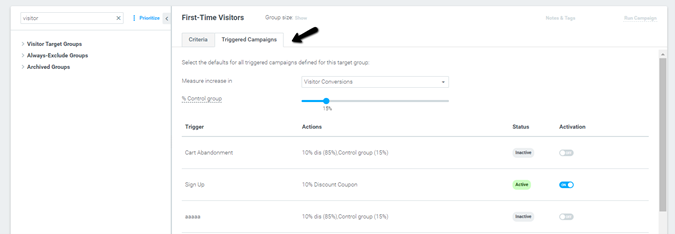
1. The KPI you want to improve – Unlike scheduled campaigns, the KPI for triggered campaigns is set at the target group level and not from within the Campaign Builder. To determine the KPI for each target group you want to associate with a triggered campaign, open the dropdown and choose the KPI you would like to measure.
To ensure consistent analysis, once a customer is assigned to the control group, they will remain in the control group for all of the group’s triggered campaigns.
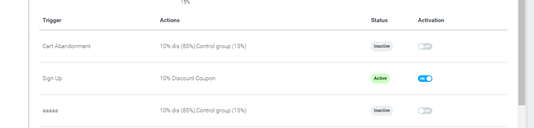
Understanding Triggered Campaign Statuses
- Inactive - the campaign is not running.
- Scheduled - the campaign’s start date is in the future.
- Processing - the campaign is running for a subset of customers. This can happen when a target group consists of a large number of customers. In such cases, the campaign may run for customers who were already populated while others are still being processed.
- Active - the campaign is currently running.
Failed – In case there was an error in uploading customers or activating the campaign. Contact your CSM or Support.
|| Please note:
When reactivating (switching the toggle from Inactive to Active) a triggered campaign within the campaign’s timeframe for First Time Visitors or Converted Today target groups, the campaign will reactivate immediately, regardless of the Batch Data Update. All other target group types will be activated after the next batch data process.
To learn more, check out Target Group Creation 101 in Optimove Courses.