
- Changes made to Optimove triggers come into effect immediately.
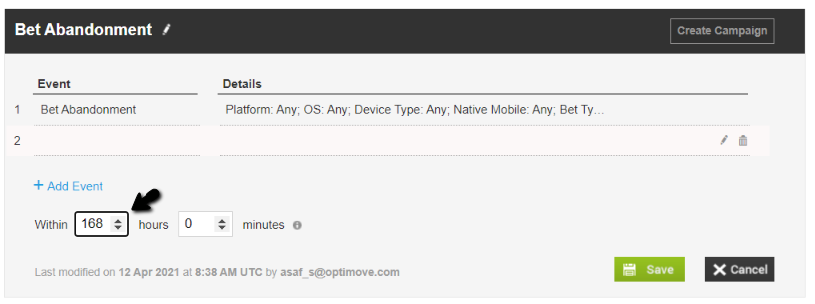
- The trigger's timeframe is limited to 168 hours (7 days).
How to create a trigger
- Create a new folder or add a trigger to an existing one using the plus icon
- Name your trigger
- Select the event (or a sequence of events) and the parameters that will trigger the campaign.
The event details in the right panel may differ according to the event type you set up during the configuration stage. You can set up three event types:
- Simple event – reports on a single action that took place, such as “Item added to cart.”
- Repeated event – an action that repeats itself, for example, “Product page view.”
- Uncompleted sequence event – a sequence of actions that were not completed, such as “Cart Abandonment.”
To read more about event types and parameters, refer to this article.
In the example below, we chose a simple event that was set using a Boolean parameter type (and therefore, should result in either true or false) in the parameter field.
Note: decimal numbers cannot be used when setting parameters.
Editing Trigger Parameters
- To Add a new parameter: You can add up to 50 parameters per event you send to Optimove. You can add a new parameter at any time, and this is not dependent on the event already being used as part of a trigger.
- To Delete or Update an existing parameter: If you are making changes to existing parameters, like deleting or updating the parameter, you need to make sure the event is not part of an existing trigger.
Please note:
If you delete a parameter and need to re-add it to the event at a later date, you will need to open a ticket with the Optimove support team.
Important notes on using Event Parameters:
- Each real-time event can consist of multiple parameters, although an event can also have zero parameters.
- When we have less than 1K (1000) values per parameter, we display a dropdown that contains the received values. The values in the dropdown are updated based on the events received by Optimove.
- For example, we won't expect to have a dropdown for the email parameter as there are likely more than 1000 unique emails sent in a registration event. However, for the language parameter, we will likely have a dropdown as there are fewer unique values.
- "One of" or "Not one of" is used when we want to filter exact values, and we can specify multiple values (up to 10 values).
- If there is no dropdown, the values should be separated with a comma and no spaces.
- "Contains" or "Does not contain" will never have a dropdown, and you can only set up one value.
Creating a trigger with more than a single simple event
You can create a trigger using more than a single simple event. In cases where this setting is used, all events must take place for the campaign to trigger. When selecting more than a single simple event as a trigger for the campaign, you will need to:
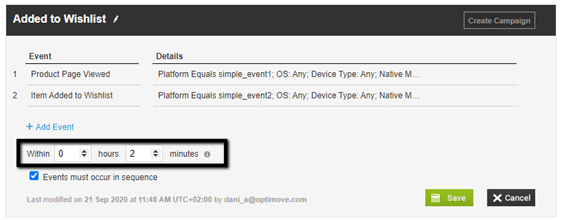
1. Define the timeframe within which all the events should occur for the campaign to trigger. In the example below, both events must occur within 2 minutes of each other
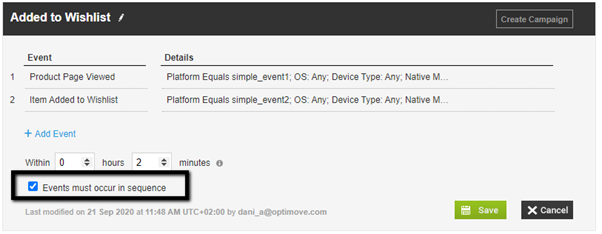
2. Define whether the events should occur in sequence or not. If you decide the events do not need to occur in sequence, any order of occurrence within the defined timeframe will trigger the campaign.
In the example below, the events must occur in the sequence presented, first, a “Product Page viewed” and then “Item Added to Wishlist.”
Creating a trigger using an uncompleted sequence event
Uncompleted sequences are composed of the following three parts:
- Initial Event – indicates the beginning of the sequence.
- Event Trigger – Composed of both an event and a timeframe in which the event should occur, up to three days from the initial event.
- An event that restarts the counter - The restart event instructs Optimove to restart the counter for the event trigger.
Setting up a timer for triggers using uncompleted sequence events
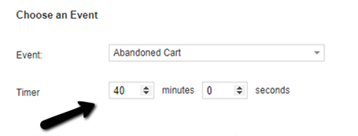
By default, the trigger’s “Timer” field will display the time set as part of the uncompleted sequence event configuration.
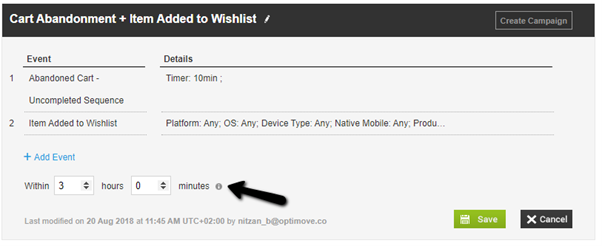
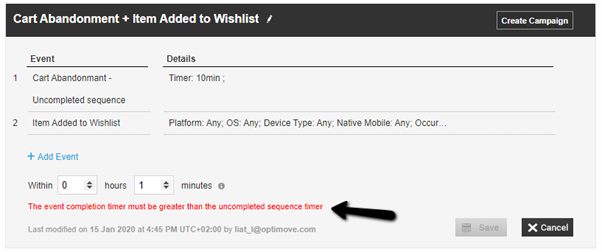
Events ordering when using uncompleted sequence events
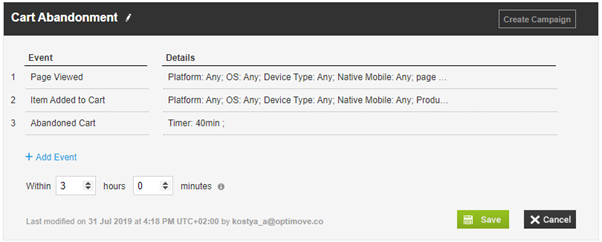
When combining uncompleted sequence events with additional events in the same trigger, the event placed directly before the uncompleted sequence event will override the initial event configured as part of the uncompleted sequence event.
- One or more, unrelated, events. In this case “Page Viewed”.
- The initial event of the uncompleted sequence event is simple.
In this case, the initial event “Item Added to Cart” from the uncompleted sequence event “Abandoned Cart.” This ensures that the event you set up in step 1 does not override the initial event of the uncompleted sequence. - The uncompleted sequence event. In this case “Abandoned Cart”).
Formula-Based Triggers (Live Formulas)
Formula-based triggers use Live Formulas to launch campaigns based on recent customer behavior over a defined time window. Instead of reacting to a single action, these triggers evaluate a running calculation, such as a total or count, and activate when it meets a specific condition.
For example, you can trigger a campaign when a customer deposits more than $1,000 within a 12-hour period.
To use this trigger type, you need to define a Live Formula and set up a Formula-based Event.
See the full guide on How to create a Trigger Using Live Formulas for step-by-step instructions.