
|| Please Note:
- Make sure to implement Optimove's Basic events before implementing any new Custom Events.
- These instructions are for both developers and marketers: Developers should lead Steps 1 through 3, and Marketers should lead Steps 4 and 5.
Step 1: Determine triggered campaign components
Define the following components:
|
Component
|
Definition
|
Examples
|
|---|---|---|
|
Target Group
|
The customers who will receive this campaign
|
All Active Customers
Churned male customers over 40 |
|
Platform Support
|
The platform through which Optimove will receive the event
|
Web
Mobile
|
|
Events
|
The actions that the customer performs are used to define the trigger
|
The customer visited the website
The customer made a purchase
|
|
Parameters
|
Relevant information that is sent along with the event can be used to personalize the template sent in the campaign or the trigger
|
The balance of a player upon login
The name, image, or price of a product abandoned in a cart
|
|
Trigger
|
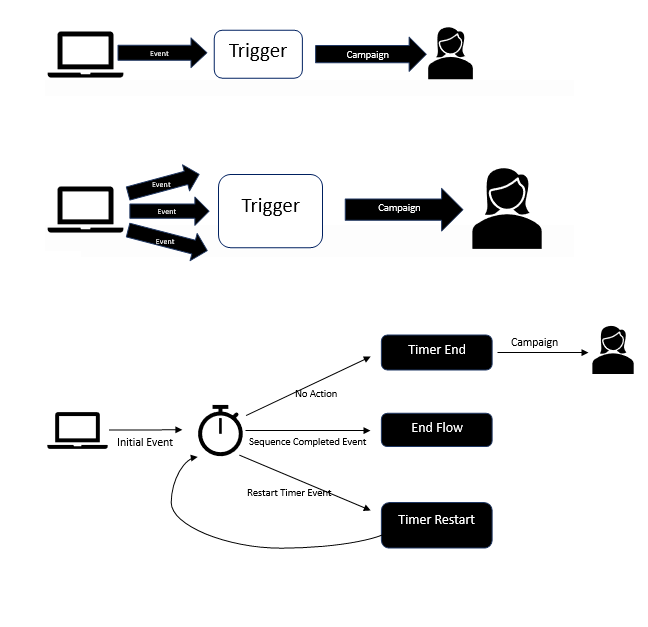
The event or set of events that occurred or didn't occur for the campaign to be sent to the customer (see diagram below)
|
The customer visited the website and didn’t make a purchase
|
|
Execution Channel
|
The channel through which Optimove delivers the campaign to the customer
|
Optimail
Webpage pop-up
|
|| Please Note: for guidance on integrating an external channel using Optimove's API, please refer to the Triggered Campaigns Integration Flow section of the Integrate Your Service with Optimove article.
Trigger Types
Step 2: Configure and implement a custom event
Configuration
Please refer to the Configuring Events in Optimove article to add the new custom event/s along with the defined parameters.
Implementation
Please refer to the Using Server-Side Events article and the Reporting Custom Events section of the Web SDK Setup Guide to implement the new custom event/s along with the defined parameters.
> Example
- Go to the events log page in your Optimove site and record all events
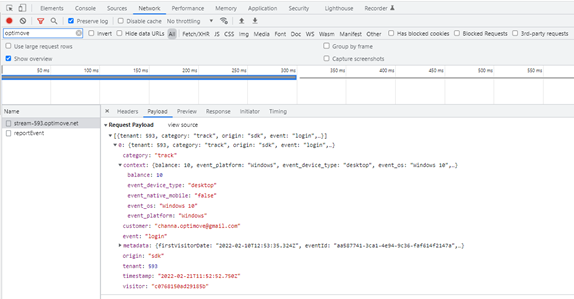
- Go to your site open Dev tools > Network > filter to Optimove
- Log in to your site
- Perform the activity of the custom event/s added
- Confirm the expected results:
- Parameters configured for this event/s are all populated:
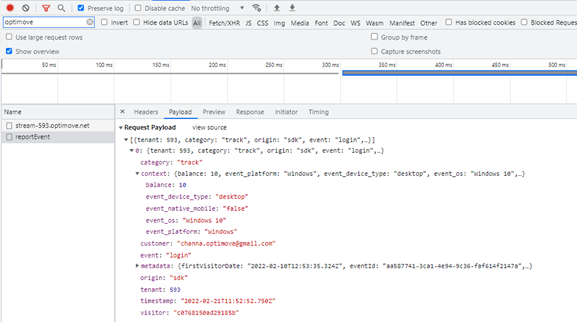
- Custom event/s reported in realtime when working with Optimove’s Web SDK
- Custom event/s reported streaming, when working with Optimove’s Web SDK
- CID: "SDK_ID" is populated
6. Go back to the events log page on your Optimove site and confirm the expected results:
- Successful logs for the custom event/s fired on your site
- the payload was processed successfully
- No warning messages in validation column
- No failed events:
Step 4: Create and test a triggered campaign
Create a triggered campaign
Please refer to the Creating Event-Triggered Campaigns article to create the new trigger you have defined above.
|| Please Note:
- If you are using Optimove's in-house channels ("webpage pop-up"/"Optimail"), create a template in the relevant channel on the "Manage Templates" page. Remember to include any real-time personalization tags sent as part of the custom event/s used in the trigger
- If you are using Optimail, make sure you're in the "Triggered Campaigns" folder before creating a template
- To avoid assigning users to other active real-time campaigns, place your test group at the top of your priority list (See the Priority and Exclusions for Triggered Campaigns article for more information)
Test your triggered campaign
- Go to the events log page in your Optimove site and record all events
- Perform the activity of the custom event/s you have added. Make sure you are logged in as the user you created the test campaign for
- Confirm the expected results: the campaign was triggered
- If your campaign wasn’t triggered:
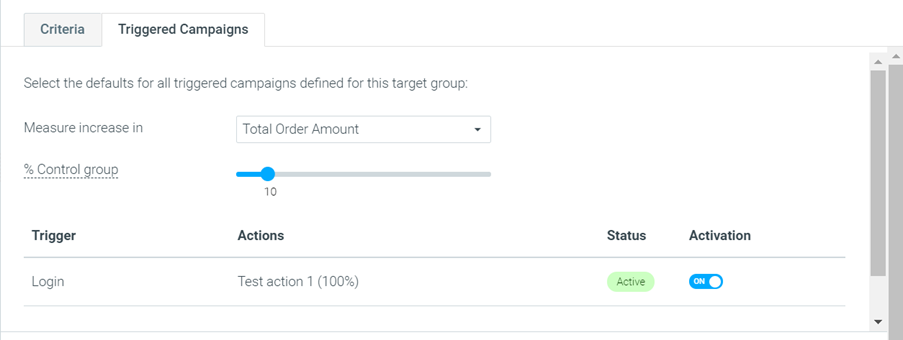
- Check if the campaign is active on the target group's Triggered Campaigns tab:
- Check if your user is assigned to another Target Group. If you're unsure, contact your Customer Success Manager
- Check that the trigger, including any parameter filters used, were setup correctly.
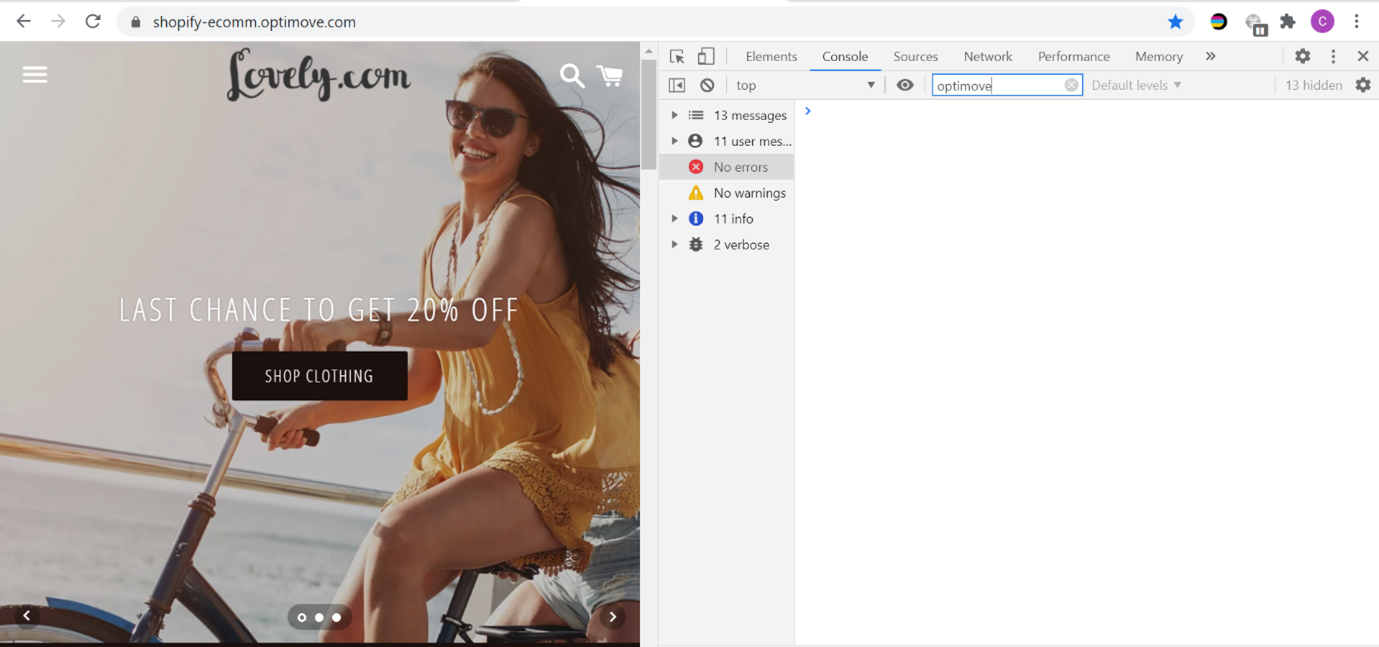
- Check that the event was sent to Optimove's endpoint when testing the campaign and that there weren’t any errors in the console:
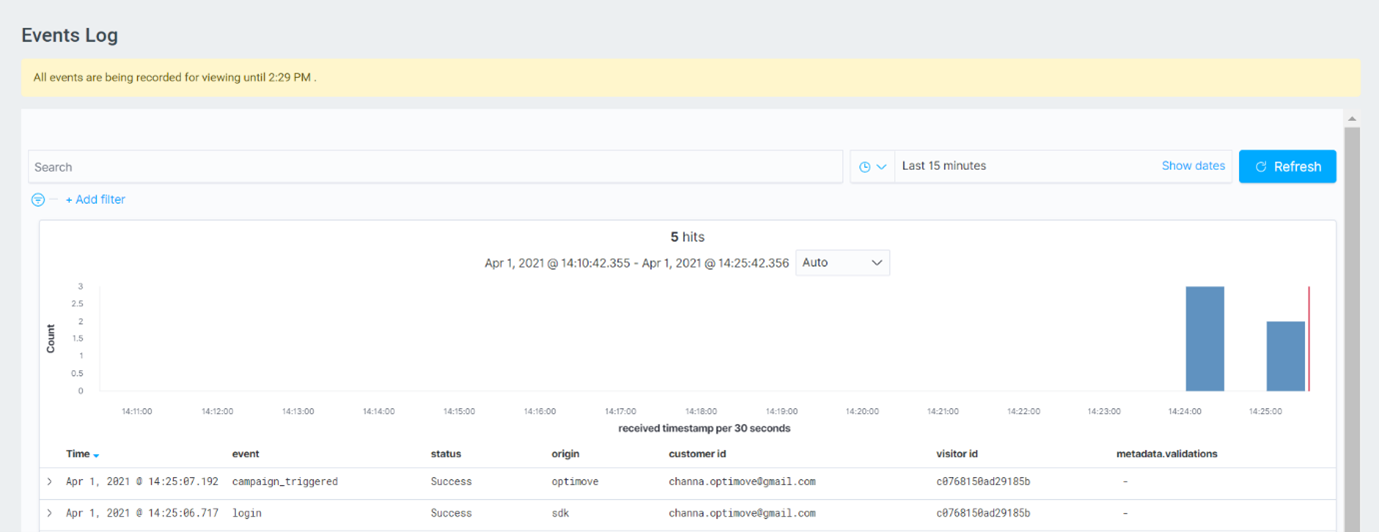
- Check if the campaign was triggered but there was an issue with the campaign execution by going to the events log page in your Optimove site and searching for the "campaign triggered" event. If this event appears, please contact your Customer Success Manager:
Step 5: Track your campaign progress
Now that your campaign is up and running, please refer to the Mission Control article to track and monitor its performance.