
Before using Email for the first time, it is recommended to send a test campaign to multiple internal users (recommendation: to yourself, some co-workers, and your Optimove CSM).
The goal of this test campaign is to make sure that the system is properly configured for sending emails (this is not about testing a particular template).
If you have multiple Email accounts, you should perform the following steps once for each account:
1. Before running a test campaign, add a few team members/internal email addresses to your Optimove customer database and create a new temporary Target Group that contains only these test email addresses. It is highly recommended to include some personalization tags in your test template, which are populated in Optimove for each test user, so that you can verify that these tags are being correctly populated.
2. Go to Campaign Builder.
3. Select the Target Group of internal users that was created for this test. For example, “Email internal test.”
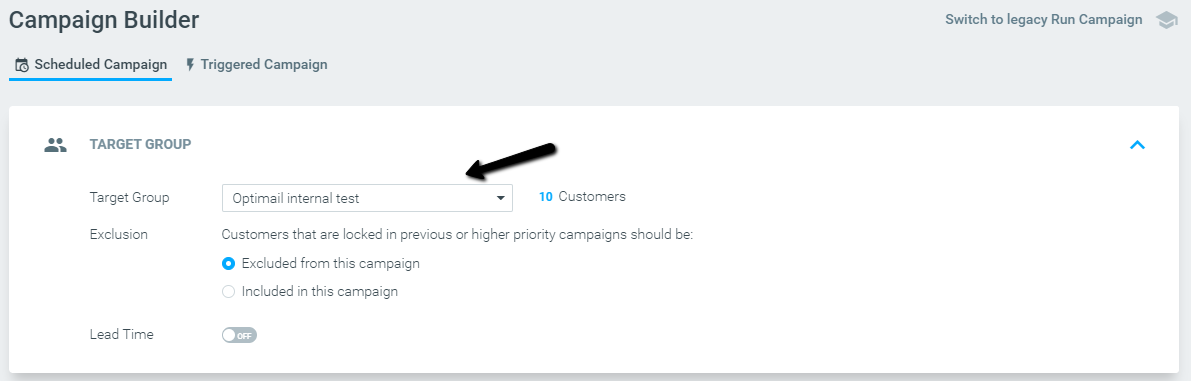
4. Select Email as a channel.
5. Select the template you will use for this test. If you have multiple Email accounts defined, you should first select the brand you are currently testing.
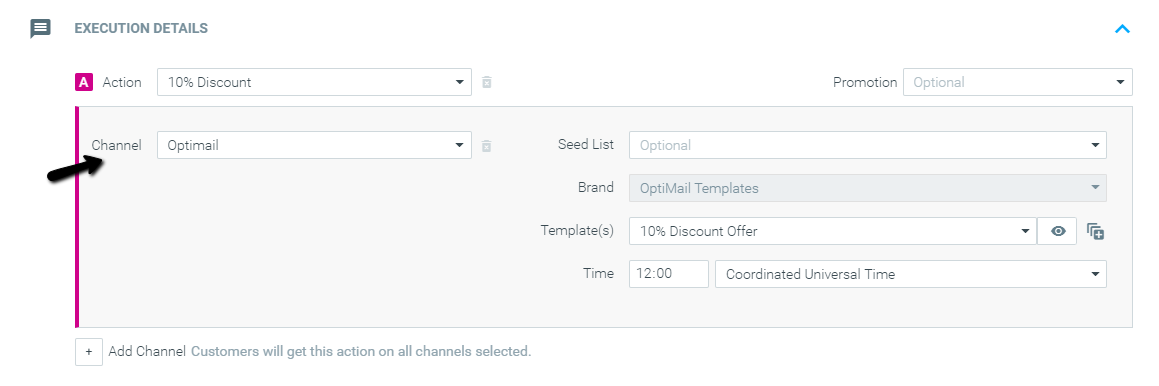
6. Complete scheduling the campaign.
After the campaign runs, check to see if the emails were received in the inboxes of the intended recipients and if everything appears/works as expected.