
Click Map is an Optimove feature that shows how many times each element was clicked. Using Click Map you learn which element in your template is more effective. Alternatively, learn how customers prefer to access your website (for example, by clicking the logo, a button, or a link to a specific offer in the template), to adjust other templates accordingly.
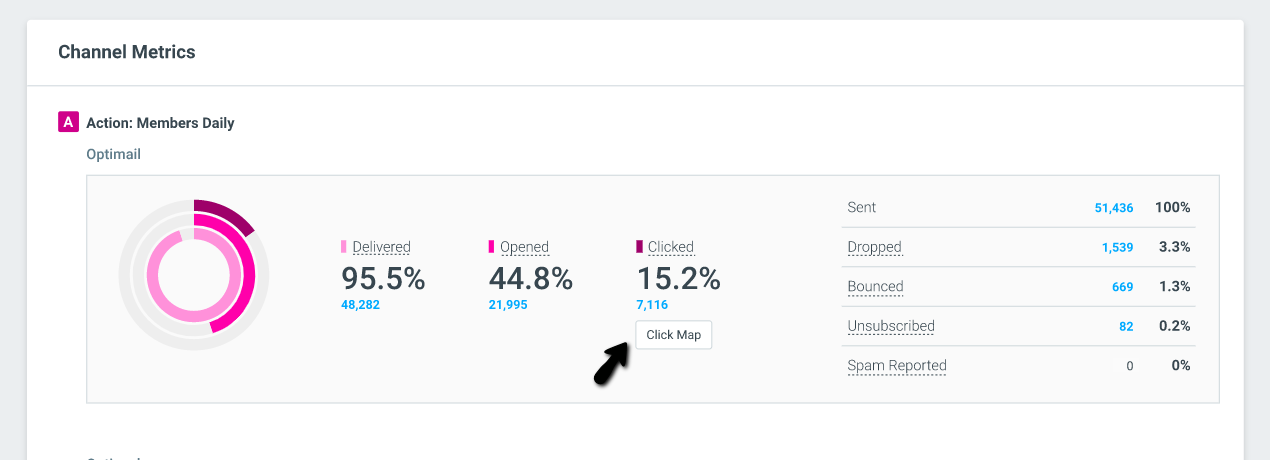
To view your Click Maps, go to the Campaign Analysis page, scroll to the Channel Metrics section, then click on “Click Map”.
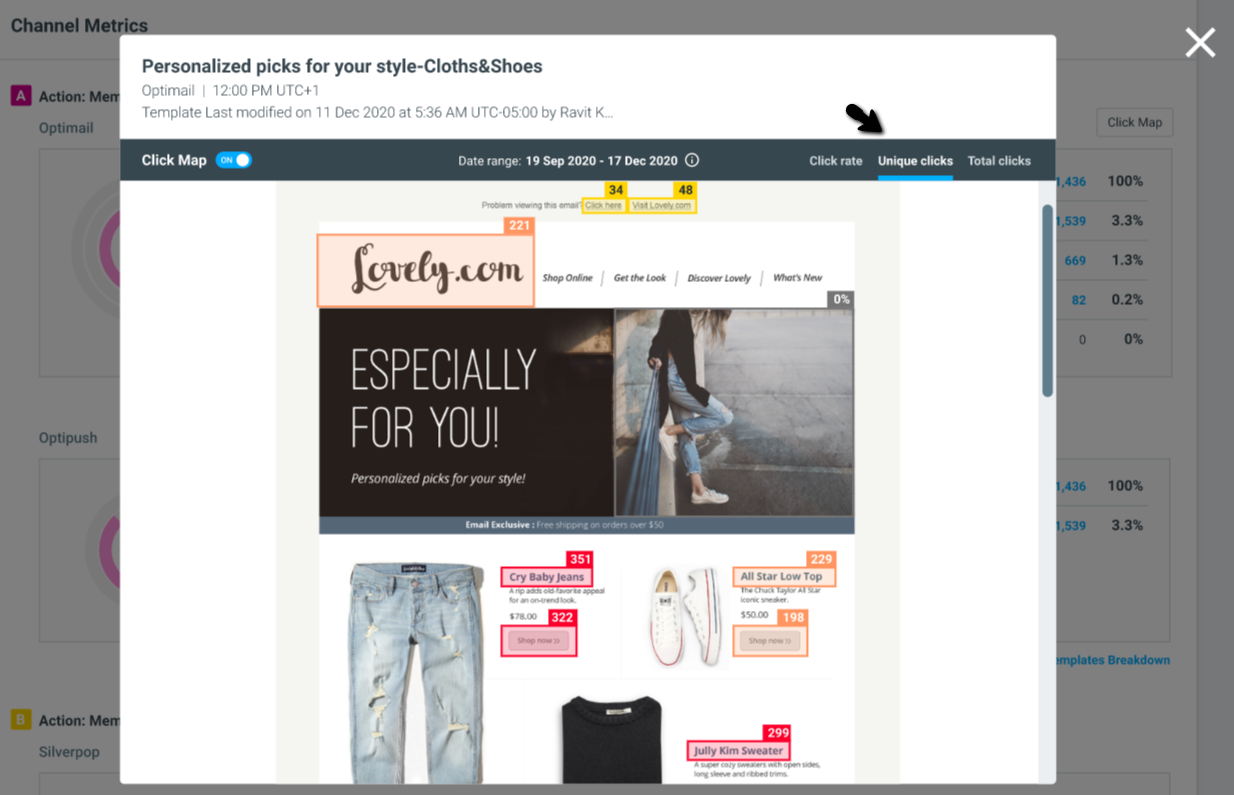
Once clicked, the template opens, and on the top right you can change the metrics to show:
- Click rate (Unique clicks divided by total clicks)
- Unique clicks
- Total clicks
Please note:
There might be a discrepancy between the Total Clicks shown in the Campaign's Channel Metrics and the Total Clicks shown on the Click Map when a recipient views the email in its "Plain Text" version. This is due to support limitations on the email service provider’s side.
Please note:
- The Channel Metrics section reflects unique clicks per template, for each customer.
- "Unique clicks" in Click Maps reflect unique clicks per element, in the template.
In case you have a multi-template campaign, switch between templates using the white arrows.
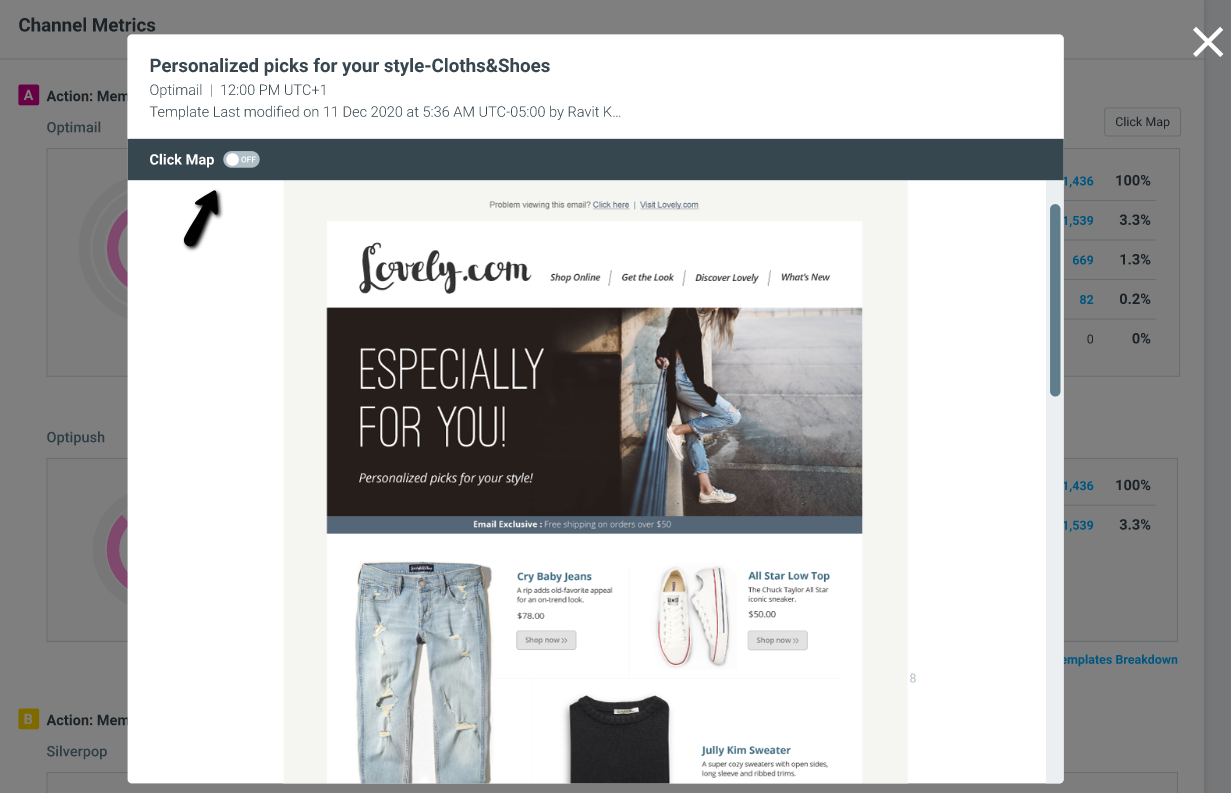
For a regular preview of your template, toggle the Click Map off:
Important note:
Any clicks on the "Unsubscribe", "Manage Email Preferences" and "mailto" links are not counted as part of the Unique clicks or Total clicks metrics.