Please note:
To unlock this capability, you will need to have added Location Targeting to your Optimove package. If you can’t see this feature in your Optimove instance, contact your CSM to find out more.
If you have deployed hardware beacons, then you can add details of them to Optimove to target customers when they come into proximity of your target location. Optimove supports both iBeacon and Eddystone protocols.
Registering Beacons
To add, edit and delete Beacons, go to your Settings section and select Beacons, ensuring the correct app is selected from the dropdown in the top right.
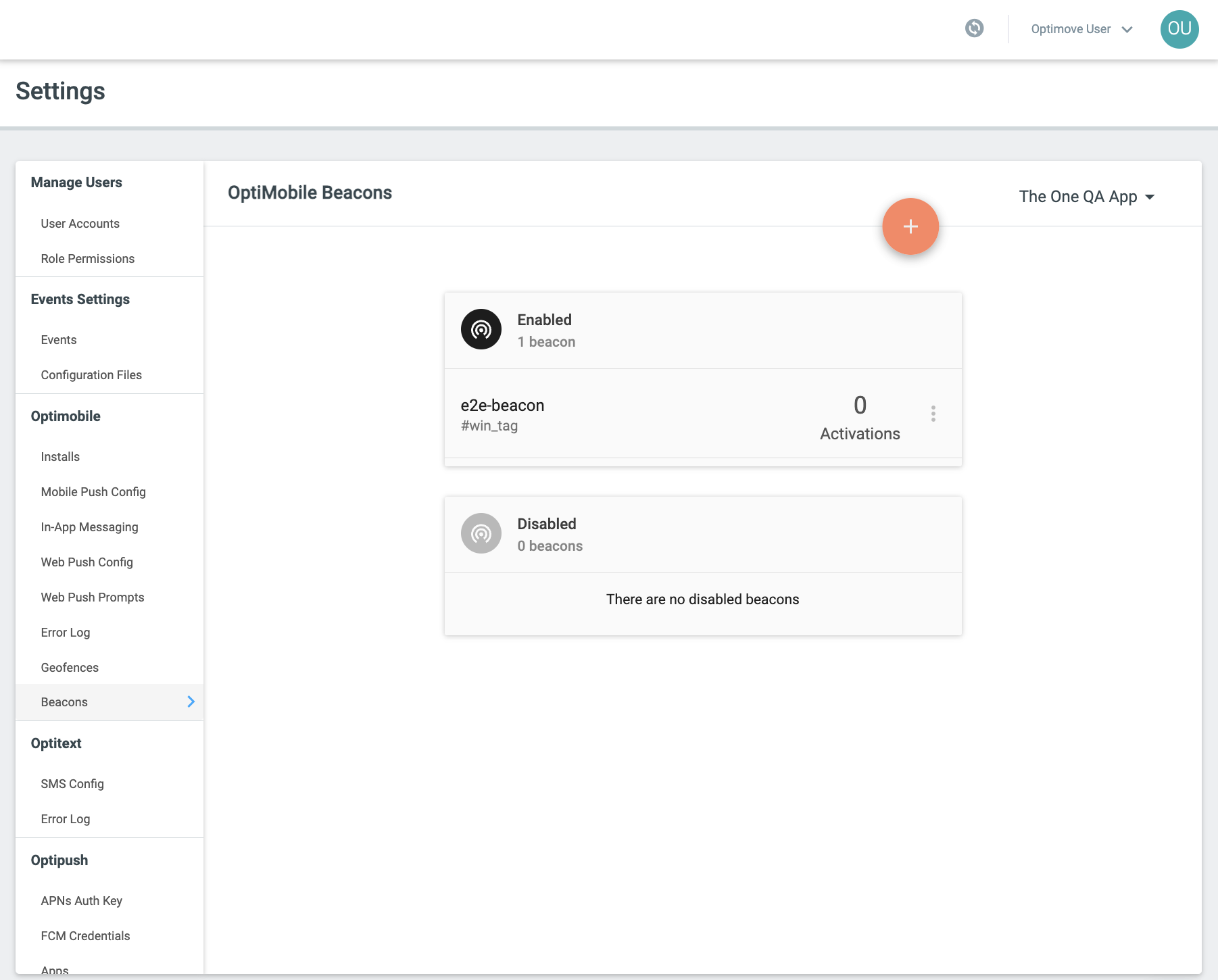
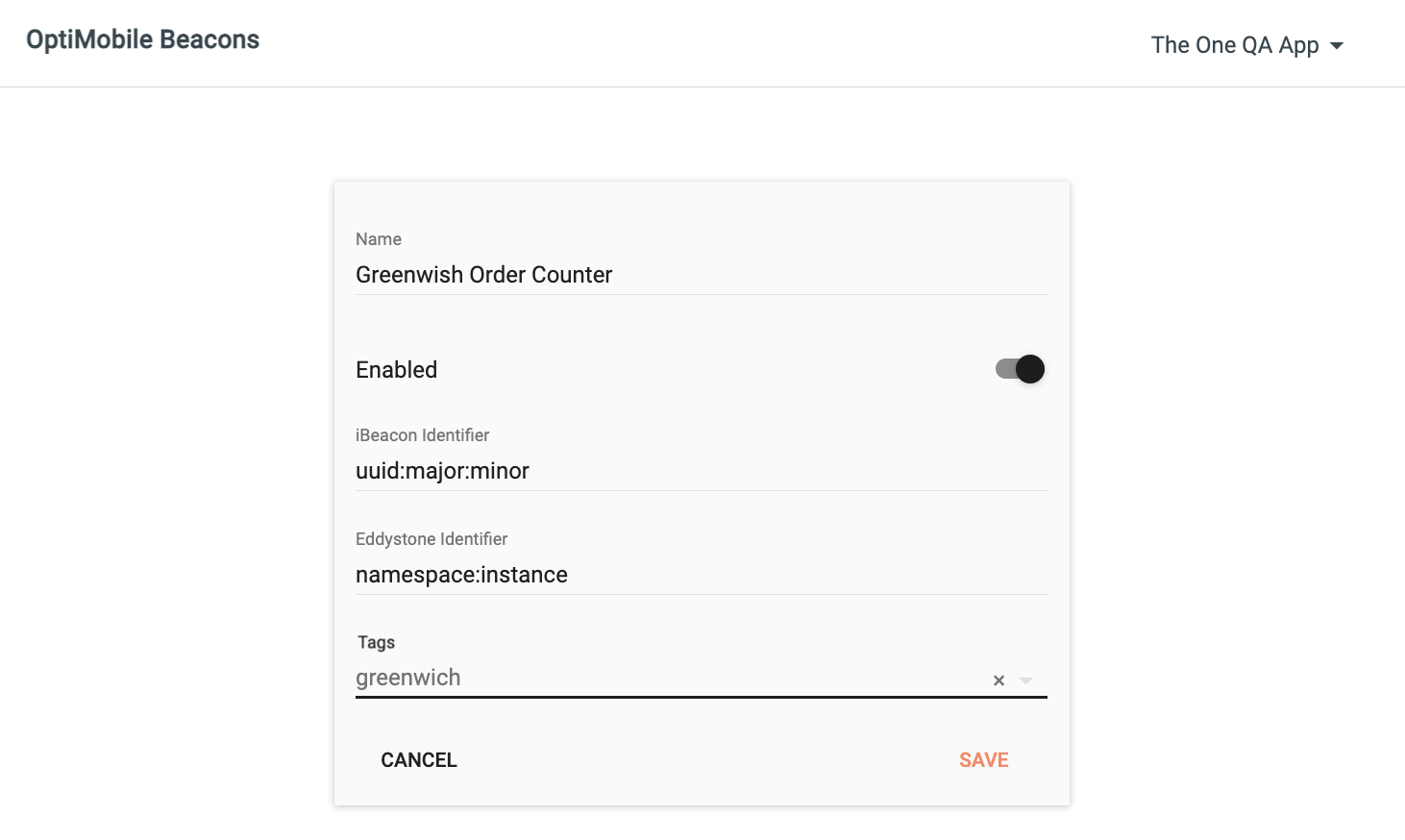
To add a beacon, click the primary action button and give the Beacon a meaningful name.
If you are adding an iBeacon, enter the identifier of the physical beacon. This is of the format uuid:major:minor where major and minor are integers.
If you are adding an Eddystone beacon, enter the identifier of the physical beacon. This is of the format namespace:instance.
Some hardware beacons support both protocols. However, even if your hardware beacons do not if you have iBeacons and Eddystone beacons in the same physical location (i.e. to target both iOS and Android installs) then only add a single beacon to Optimove with both identifiers configured. This way, you can use both beacons to trigger real-time messages.
Tags
You can optionally add one or more tags to a beacon.
This allows you to group beacons (and geofences) and use multiple beacons (and geofences) with the same tag as a trigger for real-time messages.
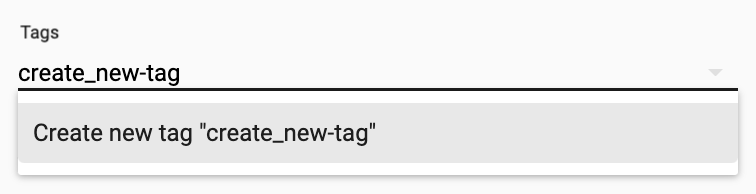
To add a tag to a beacon, start typing in the tags field and either select a tag you have used before or create a new tag (which will then be available when adding or editing other beacons and geofences).
Click "Save" when ready to add the beacon.
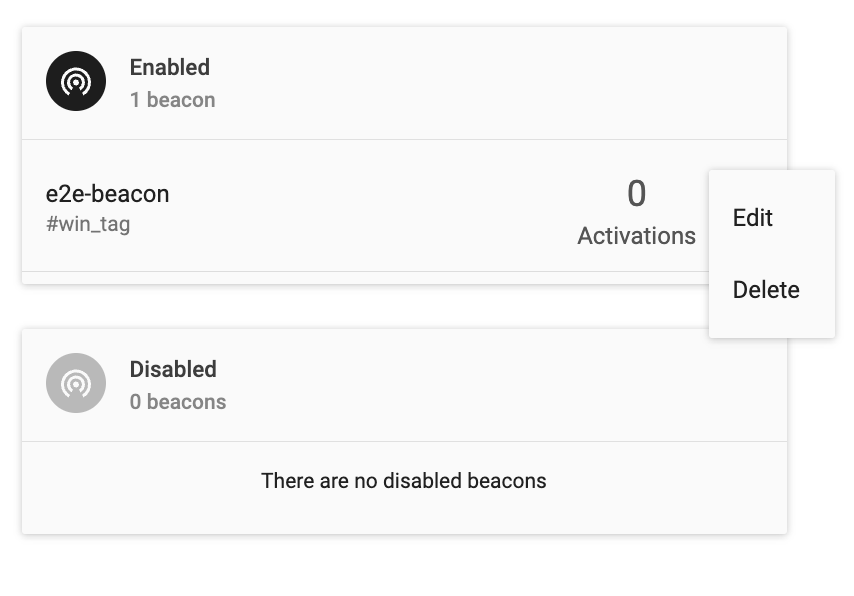
|| Note: next to each beacon is a count of how many proximity events have been recorded for that beacon - a useful approximation for footfall and deciding if your hardware beacons are positioned in the most optimal locations.
Editing or Deleting Beacons
You can edit and delete a beacon by clicking on the three dots on the right-hand side of that beacon and selecting "Edit" or "Delete" as appropriate.