
Please note:
To unlock this capability, you will need to have added Mobile Push Notifications to your Optimove package. If you can’t see this feature in your Optimove instance, contact your CSM to find out more.
Overview
You can design and save templates that can be reused when you and your team are sending mobile push notifications and in-app messages via Optimove.
How to Create a Mobile Push Template
To access your existing mobile push notification templates and create new ones, navigate to the Templates area and select Mobile Push.
Working with Templates
Add a new template by clicking the blue Create New button.
Name and Identifier
You must give each template a name to identify the template when sending a mobile push notification or in-app message. From the name, a unique identifier will also be generated.
Mobile Push Template Content
As you add content to the notification, you can preview how the notification will look on a user's device. By default, the preview shows how the notification will look when it arrives on an iPhone.
Personalization
In your text, you can also add user attributes to personalize the message. You can learn more about adding Personalization Tags to your Mobile messages here, and find out about adding Conditional Language here.
Image
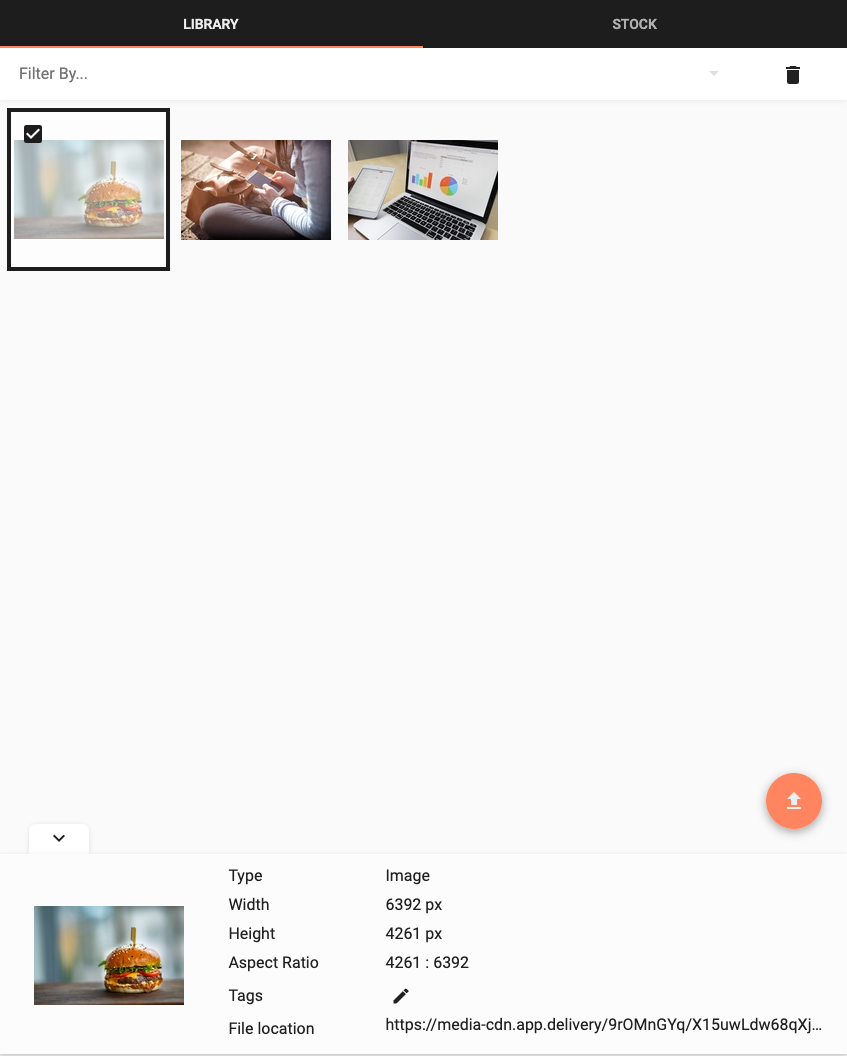
If you want to add a picture to your notification, click "Add Image" to open your Media Library.
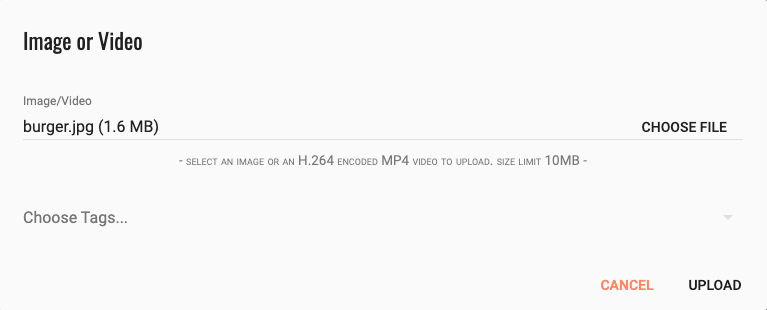
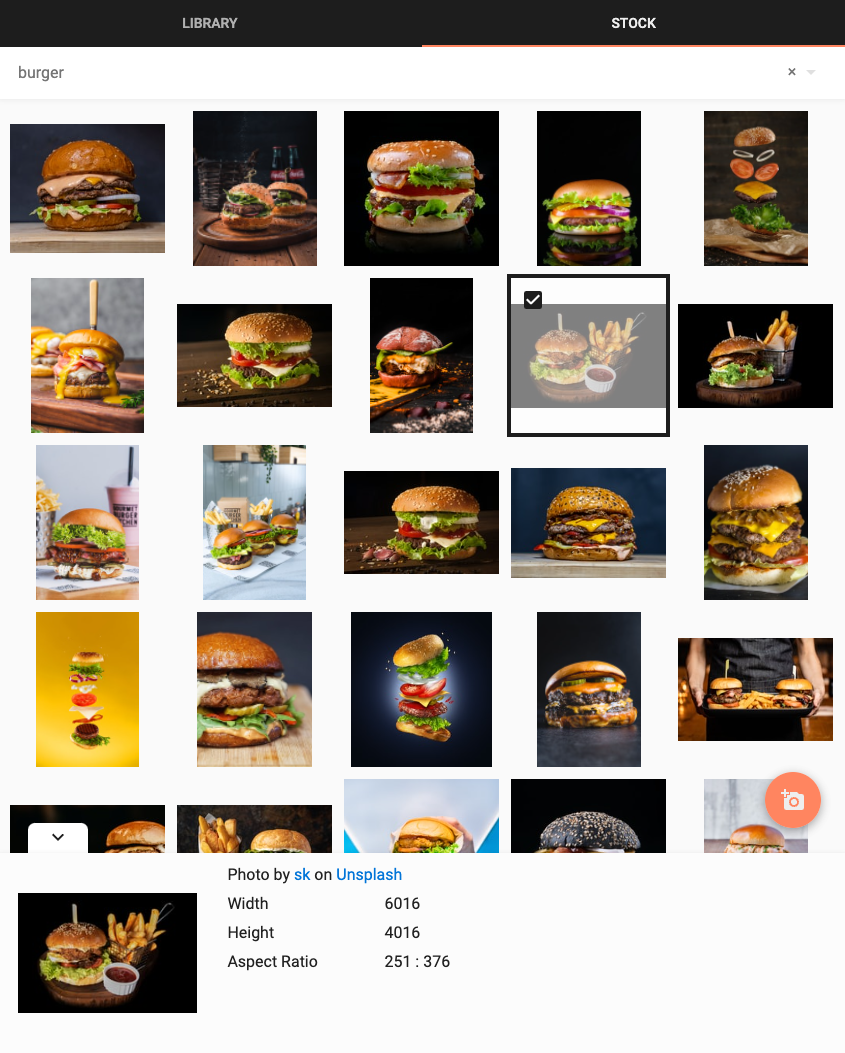
Here, you can upload a new image, select an image you have previously uploaded, or search the Unsplash stock image library.
Please note:
The preview will show how the notification will look when it arrives on a phone with a thumbnail image. Click the notification to see how it will look when the user expands the notification on their phone.
To remove the image from your push notification, click "Clear Image".
Other Options
To open a URL, add a data payload, or set any platform-specific options, expand "Advanced".
Open a URL
Please note:
Ensure that you have reviewed the appropriate SDK integration guides to support URL push.
Background
To send a notification that can be processed in the background, toggle the "Run background handler" switch. The title & message become optional and can be omitted to create a silent push.
Data
Action Buttons
Please note:
The preview will show how the notification will look when it arrives on a phone with a thumbnail image. Click the notification to see how it will look when the user expands the notification on their phone.
iOS Settings
iOS Badges
To set the badge on your app on iOS, toggle the "Set Badge" switch. By clicking on "Badge Type," you can choose whether to set the badge to the absolute number you enter in "Count" or to increment the badge by the positive or negative number you enter in "Count."
iOS Category
Categories can have associated actions, which define custom buttons that the system displays for notifications of that category. When the system has unlimited space, it displays up to 10 actions. When the system has limited space, it displays at most two actions.
To learn more about iOS categories, relevance, and interruption levels, check out their documentation here.
iOS (15+) Relevance Score
The Relevance Score is a tool that allows you to influence how your app's notifications are ordered, but it only applies under very specific circumstances related to the iOS Scheduled Summary feature.
How it Works
When a user enables Scheduled Summary, iOS groups non-urgent notifications and delivers them in a single batch at a time of the user's choosing. The relevance score you set (from 0.0 for lowest to 1.0 for highest) tells iOS which of your app's notifications is most important to show at the top of that group.
When Relevance Score is Used ✅
For the relevance score to have any effect, the following conditions must be met:
- The user must have Scheduled Summary enabled on their iOS device (Settings > Notifications > Scheduled Summary).
- Your app must be included in the user's list of apps for the summary.
Result: iOS uses the relevance score to sort your notifications within the summary batch. The notification with the highest score appears first.
When Relevance Score is Ignored ❌
In all other scenarios, the relevance score has no effect. This includes when:
- The user has Scheduled Summary turned off.
- Your app is not included in their summary list.
Result: Notifications are delivered in real-time as they arrive and are sorted chronologically. The relevance score value is not used.
iOS (15+) Interruption Level
To set the interruption level for iOS, toggle the "Set Interruption Level" switch and select from the available options.
The available interruption levels are:
Active
The system presents the notification immediately, lights up the screen, and can play a sound.
Passive
The system adds the notification to the notification list without lighting up the screen or playing a sound.
Time-Sensitive
The system presents the notification immediately, lights up the screen, and can play a sound, but won’t break through system notification controls.
Critical
The system presents the notification immediately, lights up the screen, and bypasses the mute switch to play a sound. If you select this option and your app does not have the necessary entitlement, then the message will not be delivered. The critical notification entitlement must be requested from Apple and is heavily restricted.
Android Settings
Android Priority
You have two options for assigning delivery priority to downstream messages on Android: normal and high priority. Delivery of normal and high-priority messages works like this:
- Normal priority. This is the default priority for data messages. Normal priority messages are delivered immediately when the device is not sleeping. When the device is in Doze mode, the delivery may be delayed to conserve battery until the device exits Doze. For less time-sensitive messages, such as notifications of new emails, keeping your UI in sync, or syncing app data in the background, choose normal delivery priority.
- High priority. FCM attempts to deliver high-priority messages immediately, allowing FCM to wake a sleeping device when necessary and to run some limited processing (including very limited network access). High-priority messages generally should result in user interaction with your app or its notifications.
To learn more about FCM priorities, check out their documentation here.
Android Notification Channel
For Android users, you can assign each mobile push notification to a different channel type. Google notification channels can be used to separate mobile push templates into groups, for example, promotional versus transactional messages.
Notification Channels are mandatory for sending mobile push to Android devices, and can be set up on the Android developer site.