- “Audience Sync”- The marketer can create smart Target Groups in Optimove based on customers’ attributes and push them into the Klaviyo platform.
- “Campaign Execution”- The marketer can create and execute Klaviyo campaigns directly from the Optimove UI.
For further details, please reach out to your Optimove CSM.
How it Works
With campaign execution, Optimove syncs the Klaviyo templates into the Optimove UI every 10 minutes, and then the marketer schedules a campaign from the Campaign Builder.
Campaign Execution: Step-by-Step
- Design the template you would like to use in your campaign using Klaviyo. To add personalization tags to your Klaviyo email template, learn more here.
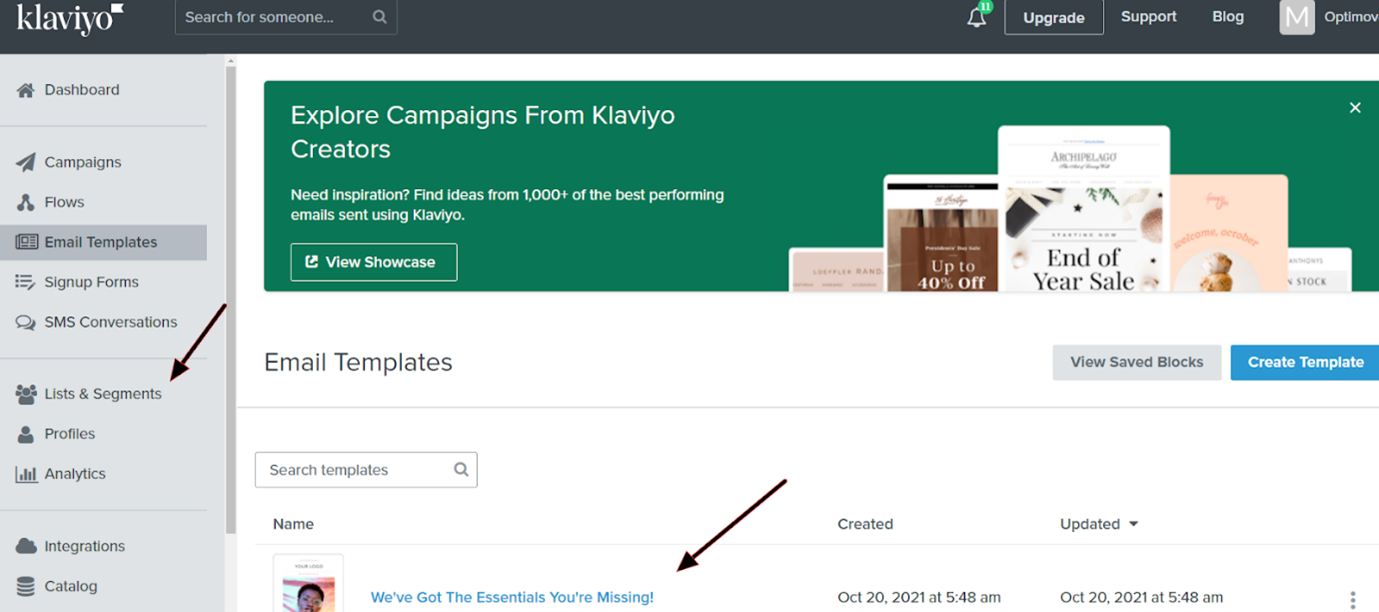
- Name the template with the wanted Subject Line.
Please Note:
The subject line can’t be edited in the Opimove UI. Thus, Optimove will use the Template’s name as the subject line.
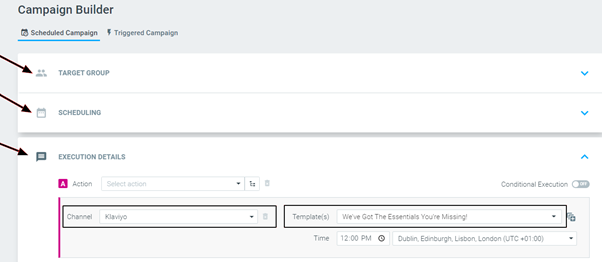
- Optimove syncs the templates into the Optimove UI every 10 minutes. The templates can be found in the Campaign Builder under the Klaviyo execution channel.
- Select your desired Target Group in the Campaign Builder, fill out all the relevant fields in the Scheduling section, and select your desired template from the list of available templates.
Audience Sync
Optimove pushes the Target Group into Klaviyo’s “Lists & Segments” section upon campaign execution.
Audience Sync campaign: Step-by-Step
- In Optimove, go to the “Campaign Builder”, select the relevant Target Group, choose the “Klaviyo Audience” channel and execute the campaign.
- When the campaign status changes to “Running”, you can see in your Klaviyo instance the newly added segment.

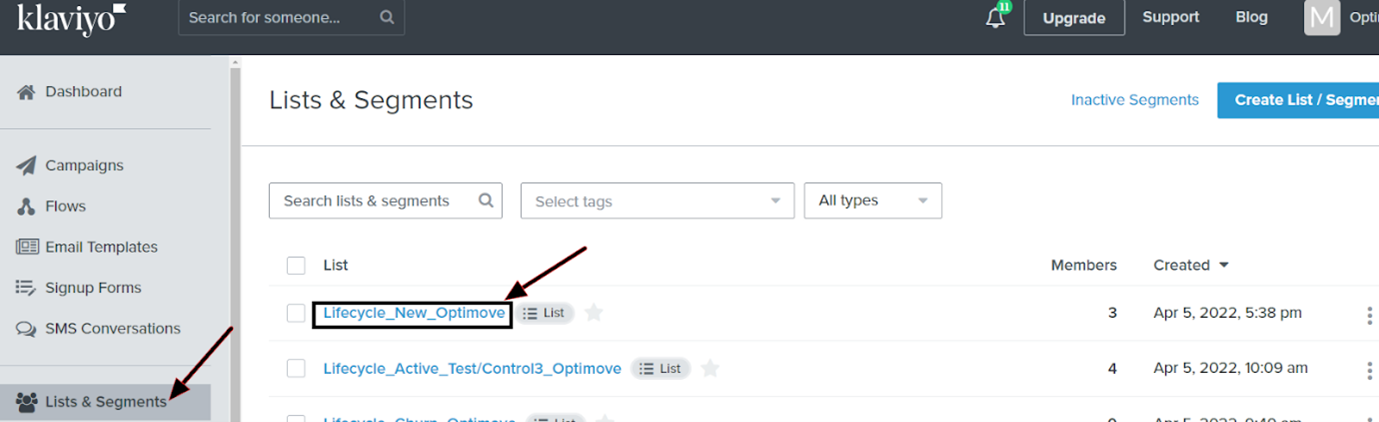
- Create a new campaign in Klaviyo and select the newly synced Target Group.
Klaviyo Limitations
Optimove uses Klaviyo’s APIs for executing scheduled campaigns and to create, update, upload, and remove customers from Klaviyo’s UI.
As such, Klaviyo's limitations apply:
- Optimove can upload 100 customers per API call.
- Optimove can make 100 API calls per minute.
Klaviyo Campaign Metrics in Optimove
Optimove connects to the Klaviyo API every hour for one week following the sending of each Klaviyo campaign to retrieve the campaign's delivery metrics. These metrics are displayed on Optimove's Campaign Analysis page for each executed campaign.
Klaviyo |
Optimove |
|---|---|
|
Sent
|
Sent
|
|
Received Email
|
Delivered
|
|
Opened Email
|
Unique Opens
|
|
Clicked Email
|
Unique Clicks
|
|
Unsubscribed
|
Unique Unsubscribers
|
Creating an API Key
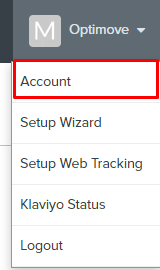
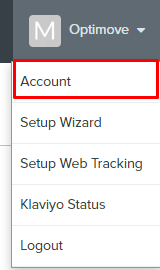
- Click your account name in the top-right corner of the Klaviyo portal UI and select Account.
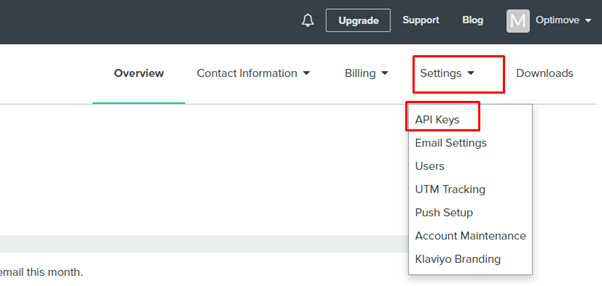
- Click Settings and select API Keys.
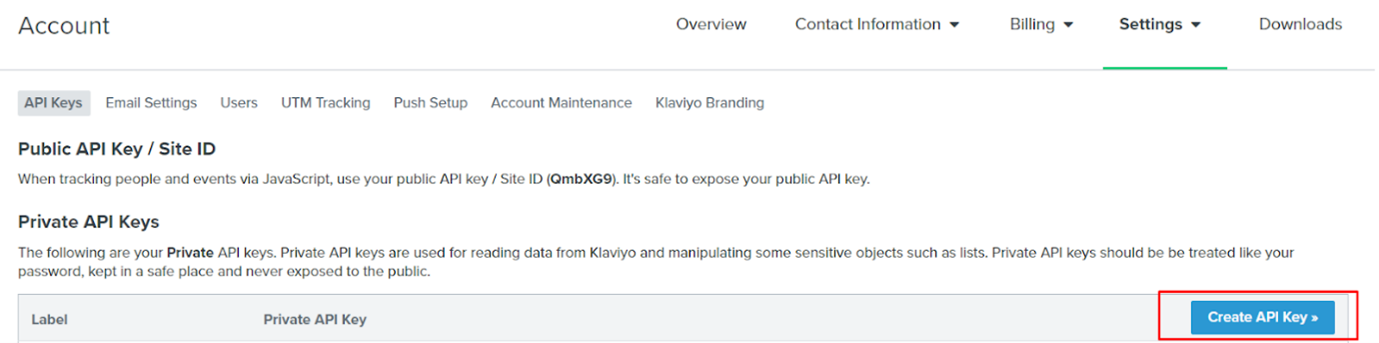
- In the Private API Keys section of the API Keys page, click Create API Key.
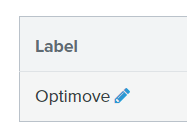
- Change the label name of the new API key to “Optimove.”
Checking Your Plan’s Monthly Send Limit
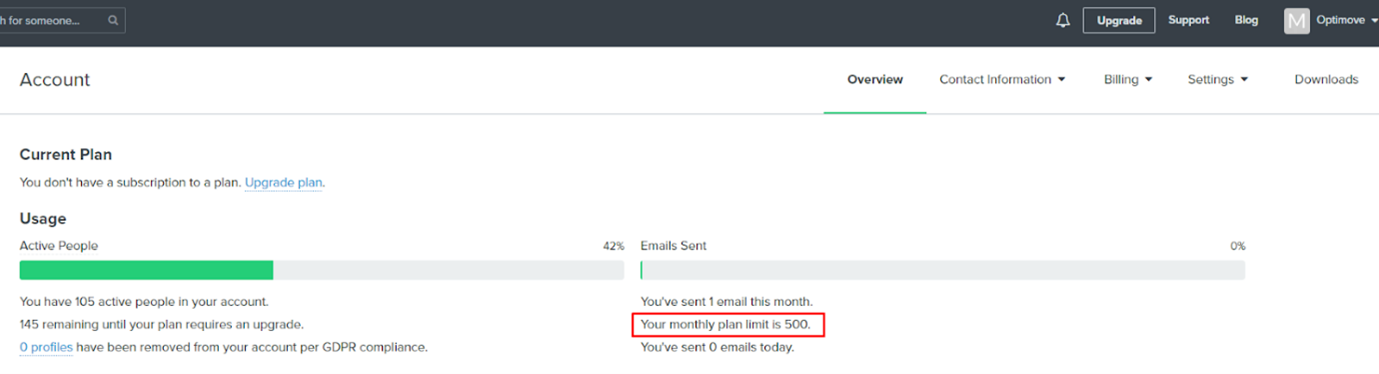
You will not be able to send more emails via Klaviyo than the limit permitted by your account. Follow these steps to see what your monthly plan limit is:
- Click your account name in the top-right corner of the Klaviyo portal UI and select Account.
- Click Overview – the limit is shown in the second column.