
The integrated solution of Braze and Optimove makes it easy to plan and execute emails and mobile push notification campaigns based on the advanced customer segmentation available in Optimove.
- Creating a campaign/template in Braze with the relevant tag
- Campaign execution from the Optimove Campaign Builder
Please Note:
Optimove syncs Braze campaigns every 30 minutes.
Campaign Setup: Braze
Prior to Scheduling an email campaign from Optimove, the marketer will first need to create the campaign/template within the Braze UI. This ensures that Optimove will be able to reference the correct creative.
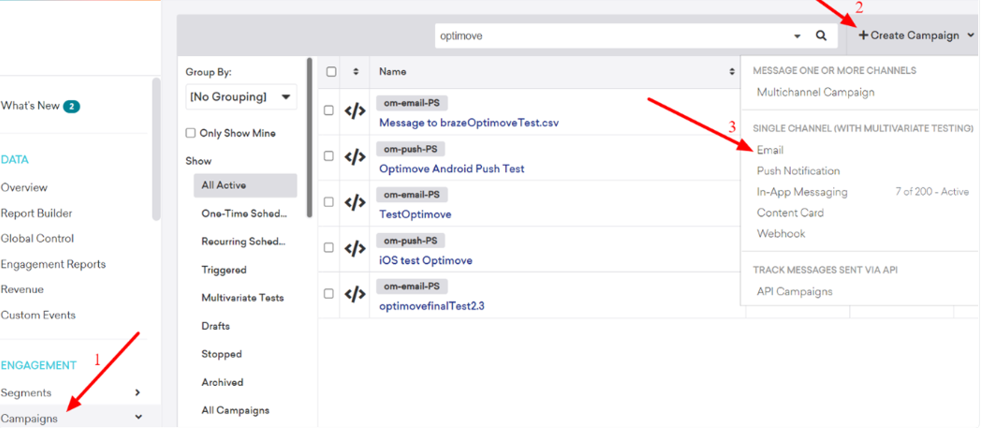
1. Create a new campaign within the Braze UI
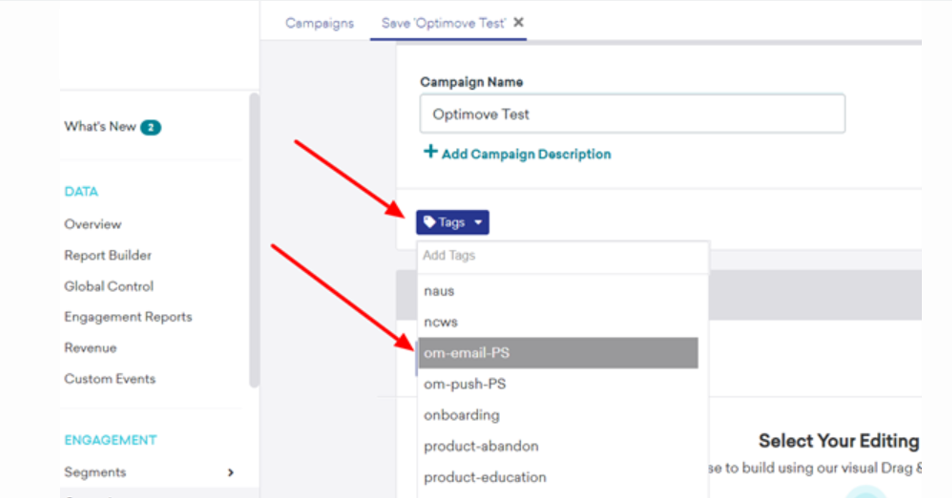
2. Select the relevant tag for a campaign
The available tags for Optimove campaigns are as follows:
- om-email-PS (Pre-scheduled Email campaigns)
- om-push-PS (Pre-scheduled Push campaigns)
- om-email-RT (Real-time Email campaigns)
- om-push-RT (Real-time Push campaigns)
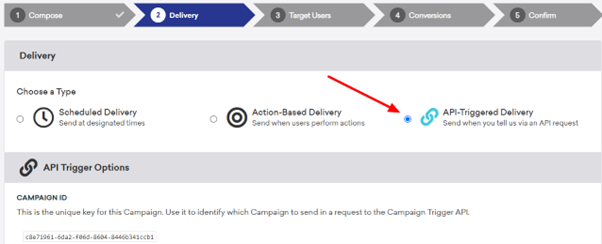
3. Proceed to the Delivery page and select the API-Triggered Delivery option at the top of the page.
This will generate a Campaign ID which Optimove uses when executing a campaign from the Optimove UI.
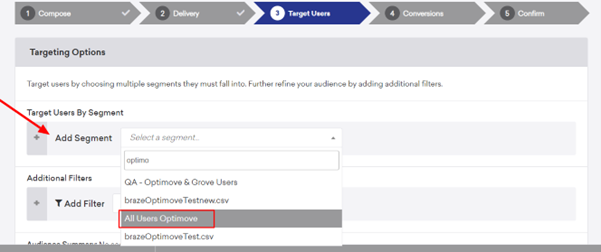
4. Add Segment: All Users Optimove
Move on to the Target Users section and type Optimove in the search bar. This will bring up the "All Users Optimove" option for the marketer to select.
Please note:
Optimove will send the campaign only to the customers that are included in the Optimove Target Group.
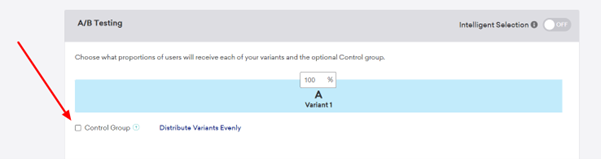
Uncheck the Control Group option at the bottom of the page.
5. Skip the Conversions view
The Target Group, actions, and metrics are handled within Optimove UI.
6. Click on the Launch Campaign CTA button

Campaign Setup: Optimove
The full list of Braze campaigns with relevant Optimove tags will be pulled into Optimove every 30 minutes on the half-hour (eg 10:00, 10:30, 11:00, 11:30, etc).
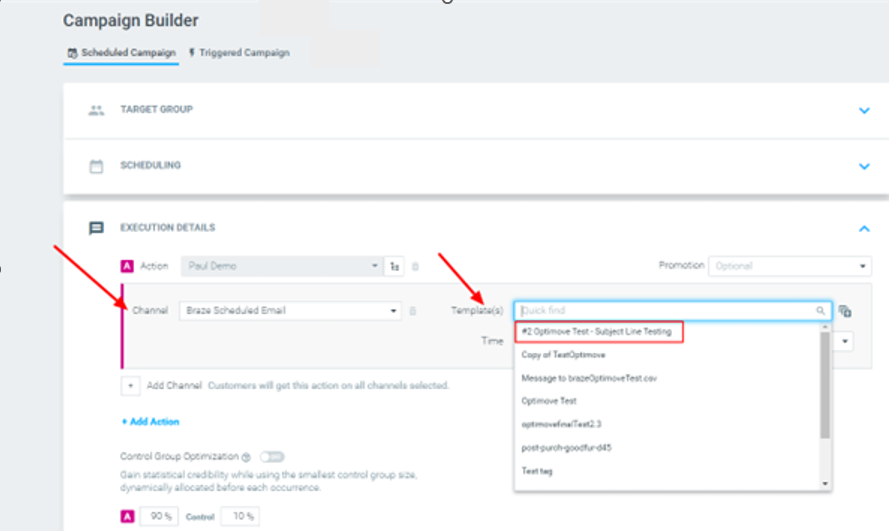
- Create a new campaign using the Campaign Builder
- Select the relevant Target Group
- Under Execution Details, select Braze Scheduled Email from the channel drop-down
- Select the relevant Braze campaign/template you would like to execute
Click the Create Campaign CTA button
This button will turn blue once all required fields within the campaign builder have been filled out.
Post Campaign Execution
After a campaign is executed, Optimove retrieves the campaign’s metrics via Braze API and updates the Optimove UI with the number of opens, clicks, bounced, etc. once an hour.
Example Use Case: Subject Line Testing
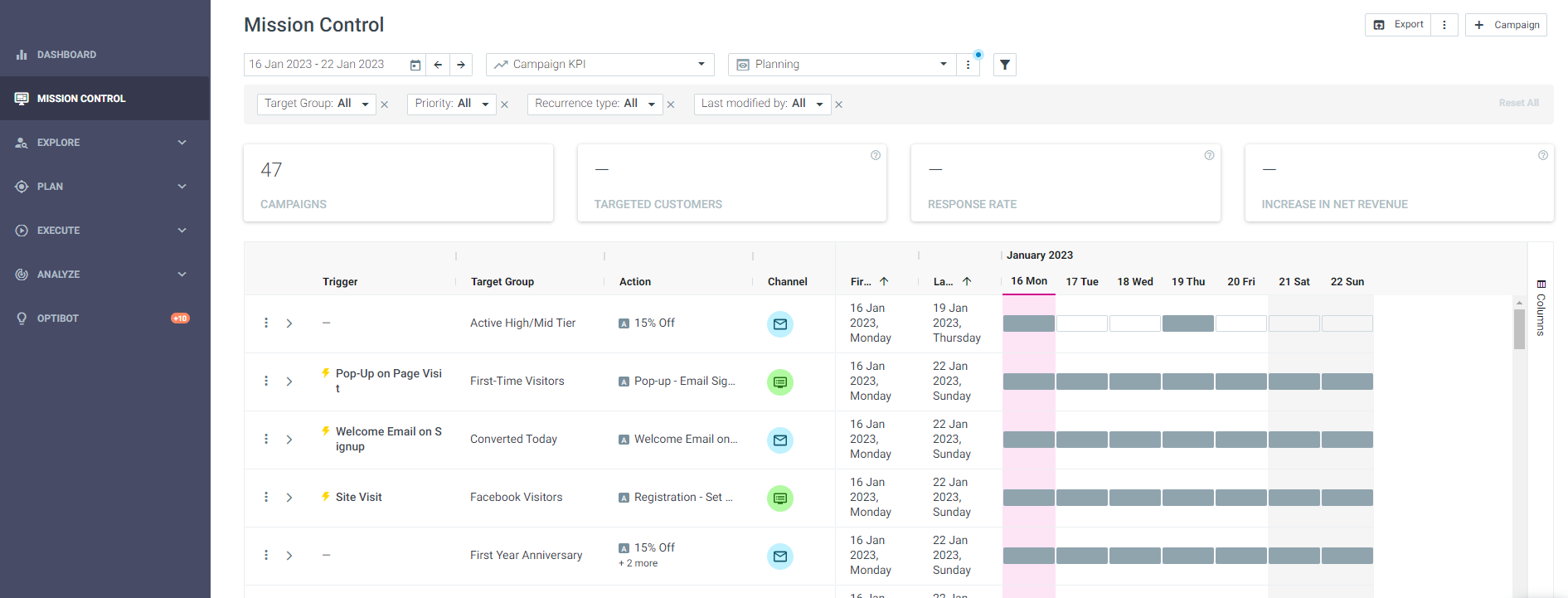
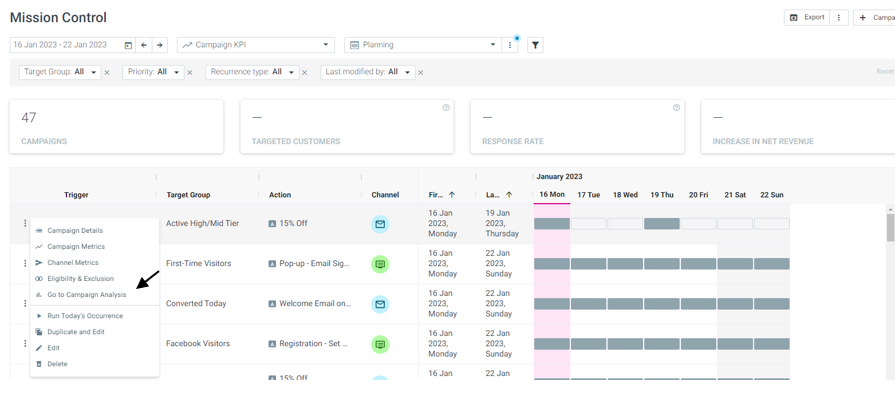
Once a campaign is set up in Braze, it can be easily duplicated, modified, and synced into Optimove. This can be leveraged for testing purposes with the Optimove integration.
- Create a campaign template within Braze. See the Campaign Setup: Brazesection for details
- Select the newly created campaign and click the cogwheel to the right
- Select the Duplicate option
- Change the subject line, skip all stages, and click the Launch Campaign CTA button.
- Repeat for each subject line
- Schedule campaign within Optimove, using A/B/n testing functionality

Personalization Tags
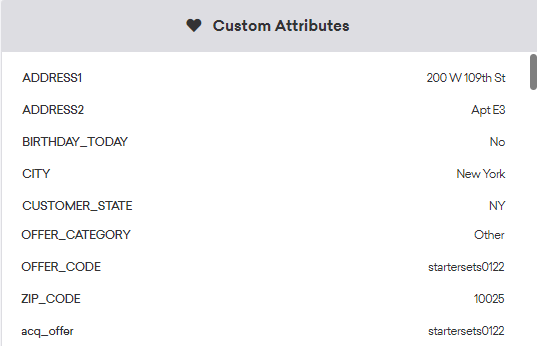
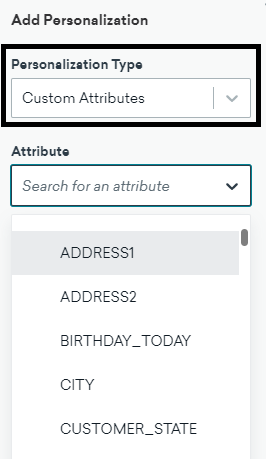
The Braze integration supports passing personalization tags from Optimove onto the Braze platform. Tags such as First name, Last name, Country, State, Age, etc can be shared from Optimove and populated in Braze’s email or push campaign.
Attributes Update via API
As part of the Optimove<>Braze integration, Optimove uses the /users/track API to update customer attributes during the campaign process before execution.
Note: If your Braze backend is updated daily with the same data points as the Optimove ETL process, Optimove can skip the stage of API attributes update and will not push attributes to Braze’s customer profile.
Please note:
For Braze’s real-time integration, please reach out to your Solution Engineer for further details.