
Optimove's A/B/n campaigns enable you to test multiple treatments of the same campaign for a given segment. Using this feature, you can select predefined percentages of your target group to receive the different treatments until a winner is determined. When this happens, an AI Insights Agent (formerly Optibot) card will let you know and you can discontinue the losing treatments with one click, ensuring that customers will only receive the winning treatment from now on.
Unlike platforms that optimize for vanity metrics such as opens and clicks, Optimove determines its winners based on whether the customer acted in a way that contributed to the metric used to measure the campaign's success.
Rather than creating traditional A/B/n campaigns, we encourage you to create them using our AI Offer Decisioning Agent (formerly Self-Optimizing Campaigns) to ensure a higher level of personalization. To learn more about our AI Offer Decisioning Agent, click here.
How to set up an A/B/n campaign
The following video includes an overview of how to set up an A/B or A/B/n campaign in Optimove. For a step-by-step guide scroll below the video.
- Go to the Campaign Builder and complete the “Target Group” and “Scheduling” sections. Note that the winning Action will be based on the response to the KPI set in the “Scheduling” section.
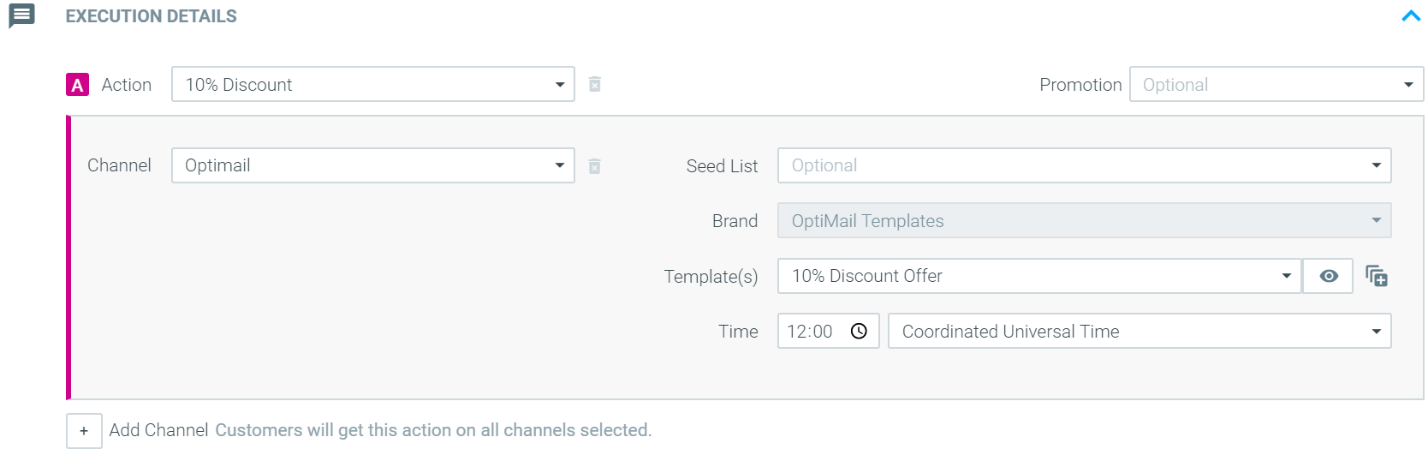
- Select the first Action (Action A) and complete its setup. For example, “10% Discount.”
- Click “Add Action”

- Select the second Action (Action B) and complete its setup.
|| Note that although Action A and B can be the same, we always suggest choosing two different Actions when testing A/B campaigns. This allows you to identify which customers fall under Action A and which customers fall under Action B when exporting the campaign customer list. For this example, we will test different discount levels and select “20% Discount.”
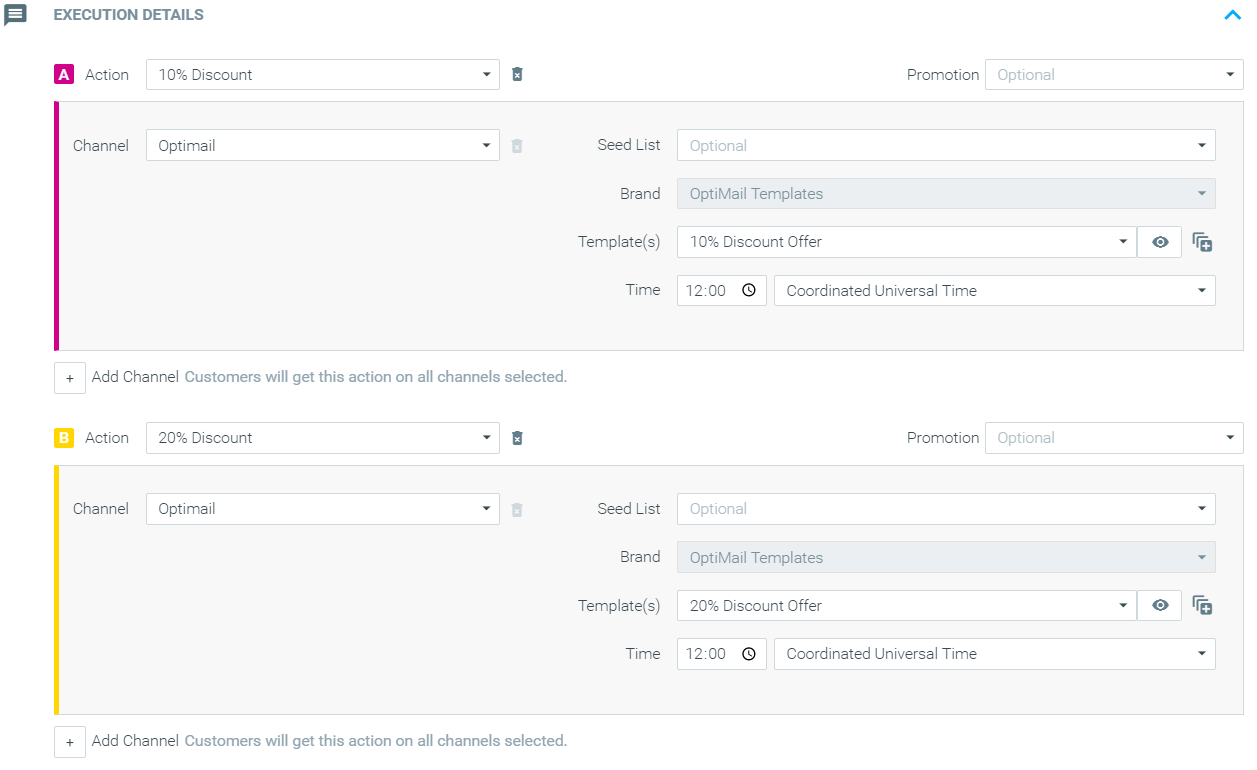
- Repeat steps 3 and 4 to add additional treatments to the A/B/n test.
- When you have completed setting up all competing Actions, you can choose whether to run this test as a Self-Optimizing Campaign. If you don't want the AI Offer Decisioning Agent enabled, turn it off and set the desired percentages for each Action and your Control Group.

7. Finalize your campaign setup by clicking “Create Campaign.”
Example Use Case
> Testing two email subject lines
Often, you will test two or more variations of the same campaign to see which one generates the best results.
For example, you can compare the performance of two or more subject lines for an email using an A/B/n test. Remember that Optimove determines results based on customer responses as measured by the KPI defined within the campaign, not by vanity metrics like opens or clicks.
To test two different email subject lines:
1. Create and save two email templates in Manage Templates, for example, "10% Discount Offer" and "10% Discount Offer (2)."
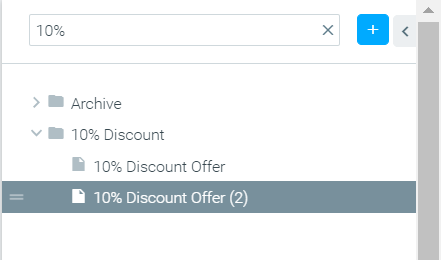
2. Go to the Campaign Builder and complete the “Target Group” and “Scheduling” sections. Note that the winning Action will be determined by the KPI set in the "Scheduling" section.
3. Select “10% Discount” as your Action for Action A and the “10% Discount Offer” email template.
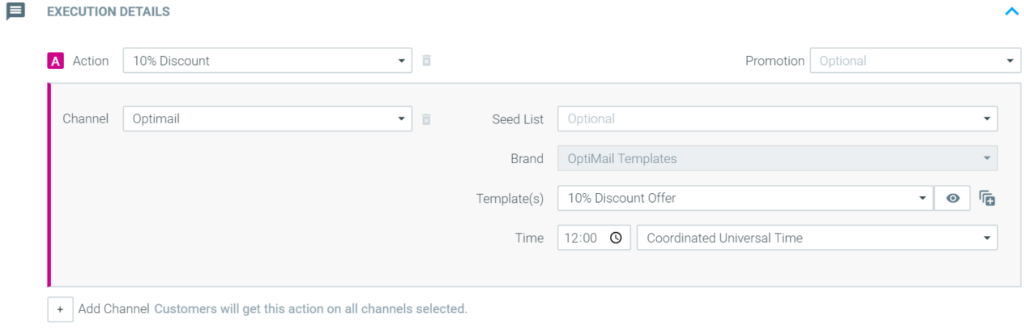
4. Click “Add Action”

5. Select the “10% Discount (2)” Action and the “10% Discount Offer (2)” email template.
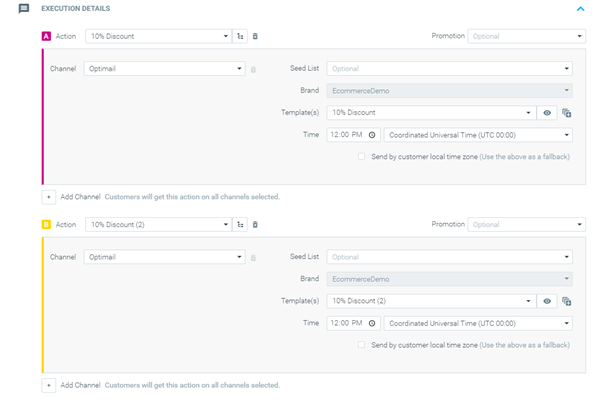
6. After you've completed setting up the competing Actions, decide whether to run this test as a Self-optimizing Campaign or not. If not, turn off AI Offer Decisioning Agent and set your desired percentages for each Action and Control Group.
|| Note that Optimove will automatically set a Control Group equal to your instance's default and an equal percentage for each Action.

7. Click "Create Campaign" to complete your campaign setup.
> Testing competing channels
Sometimes you will want to test whether a particular marketing channel has a greater impact on customers of a specific target group.
A/B/n tests can tell you, for example, whether single-channel or multi-channel birthday campaigns generate higher uplift. Remember that Optimove determines results based on customer responses, as measured by the KPI, defined within the campaign, not by vanity metrics like opens or clicks.
To set up this A/B test:
1. Go to the Campaign Builder and complete the “Target Group” and “Scheduling” sections. Note that the winning Action will be determined by the KPI set in the "Scheduling" section.
2. Select "Birthday discount" as your Action for Action A and the combination of channels for Action A. In this case, both Optimail and Optipush will be used together.
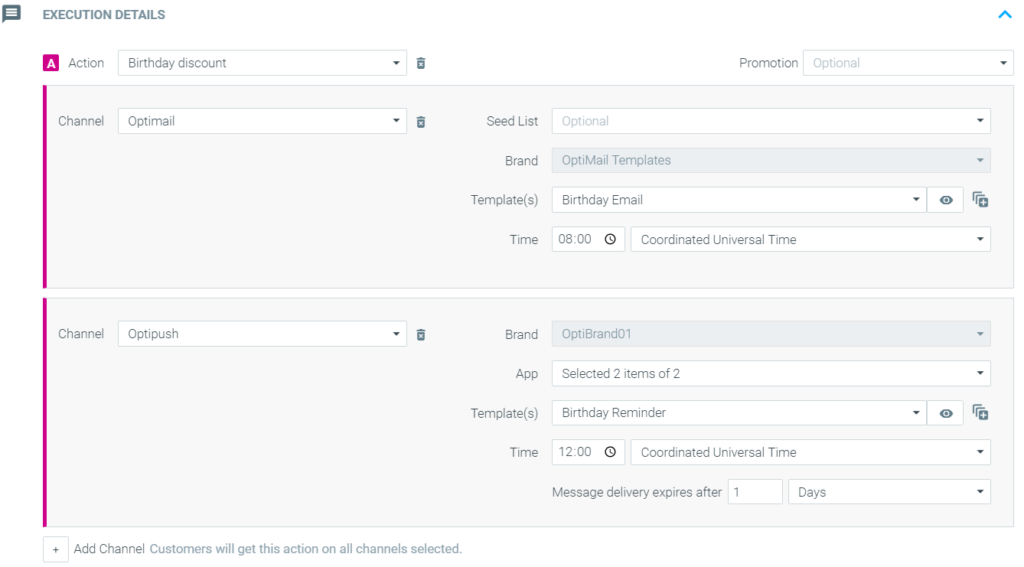
3. Click “Add Action”

4. Select a different “Birthday discount” Action and the single channel to be tested, in this case, Optimail.
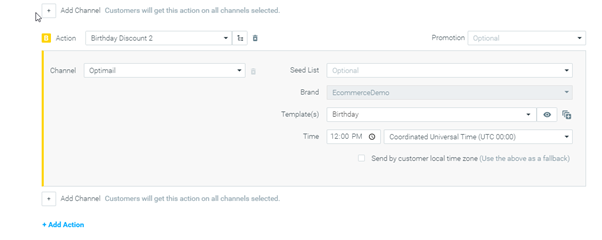
5. After you've completed setting up the competing Actions, decide whether to run this test as a Self-optimizing Campaign or not. If not, turn off AI Offer Decisioning Agent and set your desired percentages for each Action and Control Group.
|| Note that Optimove will automatically set a Control Group equal to your instance's default and an equal percentage for each Action.

6. Click "Create Campaign" to complete your campaign setup.