
Overall, multi-channel (multichannel) campaigns also known as cross-channel messaging, garner a response rate 37% higher than single-channel campaigns. Creating multi-channel campaigns also known as cross-channel Messaging, in Optimove can allow you to target your customers with similar messages across various channels without needing to create multiple campaigns for each channel. For example, use multi-channel campaigns to send a specific target group a 15% discount via email and also target them on Facebook with the same offer.
Note: Customers in the Target Group will receive the campaign message via all the channels defined in the campaign setup (provided they have valid contact details). This feature is designed to message customers across multiple channels simultaneously, rather than selecting a single preferred channel per customer.
How to set up a multi-channel campaign
The following video includes an overview of how to set up a multi-channel also known as cross-channel messaging, campaign in Optimove. For a step-by-step guide scroll below the video.
- Go to the Campaign Builder and complete the “target group” and “Scheduling” sections.
- In the “Execution Details” section select the relevant Action. For example, “15% Off.”
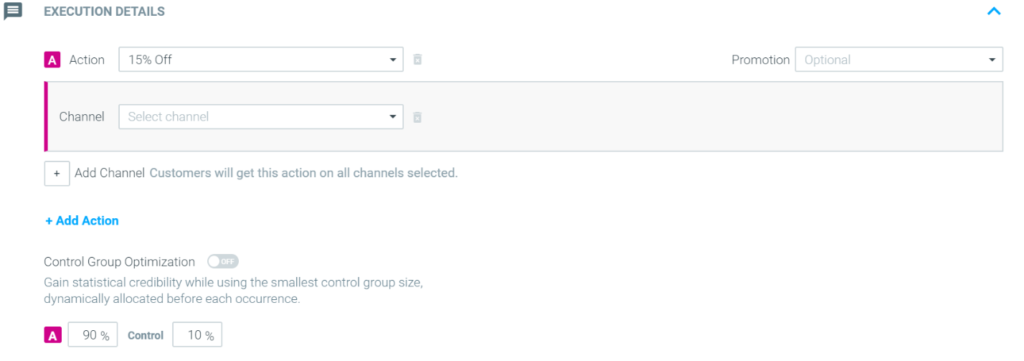
- Complete the first channel. For example, select Optimail and 9:15 AM for the chosen email template to be sent at that time to this target group.
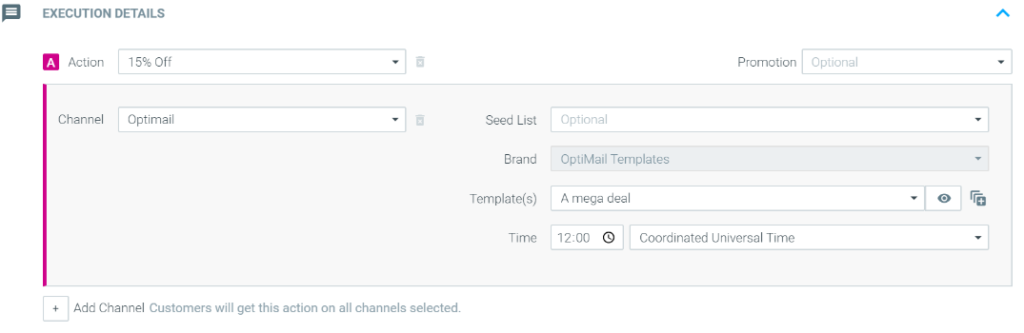
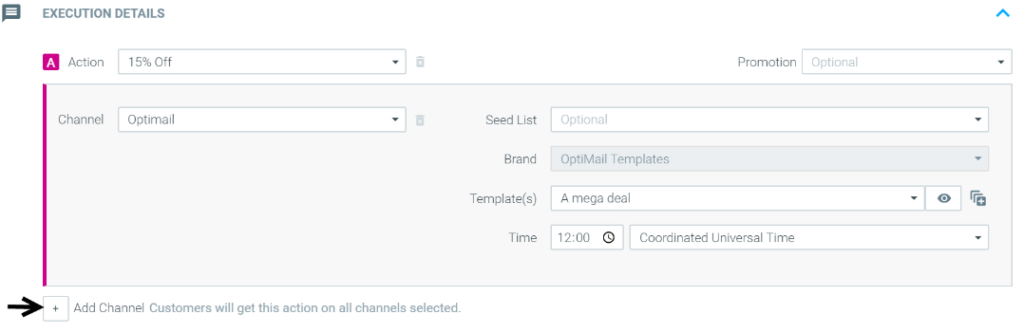
4. Click on “Add Channel” to add an additional channel to this Action.
5. Complete the second channel. For example, select Facebook Custom Audience and the relevant custom audience to populate that audience with the customer list in the campaign’s target group.
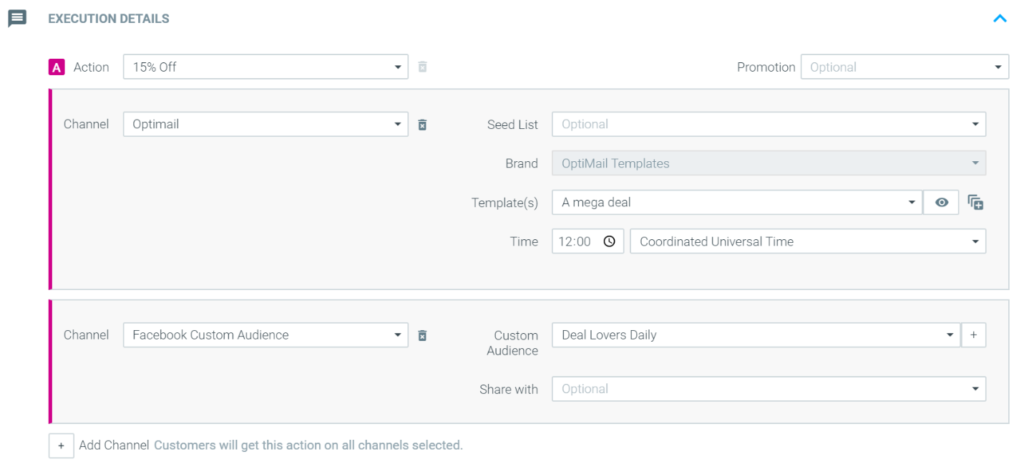
6. You can add more channels by repeating steps 4 and 5.
7. Finalize your campaign setup by setting a control group and clicking “Create Campaign.”
Example use case
Multi-channel campaign with reminders
Multi-channel campaigns can be used to not only provide customers with the same message across different channels but also to remind customers of unique offers at different times of the same day. For example, when celebrating customers' birthdays with a special 1-day promotion, you may want to let them know about the promotion via email in the morning and remind them about it in the afternoon via a mobile push notification.
To do so follow the below steps:
- Go to the Campaign Builder and complete the “Target Group” and “Scheduling” sections.
- In the “Execution Details” section select the relevant Action. For example, “Birthday discount.”
- Select OptiMail (or your email provider) as your first channel and choose your “Birthday Email” template as well as a morning send time.
- After clicking on “Add Channel”, select Optipush (or your mobile push notification provider) and complete the setup. In this case, setting the push notification to go out at 8:00 PM.
- Finalize your campaign setup by setting a control group and clicking “Create Campaign.”
To learn more, check out Campaign Building 101 in Optimove Courses.