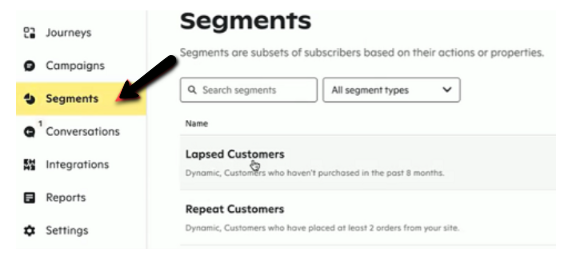
Setting Up the Integration
Step 1: Attentive SFTP creation
Create a new Attentive SFTP endpoint. You can reach out to your Attentive Customer Success Manager for further help.
Step 2: Send the Attentive SFTP details to Optimove
Fill out the Optimove Integration request form:
- Under "Optimove Integrations" choose Attentive.
- Insert the following SFTP details into the form:
- Host: (example - sftp.attentivemobile.com)
- Username
- Password
- Port number
- Location (The folder in which we will contain Optimove’s CSV files)
Step 3: Ensure that customers’ Email Addresses, Attentive opt-in status, and Phone numbers attributes are included in your Optimove Batch Data Update
Attentive is matching customer records by phone number only. Therefore, when the customers’ email addresses and phone numbers are sent to Optimove during the daily ETL, we assure to share with Attentive the most accurate customer lists.
Executing Attentive Campaigns Using Optimove
Once the above setup steps have been completed, you can run your first Attentive retargeting campaign using Optimove, as follows.
1. Schedule an Attentive Campaign in Optimove
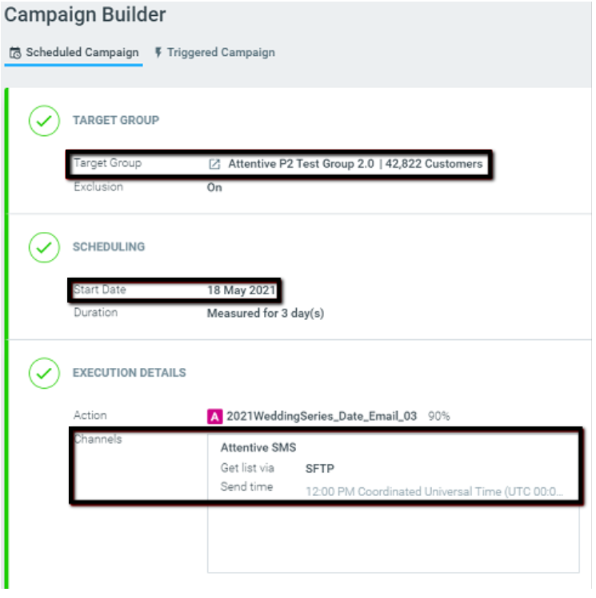
When scheduling a campaign in Optimove, go to the Campaign Builder, select the desired Customer Group from the drop-down list, define the date and time for the campaign to be executed, select the Attentive SMS as the execution channel and choose the SFTP option.
2. Set Up a Campaign with Attentive
After Optimove's campaign is processed, a Customers CSV file with the customers' attributes will be uploaded to the Attentive SFTP endpoint.