Please note:
To unlock this capability, you will need to have added SMS to your Optimove package. If you can’t see this feature in your Optimove instance, contact your CSM to find out more.
Creating an SMS campaign is a quick, easy process, enabling you to send out impactful, reactive marketing campaigns in real-time, as well as plan your scheduled campaigns in advance.
It follows the same flow as creating campaigns for all other channels, which you can read more about here.
Creating your SMS Template
Before you can schedule your first SMS campaign, you need to create a Template, which will contain the content you want to send to your customer. Read more here on how to create your SMS Template, then move on to the next step.
Accessing the Campaign Builder
You can access the Campaign Builder to create scheduled or triggered campaigns from multiple locations within your Optimove instance:
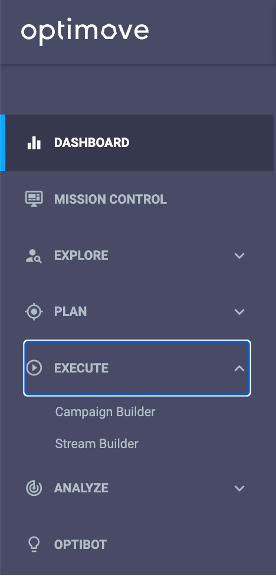
1. From the left navigation bar by clicking “Execute” and then “Campaign Builder"
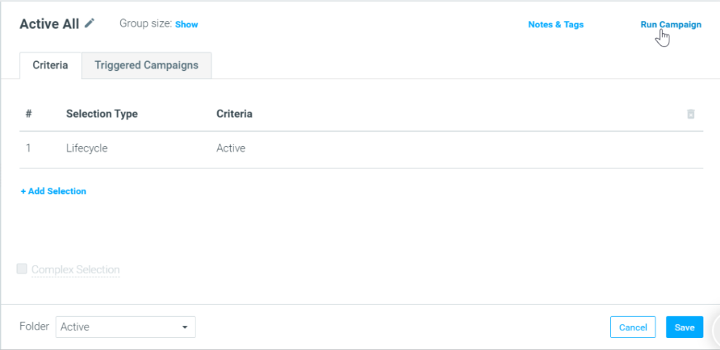
2. From the Customer Explorer or Manage Target Groups page by clicking “Run Campaign” from within a specific Target Group. This will automatically populate the Target Group field in the Campaign Builder.
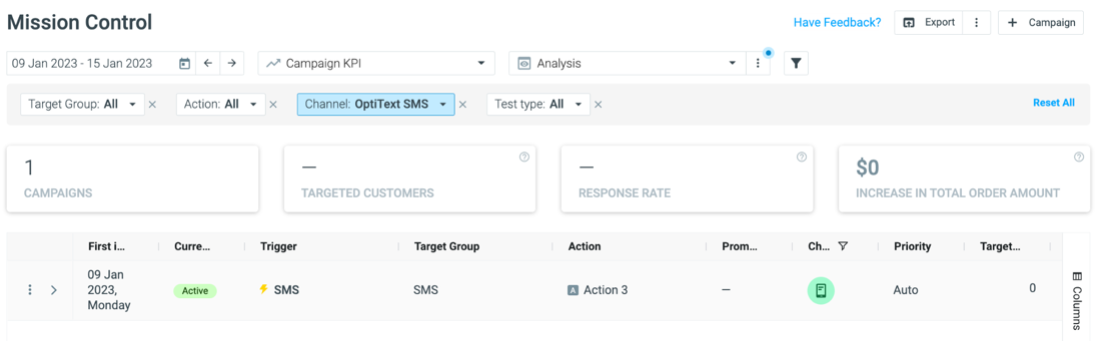
3. From the Mission Control by clicking the “+ Campaign” icon at the top right corner
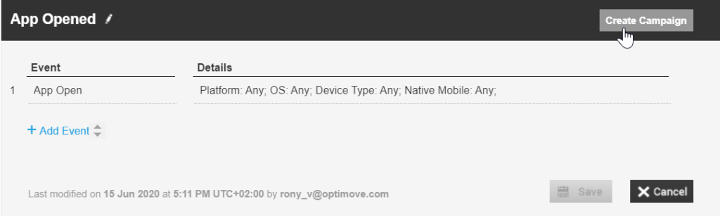
4. From the Manage Trigger page by clicking “Create Campaign” from within a specific trigger. This will automatically populate the Trigger field in the Campaign Builder.
Creating Your SMS Campaign
Once you have accessed the Campaign Builder, simply follow the steps outlined here in order to set up the campaign, including your targeting, scheduling, and channel – in this case, SMS.
From here, you can finalize your campaign setup by clicking “Create Campaign.”
Measuring Your SMS Campaign
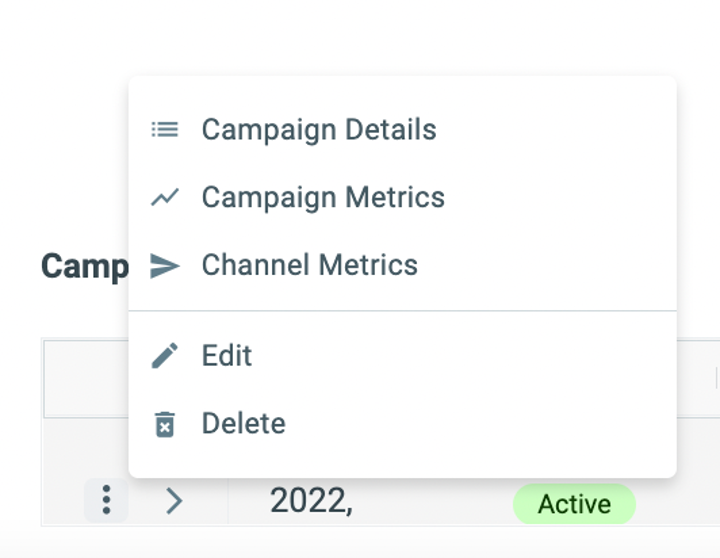
To measure your SMS campaign's success, you’ll have access to metrics including Send Rate, Delivery Rate, Bounce Rate, and more. These can be accessed by heading to Mission Control, finding your SMS campaign, clicking on the 3 dots, and accessing your Channel Metrics.