
Please note:
To unlock this capability, you will need to have added Deferred Deep Linking to your Optimove package. If you can’t see this feature in your Optimove instance, contact your CSM to find out more.
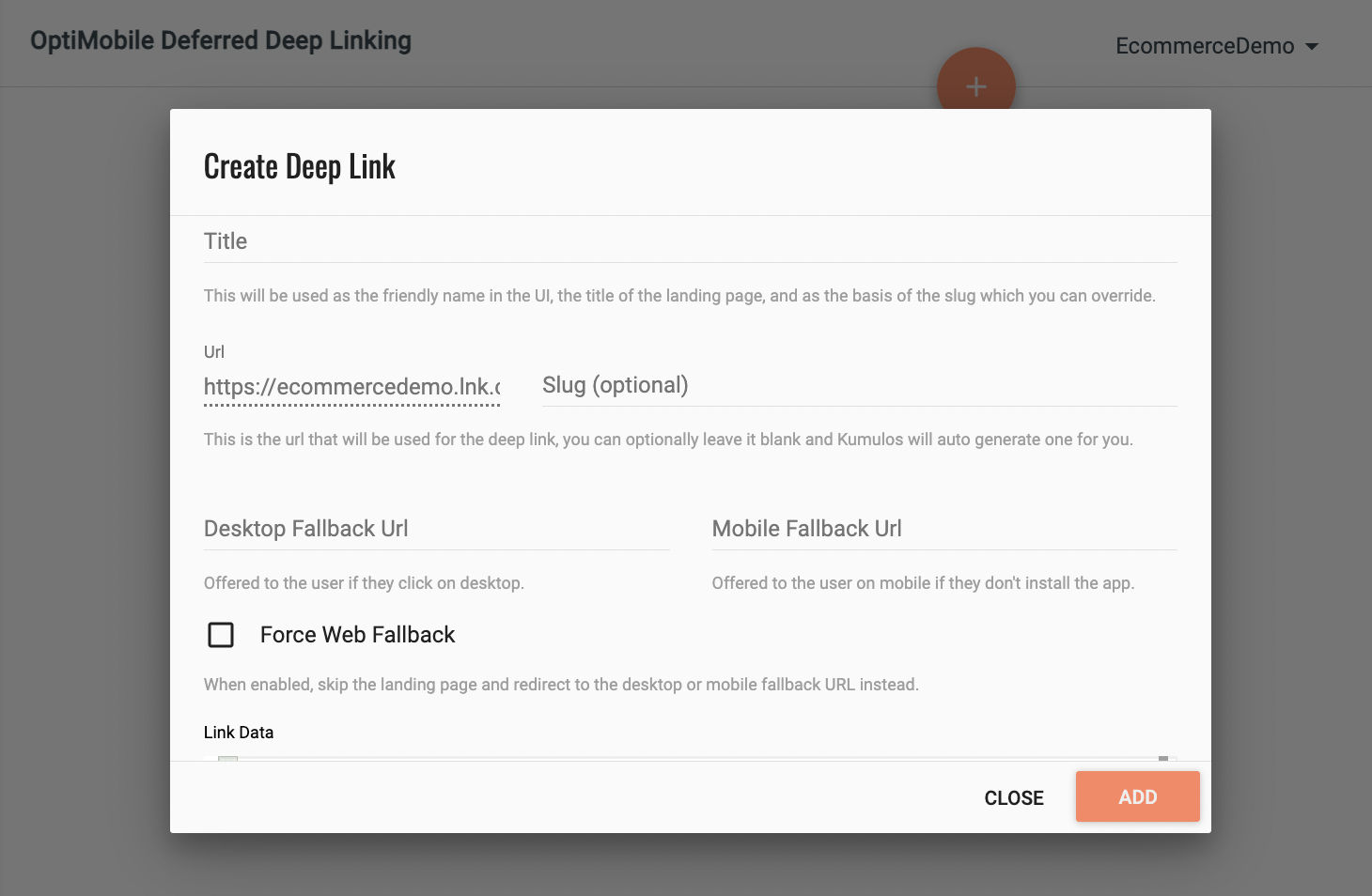
To create a deep link, navigate to the Settings area of your site and scroll down until you reach the Deferred Deep Links section. Click the + icon to get started.
Creating the Deferred Deep Link
Name Your Link
First, enter a title for your link. This will be used as the visible name in the UI, the title of the landing page, and the basis for your slug. The slug can, however, be overridden if needed.
Fallback URLs
Next, enter the fallback URLs that should be offered to a user who clicks the link on a desktop/laptop computer. You can optionally provide a different URL to offer to users who click the link on a mobile device that does not have your app installed (should they choose not to install it).

Add Link Data
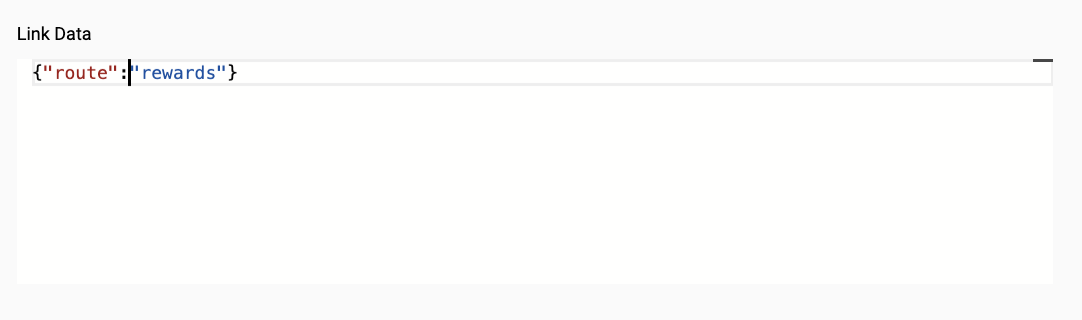
Enter any data that should be made available to the app when a user clicks the link.
For example: which screen to open, product to display, discount code etc.
Landing Page Description
Add a description to the landing page for users who follow the link but don’t yet have the app installed.

Social Media Cards
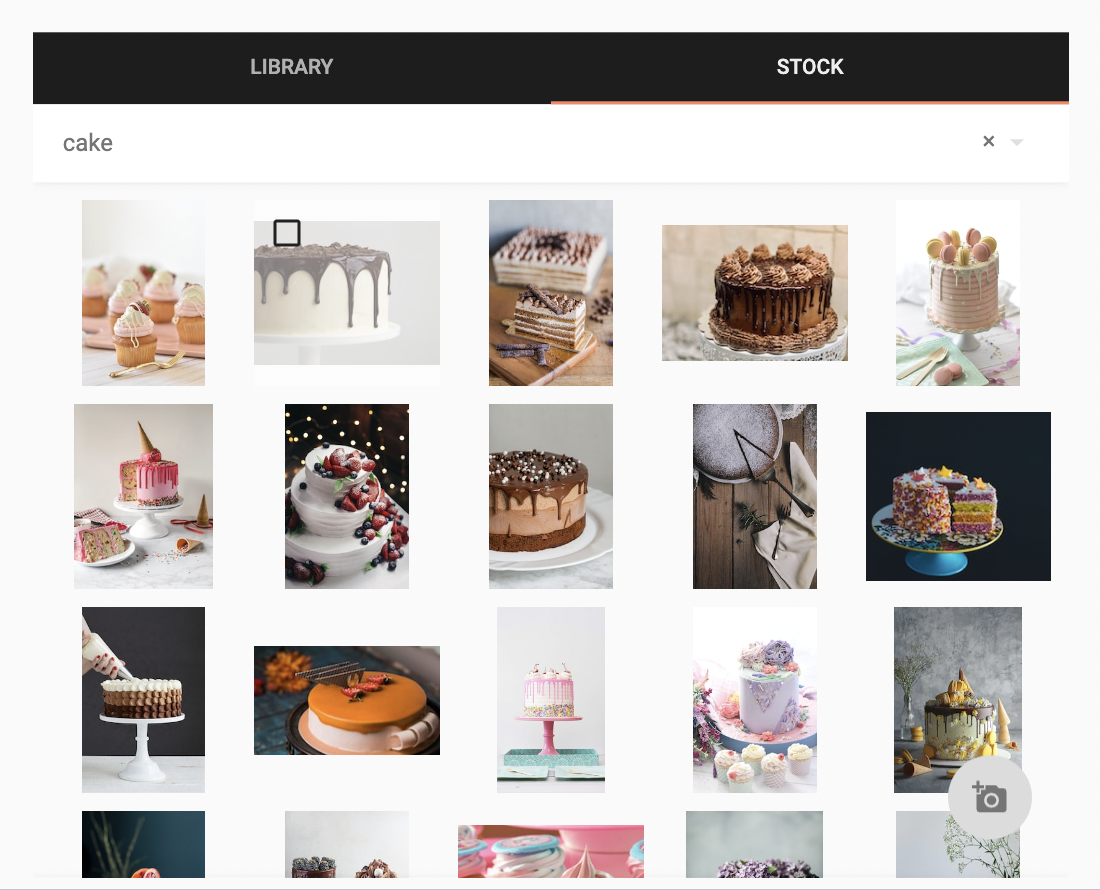
Optionally, you can add an image to display on social media cards. click 'Choose Image' to open your Media Library. Here, you can upload a new image, select an image you have previously uploaded or search the Unsplash stock image library.
To upload a new image, click the upload primary action button. Click 'Choose File' to browse your computer and find the image. Select any tags to help you find the image later or to add a new tag, just start typing and click 'Create new tag'. Click 'Upload' to add the image to your media library.
To use an image you have previously uploaded, simply select the image and click the primary action button. You can either scroll through your library or filter by the tags you have added previously.
To use an image from the Unsplash stock image library, click the 'Stock' tab and enter one or more keywords in the search box. Scroll through the results and select an image to see more information about it. Once you have found the image, click the camera primary action button to add this image to your media library.
To remove the image from your social media card, click 'Clear Image'.
What is a social media card?
Social media cards are the way your link content displays on social media platforms and are the combined results of the content shared as part of the link, and if you so choose, an image. If sharing your Deferred Deep Link on social media, we recommend adding a social media card to improve the appearance of your post.
Limited Promotions
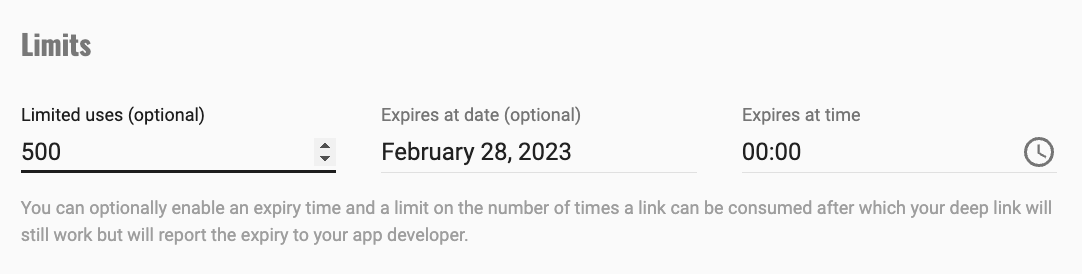
If your deferred deep link is for a limited promotion (e.g. first 500 users to respond or for the month of February only), you can enter the limit and/or expiry date and time here. Your deep link will still work but will report that the link is expired for your app developer to handle appropriately.
Finish Creating Your Link
When done, click 'Add' to create your deferred deep link.
You can now see your newly created deferred deep link in the main Deferred Deep Links screen in the Settings area of your site. For each link, you can see how many times the landing page has been viewed (if a user opened the link on a desktop/laptop computer or a device that does not have the app installed), how many times the link has been opened (in the app) and of these, how many new installs you acquired for your app from this link.
