
Please note:
To unlock this capability, you will need to have added Deferred Deep Linking to your Optimove package. If you can’t see this feature in your Optimove instance, contact your CSM to find out more.
Preview Your Landing Page
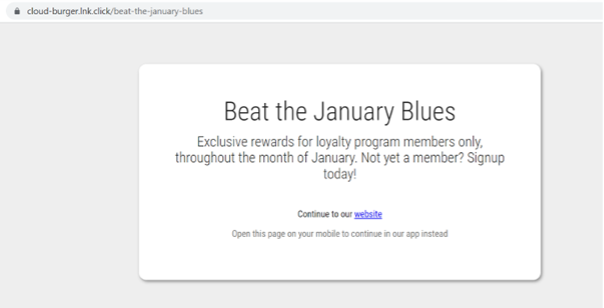
To view the landing page that users will see if they click the link on a device that does not have your app installed, simply open the link in the browser on a device that does not have your app installed.
Test Your Attribution
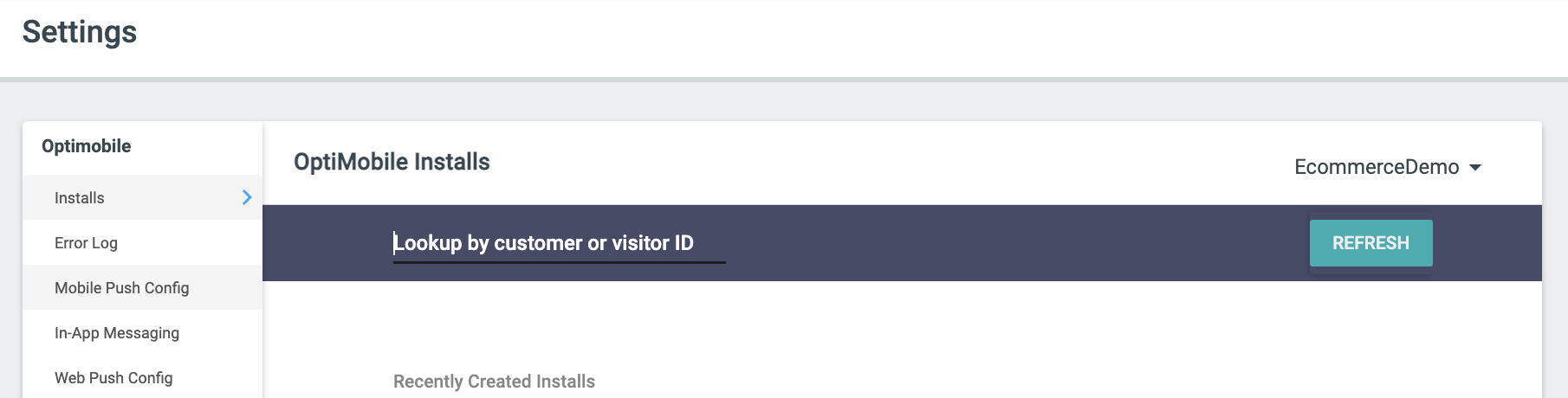
If you then install the app from the store, you can check that the install has been attributed to the link in the Settings area of your site. Scroll down to Mobile and click Installs.
Here, you can look up your customer ID and view the most recent associated installs of your app.
Expand the details of your new install and verify it is your device (model, location, timezone, etc).
Viewing Opens and New Users
To see how many users have clicked on your deep link, navigate to the Settings area of your site, scroll to Deferred Deep Links, and click Deep Links.
For each link, you’ll see four columns:
– Views: How many times the landing page was rendered (e.g., on a desktop or a device without your app installed)
– Total Opens: How many times the link was tapped in your app
– Distinct Installs: How many unique install events were attributed to this link
– New Installs: How many of those installs came from first-time users (these will appear with this link as their acquisition source in Install Explorer under Mobile > Installs)
Expand any row to see its title, description, and social-card image. Click the share icon to copy the link, or the trash icon to delete it.