
- The top bar
- The right panel
- The canvas
This article covers each element in the Streams Visual Builder and its functionality.
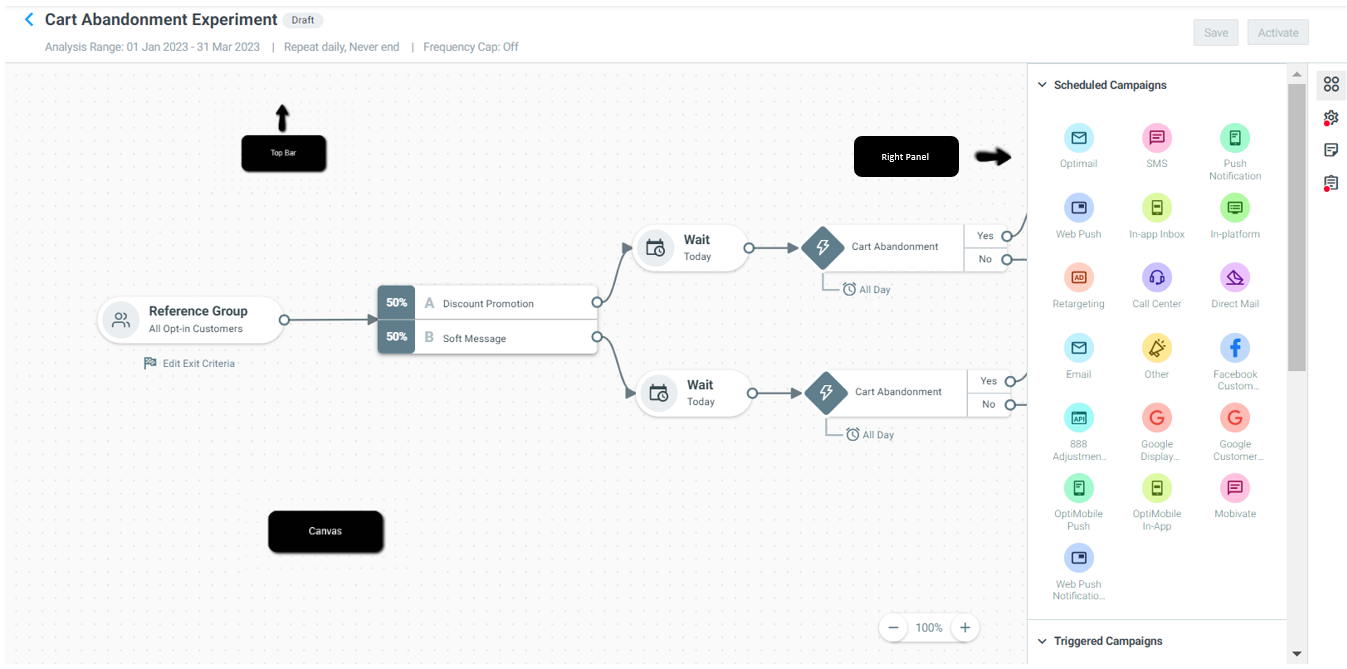
Top Bar
The top bar displays the final settings set for the stream (e.g., recurrence, frequency), and provides options to save and activate your stream.

Save Button
Edits to the canvas are not saved automatically. Save your canvas regularly to make sure you don’t lose any changes.
Activate Button
Click on the Activate button when you are ready to run your Stream. Upon activation, Optimove will create Target Groups and campaigns according to the flow set in the Visual Stream Builder. Please note: after activation, editing is limited to only these specific fields.
Right Panel
In the right-hand panel, you can find all the tools you need to build your Stream.
- Campaign Building Blocks: all the components you need to build your campaigns, e.g., execution channels, flow control, and splits
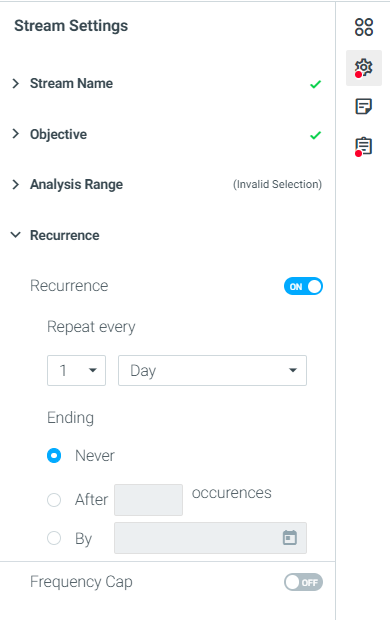
- Stream Settings: name your Stream, set up your Stream objective, define the analysis range, and outline reoccurrences
- Notes and Tags: Log campaign information for cross-functional collaborations and leave tags to easily find campaigns in Mission Control
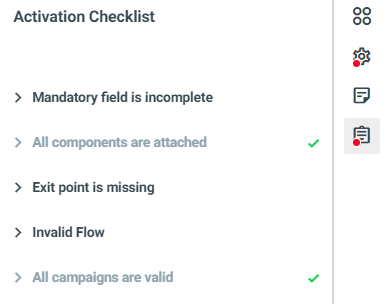
- Activation Checklist: check all settings and rules are set up and valid in order to activate your Stream
Campaign Building Blocks
There are three main component categories: Channels, Flow Controls, and Split elements.
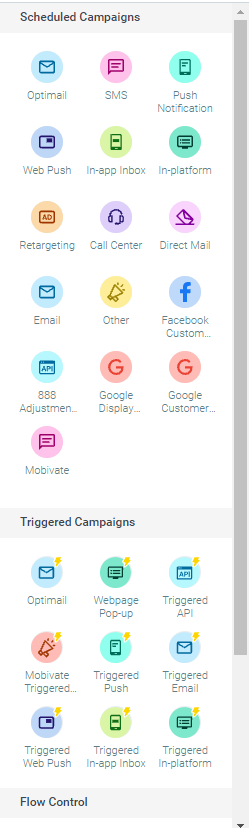
Channels
Every campaign execution channel that is available on your site will appear as a channel. To use a channel in your Stream, drag and drop the channel from the left bar into the canvas or select the channel from the end of an arrow.
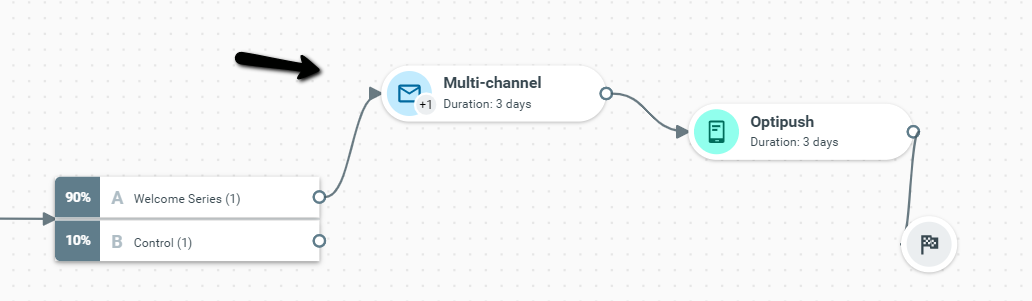
Flow Control
Flow control is used to elaborate the campaign flow rules and add delays or exit rules.
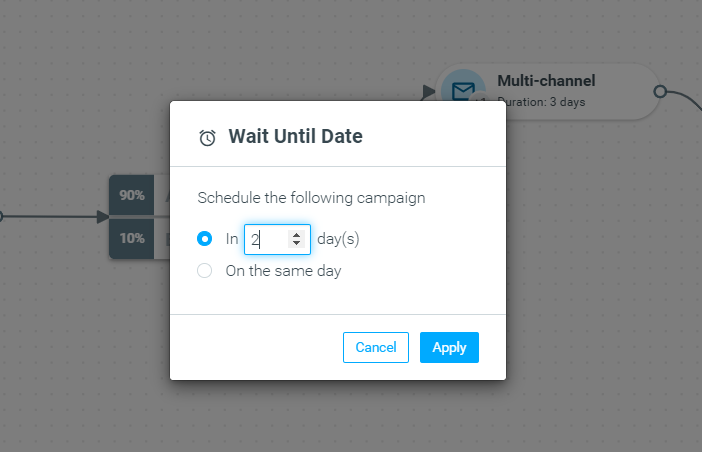
Wait Until Date
|| Please note:
The days added in the 'waiting period' are not added to a campaign's Duration.
For example, if the campaign's duration is 2 days and the waiting period added is 1 day, the next campaign will be executed after 1 day.
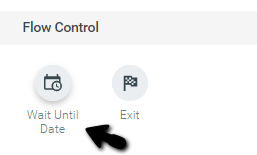
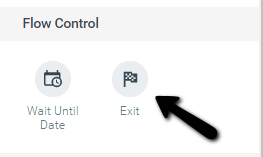
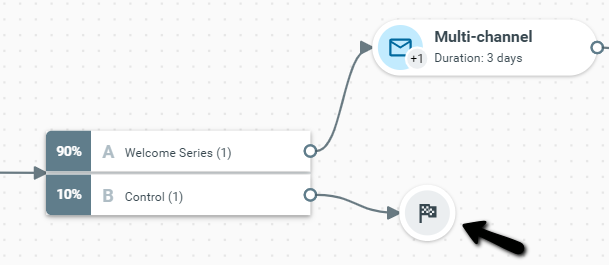
Exit
The endpoint of your stream flow. Each stream must end with an Exit point.
Split Elements
Split elements allow you to create decision points in your Streams. You can split your Streams based on customer response, attributes, and events.
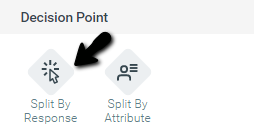
Split by Response
Split your Streams based on whether a customer performed a required action.
You have two options when using response splits:
a) Based on the Stream's objective
If you choose “Lifecycle Stage Migration” as your Stream objective, the KPI of each campaign included in the Stream will be, by default, the site’s predefined KPI.
If you choose “KPI” as your Stream objective, the KPI of each campaign included in the Stream will be, by default, the KPI that was defined as the objective.
b) Based on Engagement Activity
You can also personalize journeys based on how a customer has responded to a campaign, such as “Email opened,” “Link in an email was clicked,” and "Push opened." This is now available for ALL channels (not just native).
If you want to target customers who interacted with campaigns from third-party execution channels, you need to report the campaign metrics to Optimove via API. Read here to learn how.
But be aware that due to iOS 15 Privacy Changes, Email opens have become less reliable, and Optimove suggests that users split responses based on 'revenue gained' / another KPI or 'link clicked' instead.
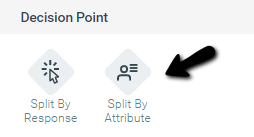
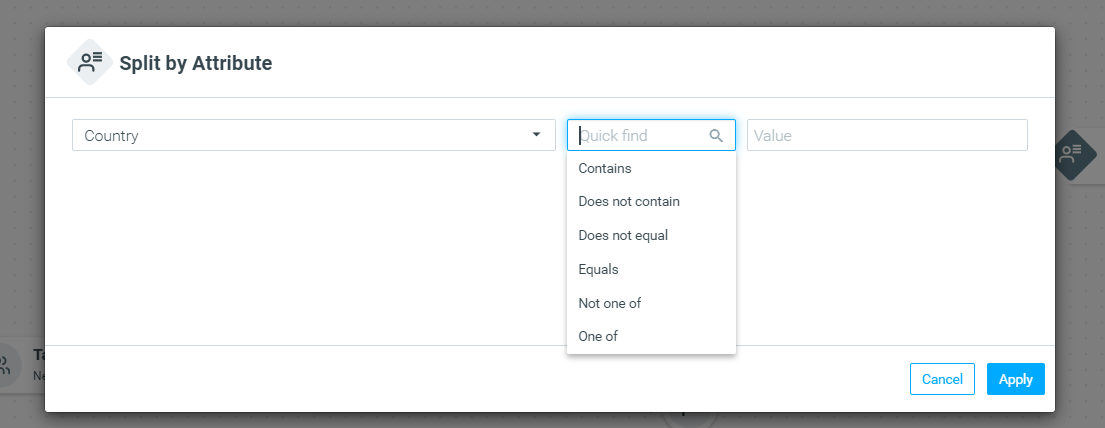
Split by Attribute
You can split your stream based on customer attributes. For example: split based on whether the customer’s last activity was two days ago.
Merge Flows
You merge two or more components (splits, campaigns, and/or flow controls) within a treatment back into a single flow control, split element, or campaign.S
Stream Settings
Stream Recurrence
Notes and Tags
Activation Checklist
Canvas
The canvas is where you plan your entire Stream by dragging and dropping Channels, Flow Controls, and Split Elements; add or edit Target Groups; and get a full view of the strategy you've laid out.
Target Group
Set the Stream’s Target Group by selecting "Select Reference Group/Criteria"
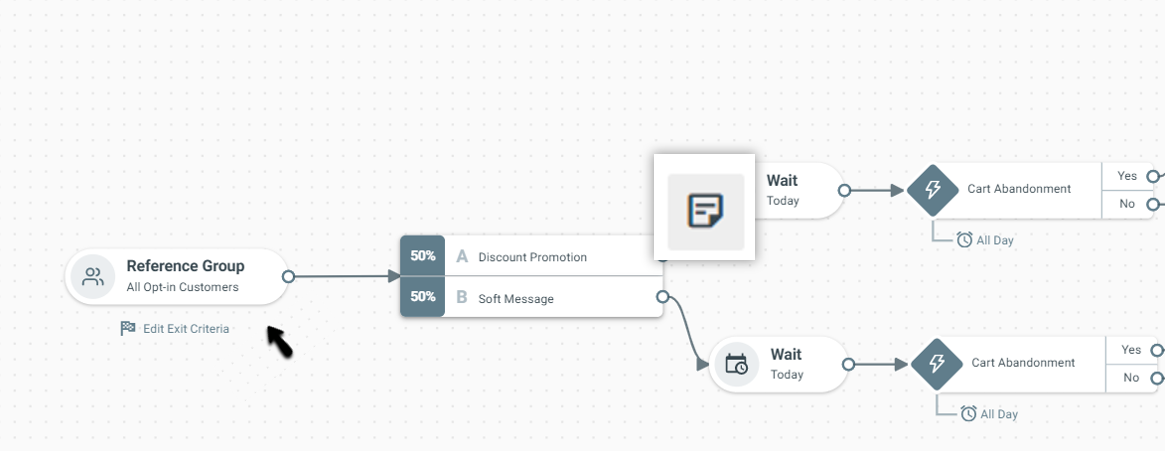
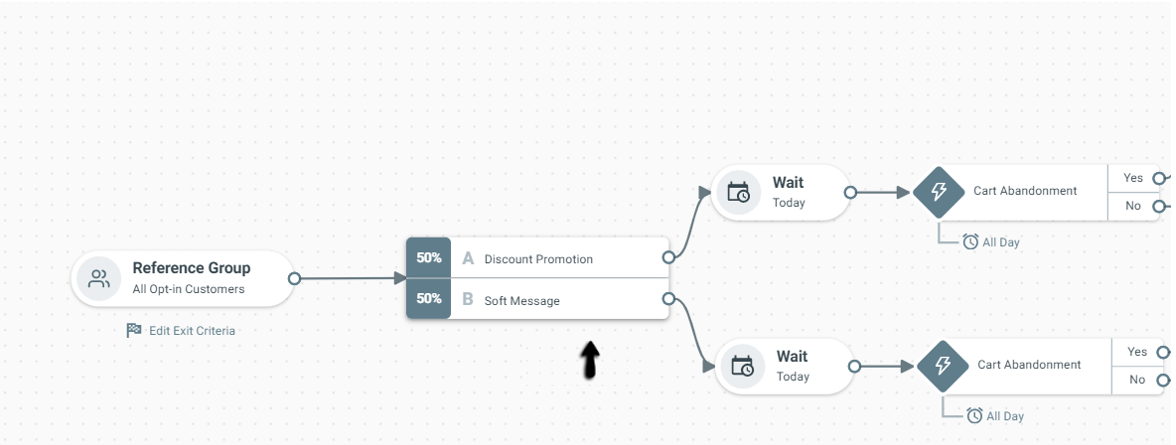
Treatments
Delete Items
Exit Criteria
|| Note:
- In order to merge components, all components must be on the same day of the Stream.
For example, you cannot merge a campaign ending on day 3 with a campaign ending on day 5. In this scenario, you would need to add a 2-day wait step after the campaign on day 3 before you merge the two components. - When merging components, circular references are not supported.
For example, you cannot merge a campaign at the end of the flow with a campaign that took place earlier.