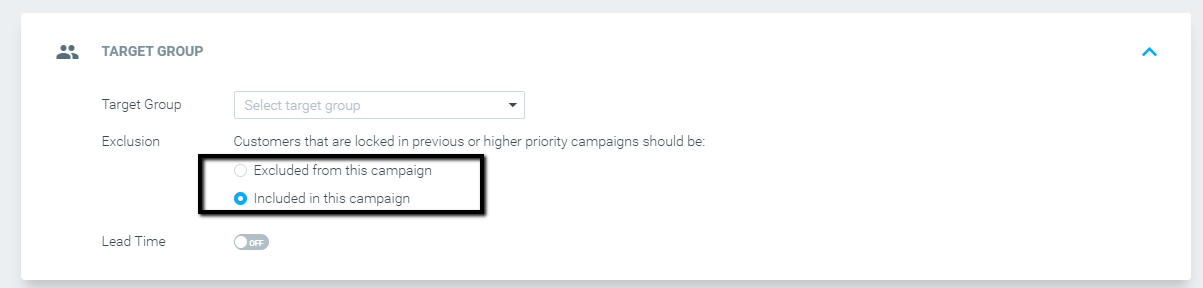
Engagement Activity data updates in real-time. To ensure you are using the most up-to-the-minute data for your campaigns, it is mandatory to use either the Re-evaluate or Run anyway option when scheduling.
- Re-evaluate: Use this option to remove customers who no longer match the group’s criteria right before execution.
- Run anyway: This option recalculates the entire target group 15 minutes before execution, both removing customers who no longer match and adding new ones who do. This is the best option for capturing last-minute engagement.
You can read more about the update frequency for all selection criteria here.
With Engagement Activity criteria, Optimove users can create customer segments based on how people interact with messages across email, SMS, push notifications, and more. Each channel offers its own relevant activities, so you can tailor your targeting to match specific goals.
You can choose from a wide variety of engagement activities, including:
- Opened – the customer opened the message
- Clicked – the customer clicked a link inside the message
- Unsubscribed – the customer opted out of receiving more messages
- Dropped – Customers excluded from email eligibility due to bounces, unsubscribes, spam reports, invalid addresses, missing translations, or topic preferences.
- Spam Report – the customer marked the message as spam
- Bounced – invalid email address or account didn't accept email
- Delivered – the message was successfully delivered to the recipient's receiving system.
Each channel will display only the relevant activities for that channel, based on the data you've shared from the past three years.
For example, you can target customers who opened a specific push notification today, or those who didn’t click a link in an email over the past two days. With this flexibility, you can create segments for many different use cases depending on the behavior, timing, and channel that matter to your strategy.
Selecting customers who opened an email
Selecting customers who opened an email to target them in a future campaign. The selection criteria in this category consist of the following options:
- Any campaign – will select customers who opened any email sent in a given time period. This can be used to filter customers who are still engaged across the board.
- Any campaign while a member of the specified target group(s) – will select customers who opened emails sent while they were part of one or more specific target groups.
- One or more actions – will select customers who opened emails associated with campaigns of one or more actions. For example, all emails are associated with a welcome journey.
To use an email open for the selection criteria, follow the steps below:
- Go to Engagement Activity in the Selection Criteria navigation bar
- Under Channel select “OptiMail”
- Select customers “with activity”
- Under Activity Type select “opened an email of”
- Define the type of activity you would like to use to segment customers. For example, select “Any campaign while a member of the specified target group(s)” and choose the “Birthday Campaign” target group if you wish to select customers that opened the birthday email in a given timeframe.
- Define the number of times the desired activity took place. For example, select more than 0 times to select customers who opened the birthday email once or more.
- Define the timeline for which the conditions should be met. For example, between March 1st and April 30th. To delimit the timeframe for recurring campaigns, additional attributes might be needed. For more read the note on engagement time periods.
- You should now have criteria set up similar to the one below. All that is left is to click “Add.”
Setting Up Engagement Activity
If you want to target customers who interacted with campaigns from third-party execution channels, you need to report the campaign metrics to Optimove via API.
To do this take the following steps:
- Ensure the third-party platform reports open and click metrics.
- If the third-party platform reports these metrics, they need to send the metrics to Optimove via API.
- Follow the steps in our API Usage Guide to connect the third-party platform to the UpdateCampaignInteractions API endpoint.
Selecting customers who opened a mobile push notification
Selecting customers who opened a mobile push notification to target them in a future campaign. The selection criteria in this category consist of the following options:
- Any campaign – will select customers who opened any mobile push notification sent in a given time period. This can be used to filter customers who are still engaged across the board.
- Any campaign while a member of the specified target group(s) – will select customers who opened mobile push notifications sent while they were part of one or more specific target groups.
- One or more actions – will select customers who opened mobile push notifications associated with campaigns of one or more actions. For example, all mobile push notifications associated with a welcome journey.
To use a mobile push notification open for the selection criteria, follow the steps below:
- Go to Engagement Activity in the Selection Criteria navigation bar
- Under Channel select “OptiMobile Push”
- Select customers “with activity”
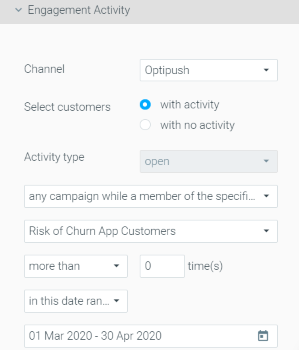
- Define the type of activity you would like to use to segment customers. For example, select “Any campaign while a member of the specified target group(s)” and choose the “Risk of Churn App Customers” target group if you wish to select customers that opened the mobile push notification sent to this target group within a given timeframe.
- Define the number of times the desired activity took place. For example, select more than 0 times to select customers who opened the mobile push notification sent to the “Risk of Churn App Customers” once or more.
- Define the timeline for which the conditions should be met. For example, between March 1st and April 30th. To delimit the timeframe for recurring campaigns, additional attributes might be needed. For more read the note on engagement time periods.
- You should now have criteria set up similar to the one below. All that is left is to click “Add.”
A note on engagement time periods
When using Engagement Activity in your targeting, the time period refers to when the customer engaged with the message (such as opened or clicked) on the same day that the campaign was sent.
Example: If you create a segment for customers who opened your “Basketball Lovers” campaign email yesterday, it will include anyone who opened it yesterday — even if the campaign was sent days earlier.
If your goal is to include only customers who received and engaged with the campaign yesterday, you'll need to add another filter using Campaign History.
To do this:
- Add Campaign History as a Selection Criteria
- Set it to: "Have been targeted with 'Basketball Lovers' campaign more than 0 times in the previous 1 day"
This ensures your segment includes only those who were sent the campaign and interacted with it on the same day. Click Here to learn how to use the Campaign History criteria.
Example use cases
Targeting customers who clicked/opened an email today, with a same-day follow-up campaign
In this example scenario, a campaign named “25% coupon” was sent on June 6th, and you’d like to send a follow-up campaign on the same day. The follow-up campaign should be sent to anyone who clicked/opened the “25% coupon” campaign.
Both the original campaign (25% coupon) and the follow-up campaign are scheduled for the same day.
To create such a target group:
- Go to “Engagement Activity” in the “Selection Criteria” navigation bar
- Under Channel, select “OptiMail”
- Select customers “with activity”
- Under Activity Type, select “opened an email of” OR ”Clicked a link in an email of”
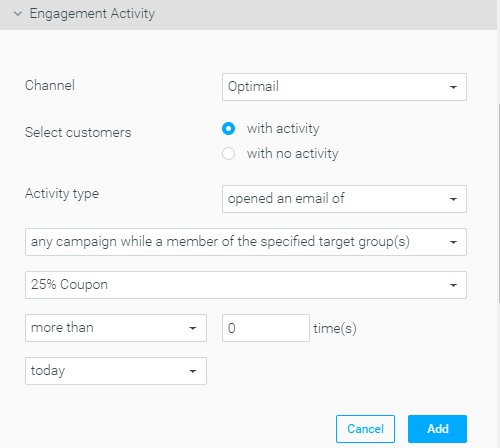
- Select “Any campaign while a member of the specified target group(s)” and choose the target group that was targeted with the “25% coupon” email.
- Define the number of times the desired activity took place. For example, select “more than 0 time(s)” to select customers who opened the “25% coupon” email once or more.
- Select “today” as the timeline for which the conditions should be met.
- You should now have criteria set up similar to the example below. All that is left is to click “Add”.
In addition, make sure to remove the exclusion from the follow-up campaign to allow customers to receive both campaigns on the same day.