
As part of the target group creation process, sometimes, the number of customers can be different from what we are expecting. This number can be smaller, bigger, or even 0.
This guide will help you understand where this discrepancy can come from and provide you with vital investigation tips.
We have split the guide into verifying target groups with no campaigns in the Manage Target Groups page or verifying target groups with active campaigns.
Rules of thumb
- Save a copy of the existing target group or create a new one before you start investigating to prevent changing the original target group.
- Check in the menu bar if the Batch Data Update is finished and the data is up to date:
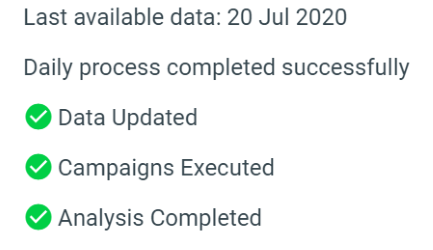
You can learn more about Optimove’s Batch Data Update here.
Verifying target groups with no campaigns
Follow the steps below to understand potential reasons why your standalone target group size is different than what you expected:
Eliminate one criterion at a time, which will clarify which criteria are causing the increase\decrease:
Create a new target group and start adding each criterion at a time, whilst checking the target group size
Confirm internally with your data team to make sure that you are providing Optimove with the correct data.
Check whether the target group consists of a new attribute\logic that was added recently.
If you have a reason to believe the attribute is not populating properly/an incorrect calculation was implemented, please contact your CSM.
Check if the lifecycle stage definition or migration rules can explain the discrepancy you are seeing.
For example, the below target group consists of two contradicting criteria: The maximum value of days since the first deposit for customers in the New Lifecycle stage is 14 days, and therefore the above target group is showing 0 customers.
Here is another example of contradicting attributes: Customers in the Non-Depositors lifecycle can’t, by definition, have a value for the number of deposits, lifetime different from 0. As such the group size for the below will always result in 0.
When using campaign history:
- Check the initial campaign’s target group size that this criterion refers to (make sure that the original campaign had customers in it).
- Check whether the criteria refer to customers that have responded or were targeted with a campaign.
- Check if the period is correct – for example in the image below, was the campaign sent out exactly 5 days ago, or did you mean to use it in the past 5 days?
Please note:
Targeted customers are only customers from the test group
When using a complex expression, make sure the logic is correct.
Discover here how you can assure the criteria logic is correct.
Complex target group
Read this article to understand how you can simplify your target groups.
Tip:
Always add your Campaign History and Existing Target Group criteria first in the complex selection, as it takes the longest to calculate
Verifying target groups with active campaigns
Below you will find potential reasons why target groups in running campaigns might be different from what you expected:
Have you modified/deleted any other campaigns that could explain this campaign’s status? Have you checked when the last time the target group was edited was?
In the marketing plan, when you hover above the campaign box and click on the details icon you can see when the group was last modified and by which user:
What is the target group’s priority?
Visit this page to learn about priority management. Could it be that higher-prioritized campaigns block customers? Look for this information in the campaign details (from the marketing plan):
Does the campaign have customers excluded and if so, what is the duration of the campaign that is causing the exclusion?
For more on campaign duration click here.
Look for this information in the campaign details:
Please note:
Always excluding criteria will affect the group size only at the time of execution.
Does the campaign have a lead time?
Look for this timer icon:
Please note:
Customers are locked according to the data of the lead time date. For more on lead time click here.
Are you using an imported CSV file?
Check the priority when using an imported list\CSV file, learn more here.
For example, if your site updates at 8 am, and you uploaded the CSV file at 10 am depending on the time of execution, the target group will have:
- If scheduled for the same day it will have the lowest priority.
- If scheduled for the next day, it will have the highest priority.
In a recurring campaign, do other iterations consist of a higher\lower number of customers?
This could help you deduce if this instance is an abnormal trend for this campaign.
Use the customer explorer to explore a specific CID that you believe should’ve received the campaign, using the same attributes as in the target group.
In this example, we can see that this customer’s ID is fulfilling all the target group criteria listed for this specific target group. Therefore, we can assume that the customers falling into this target group are as we expected, and all criteria are met.
The checklist and the above questions will help you eliminate the most common reasons for an unexpected target group size.
If you checked all of the above and are still uncertain of the reason for the discrepancy, please contact your CSM, and share as much information as you can from your initial investigation.