
Using "Under Exposure" to Segment Customers
When creating granular target groups to power a personalized strategy, there is a risk of missing some customers, resulting in customers not being targeted with some of your campaigns.
- Go to Campaign History in the Selection Criteria navigation bar
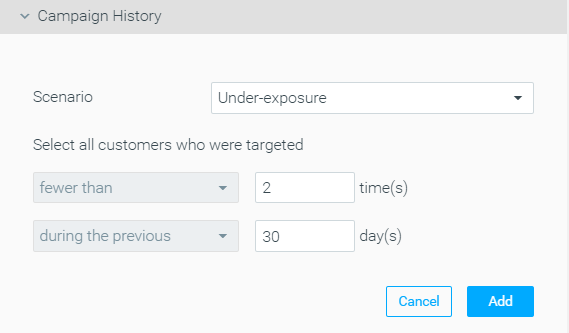
- Set the Scenario to "Under-exposure"
- Set the exposure threshold. For example, fewer than 2 times, meaning received only one campaign.
- Define the timeline for which the conditions should be met. For example, during the past 30 days.
- You should now have criteria set up similar to the one below. All that is left is to click "Add".
💡 Tip — targeting customers who were not targeted at all: A common goal is to target customers who did not receive any campaign in the last X days. It may seem logical to use "Under Exposure" with a threshold of fewer than 1, but this won't work: the "fewer than 1" threshold only evaluates customers who already have campaign history, so customers who have never been targeted are excluded from the results.
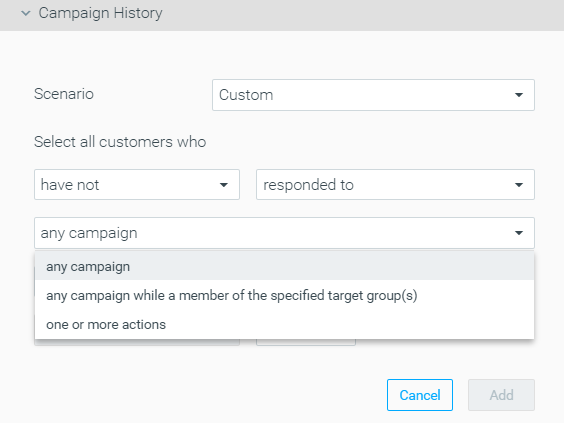
To do this correctly, set the Scenario to Custom:
- Logic: have not been targeted with
- Campaigns: any campaign
- Threshold: more than 0 times
- Timeframe: during the previous X days
Using "Infrequent Responders" to Segment Customers
The Infrequent Responders scenario allows you to target customers who received one or more campaigns during a given period and rarely responded.
- Go to Campaign History in the Selection Criteria navigation bar
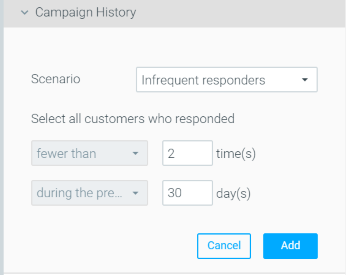
- Set the Scenario to "Infrequent responders"
- Set the exposure threshold. For example, customers who have responded fewer than 2 times, meaning customers who have responded only once to any campaign.
- Define the timeline for which the conditions should be met. For example, during the past 30 days.
- You should now have criteria set up similar to the one below. All that is left is to click "Add".
Please note: Using the threshold "fewer than 1" will not result in customers who have never responded to a campaign. To target customers who have never responded to a campaign, use the Campaign History Custom Scenario, "have not responded to".
Using "Targeted with a specific action" to segment customers
You may encounter cases in which you'd want to target all the customers who received one or more campaigns with a specific offer.
- Go to Campaign History from the Selection Criteria navigation bar.
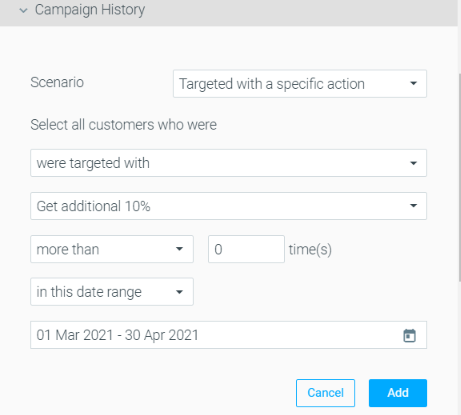
- Set the Scenario to "Targeted with a specific action".
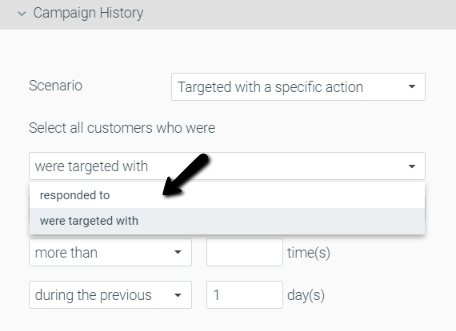
- Select the action or actions you want to use to segment your customers. For example, to target all of the customers who were targeted with a campaign, choose "were targeted with".
- Select the action or actions that you want to segment your customers by. For example, if you select customers who were targeted with the "10% Discount" action, you'll be targeting any customer who has been targeted with any campaign using this specific action.
- Define the timeframe in which the conditions should be met. For example, between March 1st and April 30th.
- You should now have a similar setup to the below criteria. All that is left is to click "Add".
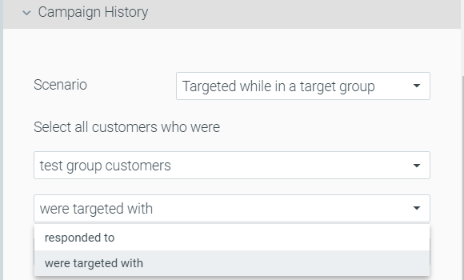
What's the difference between "Responded to" and "Were targeted with"?
- "Responded to" means targeted customers who impacted the campaign's KPI (made an order/ made a deposit, etc).
- "Were targeted with" means targeted with the action (if the action is used in more than one campaign, it will take them into account as well)
Using "Targeted while in a target group" to segment customers
In some cases, you may want to target users based on whether they did or did not receive one or more campaigns in the past.
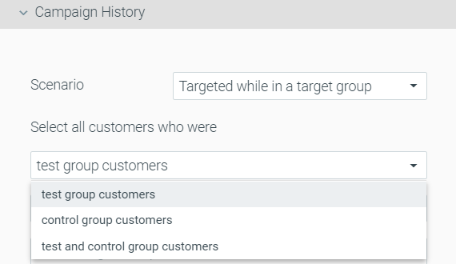
- Test group customers
- Control group customers
- Test and control group customers
Please note:
- In the 'Targeted while in a target group' scenario, Campaign History doesn't take into account target groups uploaded via CSV lists.
- In A/B/n campaigns, both actions (A + B) will count as the 'test group'.
- In recurring campaigns, the control group is recalculated with new members for each occurrence. Therefore, a customer can appear in both test & control groups. The same happens when selecting multiple target groups. There may be an overlap between the groups, and customers may appear in both.
Segmenting Test Customers Who "Were Targeted With" a Campaign
To select customers for this scenario, follow the steps below:
- Go to Campaign History from the Selection Criteria navigation bar
- Set the Scenario to "Targeted while in a target group"
- Choose "Select all customers who tested group customers"
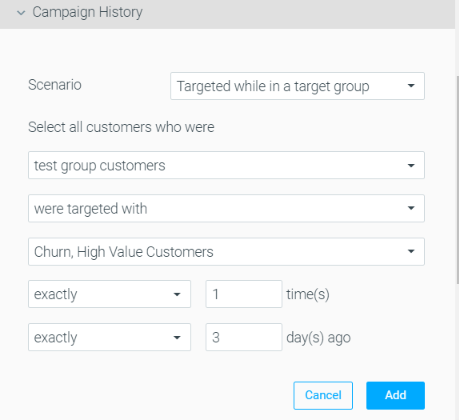
- Select the "were targeted with" condition and the specific target group used in the initial campaign. For example, "Churn, High-Value Customers"
- Define the number of times customers should have been targeted with the campaign. For example, exactly 1 time.
- Define the timeframe in which the conditions should be met. For example, exactly 3 days ago, meaning that if the new campaign will be sent on April 4th, the customers should have been targeted with the "Churn, High-Value Customers" campaign on April 1st.
- You should now have a similar setup to the below criteria. All that is left is to click "Add".
Segmenting Test Customers Who "Responded to" a Campaign
To select customers for this scenario, follow the steps below:
- Go to Campaign History from the Selection Criteria navigation bar
- Set the Scenario to "Targeted while in a target group"
- Choose "Select all customers who tested group customers"
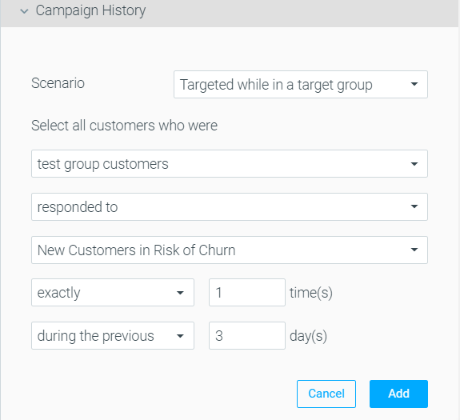
- Select the 'responded to' condition and the specific target group used in the initial campaign. For example, "New Customers in Risk of Churn"
- Define the number of times customers should have responded to the campaign. For example, exactly 1 time.
- Define the timeframe in which the conditions should be met. For example, exactly 3 days ago.
- You should now have a similar setup to the below criteria. All that is left is to click "Add".
Please note (Campaigns with a Duration greater than 1 day): When using the 'Responded to' option for a campaign with a duration greater than 1 day, the specified response day (e.g., 'exactly 4 days ago') refers to the exact day on which the customer responds.
Here is an example to demonstrate this:
- Your original campaign was sent on Sunday, with a duration of 2 days.
- 10 customers responded on day 1 (Sunday) and three customers responded on day 2 (Monday).
- Your follow-up campaign is scheduled for Thursday, using the Campaign History criterion to select customers who responded exactly four days ago.
- Since the criterion refers only to each customer’s actual day of response (and not to the entire duration of the campaign), the criterion will select only the 10 customers who responded on Sunday (which was exactly four days before Thursday’s follow-up campaign) and not the three customers who responded on Monday (which was three days before the follow-up campaign).
Segmenting Control Customers Who "Were Targeted With" a Campaign
To select customers for this scenario, follow the steps below:
- Go to Campaign History from the Selection Criteria navigation bar
- Set the Scenario to "Targeted while in a target group"
- Choose "Select all customers who were control group customers"
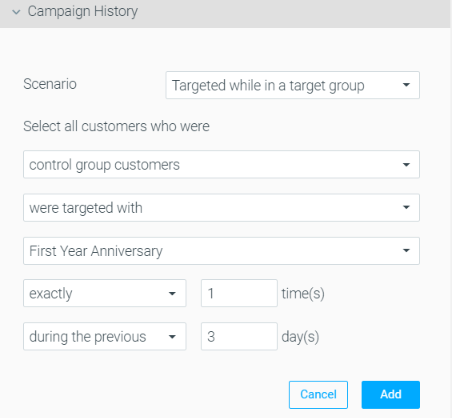
- Select the "were targeted with" condition and the specific target group used in the initial campaign For example, "First Anniversary"
These customers didn't receive the "First Anniversary" campaign because they were part of the campaign's control group.
- Define the number of times customers should have been targeted with the chosen campaign. For example, exactly 1 time.
- Define the timeframe in which the conditions should be met. For example, exactly 3 days ago, meaning that if the new campaign will be sent on April 4th, the customers should have been targeted with the "First Anniversary" campaign on April 1st.
- You should now have a similar setup to the below criteria. All that is left is to click "Add".
Segmenting Control Customers Who "Responded to" a Campaign
To select customers for this scenario, follow the steps below:
- Go to Campaign History from the Selection Criteria navigation bar
- Set the Scenario to "Targeted while in a target group"
- Choose "Select all customers who were control group customers"
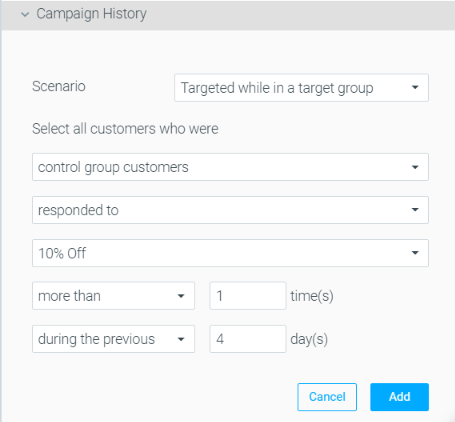
- Select the "Responded to" condition and the target group used in the initial campaign. For example, "10% Off"
- Define the number of times customers should have been targeted with the campaign. For example, exactly 1 time
- Define the timeframe in which the conditions should be met. For example, exactly 4 days ago
Meaning, this condition will segment customers who didn't receive the campaign but performed the desired action (impacted the campaign's KPI) while being part of the campaign's control group. - You should now have a similar setup to the below criteria. All that is left is to click "Add"
Segmenting Test and Control Customers Who "Responded to" a Campaign
To select customers for this scenario, follow the steps below:
- Go to Campaign History from the Selection Criteria navigation bar
- Set the Scenario to "Targeted while in a target group"
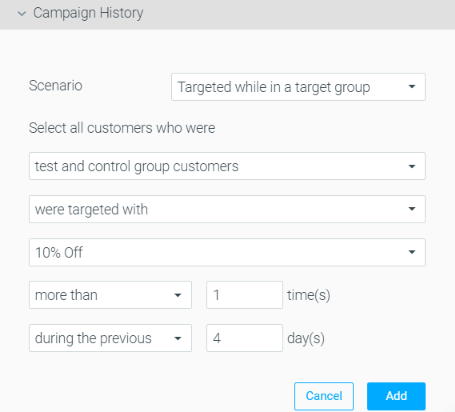
- Choose "Select all customers who were test and control group customers"
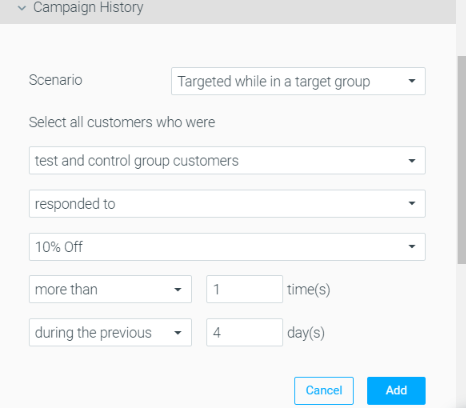
- Select the "Responded to" condition and the specific target group used in the initial campaign.
For example, "10% Off" - Define the number of times customers should have been targeted with the campaign. For example, exactly 1 time.
- Define the timeframe in which the conditions should be met. For example, exactly 4 days ago. Meaning, this condition will segment customers who didn't receive the campaign but performed the desired action (impacted the campaign's KPI) while being part of the campaign's control group.
- You should now have a similar setup to the below criteria. All that is left is to click "Add"
Segmenting Test and Control Customers Who "Were targeted with" a Campaign
To select customers for this scenario, follow the steps below:
- Go to Campaign History from the Selection Criteria navigation bar
- Set the Scenario to "Targeted while in a target group"
- Choose "Select all customers who were test and control group customers"
- Select the "Were targeted with" condition and the specific target group used in the initial campaign. For example, "10% Off"
- Define the number of times customers should have been targeted with the campaign. For example, exactly 1 time.
- Define the timeframe in which the conditions should be met. For example, exactly 4 days ago. Meaning, this condition will segment customers who didn't receive the campaign but performed the desired action (impacted the campaign's KPI) while being part of the campaign's control group.
- You should now have a similar setup to the below criteria. All that is left is to click "Add"
Targeting customers with a same-day follow-up campaign
In some cases, you may want to address customers that have been targeted with a campaign Today, with a same-day follow-up campaign.
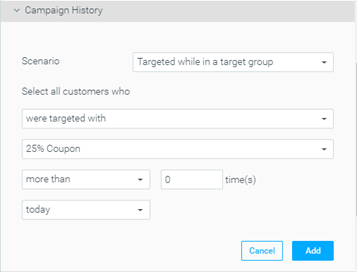
- Go to “Campaign History” in the “Selection Criteria” navigation bar
- Under Scenario select “targeted while in a target group”
- Select customers “were targeted with”
- Choose the target group that was targeted with the “25% coupon” email
- Define the number of times the desired activity took place. For example, select “more than 0 times” to target customers who were targeted with the “25% coupon” email once or more
- Select “today” as the timeline for which the conditions should be met
- You should now have criteria set up similar to the example below. All that is left is to click “Add”
Please note: In this scenario, you should make sure to place the follow-up campaign as a lower priority than the original campaign. This will make sure that the first campaign will be executed first, and the follow-up campaign will populate customers according to the first’s campaign history.
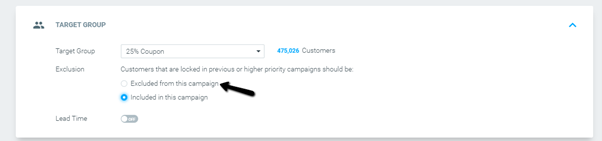
In addition, make sure to remove the exclusion from the follow-up campaign to allow customers to receive both campaigns on the same day.
- Campaign History cannot take place in real-time.
- Fails treatment:
- If the first campaign is “not run” for any reason, allocated customers will not count as “targeted”, meaning they will not get the follow-up campaign.
- If a third-party vendor, as an ESP fails, Optimove will not be aware of the failure or if the customers were targeted or not. In this case, since Optimove cannot track failed executions on third-party platforms, it will treat the failed campaign as executed and customers will be targeted with the follow-up campaign.
Custom Scenarios
Selecting the "Custom" Campaign History scenario gives you the flexibility to create a wide range of selections to target customers based on any campaign history situation. To use custom scenarios, select one option for each of the below elements:
Selection Element | Examples |
|---|---|
Customers who |
|
Activity history |
|
Number of times the activity was performed |
|
Timeframe |
|
Additional Timeframes
- During the previous / exactly (number of days) ago - customers who were targeted over the past X number of days or exactly X number of days ago.
- This week (to date) – customers who were targeted during the week (Mon-Sunday). For example, if today is Wednesday, this timeframe will include Monday and Tuesday’s customers.
- This month (to date) - customers who were targeted during this month.
- This quarter (to date) - customers who were targeted during the current quarter.
- This year (to date) - customers who were targeted during this year.
- Last calendar week – customers who were targeted last week. For example, if today is Tuesday, August 29th, "last week" would be Monday the 16th – Sunday the 22nd.
- Last calendar month - customers who were targeted last month.
- Last calendar quarter - customers who were targeted during the previous quarter.
- Last calendar year - customers who were targeted during last year.
- On this date - customers who were targeted on a specific date.
- In this date range - customers who were targeted on a specific date range.
Campaigns with a duration greater than 1 day
- Your original campaign was sent on Sunday, with a duration of 2 days.
- 10 customers responded on day 1 (Sunday) and three customers responded on day 2 (Monday).
- Your follow-up campaign is scheduled for Thursday, using the Campaign History criterion to select customers who responded exactly four days ago.
- Since the criterion refers only to each customer’s actual day of response (and not to the entire duration of the campaign), the criterion will select only the 10 customers who responded on Sunday (which was exactly four days before Thursday’s follow-up campaign) and not the three customers who responded on Monday (which was three days before the follow-up campaign).
Example Use Cases
Suppressing customers from recurring campaigns
Conditional Follow-up Campaign
Conditional A/B Campaign Follow-up
- Those customers who received Action A and responded
- Those customers who received Action B and responded
- Those customers who received either action and did not respond
To do this, we will use the “Received a specific action” scenario, as shown in this example for the first group:
Using Campaign History and Lead Time
- A target group was created with a Campaign History criterion. For example, targeting users that did not receive a specific action named “Weekly Digest” in the last 30 days.
- A recurring campaign is scheduled, with a one-day lead time.
How does adding a 1-day lead time affect recurring campaigns for target groups with Campaign History criteria?
- The addition of a 1-day lead time means that the target group will be calculated one day before the execution date of the campaign.
- Since the calculation of the target group for the second campaign occurrence takes place before the first campaign is executed, this setup might result in customers being targeted with a recurring campaign two days in a row.