
Closed Beta:
This capability is currently in Closed Beta and may not be available to all customers. For information beyond this article, please reach out to your Customer Success Manager.
Pre-requisites
The segment's integration process only requires placing a webhook provided by Optimove within the Segment platform.
Introduction to Methods
"Method" is how the Segment named its event structures. We will present the different methods Optimove supports in this section.
Identify
The Identify method is used to tie a user to their actions and record traits about them. Segment's Anonymous ID will be recorded and used as Optimove's visitor ID.
|| Within Segment's Identify method, the "email" trait must be in lowercase.
Track
The Track method is used to record any actions your users perform, along with any properties that describe the action. Optimove will map these events to custom events that are configured within your Optimove instance. Read more about how to configure events within Optimove here.
|| Note:
- The segment's "event" field must match the Optimove "Event key".
- The parameter keys within Segment's "properties" field must match the Optimove "Parameter keys".
Targeting visitors who just converted into customers (Day 0 targeting)
Optimove distinguishes between unknown website visitors, website visitors that have converted today, and customers.
|| Note:
- Conversion events must contain a "userId" trait
- If an email should be sent upon conversion, then the conversion event must contain an "email" trait.
Page/Screen
The Page method lets you record a user's visit to a website page, along with any specific properties about the page.
Setting up the Integration
- Open your Segment dashboard and go to Connections → Destinations
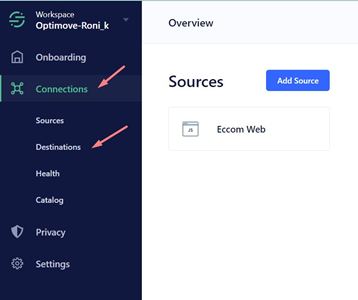
- Click on "Add Destination":

- In the destinations filter type and select "Webhooks (Actions)”
- Click on "configure Webhooks"
- In the "Select Source" screen, click on the sources that you want to forward your events from, (your website, for example) and click next
- choose a Destination Name and "Fill in Settings Manually” click “create destination”
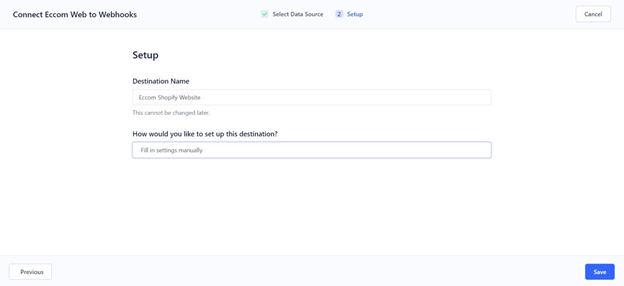
- Add Optimove Shared Secret “Optimove” and click save
- Click on “mapping” tab and “new mapping”
- Select events to map and send in the drop down choose “Event Type” is Track
- Select mappings – Copy the Optimove webhook endpoint provided to you by the customer solution engineer team and click "Save"
Repeat on steps 7-9 for event type Identify, page and screen
|| General Notes:
- Since this integration is a Server-side integration, targeting customers via Optimove's Web pop-up execution channel is not possible.
- Since Segment queues events, Segment cannot guarantee the order in which the event is delivered to your Optimove endpoint. When creating a trigger with more than a single simple event, it is recommended to uncheck the "Events must occur in sequence" checkbox.