
Columns
Columns represent data points that are related to campaigns. You can add or remove columns via the "Column Tool Pane" on the right side of your table. To do so:
- Click on the tool pane on the right to open the column section
- Look at the column section to see further information on:
- Set up – target group and execution-related data points. This is where you will find your target groups, triggers, priority, status, tags, and more.
- Scheduling – time-related data points like recurrence, first and last in range, and the occurrence calendar. The occurrence calendar displays the days within which each campaign will be active within the selected time period.
- Metrics – this is where your campaign-related values will appear. You can add metrics like increase, targeted customers, response rate, and control of customers. You can also find the channel metrics where you’ll find your channel-related metrics like delivery rate, open and click rate, and unsubscribe rate for your channel of choice.
- You can also control the order of the columns – just place your mouse over the column you’d like to move and drag it to the desired location on the table.
- If you wish to pin your columns to the table, you can do this in two different ways:
- By clicking on the header menu and clicking the “Pin column”
- By dragging the desired column to the left part of the table, above the three dots and chevron
Filters
- Click on the filter icon next to the Views dropdown menu
- Choose the data points you would like to filter. Click on the desired data point to highlight it, and click "Apply"
- The selected data points will now be available above the table, where you can define the values you would like to filter
- To reset your table after filtering, you can click the “Reset All” button which is located to the left of the chosen filters. You can also remove specific filters by clicking the X next to the filter
The Target Group Criteria filter works differently from the other filters, and it's easy to misread. Most filters narrow the list by a campaign attribute — for example, filtering Channel = Email shows every campaign sent through the Email channel. The Target Group Criteria filter instead narrows the list by the specific criteria used to define each campaign's Target Group — not by who the campaign happens to reach.
For example, say you create a Target Group defined simply as "all men." It will be sent to every man in your database, regardless of their Lifecycle Stage. If you then filter Target Group Criteria → Lifecycle Stage = New, this Target Group will not appear in the results — even though some of the men it reaches are in the New stage — because its definition does not explicitly use the Lifecycle Stage criterion. Mission Control matches on the criteria written into the Target Group, not on the members it ultimately triggers.
Sorting
Views
Create a custom view:
- Click on the three dots next to the Views dropdown menu
- Click on “Save as new view”
- Choose a name for your view with at least 2 characters, and click "Save"
Edit an existing view:
- Select your view from the Views drop-down menu
- Change your view
- Click on the view menu (3 dots)
- Click on "Save View"
Change the name for an existing view:
- Click on “manage views”
- Choose the view you’d like to change and click the pen tool next to it
- Choose a new name for your view
- Click “Save”
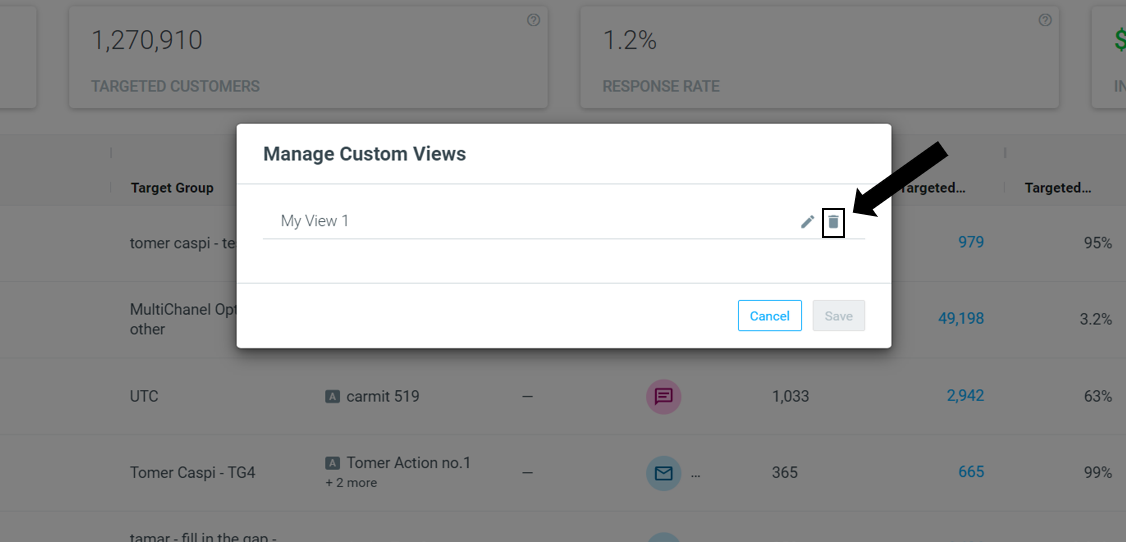
Delete an existing view:
- Click on the three dots next to the views dropdown menu
- Click on “manage views”
- Choose the view you’d like to and click on the bin icon next to it
- Click “Save”
Alternatively, you can choose one of four options that are provided by default, each of which focuses on a different goal:
- Analysis – compare your campaigns’ performance as part of a series or among themselves
- Monitoring – get a full view of what’s going on with your campaigns, their current status, and who’s the last editor – this is a great option for specific time frames like Today, to make sure everything’s working as planned
- Planning – much like the familiar calendar view from the Marketing Plan, you can get a full view of what’s coming up and when for the timeframe of your choice, with the reimagined occurrence calendar.
- OptiMail - for all you email marketers out there, here you can analyze all your Optimail campaigns with key email marketing metrics such as open rate, click rate and deliverability metrics
To learn more, check out Mission Control 101 in Optimove Courses.