Mission control is a great tool to plan and analyze your campaigns, allowing you to take an in-depth look into your marketing efforts, understand their impact, and adapt accordingly.
In this article, you will find everything you need to know to analyze your campaigns and act upon your findings.
The Campaign Menu
The campaign menu provides detailed information for a specific campaign.
You can access the campaign menu by clicking on the three dots to the left of the chosen campaign.
With the Campaign Menu, you can:
- View each campaign’s details
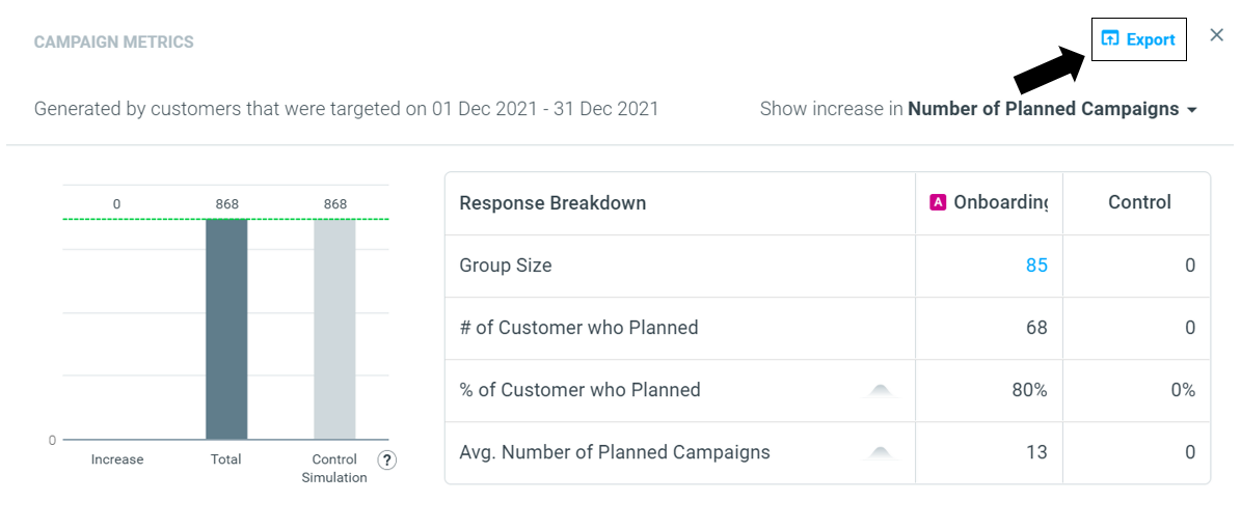
- View each campaign’s metrics
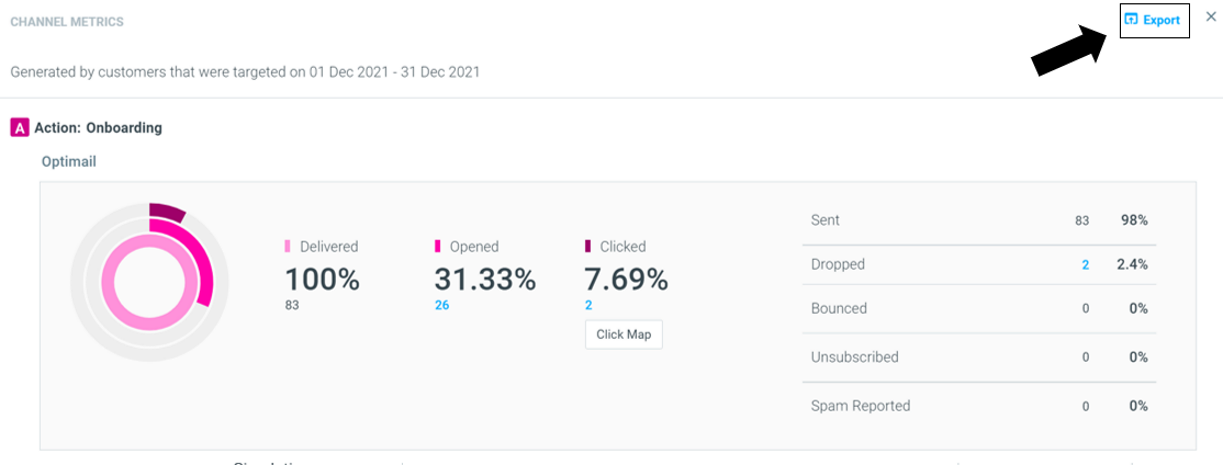
- Get an overview of the campaign's Channel Metrics
- Go to the Campaign Analysis page
You can also manage your campaigns in specific cases, like duplicate or edit campaigns, or delete campaign occurrences.
Edit a Campaign
- Choose your campaign and open the Campaign Menu
- Click on "Edit"
- You will now be redirected to the Campaign Builder where you can edit your campaign’s scheduling or execution
-
Click on "Update Campaign"
Duplicate and Edit a Campaign
- Choose your campaign and open the Campaign Menu
- Click on "Duplicate and Edit"
- You will now be redirected to the Campaign Builder, you can either keep the target group, scheduling, and execution details as-is or modify them as desired.
- Click on "Create Campaign"
To learn more about the Campaign Builder’s capabilities, Visit the Academy’s article about Creating a Campaign
Duplicate a Campaign Draft
- Choose your draft and open the Campaign Menu
- Hover over Duplicate and click on "Multi-Duplicate"
- You will now be able to set the Start Date, Recurrence Settings, and which Target Groups you'd like to duplicate the campaign for
- Click on "Duplicate"
- The duplicates will show as a draft for each selected Target Group in Mission Control
- To execute the draft, click on 'Edit' and finalize the campaign in the Campaign Builder
Deleting Campaign Occurrences
- Go to the Campaign Menu
- Click on "Delete Occurrences"
- A popup will appear, surfacing future occurrences that can be deleted
- Choose single, or multiple occurrences within a date range
Editing “Partially Failed” Campaigns
For campaigns with a “Partially Failed” status, you can choose between:
- Starting today - allows you to edit only the failed elements. Successfully executed elements will be greyed out.
- Starting with the next occurrence - allows you to update all the campaign's occurrences, not including today's occurrence.
Editing “Failed” Campaigns
A campaign edit will only impact future campaign occurrences.
Since today's occurrence failed and will not run automatically on its own, you'll have to re-run it using the "Run Now" capability.
Series Analysis
The series analysis is the aggregated information presented as a result of several occurrences in a campaign and relates to the campaign occurrences that have gone out during the selected date range.
The analysis can take place after adding numerical columns, for example, the “Increase” column.
The increase shown in the campaign row is the aggregated information, showing the total increase of all the occurrences in the given time frame.
To see the complete breakdown of each occurrence, click the chevron next to the campaign menu.
Exporting Data
Within Mission Control, there are several places from which you can export data. The data will be exported as a CSV with the same columns and filtering applied to the final set-up before the export.
- Campaign Table export – Any column that was added will be exported (even the occurrence calendar!)
- Campaign Metrics Export – This will export ALL the KPI performance for a specific campaign. You can access the Campaign Metrics by opening the Campaign Menu for the chosen campaign, and clicking “Campaign Metrics” or by clicking on the "Increase" value in the table.
- Channel Metrics Export - This will export performance metrics relating to ALL the templates for a specific campaign. You can access the Channel Metrics by opening the Campaign Menu for the chosen campaign and clicking “Channel Metrics” or by clicking on the channel icon in the table.