
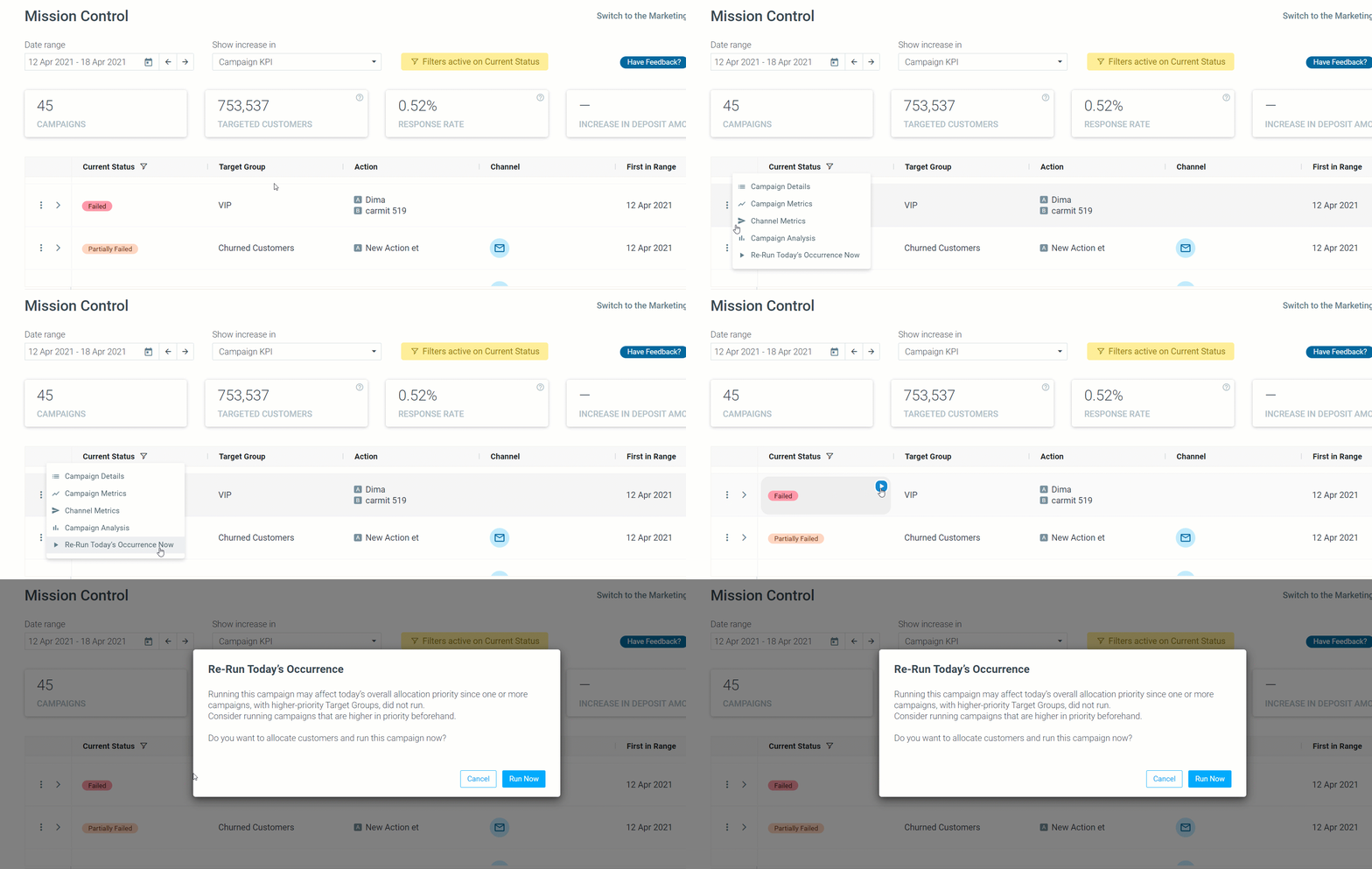
The “Run Now” capability allows you to execute today's campaign occurrence immediately, for "Failed", "Partially Failed", or "Not Run" campaigns.
Find the “Run Now” button by hovering over the relevant campaign in Mission Control or via the three dots menu on the left of every campaign.
How does the Batch Data Update influence “Run Now” campaigns?
Clicking “Run Now” before the Batch Data Update is completed will execute the campaign based on the previous day’s data. Additional campaigns scheduled on the same day will take into account that the “ad-hoc” campaign was sent earlier that day. Therefore, if the “exclude” option is toggled on in these other campaigns, customers eligible for both will not receive campaigns that follow the “ad-hoc” campaign.
Example Use Cases
Send an ad-hoc, unique offer campaign to new customers
- Build your target group using the Campaign History selection criteria.
- Set the Scenario to “Targeted while in a target group.”
- Select the “were targeted with” condition and the specific target group used in the initial campaign. For example, “New During September.”
- Define the number of times customers should have been targeted with the campaign. For instance, exactly one time.
- Define the timeline for which the conditions should be met. In our example, use “Today,” meaning that customers should’ve been targeted with the “New During September” campaign today.
2. Schedule a campaign and go to Mission Control.
3. Hover over the campaign and use the “Run Now” capability for the campaign to be sent out.
Send an ad-hoc, reminder of the offer to unresponsive customers
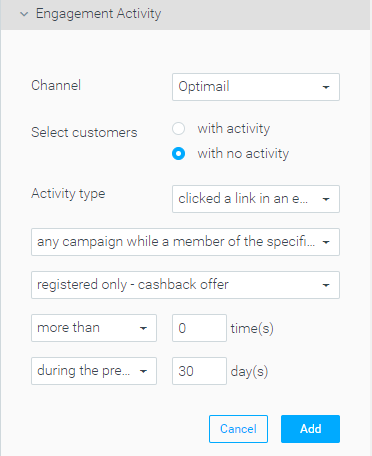
- Under Channel, select “Optimail.”
- Select customers “with no activity.”
- Under Activity Type, select “clicked a link in an email of.”
- Define the type of activity you would like to use to segment customers. In our example, select “any campaign while a member of the specific target group” and select the “special offer” campaign’s target group.
- Define the number of times the desired activity took place. In our example, select more than 0 times to choose customers who never clicked on a link within an email.
- Define the timeline for which the conditions should be met, for example, during the previous 30 days.
Send an ad-hoc campaign to maximize the results of time-sensitive offers
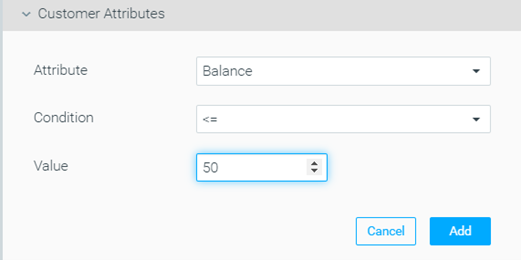
1. Set your “Balance” customer attribute as a real-time attribute using one of the real-time events streaming methods mentioned here.
2. Build a target group using the real-time “Balance” customer attribute and include all customers with a balance that is equal to or smaller than $50.
3. Schedule a campaign and go to the Mission Control
4. Hover over the campaign and use the “Run Now” capability to send out the campaign.