
You can use this approach in Optimove by defining Target Groups using the Purchase History selection category. The selection criteria in this category consist of three elements:
|
Selection Element
|
Examples
|
|---|---|
|
Type of history
|
|
|
Product, product category, or product attribute
|
|
|
Timeframe
|
|
Additional Timeframes
When using "any campaign", the only available timeframe is "during the previous" X days.
- During the previous / exactly (number of days) ago - customers who were targeted over the past X number of days or exactly X number of days ago.
- This week (to date) – customers who were targeted during the week (Mon-Sunday). For example, if today is Wednesday, this timeframe will include Monday’s and Tuesday’s customers.
- This month (to date) - customers who were targeted during this month.
- This quarter (to date) - customers who were targeted during the current quarter.
- This year (to date) - customers who were targeted during this year.
- Last calendar week – customers who were targeted last week. For example, if today is Tuesday, August 29th, "last week" would be Monday the 16th – Sunday 22nd.
- Last calendar month - customers who were targeted last month.
- Last calendar quarter - customers who were targeted during the previous quarter.
- Last calendar year - customers who were targeted during last year.
- On this date - customers who were targeted on a specific date. -In this date range - customers who were targeted on a specific date range.

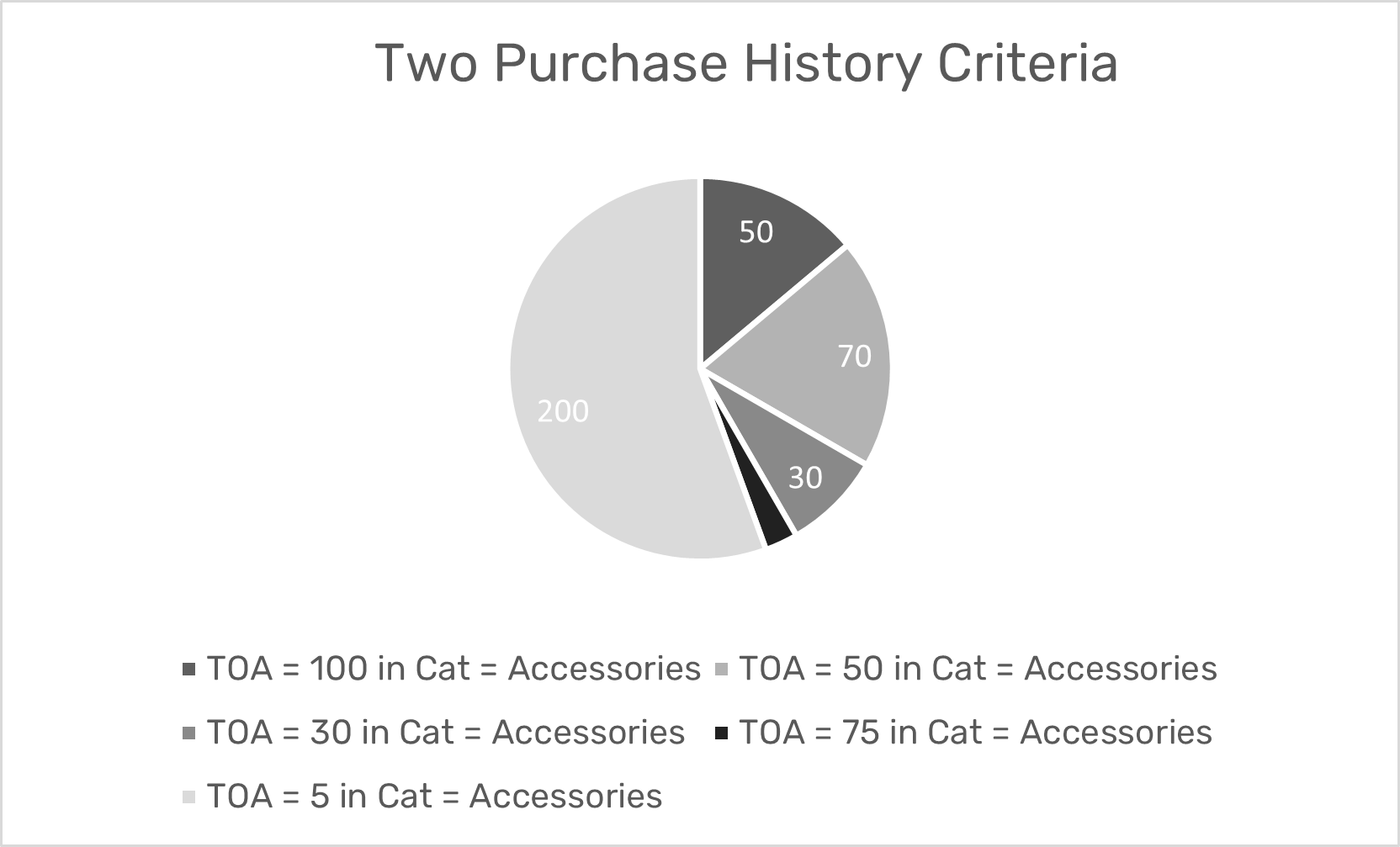
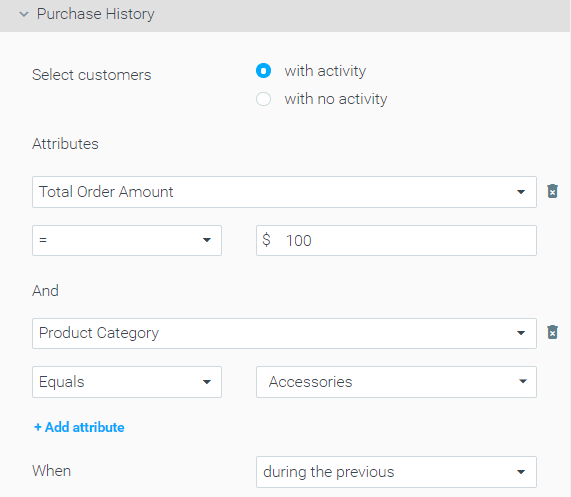
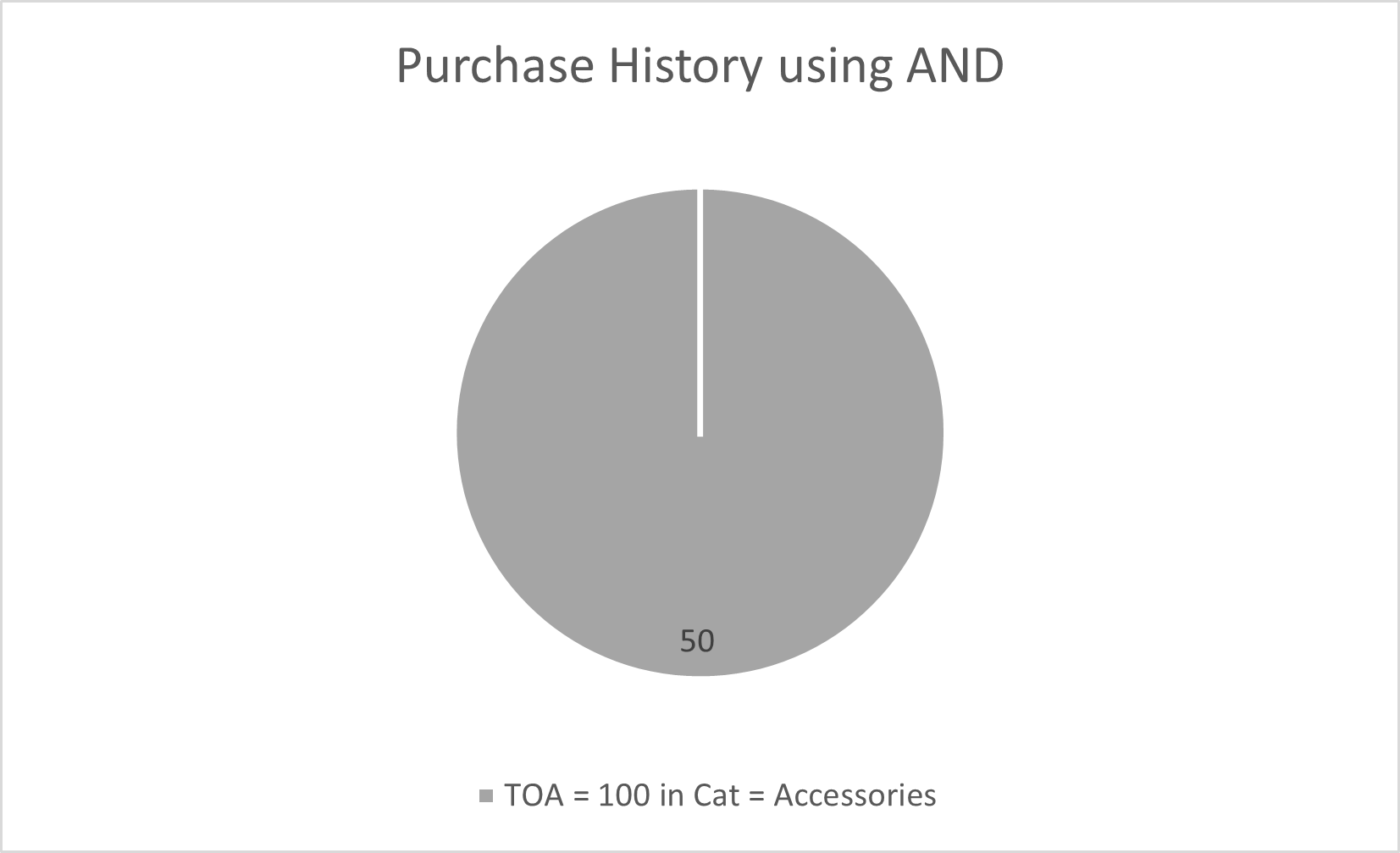 The difference between the two options is, that in Option 1 we target a wider variety of customers - those who purchased for $100 and also purchased accessories, whereas in Option 2 we target customers that bought accessories for $100.
Selecting customers who purchased
To select customers who purchased follow the steps below:
- Go to Purchase History in the Selection Criteria navigation bar.
- Select customers ”with activity.”
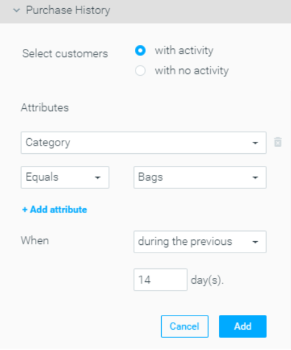
- Use Attributes, Conditions, and Value fields to select the product, product category, or product attribute you want to use to segment your customers. For example, Category equals Bags.
- Define the timeline for which the conditions should be met. For example, during the previous 14 days.
- You should now have similar selection criteria to the one below. All that is left is to click “Add.”
Selecting customers who did not purchase
To select customers who did not purchase follow the steps below:
- Go to Purchase History in the Selection Criteria navigation bar.
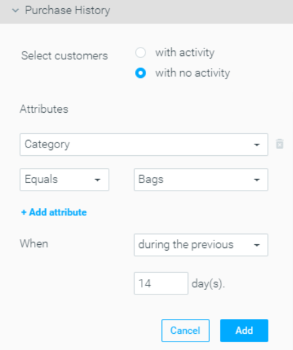
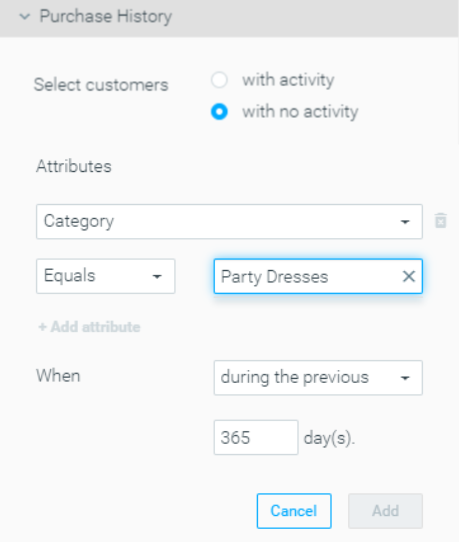
- Select customers ”with no activity.”
- Use Attributes, Conditions, and Value fields to select the product, product category, or product attribute you want to use to segment your customers. For example, Category equals Bags.
- Define the timeline for which the conditions should be met. For example, during the previous 14 days.
- You should now have similar selection criteria to the one below. All that is left is to click “Add.”
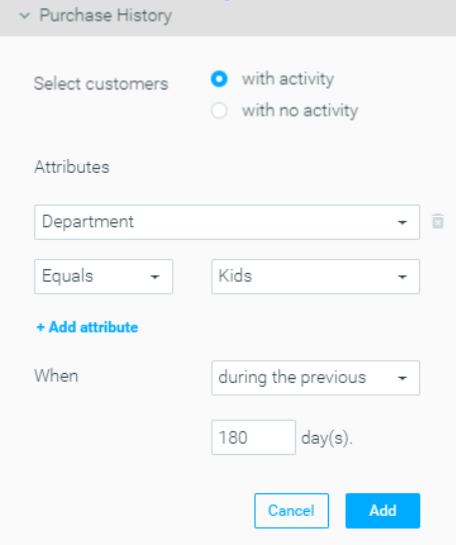
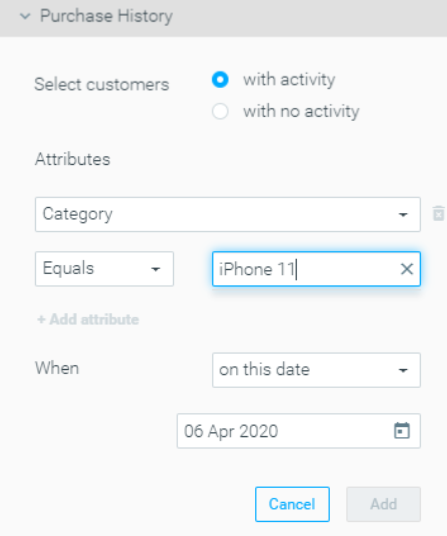
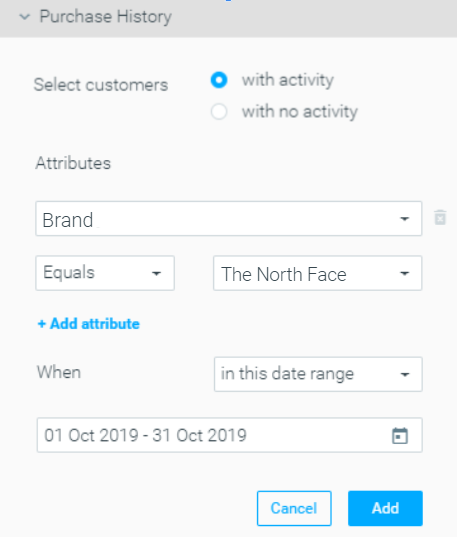
Example use cases
What’s the difference between using multiple attributes in one condition vs. separate conditions?
1. Multiple attributes in ONE condition
You’re asking the system to find customers who match ALL the attribute values at the same time, in a single transaction.
Example:
"Customers who placed a bet of over $100 AND placed it on mobile."
This means the same bet needs to meet all 2 conditions.
The result is a smaller, more specific group — they must meet all two in one activity.
2. Same attributes in SEPARATE conditions
Here, the system looks for customers who matched any of the conditions, across different transactions.
Example:
"Customers who placed a bet over $100
OR placed any bet from mobile"
This means the customer could have met each of these in different bets, not all in one.
The result is a broader group — they just need to match one or more of the conditions, even if it’s in separate actions.
When to use each?
- Use ONE condition with multiple attributes when you want customers who did all those things in the same activity.
- Use SEPARATE conditions when you're looking for customers who did any of those things, even if across different activities or times.
Purchase History Update Frequency
Purchase History updates daily. Read more about the update frequency here.