
- Analyze customers based on the most up-to-date data available, via the Customer Explorer.
- Increase campaign relevancy by having customers removed from target groups right before sending campaigns, using “Re-evaluate Group.”
- Improve message personalization by having the most updated data displayed as personalization tags in messages created within Optimove (when“Re-evaluate Group” is toggled on upon campaign creation).
Adding Real-Time Data into Optimove
To set up a real-time attribute, you must send real-time data to Optimove in one of two ways:
-
Streamed events via Optimove SDKs or a server-side connection
For example, using Optimove’s web and mobile SDK, or third-party systems such as Zendesk and Segment.com.
Learn how to Create Real-time Customer Attributes Using Streamed Events
-
Real-time attribute updates via API
This method directly updates a given attribute.
Learn How to Send Real-time Events via the API
|| Please note:
- Real-time attributes are not updated retroactively with historical data. The attribute calculation will start from the moment the attribute is created.
- For real-time attributes that rely solely on real-time events (rather than a combination of real-time and batch data), the data is aggregated as long as the customer is active.
When Should You Use Each Option?
Choosing which integration method is right for you (streamed events or API) boils down to your current implementation of Optimove:
- If you haven’t implemented an Optimove event streaming solution (SDKs or server-side events) or any third-party integrations (Zendesk or Segment.com), and are not planning to do so, you will need to send real-time customer attributes via the API.
- If you have implemented an Optimove event streaming solution, and will be using existing events to either update customer attributes in real-time or create new attributes, we recommend that you use streamed events.
- If you have implemented an Optimove event streaming solution but would like to use new data and events, you should decide between the two options based on your team’s resources and in-house preferences.
How to Create Real-Time Attributes
Once the Optimove SDKs, a server-side connection, or the third-party system integration is set up, you can create Real-time Customer Attributes from the Settings area.
Please Note: The system allows you to configure attributes across three methods: API, Real-Time, and Data Ingestion, with the following limitations:
API: Up to 40 attributes can be added.
Real-Time: Up to 35 attributes can be added.
-
Data Ingestion: Data ingestion attributes are available only if you have added less than 50 attributes by both the previous mentioned methods. For example:
If you have 0 API and 0 Real-Time attributes, you can add up to 50 Data Ingestion attributes.
If you have 40 API and 0 Real-Time attributes, you can add up to 10 Data Ingestion attributes (50 - 40 = 10).
If you have 35 Real-Time and 5 API attributes, you can add up to 10 Data Ingestion attributes (50 - 35 - 5 = 10).
This flexible structure allows you to allocate attributes based on your needs, as long as the combined total across all methods does not exceed 50.
- Go to 'Data Studio' in the left navigation bar, and go to 'Real-Time Attributes'.
- Click on “Add New Attribute”
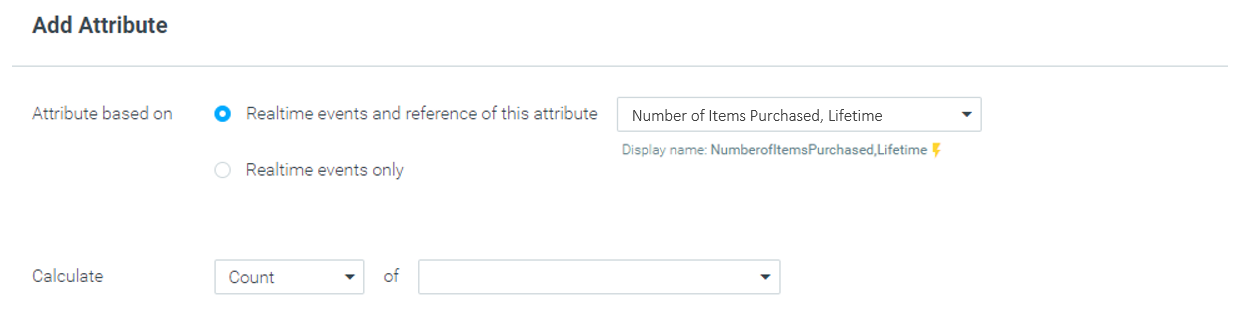
- Sum– the sum of a specific event parameter. For example, Sum can be used to calculate attributes such as “Order Value, Lifetime”.
- Count– the count of actions or events. For example, Count can be used to calculate attributes such as “Total Number of Orders.”
- Latest value– will be used to calculate yes/no or True/False values, such as “Subscribe/Unsubscribe” or to represent the most up-to-date value of a given parameter, such as “Last purchase date.”
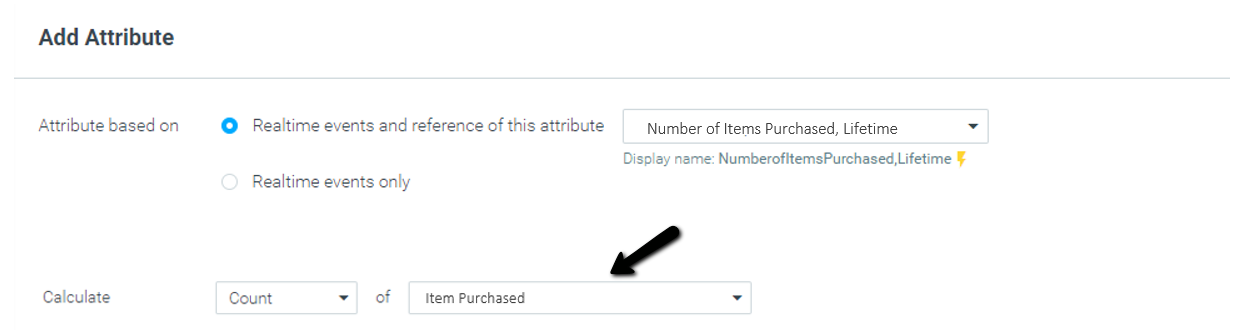
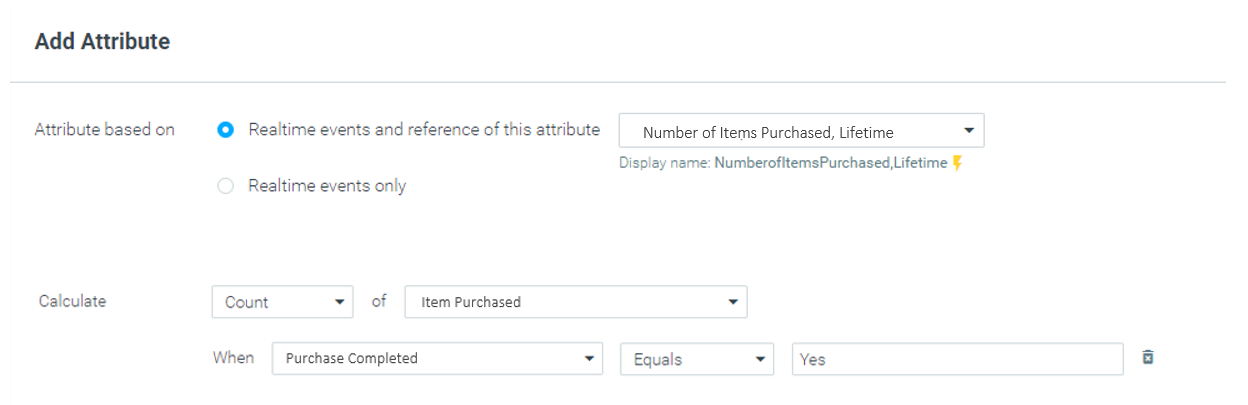
In our example, we used “Count” of the event “Item Purchased”, to count the number of items purchased in real-time.
|| Please note:
For attributes based on events only, when using the Sum and Count calculation the condition will only be valid for 48 hours. If 48 hours have passed and no event has occurred, the condition value will become empty. For the calculation of the Latest Value, the value will remain updated.
For example, using real-time attributes you can create an attribute of the Number of Page Visits for specific categories counting the number of page visits of each customer. If a customer doesn't visit the site for more than 48 hours, the value of the attribute will become empty. As long as a customer keeps visiting on a 2-day basis, the value will continue to increase.
Viewing Real-Time Attributes
Once defined, you’ll be able to view the newly created Real-Time Customer Attributes in one of three ways:
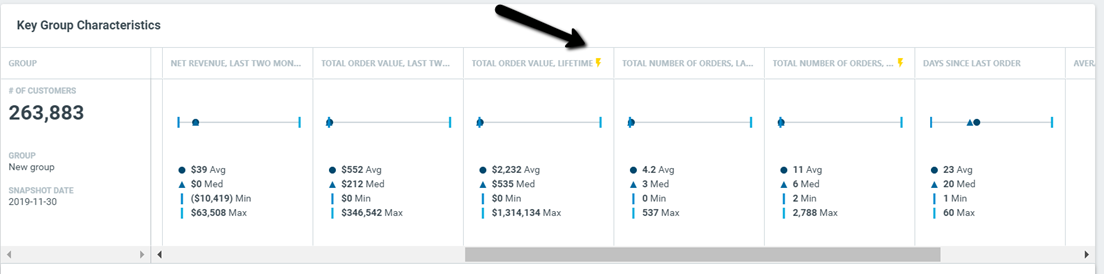
1. Via the Customer Explorer
Attributes created through both the Settings page and the API will be displayed in the Customer Explorer.
2. Via the Single Customer View on the Customer 360 Report
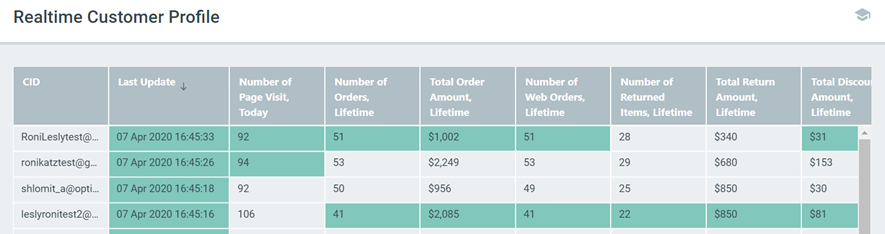
3. In the Realtime Customer Profile
Use Cases
Below are three examples of how you can leverage real-time attributes for your marketing strategy.
Use cases might differ based on the data you are streaming in real-time to Optimove.
Avoid Sending an Email to Customers Who Opted-Out
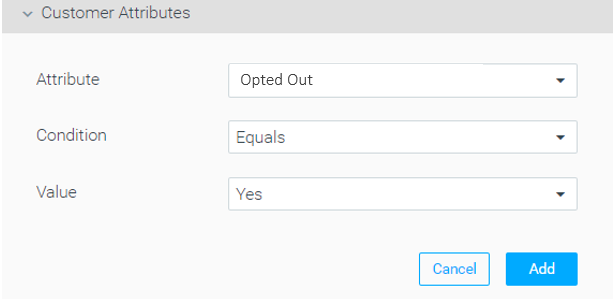
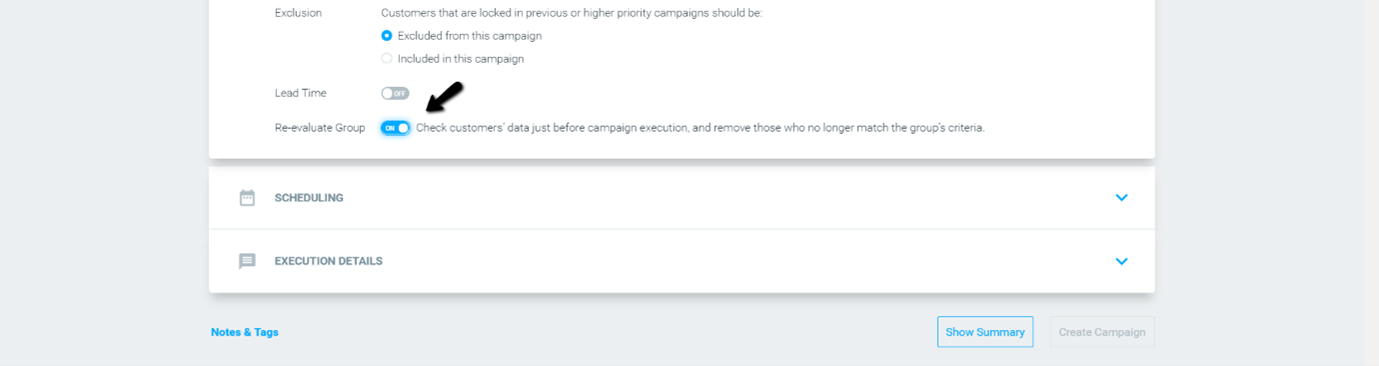
|| Note: If the “Re-evaluate Group” does not toggle in your campaign builder, please make sure your target group uses real-time attributes as described above.
In case the “Re-evaluate Group” is not available in your campaign builder, contact your CSM to enable the feature on your site.
Avoid Sending Churn Prevention Campaigns to Recently Engaged Customers
Create your churn prevention campaigns using real-time attributes to make sure any customer who made an order after the Batch Data Update and before campaign execution will not receive the campaign.
- Set up your engagement attributes as real-time attributes.
You can set attributes such as “Days since last deposit” or “Days since last order” to be updated in real-time by sending real-time events and combining them with the batch data.
Use the “Latest value” option in the Realtime Attributes screen in Settings, when setting up the attribute.
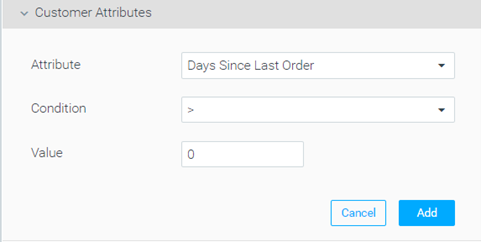
- Build your target group using the real-time attributes you defined in step 1.
For example, in this target group, we used Days Since Last Order > 0 to ensure any customer who made an order after the Batch Data Update and, during the last day, will not receive the churn prevention campaign.
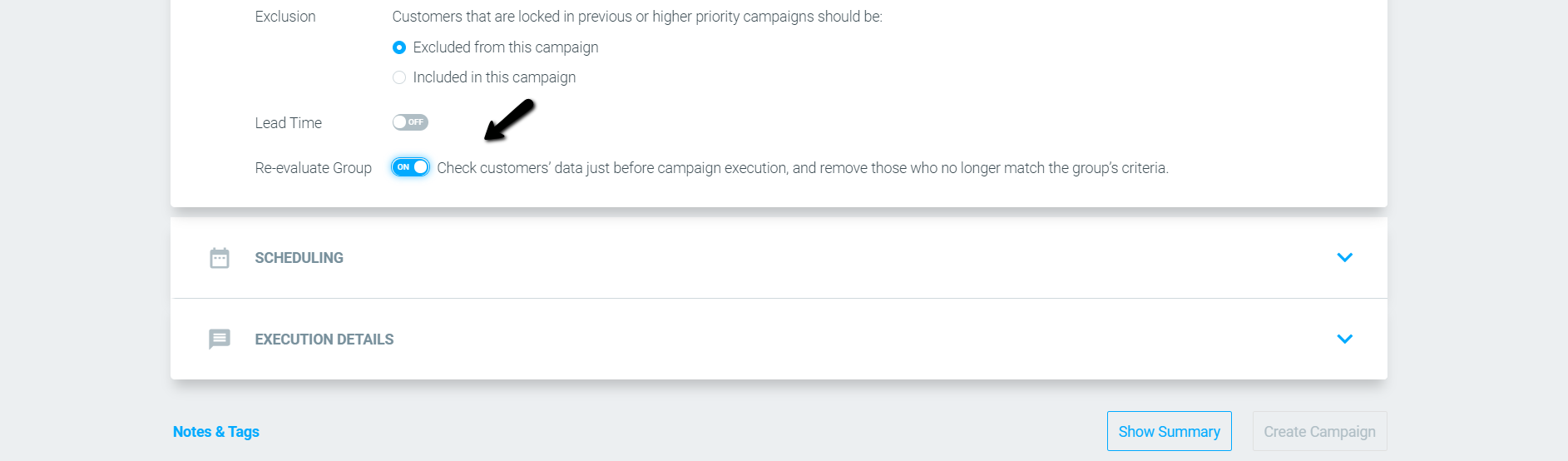
|| Note: If the “Re-evaluate Group” does not toggle in your campaign builder, please make sure your target group uses real-time attributes as described above.
In case the “Re-evaluate Group” is not available in your campaign builder, contact your CSM to enable the feature on your site.
Send a Follow-up Campaign to Maximize the Results of Time-Sensitive Offers
Earlier today, you sent a limited-time offer to players with a balance under $50 and you would like to send a reminder to those customers.
- Set your “Balance” customer attribute as a real-time attribute using one of the methods mentioned above.
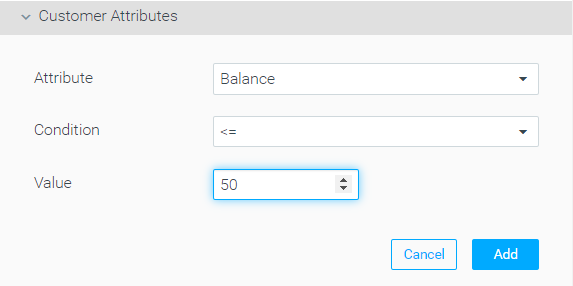
- Build a target group that includes all customers with a balance that is equal to or smaller than $50.
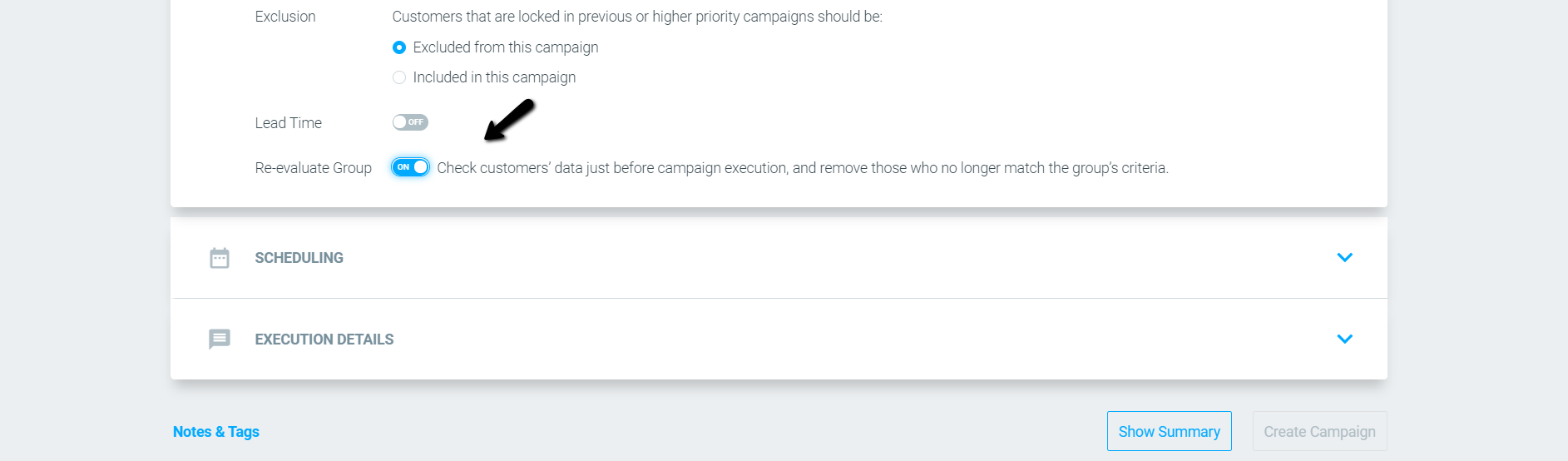
|| Note: If the “Re-evaluate Group” does not toggle in your campaign builder, please make sure your target group uses real-time attributes as described above.
In case the “Re-evaluate Group” is not available in your campaign builder, contact your CSM to enable the feature on your site.
Exit a Stream When a Bonus Is Claimed
Use a real-time attribute to split customers in a stream based on whether they have already claimed a bonus, removing converted customers from the flow and sending a follow-up only to those who have not.
- Set up a "bonus_claimed" real-time attribute using the Latest Value calculation. Send a real-time event to Optimove whenever a customer claims a bonus, and configure the attribute to reflect the claim status (for example, "Yes" when claimed and "No" when not).
- In the Stream editor, add a split node after the initial campaign step.
- Configure the split conditions:
- "bonus_claimed" = Yes: route these customers to an exit step. They have already claimed the bonus and do not need a follow-up.
- "bonus_claimed" = No: route these customers to a follow-up campaign step.
- Schedule the follow-up campaign for customers in the "No" branch.