
Trigger a personalized email to a registered visitor or known customer as a result of an unfinished sequence. Examples of these are customers with products in their cart, but who did not complete the purchase process. or players initiating a bet without finalizing it.
Multiple emails can be set up and triggered for the same Cart or Browse abandonment trigger. For example, you can send a reminder an hour after the abandonment takes place, and a reminder of the purchase still hasn’t been completed 24 hours later.
By triggering an email, you can:
- Set the campaign to be triggered at a relative time to each customer's time of abandonment (e.g., three hours after a cart was abandoned).
- Include the details of the items abandoned in the cart in your email template (these can be made available as part of the triggering event's parameters).
- Analyze the campaign via the Triggered Campaign Explorer.
|
Capability
|
Example Options
|
|---|---|
|
Target Audience
|
Registered visitors and known customers
|
|
Platform Support
|
Web, Mobile
|
|
Execution Type
|
Triggered campaign
|
|
Trigger
|
Cart abandonment
|
|
Execution Channel
|
Triggered email (via Optimail)
|
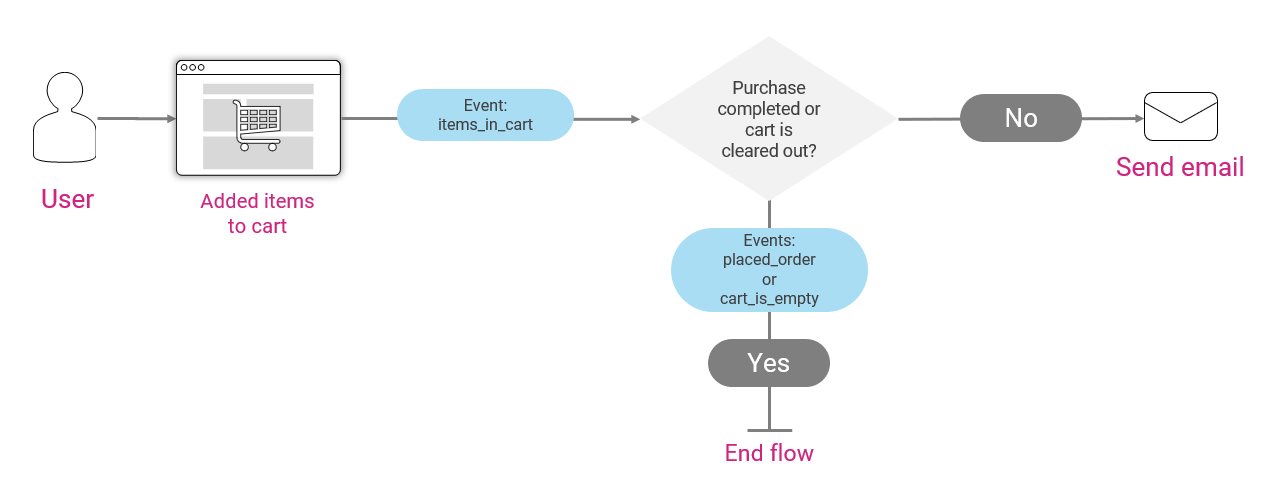
Here is the typical flow for a triggered campaign following an abandoned cart:
Trigger and Campaign Setup
To execute the cart abandonment campaign – for known customers and for visitors who register at any point during the purchase process – the following steps are required:
1. Use the registerUser(); function of the Optimove SDK (see Web, iOS, or Android) to assign a visitor ID upon registration or to identify the customer.
2. Add code to the relevant places in your website to report a series of custom events that will be used to create triggers, such as a cart abandonment trigger. For example, these custom events can have the following structure:
- Send a reportEvent('items_in_cart', params); event whenever a product is added or removed from the cart, where params is an object containing the following named parameters and their values
- :item_name_1
- item_price_1
- item_image_1
- total_price
- up to 50 parameters may be included
- Send a reportEvent(‘placed_order', params); event whenever the checkout process is completed, where params is an object containing the following named parameters and their values:
- item_name_1
- item_price_1
- item_image_1
- total_price
- up to 50 parameters may be included
- Send a reportEvent('item_viewed', params); event whenever a product is viewed, where params is an object containing the following named parameters and their values:
- item_name
- item_price
- item_image
- up to 50 parameters may be included
- Send a reportEvent(‘cart_is_empty’); event whenever the cart is cleared by the user.
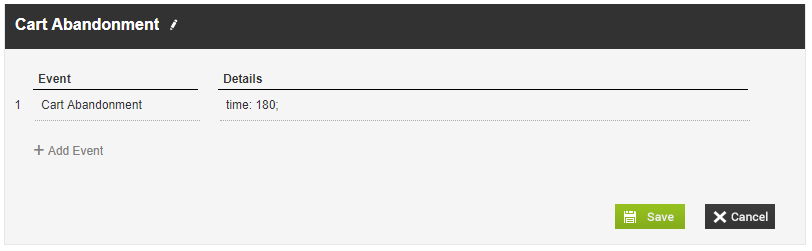
3. The Cart Abandonment event, previously configured in the Events Configuration Screen, will operate as follows:
- A timer will be initialized when the first product is added to the cart.
- If the defined number of minutes or seconds passed without a purchase, and the cart is not empty, the trigger will fire.
- If the customer adds another product to the cart, the timer will be restarted.
4. In Optimove’s Manage Triggers page, define a trigger based on the custom cart abandonment event. For example:
5. Define three target groups for this campaign. For more information on these target groups see Creating Behavior-Based Target Groups.
- Converted Today
- Registered Visitors
- Customers
6. Configure the campaign. You can define identical campaigns for registered visitors and customers, or address the two groups differently, by assigning a different marketing action, creative, or promotion.
To create the campaign for each target group:
- Create the email templates for the campaigns on the Manage Templates page. The template can contain personalization tags that refer to the specific products abandoned in the cart (using the parameters that describe each product, as sent with the items_in_cart event). The relevant product data must be included in the last event of the flow – for example, in the last items_in_cart event sent before the cart was abandoned. For information on adding personalization tags to your triggered email templates, click here.
- Define triggered campaigns for the three target groups mentioned above, using, for example, the Cart Abandonment trigger created above.
- Select Optimail as the execution channel.
- Specify the date range during which this campaign will run.
- (Optional) Specify the maximum number of times the campaign may be triggered for eligible visitors.
- Select a marketing action. It is recommended to use a unique action for this campaign so that you will later be able to build a target group of all customers who received this specific action, to send them a follow-up campaign.
- (Optional) Select a promotion.
- Select the email template to use when executing the campaign.
Follow-up campaigns can be set up. To learn how to schedule a follow-up campaign, see the Cart/Browse Abandonment – Scheduled Follow-up Email use case example.
Browse/Cart Abandonment – Scheduled Follow-up Email
Schedule a personalized follow-up email to be sent, several days after the initial abandonment. This campaign is a follow-up campaign to either the first cart abandonment email or the first deposit abandonment email.
|
Capability
|
Example Options
|
|---|---|
|
Target Audience
|
Registered visitors and known customers
|
|
Platform Support
|
Web, mobile
|
|
Execution Type
|
Scheduled campaign
|
|
Common Use Cases
|
|
|
Execution Channel
|
Scheduled email (via Optimail)
|
The below example focuses on a Cart abandonment follow up but the steps to follow are the same for each of the different common use cases.
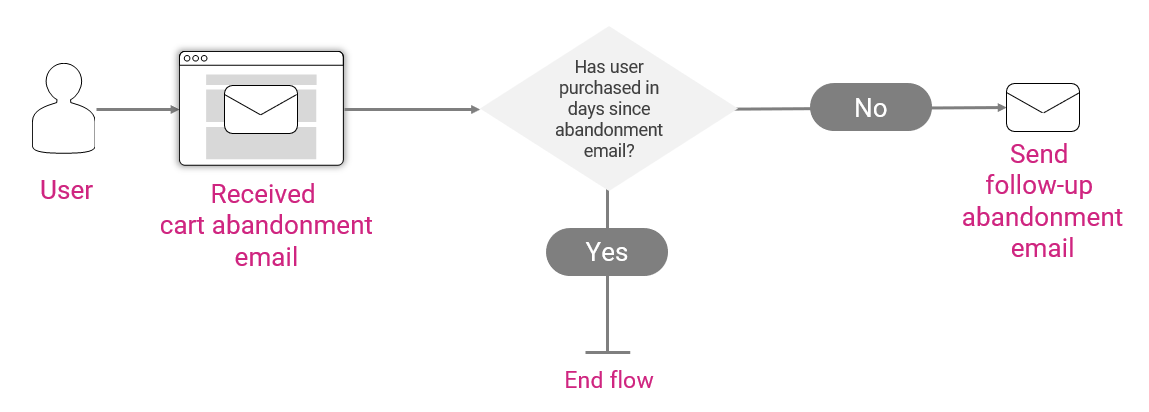
Here is the typical flow for a scheduled cart abandonment follow-up campaign:
Campaign Setup
To execute the cart abandonment follow-up campaign, the following steps are required:
1. There is no need to create a trigger – this campaign is a scheduled campaign, following the initial cart abandonment.
2. Define two target groups for this campaign. For more information on these target groups, see Creating Behavior-Based Target Groups.
- Registered Visitors
- Customers
3. Configure the campaign for each target group:
- Create the email templates for the campaigns on the Manage Templates page.
- Define scheduled campaigns for both target groups mentioned above.
- Select Optimail as the execution channel.
- Set daily recurrence, to capture all relevant customers/visitors on the day(s) after their cart abandonment.
- Select the email template(s) to use when executing the campaign.
|| Notes about this type of scheduled follow-up email:
- The email can be sent at a specific time of day for all customers (e.g., at 10:00 am on the day following the event), but not at a particular number of hours after each user triggered the initial event.
- The email cannot include the specific details of the items abandoned in the cart. Instead, you will have to use a more generic “you still have some items in your cart” type of message.
- If you wish to set up a follow-up campaign that is based on a relative time from the initial event (e.g., 36 hours after the event) or include specific details from the event, create a triggered follow-up campaign. To learn more, see the Cart/Browse Abandonment Emails or the Deposit Abandonment Emails section.
- You will be able to analyze the campaign via its own detailed Campaign Analysis page.