
Trigger a real-time campaign to players whose balance dropped below a certain threshold using server-side events. For example, trigger a promotional web popup for any players whose balance dropped below $10.
|
Capability
|
Example Options
|
|---|---|
|
Target Audience
|
Known customers
|
|
Platform Support
|
Web
|
|
Execution Type
|
Triggered campaign
|
|
Execution Channel
|
Third-party Webpage pop-up via API
|
Trigger and Campaign Setup
To execute the pop-up campaign upon a customer's balance drop, the following steps are required:
1. Create a server-side event including an API token (tid), Customer ID (cid), Event ID (eid), and the balance_drop custom event.
2. When setting up the custom event, you will also need to define when the event should be generated. For example, whenever a balance changes for a logged-in user, the balance_drop event should be sent to Optimove.
More information on setting up server-side events can be found in this guide.
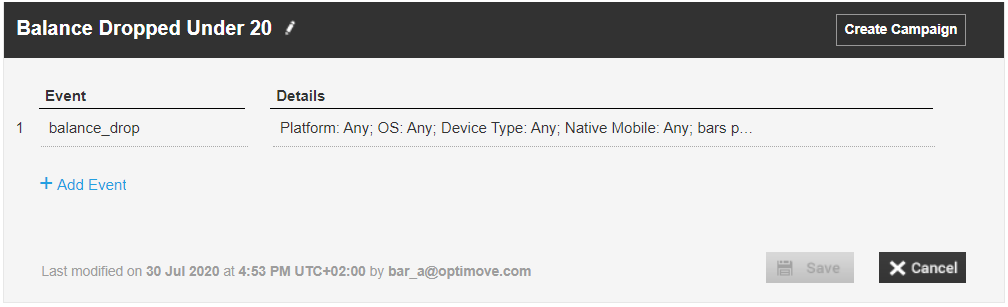
3. In Optimove’s Manage Triggers page, define a trigger based on the balance-drop custom event. For example:
4. Create a new trigger and define the balance parameters using the numerical operators. This configuration will determine when the campaign will be triggered based on the balance value of the player.
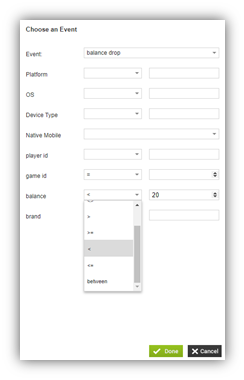
You can also use the balance event parameter to create multiple triggers (and associated campaigns) which will engage customers based on their real-time balance value. For example, you can provide a 5% discount offer for any player with a balance that drops below $50 and a 15% discount once their ratio drops below $10.
5. Define Customer target groups for this campaign. For more information on these target groups see Creating Behavior-Based Target Groups.
6. Create your webpage pop-up template for the campaign (Outside of Optimove).
7. Configure your execution channel:
- Use Optimove’s API as the campaign’s execution channel.
- Add templates to your execution channel. You will need to add names that correlate to the external webpage pop-up templates you have previously created (see step 6).
8. Create your campaign using Optimove’s Triggered Campaign Builder:
- Select the desired target group (see step 5).
- Select the desired trigger (see step 4).
- Specify the date range during which this campaign will run.
- (Optional) Specify the maximum number of times the campaign may be triggered for eligible customers.
- You can select a marketing action.
- Select your API execution channel (see step 7).
- Select the desired template (see step 7).
- Click on "Create Campaign."