
Trigger a personalized campaign to a visitor following registration whether from your website or mobile.
|
Capability
|
Example Options
|
|---|---|
|
Target Audience
|
Converted today players
|
|
Platform Support
|
Web, mobile
|
|
Execution Type
|
Triggered campaign
|
|
Trigger
|
Completed registration
|
|
Execution Channel
|
Triggered email (via Optimail)/Webpage pop-up
|
Trigger and Campaign Setup
To execute the registration email campaign, the following steps are required:
1. Use the registerUser(); function of the Optimove SDK (see Web, iOS, or Android) to assign a visitor ID upon registration or to identify the player.
2. Add code to the relevant places in your website and/or mobile application to report an event, such as registration_completed, using the reportEvent(); function of the OptimoveWeb, iOS or AndroidThe structure of this call is reportEvent(registration_completed, params); where params is an object containing the following named parameters and their values:
- first_name
- opt_in
- additional parameters for personalization are optional (e.g. page category = casino -> content: casino theme/ casino welcome promotion).
3. In Optimove’s Manage Triggers page, define a trigger based on the custom event. For example:
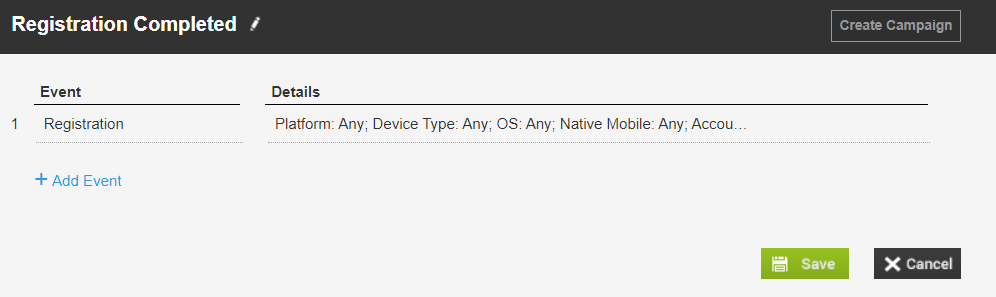
You can use the event parameters to define a more specific trigger.
4. Define target groups for this campaign. For more information on these target groups see Creating Behavior-Based Target Groups.
- Converted today
5. Configure the campaign:
- Create the email/web pop-up templates for the campaigns on the Manage Templates page.
For information on adding personalization tags to your triggered email templates, click here. - Define triggered campaigns for the target group. For example, using the completed_registration trigger created above.
- Select Optimail or Web page Pop-Up as the execution channel.
- Specify the date range during which this campaign will run.
- Select a marketing action. It is recommended to use a unique action for this campaign so that you will later be able to build a target group of all players who received this specific action, in order to send them a follow-up campaign.
- (Optional) Select a promotion.
- Select the template to use when executing the campaign.
Follow-up campaigns can be scheduled. To learn how to see the Welcome Journey - Follow-up Email use case example.