
Please note:
To unlock this capability, you will need to have added DynamicMail to your Optimove package. If you can’t see this feature in your Optimove instance, contact your CSM to find out more.
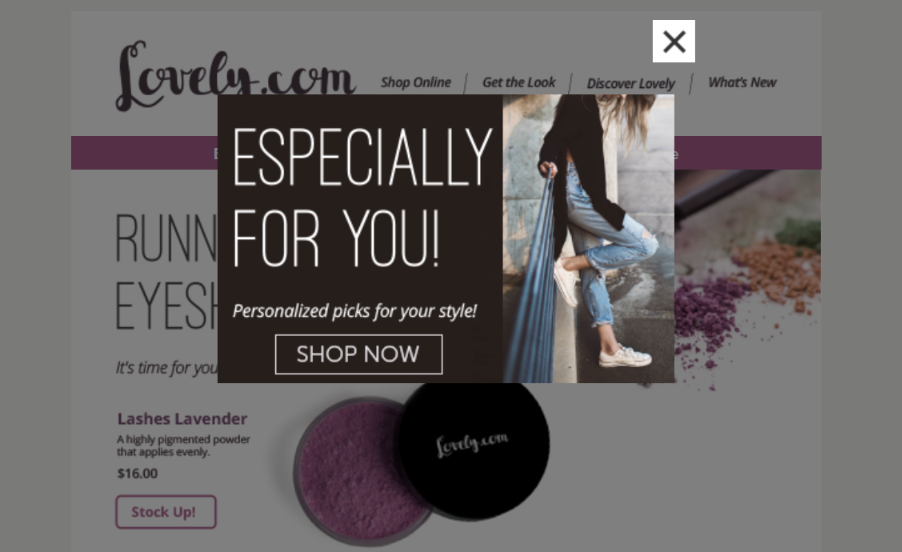
Grab users' attention and maximize screen real estate with a pop-up, highlighting a special offer.
The "Pop Up" displays an image overlaid on top of the email, just like a website popup. This is a great way to present and encourage clicks on an enhanced call to action. The pop-up is fully responsive.
This component is only supported on iOS native mail apps.
Settings Configuration
To set up the Pop Up component:
- Go to "Create Component".
- Choose “Pop Up”.
- Give your newly-created component a unique name.
- Fill in the rest of the details, including:
- Pop Up image
- Close button type
The close button is not directly connected to the popup, allowing mobile users to press the button without accidentally activating the main image link. - The close text font color, font type, and font size (if text type is selected)
Click anywhere on the color box to change the color, by selecting it from the palette or by inputting the appropriate Hex code, RGB values, or HSL values. - Close button position
- Opacity level of the Pop Up overlay
- Click-through URL (optional)
- Click on the "Update Preview" button to update the content in the preview section.
- Click “Generate Code” to generate the embed code.
- Input your email address under “Email Test” to send yourself an email with the component.
Common Use Cases
Custom Development
The following scenarios can be supported by our team through Custom Development:
Multiple Links or Images
DynamicMail team can help you design a pop up with more than one image and multiple links, if desired.
Combined Components
The Pop-Up can be combined with other components to enhance user engagement or limit user exposure. For example, we can create a Pop-Up that features any of the following:
- Play-on-the-open video
- Personalized image
- Countdown timer
- Device targeting
- Geo-Targeting
Recommendations
- Choose a simple, bold image. The Creator supports only one image and a single link to ensure maximum impact and avoid distracting the recipient. If your campaign requires a more advanced Pop-Up, please contact our DynamicMail team.
- We recommend a Pop-Up no larger than 600 pixels wide, this ensures the Pop Up fits easily within your template and is viewable on the widest variety of screens.
Fallback Behavior
When not supported, the popup will not show. For the list of components and their supporting ESPs, click here.
Troubleshooting
The popup is not appearing properly in the email.
Make sure that the code is placed at the top of the template right after the opening <body> tag, or contact our DynamicMail team.