
Please note:
To unlock this capability, you will need to have added DynamicMail to your Optimove package. If you can’t see this feature in your Optimove instance, contact your CSM to find out more.
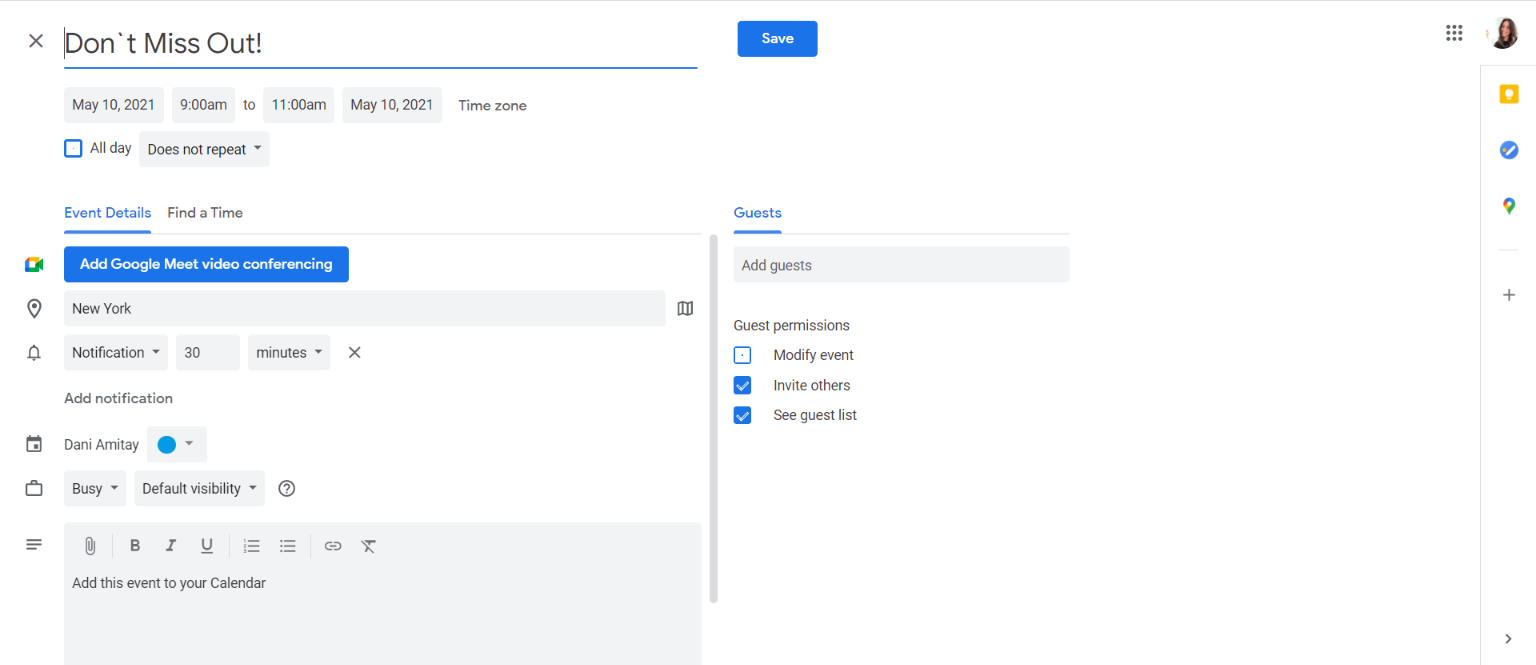
The "Add to Calendar" component is a simple HTML snippet that allows the recipient to add an event (details prefilled) to his/her calendar, with a single click. It is convenient for the recipient and creates a sense of commitment.
Settings Configuration
To set up the “Add to Calendar” Component:
- Go to “Create Component”.
- Choose “Add to Calendar”.
- Give your newly created component a unique name.
- Fill out the rest of the details, including:
- Event details: title, description, and location.
- Font type, font size, and font color.
- Event start date, end date, time, and time zone offset.
By default, the event's time zone offset is based on your computer's time zone settings. The event's time zone offset should be changed if the time zone in which the component is created is different from the time zone of the event itself—for example if the component is created at an office in Chicago (Central Time), but the event takes place in New York (Eastern Time).
- Click on the "Update Preview" button to update the content in the preview section.
Clicking on one of the calendar types in the preview (e.g., Gmail) will allow you to see the event in your calendar. - Click “Generate Code” to generate the embed code.
- Input your email address under “Email Test” to send yourself an email with the component.
Common Use Cases
The “Add to Calendar” component is great for online events such as webinars, tournaments, and in-person events.
Custom Development
With Custom Development, you can utilize personalization tags to make the “Add to Calendar” component even more personalized, for example, by adding a personalized time zone and location.
The following scenarios can be supported by our team through Custom Development:
Appointment Reminder
For appointment-based companies, like medical appointments or car checkup services, “Add to Calendar” can be configured to send appointment reminders. Optimove can connect the component to a database of locations and appointments and automatically create and send out personalized reminders at a specified time, in advance. Optimove can also include a map as well as directions.
All-Day events
In the creator, events must have a start and an end time and cannot exceed 99 hours in duration. Optimove can create custom event components, with all-day events that extend over a few days. These will be supported in Apple, Gmail, and Outlook calendars.
Recommendations
- The default duration is 2 hours. We recommend a maximum event duration of 5 hours.
- The maximum duration of an event is 99 hours (approx. 4 days).
- While location and other event detail fields are not mandatory, we recommend using as many fields as possible to include detailed information for the recipient.
Fallback Behavior
This component is 100% supported by all email clients and therefore has no fallback behavior.
For the list of components and their supporting ESPs, click here.