
Please note:
To unlock this capability, you will need to have added DynamicMail to your Optimove package. If you can’t see this feature in your Optimove instance, contact your CSM to find out more.
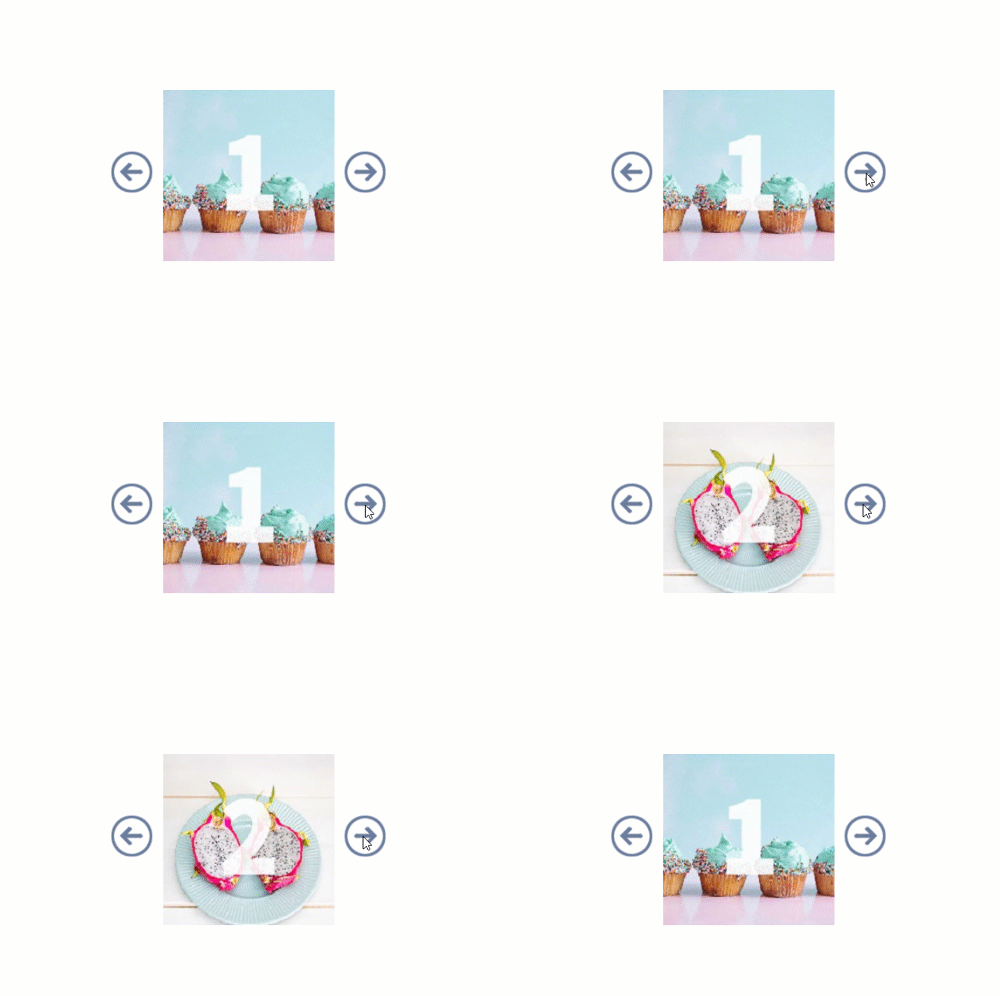
The Gallery component lets you feature up to six photos or offers in your email, increasing engagement and maximizing real estate. Users can cycle through your content by using the directional arrows. Each item also has a link to the relevant web page.
This component is only available for iOS Native.
Settings Configuration
To set up the “Gallery” component:
- Go to "Create Component"
- Choose “Gallery”
- Give your newly created component a unique name.
- Fill in the rest of the details, including:
- Arrow images
You may change the arrow images via the File Manager or by uploading a file from your computer. The images should be a minimum width of 46 pixels and will be re-sized to 46 pixels if they are larger, maintaining the original image's aspect ratio. - Item images
For each image in the Gallery, select the image either through the File Manager or by uploading it from your computer. A click-through link can also be added. The total number of images can be changed by clicking the "Add" button. Images can be removed by clicking the "x" icon next to the image number. The minimum number of images is 2. - Item click-through URLs (optional)
- Fallback option
There are two fallback options you can choose from. The Animation option will be an animated gif version of the Gallery. The other fallback option is a static image you may select either through the File Manager or uploading from your computer. Both options allow for one click-through link. - Tracking Parameters
- Arrow images
- Click on the "Update Preview" button to update the content in the preview section.
- Click “Generate Code” to generate the embed code.
- Input your email address under “Email Test” to send yourself an email with the component.
Common Use Cases
Custom Development
The following scenarios can be supported by our team through Custom Development:
Content Feed
If you have a content feed (such as a JSON or an RSS feed), Optimove can populate the Gallery with images and links from the feed. The frequency of new content would be predetermined and would be reflected in the Gallery upon email open.
Personalization
The content can be personalized for each user based on any data elements provided to Optimove. Alternatively, you may use our personalization algorithms to deliver the best content for each user based on prior click behavior.
Recommendations
- The first image chosen will determine the size requirement for all the following images.
- This component is only available for iOS Native.
- We recommend creating the directional arrows at 46 pixels wide.
- The component will make your images 92 pixels narrower to accommodate the two-directional arrows. Please take that into consideration when creating your images for the Gallery.
Fallback Behavior
This component has the option for a single image or an animation fallback.
- When animation is selected - on Gmail, Yahoo!, Android Native, Outlook.com, Outlook 365, the gallery will be shown as an animated GIF of all the images. In Outlook 2019 - only the first image will be shown.
- When a single image is selected - On Gmail, Yahoo!, Android Native, Outlook.com, Outlook (all), the single image will be shown.
For the list of components and their supporting ESPs, click here.