
Setting Up the Integration
For your TikTok integration, we need the following details:
- app_id
- redirect URL
- secret
- Advertiser Redirect URL
Please note:
The customer can either create a new app dedicated to Optimove or use an existing app, in which case we will sync all audience names into Optimove unless the user specifies an audience prefix- such as Optimove_[audience name].
1. Under the "My Apps" tab, click "Create New"

2. Fill out the following form fields
"Application name" - Name it "Optimove"
- "App description"- add text: "sync and update custom audiences"
- Fill in the “Advertiser redirect URL" by adding the site URL and check the "Audience Management" checkbox (we need this permission only).
- Click the "confirm" button.
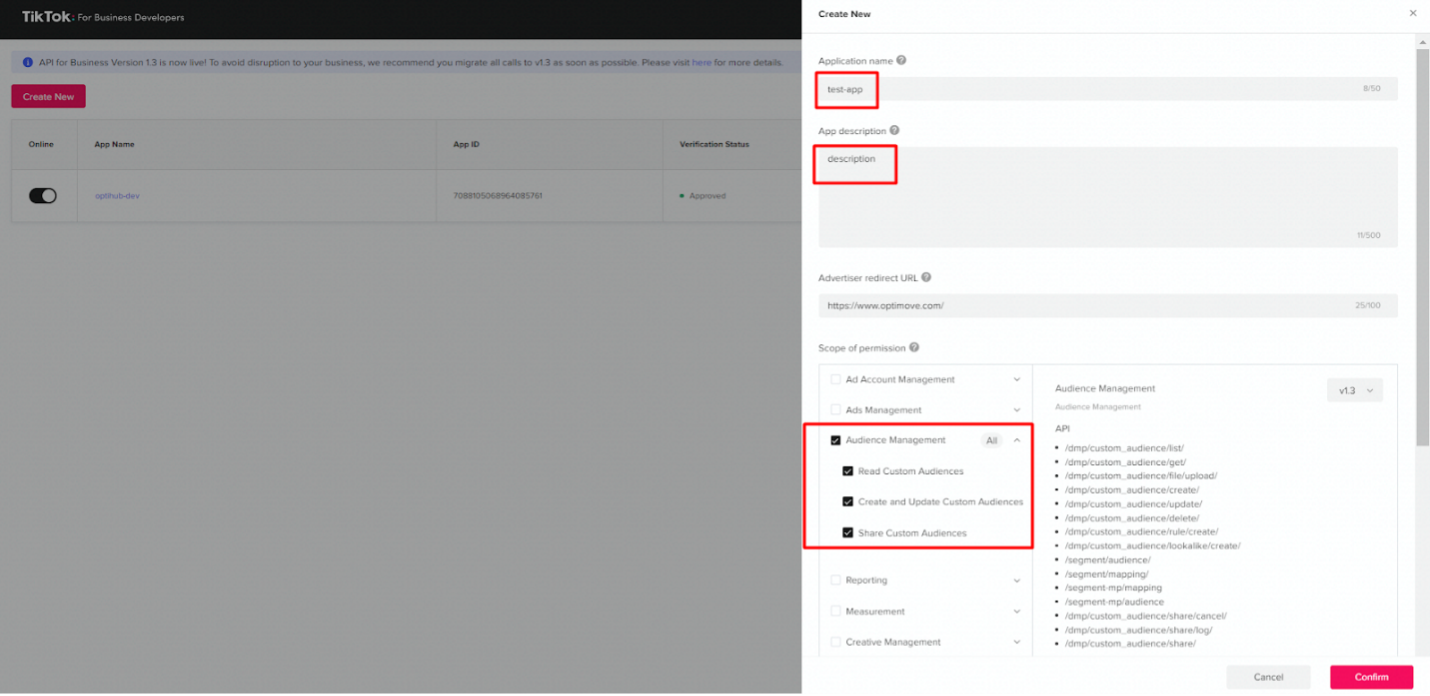
3. After the app "verification status" has been changed from "pending" to "approved", switch the “Online” toggle to “on”

4. To review the app details, please click on the “App Name”
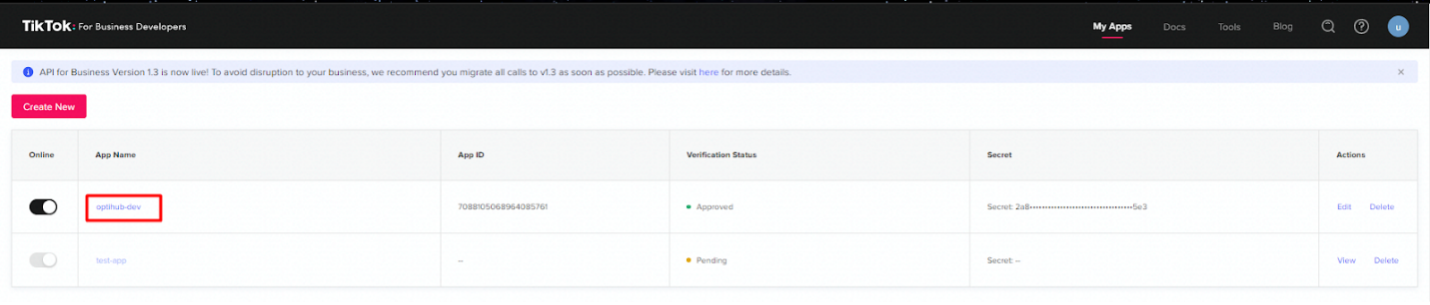
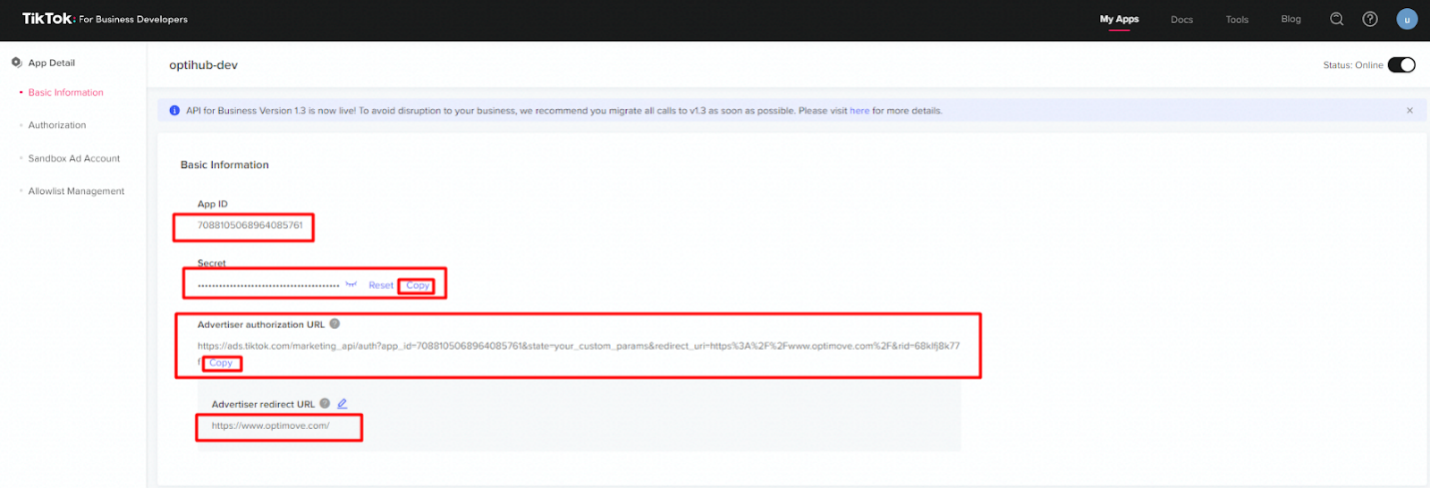
5. Then, the below four parameters should be shared with the Optimove CSE
- app_id
- redirect URL
- secret
- Advertiser Redirect URL
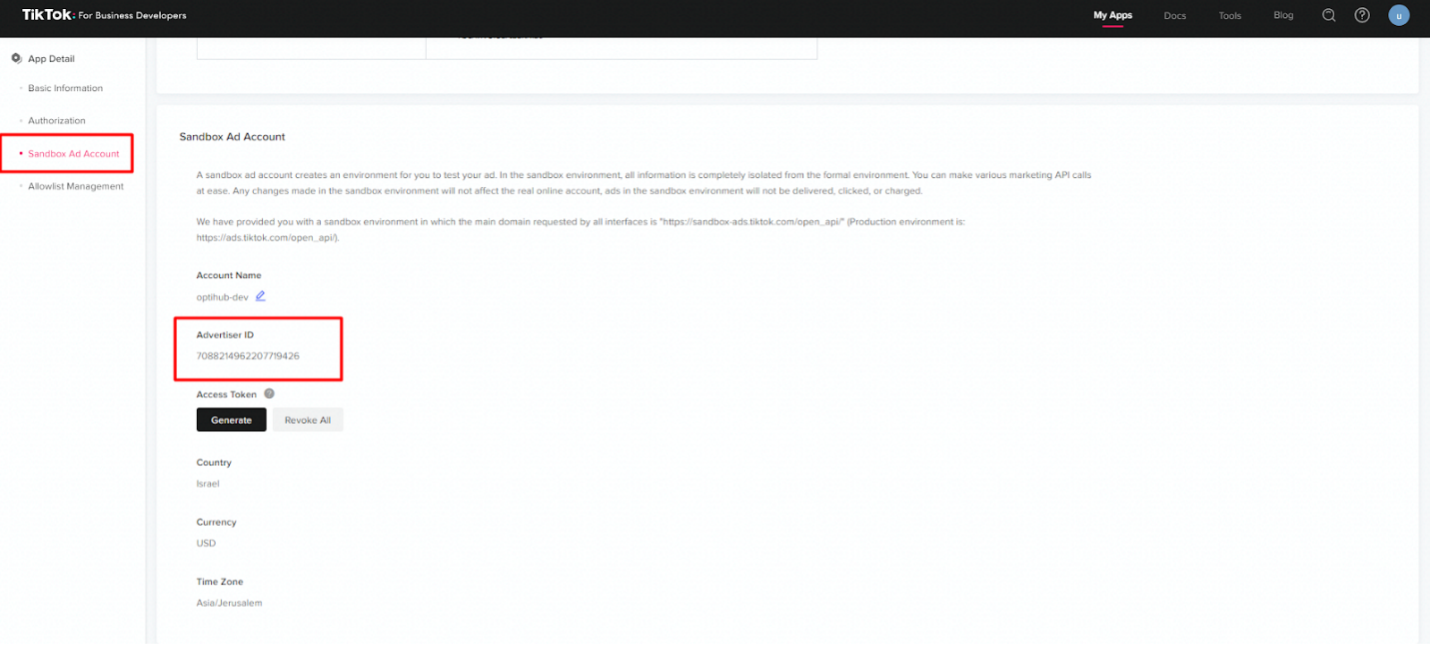
6. Create a new ad account and provide us with the advertiser as shown below
7. Invite Optimove members with Standard access for all the required Advertisers.
Carry out the follow steps:
- Go to: https://business.tiktok.com/manage/member.
- Pick Organization
- Invite optimoveintegrations@optimove.com as a new member
- Provide "Standard" access.
- Make sure all required Advertisers are listed for new members
Ensure that Customer Email Addresses are Included in Your Optimove Batch Data Update
If customer email addresses are not already included in the batch data provided by your company to Optimove, they must be added to the process. This is because TikTok uses email addresses to identify customers.
Executing TikTok Campaigns Using Optimove
Once the above setup steps have been completed, you can run your first TikTok retargeting campaign using Optimove, as follows.
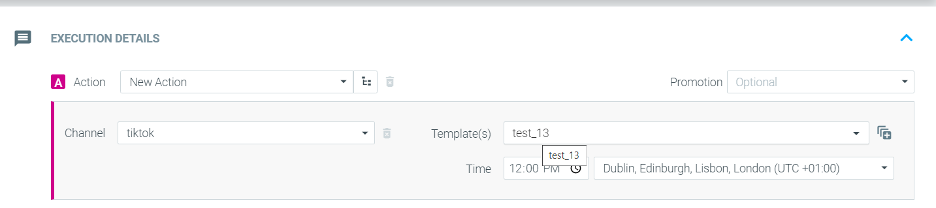
1. Schedule a TikTok Campaign in Optimove
When scheduling a campaign in Optimove, select the TikTok execution channel and then select the desired TikTok Audience from the drop-down list that appears.
2. Set Up the Campaign in TikTok
After the campaign is scheduled within Optimove, use the TikTok Management Center platform to create the desired campaign for the Audience List populated by Optimove.
3. Optimove Automatically Populates TikTok Audience Lists
On a daily basis, Optimove automatically populates all selected Audience Lists with the customer email addresses included in each campaign’s target group chosen. When the campaign’s measurement period concludes, Optimove automatically removes all email addresses from the TikTok Audience List.
Please note:
- Optimove will only populate the Audience List with customers with valid email addresses. Thus, a target group may contain 2,000 customers, but only 1700 may be added to the Audience List for that target group’s campaign if the rest do not have valid email addresses in the Optimove database.
- Audiences must be bigger than 1000 customers
- Audiences may take up to 10 hours to sync.
- New audience names will be added to the campaign builder dropdown every 30 minutes