
About Google Customer Match
Google Customer Match is a feature within Google Ads that allows advertisers to target or exclude ads to people with specific email addresses. Advertisers can upload lists of email addresses, which Google then matches to signed-in users across Google products.
Ads utilizing Google Customer Match can appear across a range of Google's platforms, including:
- Search Network: Targeted ads displayed among Google Search results.
- Shopping: Personalized shopping ads based on user interests and past interactions.
- YouTube: Custom video ads delivered to a specific audience while they watch content on YouTube.
- Gmail: Targeted promotional messages appearing within the Gmail inbox.
- Google Display Network (GDN): Image, interactive, and video ads shown on websites, videos, and apps within the GDN, reaching over 90% of internet users worldwide.
Setting Up the Integration
- Fill in the Google Customer Match request via Optimove Customer Portal in order for Optimove to connect to your Google Ads platform.
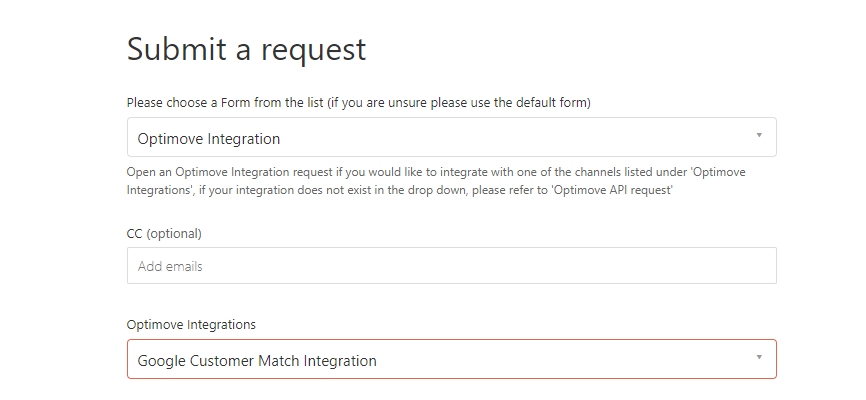
- Provide the Client Customer ID of your Google Ads account to the Optimove integration team.
- Confirm Optimove as an Google Ads manager (a confirmation email will be sent to you for this).
Please note:
- If you wish to use multiple Google Ads accounts with Optimove, you will need to complete the above steps for each Google Ads account.
- Every day at around midnight, Optimove will sync the User Lists from your connected Google Ads account (of type CONTACT_LIST).
Executing Google Customer Match Campaigns Using Optimove
1. Ensure that Customer Email Addresses are Included in Your Batch Data Update
2. Schedule a Google Customer Match Campaign
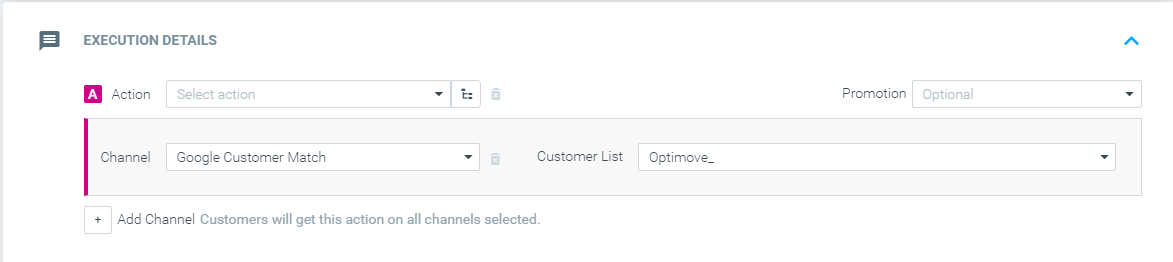
- Select the Google Customer Match channel when scheduling a campaign in Optimove.
- Select the appropriate User List from the drop-down list that appears.
- When setting up the campaign in Google Ads, you must associate the User List you selected here with a relevant campaign.
3. Set up the Campaign in Google
4. Optimove Executes Your Google Customer Match Campaigns
Please note:
- Optimove can only populate a User List with customers for which an email address is available in the Optimove database. Thus, a campaign’s target group may contain 1000 customers, but if only half of these customers have an associated email address in Optimove, only 500 would be added to the Google User List for that campaign.
- Google Customer Match attempts to match all customer email addresses that appear in User Lists to Google IDs, not only gmail.com addresses.
- Google requires a minimum of 300 email addresses before a particular User List will become active. It’s not supported to associate TGs from different campaigns with the same user list in Google. If you’d like to associate multiple Target Groups with the same user list in Google, we recommend using the feature below, which lets you include the TG criteria when creating the Target Group in Optimove: Using Existing Target Group Criterion.
Consent Requirements
To comply with the EU user consent policy, Google Match Partners like Optimove pass consent signals with Audiences sent to Google via API.
Optimove adds the following consent parameters when populating an Audience for your Google Customer Match campaigns:
There are four possible values Optimove can send for these new parameters as seen below.
Optimove will use 'Granted' as the default value for both parameters when populating any audience list.
What do you need to do?
If you agree with the use of the default value, no action is required on your part.
If you wish to use a different value for these parameters, Optimove’s teams will require this data to be delivered as part of your batch data transfer. Please reach out to your Customer Success Manager to kickstart this process.