
Setting Up the Integration
1. Submit the Facebook Integration Form
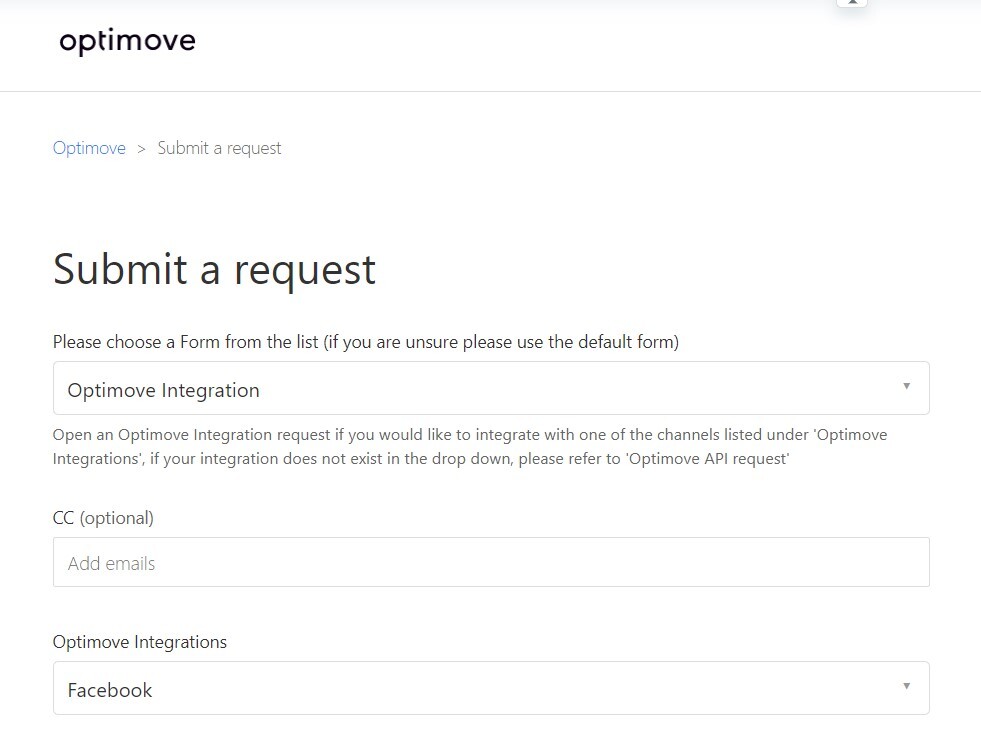
Fill out the “Facebook Integration request" via the form to connect to your Facebook ad account to Optimove.
2. Provide Facebook Ad Account Details to Optimove
In order for Optimove to connect to your Facebook ad account, you need to provide the following information within the form:
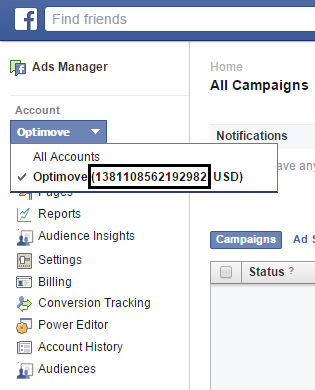
- Facebook ad account name and ID– The name and ID of the Facebook ad account you want Optimove to use. The ID can be found in Facebook’s Ads Manager, by selecting the relevant ad account from the dropdown list (as shown at right).
-
User ID type– You must choose the method by which Facebook will match its users to the customers in your database. You may select as many fields as you require of the following matching methods – more methods mean more matched customers! Of course, the values for whichever option you select must be included in the batch data received by Optimove and preferably in the same format that is required by Facebook.
- Email address (or hashed email address)
- Phone number (or hashed phone number).
Required format: remove symbols, letters, and any leading zeroes. It is recommended to include the country code prefix. - Facebook user ID
- Gender.
Require format: Female/Male. - Birthday date.
Require format: DD/MM/YYYY (can also be sent separately, i.e. Birth Year) - Last Name (or hashed last name)
- First Name (or hashed first name)
- First Name Initial
- State Code (or hashed state code).
Require format:2-character according to ANSI abbreviation code. - City (or hashed city)
- Zip Code (or hashed zip code)- Required format: Use lowercase, no white space. Use only the first 5 digits for U.S. Use Area/District/Sector format for the UK.
- Country Code (or hashed Country code)- Require format 2 characters from ISO 3166-1 alpha-2.
- Mobile advertiser ID
- Additional ad account names and IDs(optional) – required if you want to use shared Custom Audiences.
- Facebook application ID(optional) - when working with Facebook user IDs, provide the Facebook application ID used for extracting user IDs.
|| The hashing method must be SHA256. You can read more about working with this hashing method here. If you choose to provide non-hashed email addresses or phone numbers, Optimove will perform the hashing for you.
|| Note: when configuring more than one Facebook Ad account, one of the accounts will need to be the main account while the rest will be sub-accounts. We suggest creating one account as the main company account and configuring the rest as sub-accounts, so all integration permissions will be granted in the main account.
3. Accept Facebook’s Custom Audience Terms of Service
After you have been informed by Optimove’s integration staff that they have completed the initial setup, you need to log in with any Facebook account that has full Admin permission in the main Facebook account you are integrating with and accept Facebook’s terms for using Custom Audiences. Before proceeding, log out of any connected Facebook accounts, to avoid connecting to the wrong account. Point your browser to the following page and log in with any Facebook account that has full Admin permission in the main Facebook account you are integrating with.
|| Note: if you do not know your Account ID or Business ID, here are the quick guides to finding them in your Facebook account:
Find your Account ID here.
Find your Business ID here.
4. Log in to Facebook from within Optimove
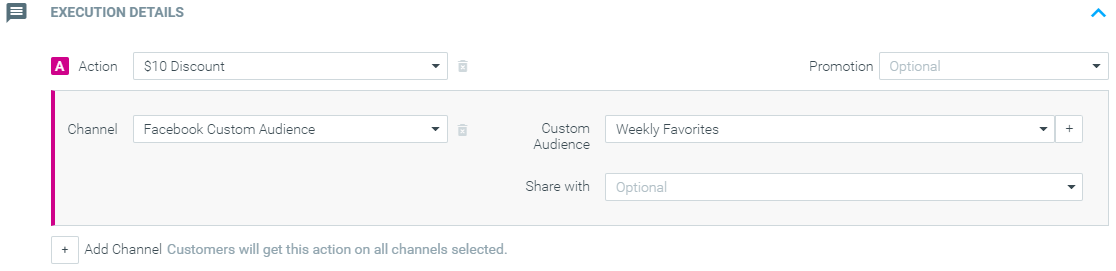
From the Campaign Builder, create a new Facebook campaign by selecting the “Facebook Custom Audience” channel.
The Facebook Login button will appear to the right. You need to log in with the account you accepted the terms & conditions.
Optimove has a business application that Facebook approved called Optimove Engager.
The app is used to manage marketing on the Facebook platform, which is why we have requested and have been granted the following permissions by Facebook. For more information on Facebook Ads Management Standard Access, learn more here.
- Facebook asks you which account you’d like to log in with.
- Once you’ve entered your username and password, Facebook would ask you to confirm the account you want to log in with:
- Then, Facebook will ask you to explicitly grant each of the requested permissions:
- Finally, you would see the following confirmation page, letting you know the authorization flow passed successfully:
Executing Facebook Campaigns Using Optimove
1. Populate Your Customer Audience
Once the above steps have been completed, you are ready to run your first FCA campaign.
When creating Lookalike Audiences, Facebook requires a minimum of 100 seed users from a source audience (e.g., website visitors, customer list). For better performance, a seed list of 1,000+ users is recommended.
2. Set up the Campaign on Facebook
After the campaign is scheduled in Optimove, use the Facebook Ads Manager to create or select the desired Facebook campaign for the Custom Audience populated by Optimove.
3. Monitor your campaign in Optimove
You can then monitor the campaign in Mission Control.
Please note:
Your campaign will remain in 'Processing' status until the audience has finished populating within Facebook Ad Manager. Once the audience is populated the campaign status will change to 'Running'. This could take up to 24 hours according to Facebook documentation.
Campaigns will also have the status of 'Failed' if they contain less than 100 customers.