
The New Customer Explorer
With a fresh look and feel, the redesigned Customer Explorer provides improved visualization of data insights and a more streamlined workflow for creating, analyzing, and comparing target groups. Below you can find the highlights of the changes, listed by section.
General
Selection Criteria Conditions UI Changes
- For textual/categorial attributes:
|
Current
|
New
|
|---|---|
|
In
|
One of
|
|
Not n
|
Not one of
|
- For numeric attributes:
|
Current
|
New
|
|---|---|
|
Equals
|
=
|
|
Does not equal
|
<>
|
|
Greater than
|
>
|
|
Greater than or equal to
|
>=
|
|
Less than
|
<
|
|
Less than or equal to
|
<=
|
|
Between
|
Between
|
- For dates:
|
Current
|
New
|
|---|---|
|
During the past
|
During the previous
|
- Web & App Activity– Criteria relating to Web & App activity are now available for selection within the new customer explorer
- TG Criteria Limit– You can now add a maximum of 30 criteria per Target Group. This holds true for both the customer explorer and the manage Target Group pages.
Existing groups with more than 30 conditions are still supported.
Explore Group
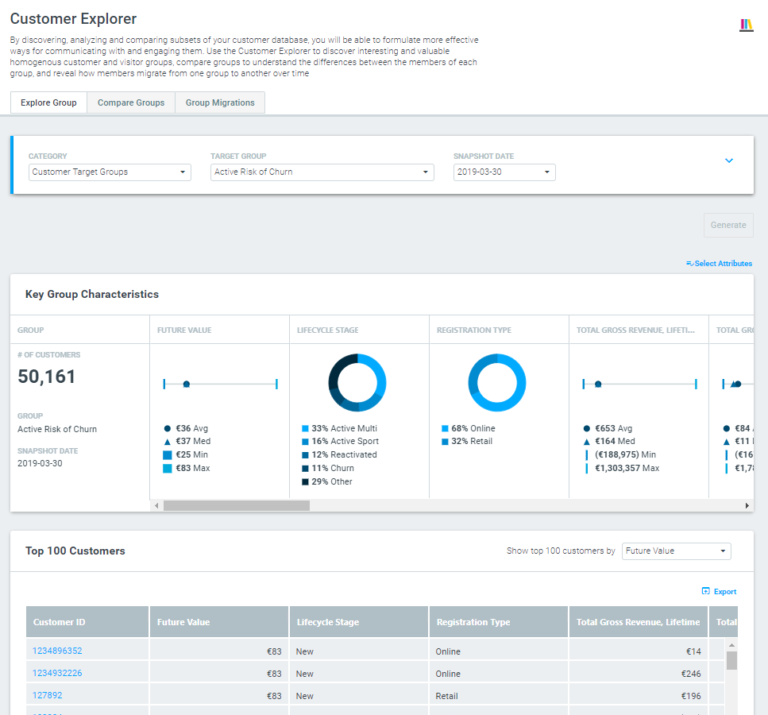
- Visualizations of Key Group Characteristics– These new visualizations of group characteristics allow for easier and faster data analysis.
- Run Campaign Directly from the Customer Explorer – You can now start the process of scheduling a campaign from within the Customer Explorer, by clicking Run Campaign for a particular target group.
- Exploration Groups Discontinued– Exploration groups were target groups to which campaigns could not be sent. Now, all target groups are available for targeting, rendering exploration groups obsolete. If you are looking for previously created exploration groups, you can find them in the Archived Groups category.
- Grid Rearrangement– The Key Group Characteristics and Top 100 Customers grids can now be rearranged by simply dragging the columns using the mouse. This makes it easier for you to freely choose which information you’d like to see, side by side.
- Single Customer View Opens in a New Tab– If, while exploring a group of customers, you would like to review a single customer’s details, you can now click the customer ID in the Top 100 Customers section to do so. This will open the Customer 360 page for the clicked customer ID section in a separate browser tab, allowing you to easily resume working in the Customer Explorer.
Compare Groups
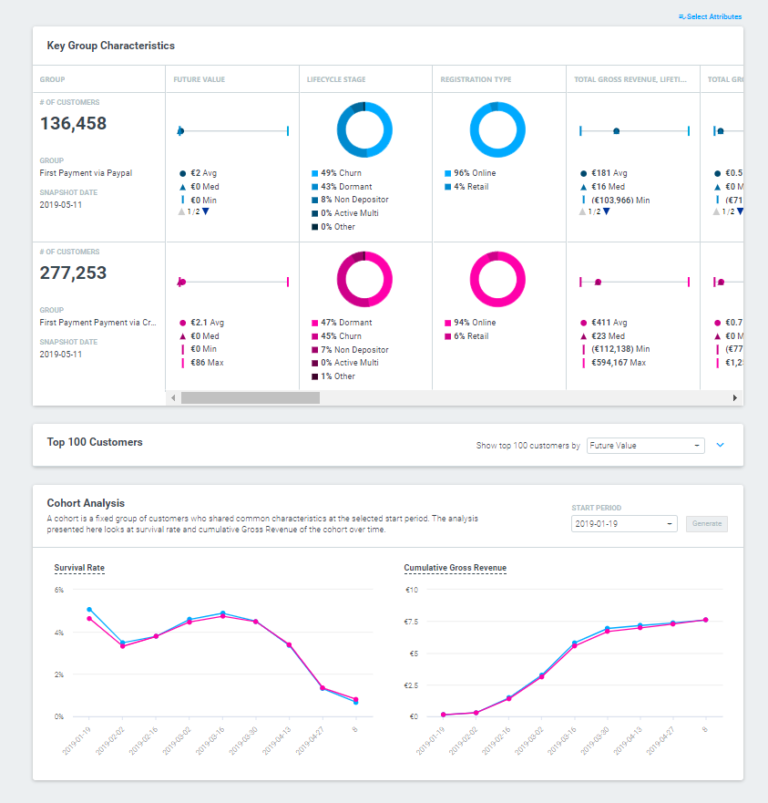
- On-Demand Group Creation– You can now create a new target group for comparison, directly from within the Compare Groups section.
- Top 100 Customers– You can now see the top-100 customers list, for both groups, within the Compare Groups section.
- Cohort Analysis– You can now see a cohort analysis, for both groups in the same visualization, within the Compare Groups section.
Group Migration
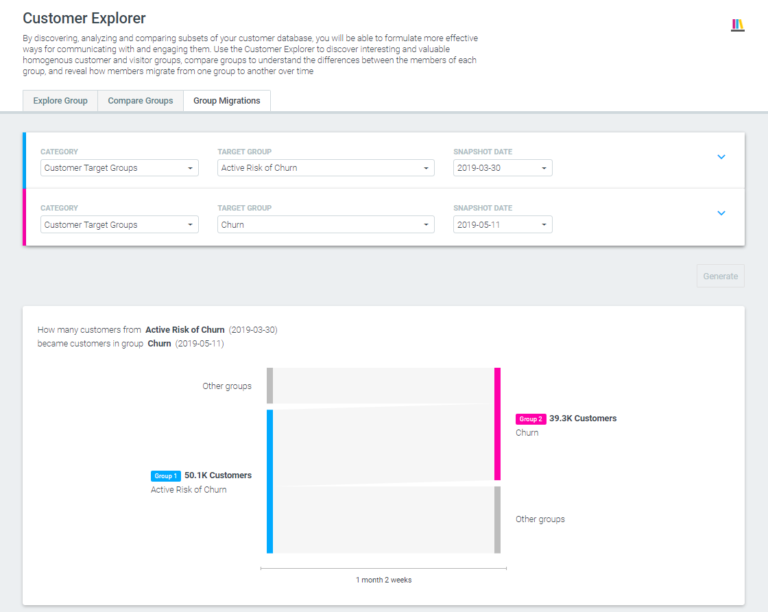
- On-Demand Group Creation– You can now create a new target group for migration analysis directly from within the Group Migration section.
- New Sankey Diagram Visualization– In order to better and more easily understand how your customers move between target groups, you can now review a Sankey diagram, in which the width of the arrows is shown proportionally to the number of customers that have migrated from one target group to another.
Visual Editor – Undo & Changes History
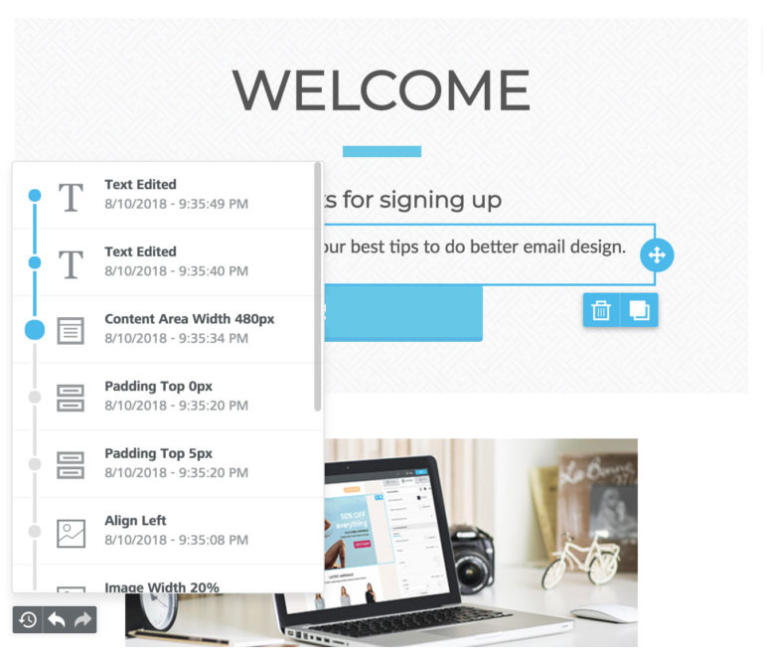
You will now have the ability to rewind and fast-forward to any point in your recent edit history.
When changes are detected, a compact Undo widget displays in the bottom left corner of the stage:
The widget displays 3 actions:
Undo and Redo arrows that offer the classic pattern to move back and forth between changes.
A history icon that expands a timeline of the latest changes:
Undo and Redo arrows that offer the classic pattern to move back and forth between changes.
A history icon that expands a timeline of the latest changes:
The timeline allows you to browse through the most recent changes.
All the steps display:
- An icon to identify the content element type (an image, text, etc.)
- A description of what changed, giving the new property value (if any)
- The exact time it happened
All these details provide enough information for you to understand what modification was applied, and, if desired, rewind the message to that state.
When you select a previous step, the content or row that triggered the history record displays as the selected item, providing further context.
The timeline for more recent changes is still available, allowing you to move forward without losing any changes.
The Undo widget currently displays the last 15 edits in the timeline, but you can always rewind to the Message opened state to undo all changes since the message was initially opened in the editor.
Visual Editor – Hiding Content on Mobile or Desktop Devices
You can now hide unnecessary content elements when the message is opened on a mobile or desktop device.
An email that may yield excellent results on desktop screens may not work as well when the user needs to scroll on his mobile device to reach the call to action. The best way to solve this challenge is to hide unnecessary design and/or content elements when the message is displayed on mobile devices.
All content blocks in the visual editor will now include a new “Hide on” setting in the property panel:
To use it, simply scroll down in the right panel until you see the “Block options” section.
