Meet the Visual Stream Builder
Streams is taking a giant leap forward with the new Visual Stream Builder!
Released in January 2019, Streams gives you the ability to measure a set of campaigns as a group and compare them either to a second set of campaigns or to a super control group.
Starting this version, building streams becomes easier, more intuitive, and much more powerful.
The new Visual Stream Builder allows you to:
- Create interconnected campaign flows that use relations, conditions, and rules, with an intuitive drag-and-drop canvas.
- Build many short flows of campaigns, such as welcome flows, seasonal strategies, and win-back flows, while leveraging Optimove’s AI-powered prioritization and exclusion framework to move customers between streams and maximize customer lifetime value.
- Measure the uplift of any stream, and the individual campaigns inside each treatment.
- Preview your stream’s flow before execution to get a better sense of the customer’s path through it.
In the future, the Visual Stream Builder will be combined with real-time campaigns allowing you to create flows consisting of both real-time and scheduled campaigns.
Read more on how to create a stream using the new Visual Stream Builder, or watch the video below.
> Video Transcript
Welcome to this overview of how to build a stream using the Visual Stream Builder.
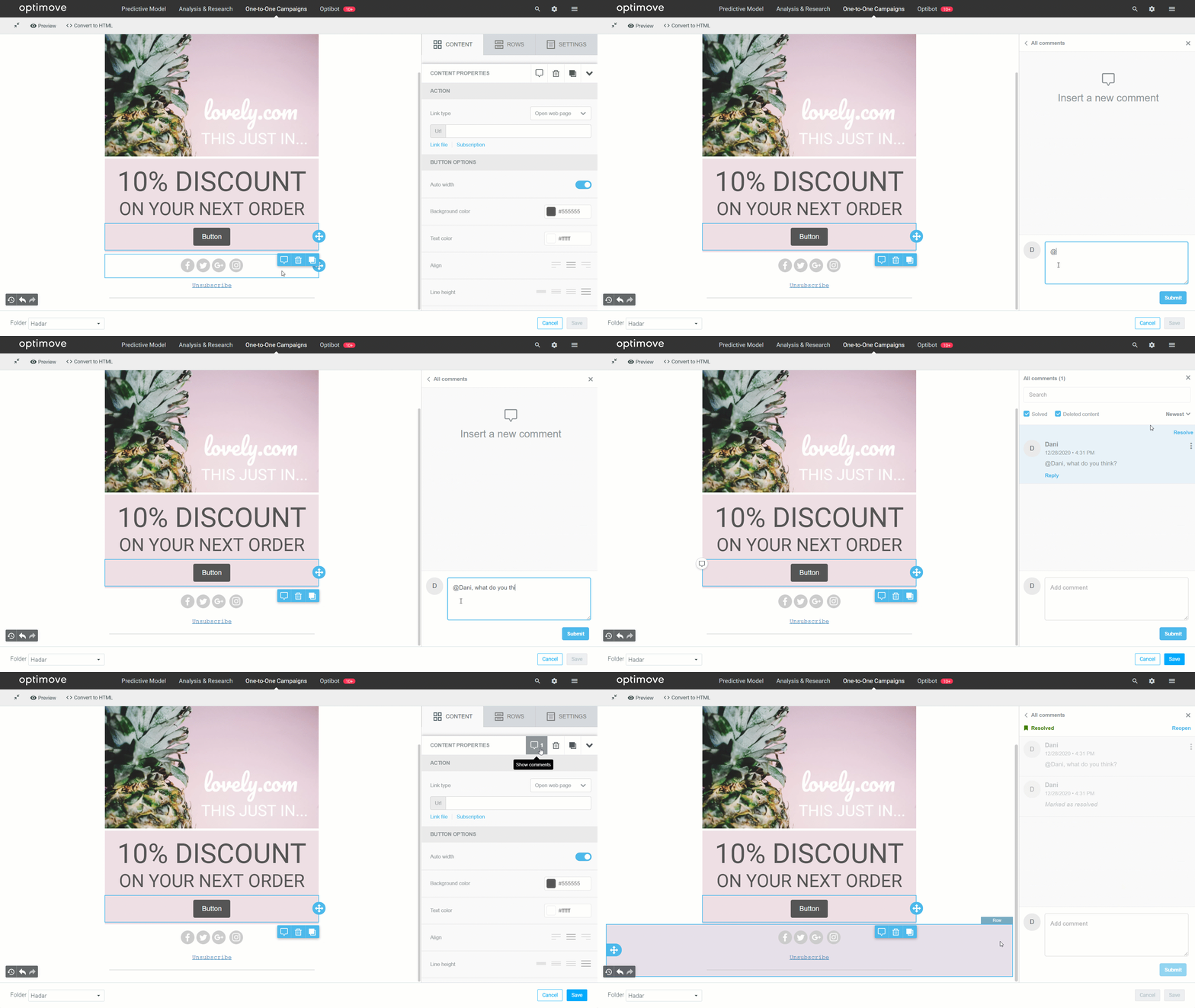
To comment and tag team members, just click the comment icon available in the lower right-end corner, directly below the selected block’s outline. Email notifications will be sent to tagged team members as well as for any new comment added to the thread.
Track and Trigger
Immediate Roll-Out of Template Changes
You no longer have to wait for the daily update to occur for your triggered email templates to be updated. From now on, changes made to a Triggered campaign’s template take place immediately.
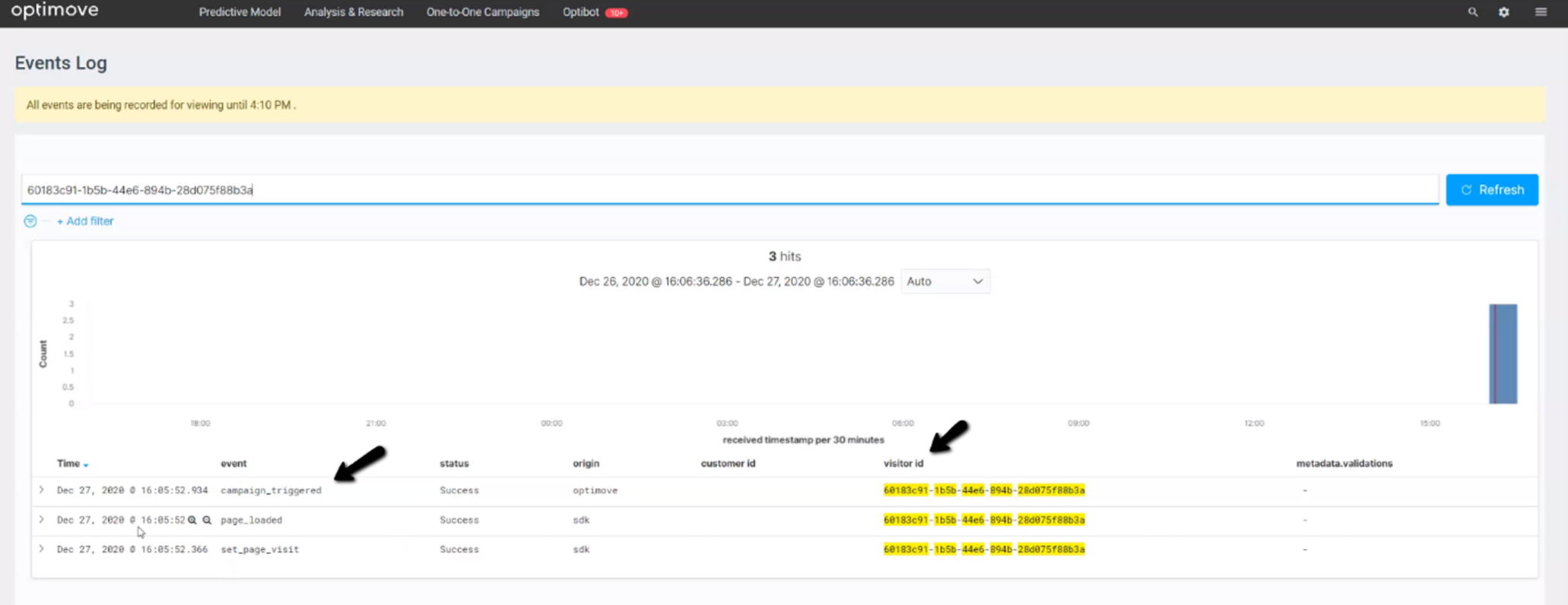
QA Triggered Campaigns using “Campaign Triggered” Event
You can now QA your triggered campaign to make sure it triggers successfully using the newly added event “Campaign Triggered.”
Read more here.
Triggered Campaign Explorer
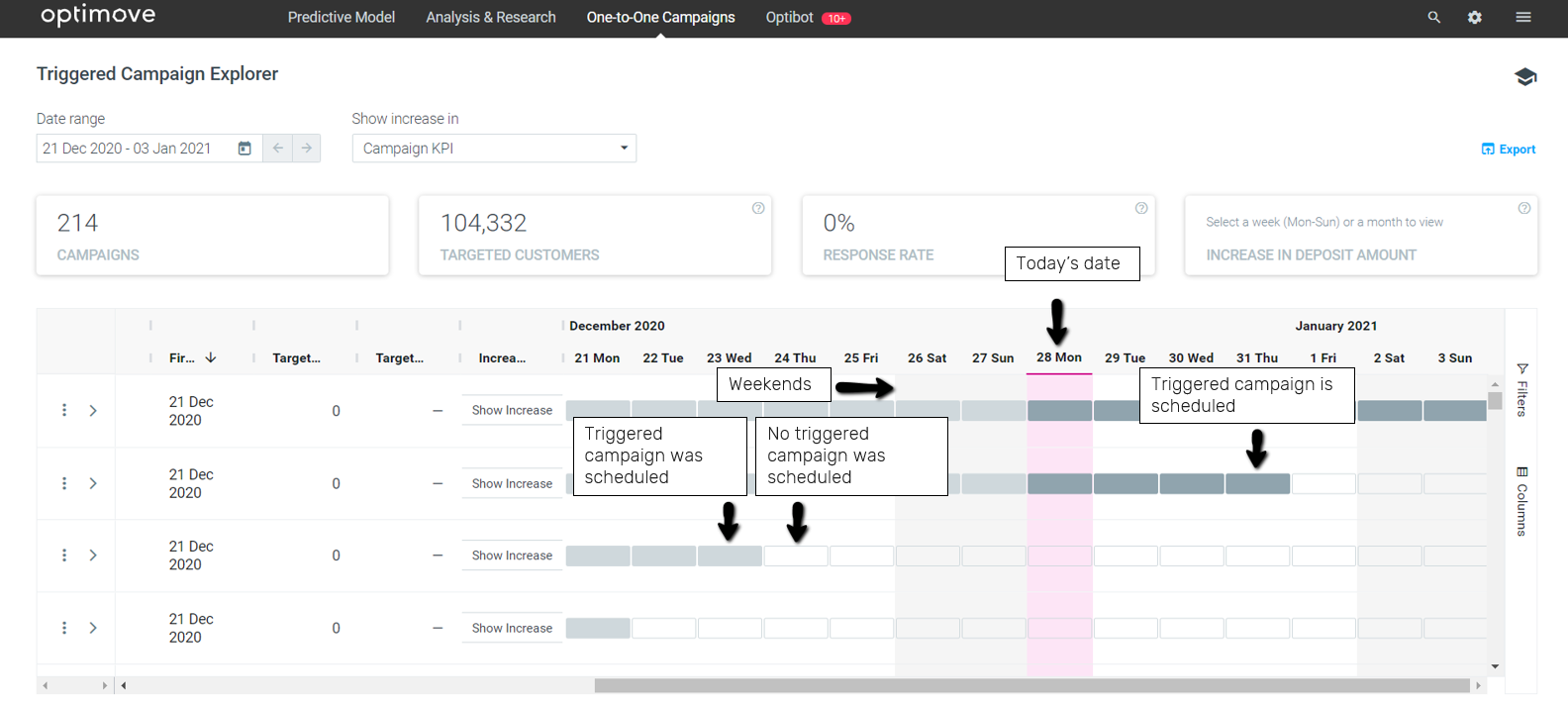
Improved Visual Representation of Occurrence Dates
The occurrence calendar Gannt has been updated, and now you can easily spot the days your triggered campaigns are scheduled for, as follows:
- Today’s date – the entire column is highlighted in pink
- Weekends – greyed out
- Days that the triggered campaign is scheduled for – dark gray
- Past days that the triggered campaign was scheduled for – light gray
- Days that don’t have the triggered campaign scheduled for – white