Mission Control
Edit Campaigns
You can now edit campaigns directly from Mission Control. Editing a campaign is available for campaigns with future occurrences in place, or for same-day occurrences that "failed" or "Partially Failed".
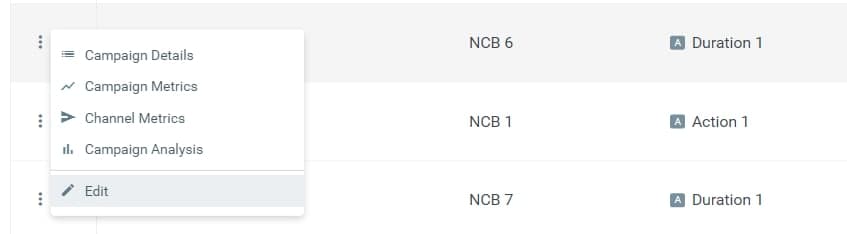
To edit a campaign, open the Campaign Menu via the three grey dots on the left of the campaign, and choose “Edit.”
Editing “Partially Failed” Campaigns
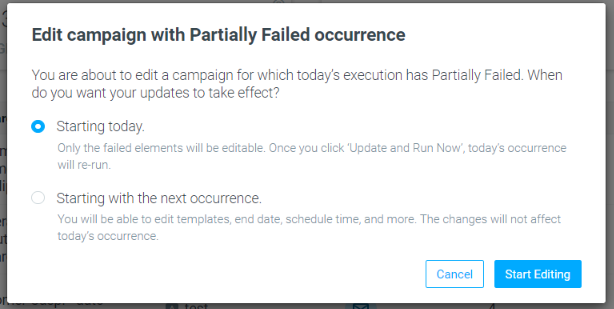
For campaigns with “Partially Failed” status, you can choose between:
- Starting today - allows you to edit only the failed elements. Successfully executed elements will be greyed out.
- Starting with the next occurrence - allows you to update all the campaign's occurrences, not including today's occurrence.
Editing “Failed” Campaigns
A campaign edit will only impact future campaign occurrences.
Since today's occurrence failed and will not run automatically on its own, you'll have to re-run it using the"Run Now" capability.
Manage Templates
Open Templates in Separate Tabs
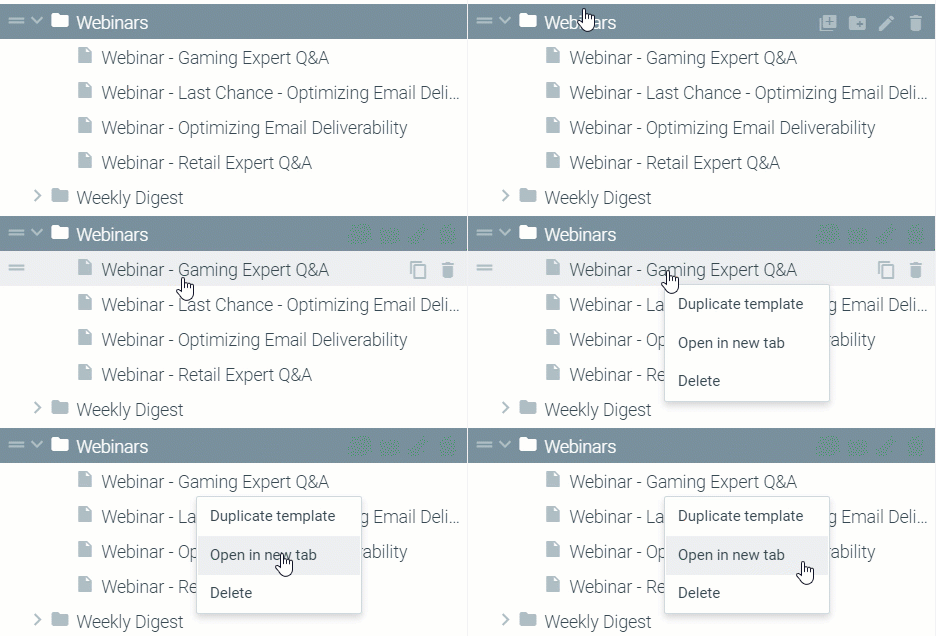
Right-click on the desired template to open multiple templates in separate tabs.
Introducing the Academy Widget
The academy experience has just gotten so much better! We're excited to announce the Optimove Academy Widget that brings the Optimove Academy experience to your site, seamlessly.
The widget dynamically filters contextual articles to allow you to:
- Search and read in-context articles
- Enjoy a complete in-app experience, never having to leave your site!
- Activate guides and tooltips, on-demand
- Contact the Optimove team with a click
Optimail
Click Maps Added to Optimail Templates
Use our new Click Map to see an analysis of your template's most clicked links. The metrics breakdown includes:
- Click rate (Unique clicks divided by Total clicks)
- Unique clicks
- Total clicks
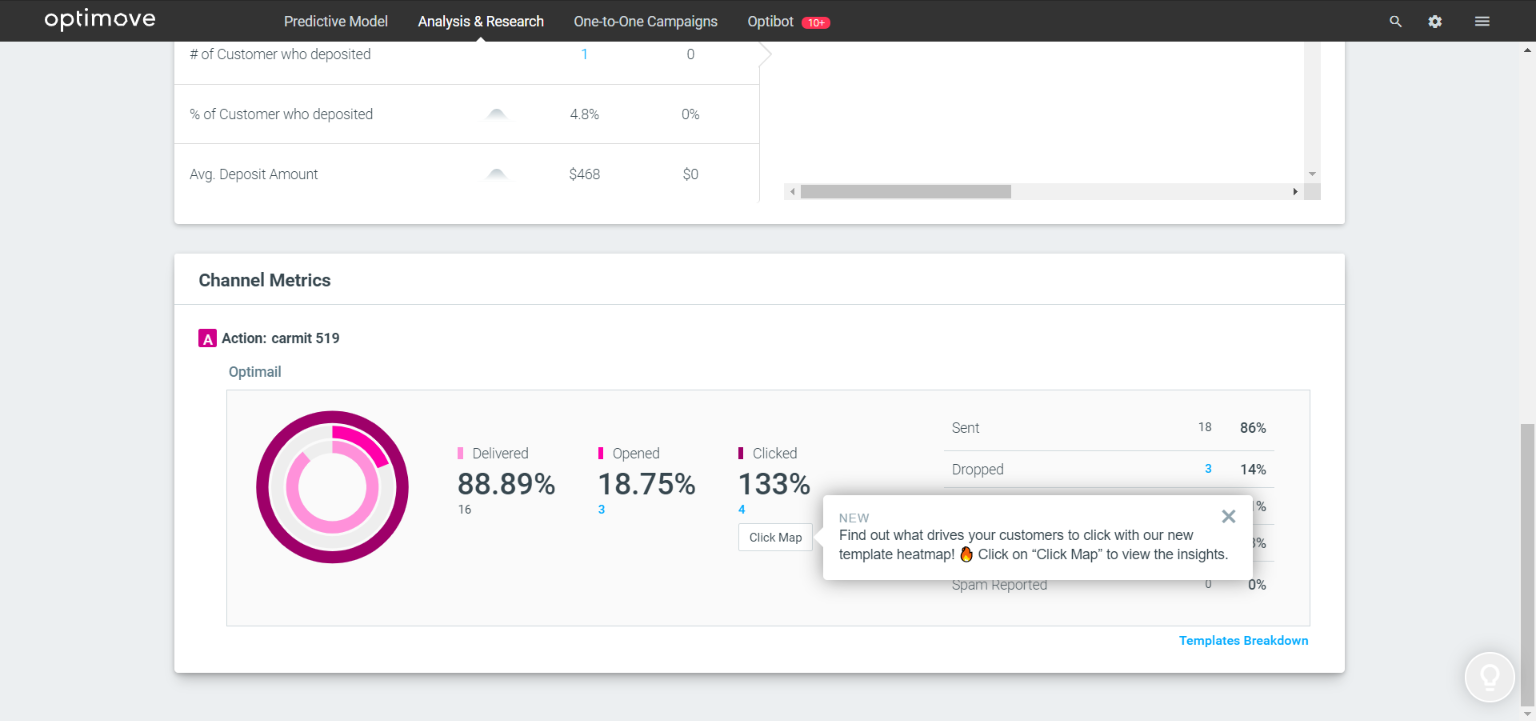
Find the Click Map button on the Campaign Analysis page, under the Channel Metrics section.