
Track & Trigger
Triggered Campaign Explorer Report – New Functionalities added
The Triggered Campaign Explorer revamp continues!
- You can now easily access Channel and Campaign Metrics. Just click on the three dots menu to the left of each row, or the blue arrows in the channel column.
- Add the new “Current Status” column to make sure you always know which campaign is active or inactive.
- Try the new “Occurrence Date” column for a Gannt view that showcases the days in which the campaign was scheduled.
New “Export Grid” Button
Export the Triggered Campaign Explorer report as a CSV file by using the new “Export” button.

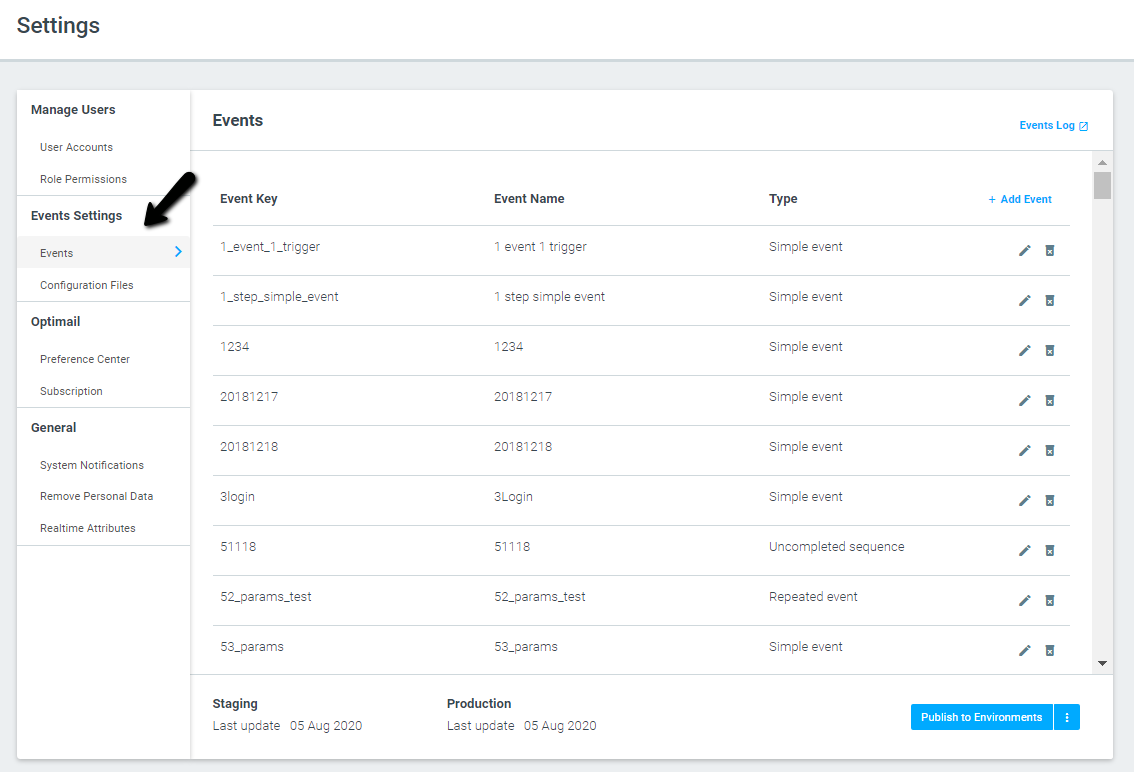
Update Events Independently with The Events Configuration Screen
Admins can now configure, edit and delete events to be reported into Optimove on their own via the Settings area, under Events Settings.
Track Streamed Events with The Events Log Screen
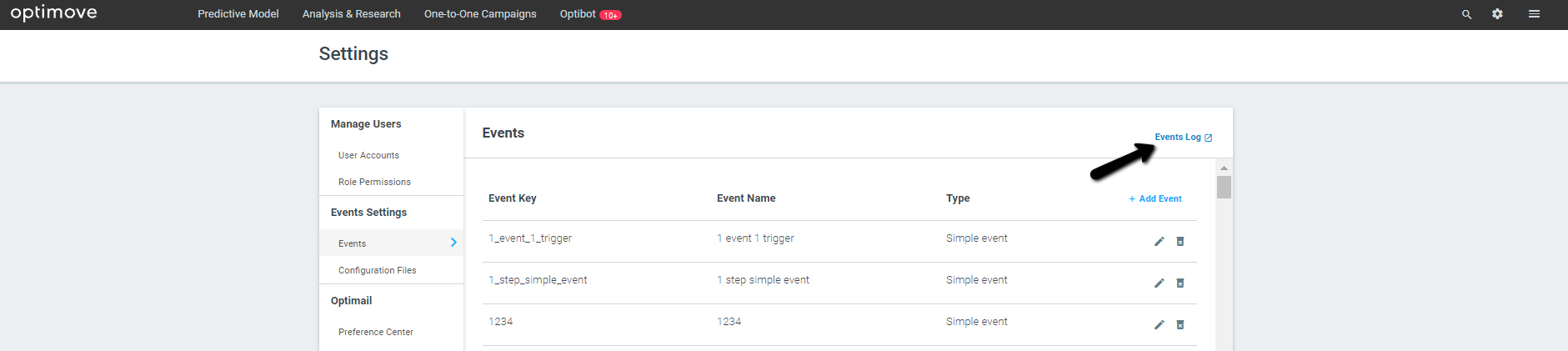
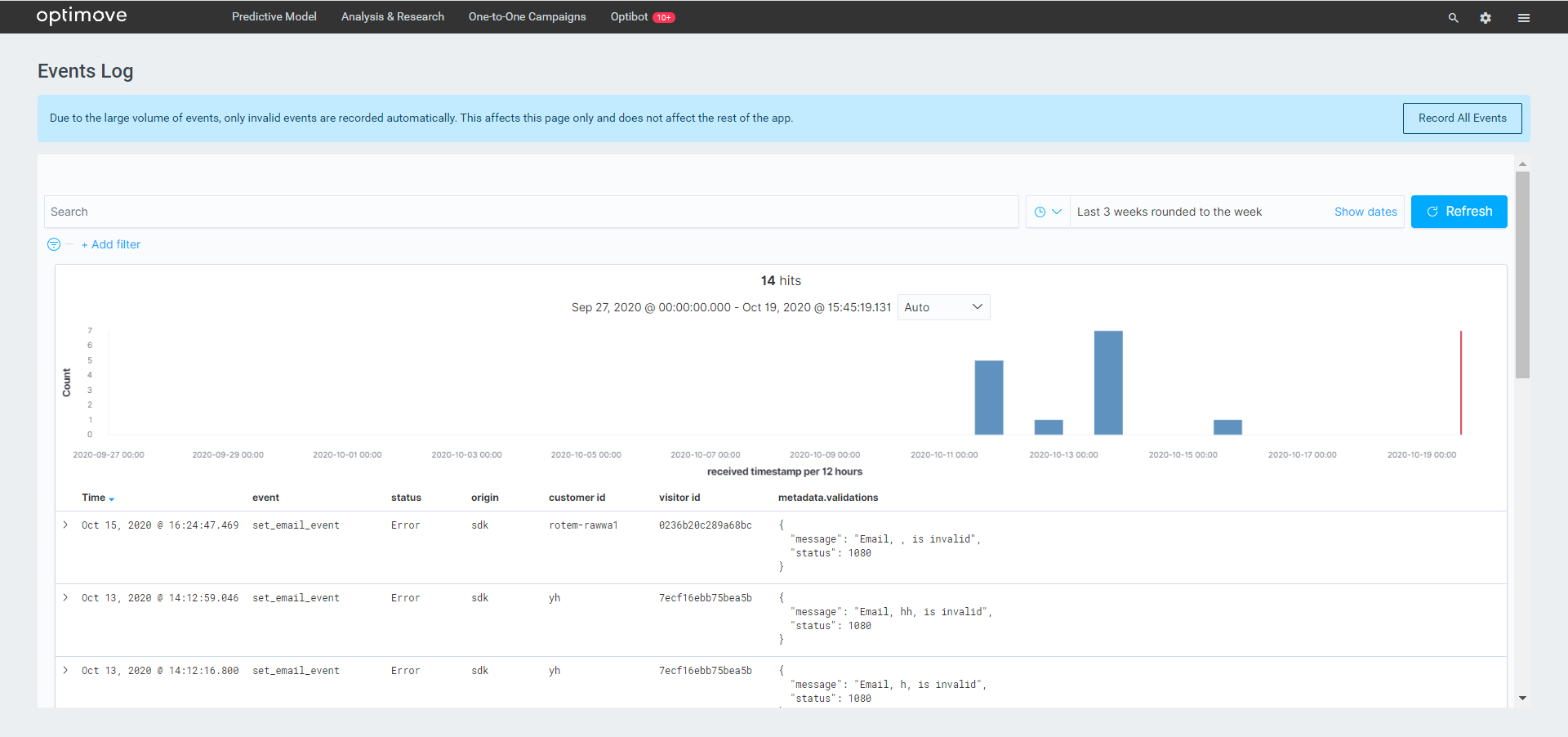
A new Events Log screen is now available to admins, providing direct access to all streamed events recorded by Optimove, including SDK, Server-Side, and 3rd– party events.
- Successful
- Warning – where the event may include one or more faulty parameters.
- Error – a problem that needs to be resolved was found before Optimove can make use of the event.
Optimail
Reuse Custom Rows Across Template Types and Brands
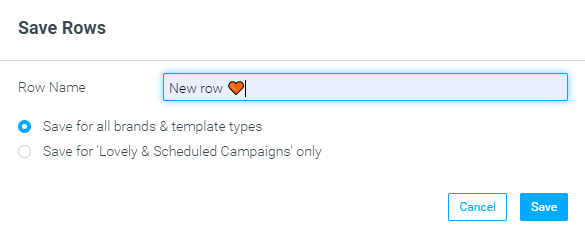
New custom rows can now be saved across template types and brands, making template creation more convenient. This update allows you to use the same row for multiple brands and email types (such as Transactional and Promotional).
|| Existing custom rows will need to be resaved for them to be used across all template types and brands.
Flexible Column Customization Added
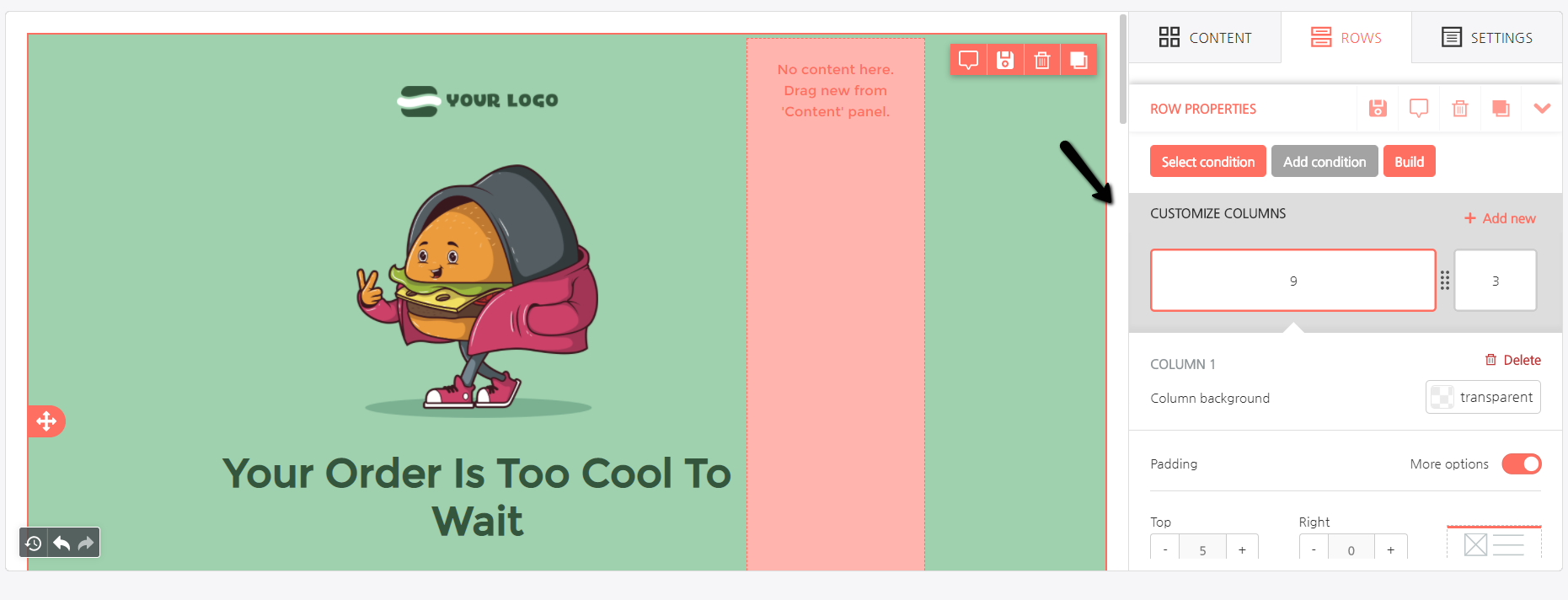
Using the Visual Editor? From now on, you’ll be able to add, resize, and delete columns in a row using a new “Customize Columns” widget inside the row’s properties.
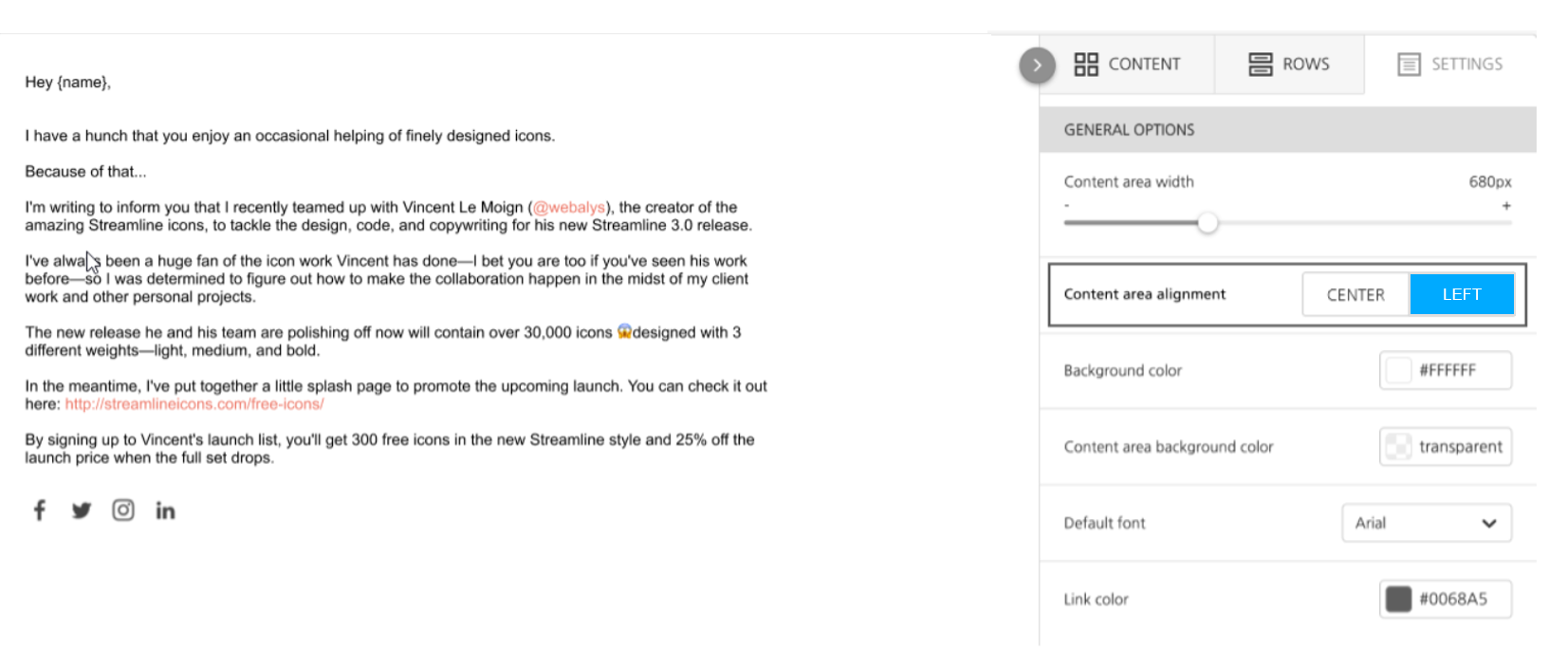
Content Area Alignment Added
Easily align the content of your emails to the left, to give email campaigns the appearance of personal emails. This update will be available starting November 10th.
Reverse Element Stacking on Mobile
Make sure your template is always at its best by reversing the row’s element stacking on mobile. Just toggle the new switch in the row's properties section.
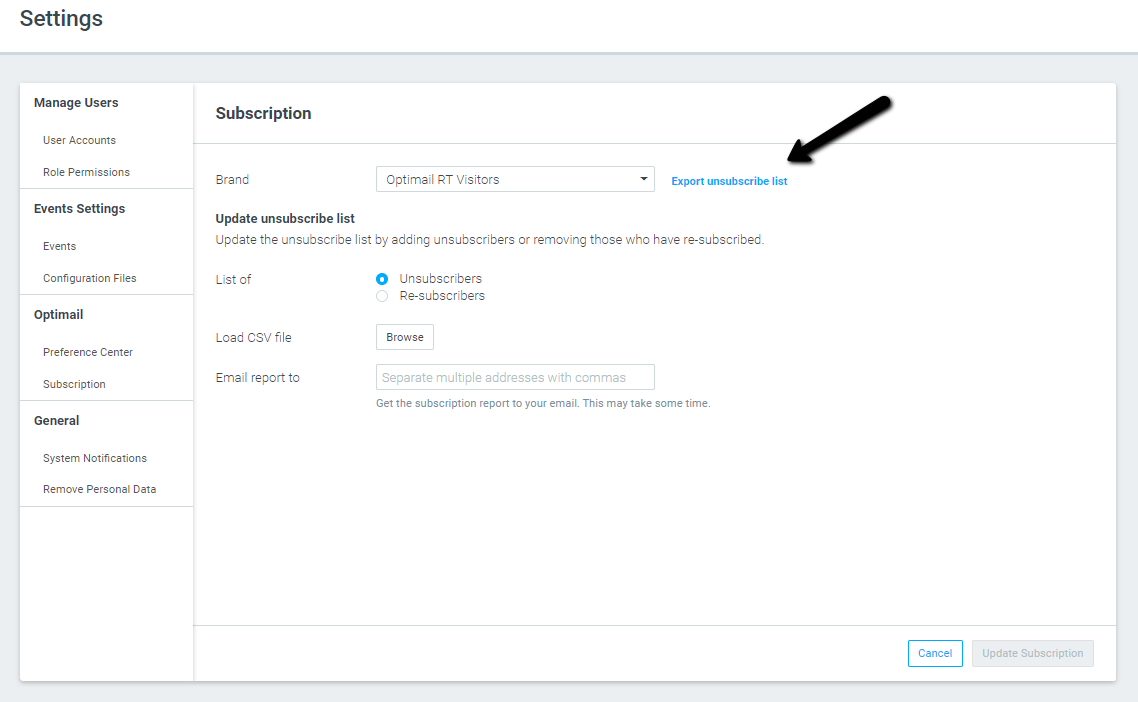
Export Unsubscribers via Settings
Optimail customers can export their entire list of unsubscribers, in a selected date range, to a CSV file.
Customer Explorer
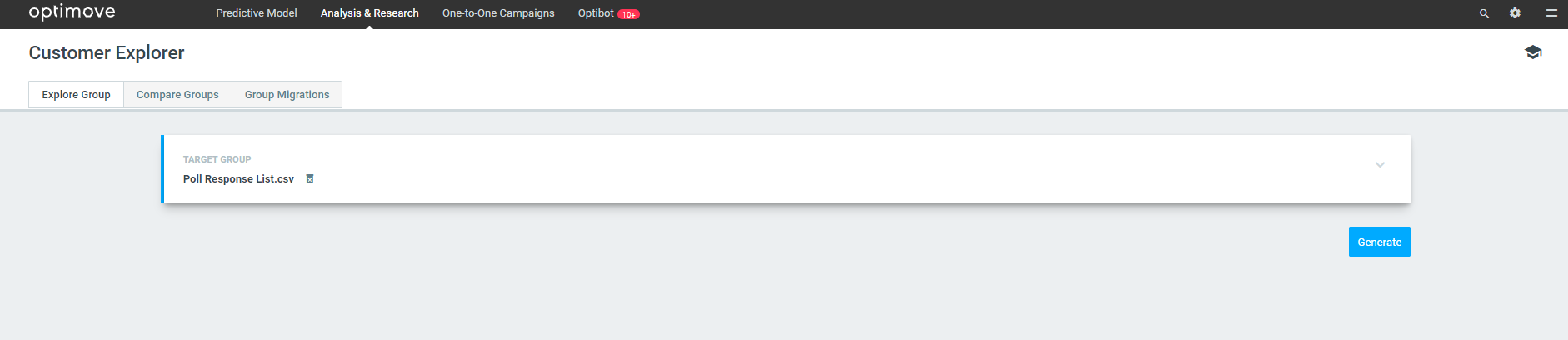
Import indication when successfully uploading a CSV list target group
Optimove will now provide an intuitive indication that a CSV file has been uploaded and is ready to be used to generate a report in the Customer Explorer.
New “Create Target Group” Button
We’ve changed the “Create Target Group” button location so it will be easier to locate.

General
Multiple Admins Now Supported
You can now have more than one admin for your Optimove site.
Always-Exclude Group Management Can Now Be Restricted to Admins Only
Always- Exclude target groups can be somewhat sensitive. To avoid mistakes, you can now limit “Always-Exclude” group management to the admins of your site.